Infrastructure Management

Cisco ACI Multi-Site Communication Ports

When configuring your Cisco ACI Multi-Site environment, keep in mind that the following ports are used by the Cisco ACI Multi-Site Orchestrator for network communications within the Cisco ACI Multi-Site environment.

Ports required for network communications between the Cisco ACI Multi-Site Orchestrator and Cisco APICs (Sites):

  • TCP Port 80/443 for APIC REST Configuration Deployment

Ports required for network communications between the Cisco ACI Multi-Site Orchestrator nodes:

  • TCP port 2377 for Cluster Management Communications

  • TCP and UDP port 7946 for Inter-Manager Communication

  • UDP port 4789 for Docker Overlay Network Traffic

Defining the Dataplane TEP For APIC Sites Using the APIC GUI

Before connecting a Cisco APIC cluster (fabric) in a Cisco ACI Multi-Site topology, you must configure the Dataplane Tunnel Endpoint (TEP) in the Fabric Ext Connection Policy for each fabric.

The Create Intrasite/Intersite Profile panel in the Cisco APIC GUI is used to add connection details for APIC multipod, remote leaf switches connecting to the ACI fabric, and APIC sites managed by Cisco ACI Multi-Site. When the Multi-Site infrastructure has been configured, the Multi-Site system adds the Intersite Dataplane TEP to this APIC policy.

To configure the Dataplane TEP in the Fabric Ext Connection Policy for each APIC site to be managed by Multi-Site, perform the following steps:

Procedure


Step 1

On the menu bar, click Tenants > infra.

Step 2

On the navigation pane (prior to Cisco APIC, Release 3.1), expand Networking and Protocol Policies.

Step 3

On the navigation pane (in APIC, Release 3.1 and later), expand Policies and Protocol.

Step 4

Right-click Fabric Ext Connection Policies and choose Create Intrasite/Intersite Profile.

Step 5

Click the + symbol on Pod Connection Profile.

Step 6

Choose the Pod ID from the list.

Step 7

Enter the IP address for dataplane traffic to this pod.

Step 8

Click Update and Submit.


Adding Sites Using the Multi-Site GUI

This section describes how to add sites using the Multi-Site GUI.

Procedure


Step 1

Log in to the Multi-Site GUI, in the Main menu, click Sites.

If you are logging in for the first time, the default log in is admin and password is we1come!. Then you are forced to change the password upon initial log in.

The new password requirements are:

  • At least 6 characters

  • At least 1 letter

  • At least 1 number

  • At least 1 special character apart from * and space

Step 2

In the Sites List page, click ADD SITES.

Step 3

In the Sites Details page, perform the following actions:

  1. In the NAME field, enter the site name.

  2. In the LABELS field, choose or create a label.

  3. In the APIC CONTROLLER URL field, enter the APIC URL. This can be https://<ip_address/dns_registered_hostname> or http://<ip_address/dns_registered_hostname>.

    If you have more than one APIC in a fabric, click the + icon to add additional APICs.

  4. In the USERNAME field, enter the user name.

  5. In the PASSWORD field, enter the password.

  6. You can turn on the SPECIFY DOMAIN FOR SITE switch, if you want to specify a domain name for the site.

    In the DOMAIN NAME field, enter the domain name for the site.

  7. If the APIC site does not have a site ID, you will receive the following message:

    APIC does not have an apic-site-id configured. Please provide an unique apic-site-id for this site. Once specified the apic-site-id cannot be changed without factory resetting APIC.

    • Click Ok.

    • In the SITE ID field, enter the site ID.

      The site ID must be an unique identifier of the APIC site. The range must be from 1 to 127.

  8. Click SAVE.

Step 4

Repeat these steps to add additional sites.


Deleting Sites Using the Multi-Site GUI

This section describes how to delete sites using the Multi-Site GUI.

Procedure


Step 1

Log in to the Multi-Site GUI.

Step 2

Ensure you unbind the site from any Schema’s before trying to delete the site.

Step 3

In the Main menu, click Sites.

Step 4

In the Sites List page, hover over the site you want to delete and choose Action > Delete .

Step 5

Click YES.


Configuring Infra Using the Multi-Site GUI

This section describes how to register sites and configure fabric connectivity infra for the sites using the Multi-Site GUI.

Before you begin

  • Ensure you have at least 2 sites.

    For more information, see Adding Sites Using the Multi-Site GUI.

  • In APIC, you need to have the Multipod dataplane TEP configured on the POD connection profile.

    For more information, see Defining the Dataplane TEP For APIC Sites Using the APIC GUI.

  • In APIC, you need to have one POD profile and it must contains a POD policy group. If it does not have a POD policy group you need to create one. To check if the POD profile contains a POD policy group, go to the APIC GUI, Fabric > Fabric Policies > Pod Policies > Profiles > Pod Profile default. To create a POD policy group, go to the APIC GUI, Fabric > Fabric Policies > Pod Policies, right-click Policy Groups and click Create Pod Policy Group. Enter the appropriate information and click Submit. Assign the new pod policy group to the POD Profile default, go to the APIC GUI, Fabric > Fabric Policies > Pod Policies > Profiles > Pod Profile default. Click on the default, choose the new pod policy group and click Update.

  • Any infrastructure changes such as adding, removing spines or spine node ID changes would require a Multi-Site fabric connectivity site refresh.

Procedure


Step 1

Log in to the Multi-Site GUI, in the Main menu, click Sites.

Step 2

In the Sites List area, click CONFIGURE INFRA.

Step 3

In the Fabric Connectivity Infra page, perform the following actions:

  1. In the Master List, click General Settings.

  2. In the Canvas, in the BGP PEERING TYPE area, from the drop-down list, choose either full-mesh or route-reflector.

    The default is full-mesh.

  3. In the KEEPALIVE INTERVAL (SECONDS) field, enter the keep alive interval seconds.

    The default is 60 seconds.

  4. In the HOLD INTERVAL (SECONDS) field, enter the hold interval seconds.

    The default is 180 seconds.

  5. In the STALE INTERVAL (SECONDS) field, enter stale interval seconds.

    The default is 300 seconds.

  6. In the GRACEFUL HELPER field, choose ON or OFF.

    The default is ON.

  7. In the MAXIMUM AS LIMIT field, enter the maximum as limit.

    The default is 0.

  8. In the BGP TTL BETWEEN PEERS field, enter the BGP TTL between peers.

    The default is 10.

Step 4

In the Property Pane, in the OSPF area, perform the following actions:

  1. You can either modify the msc-ospf-policy-default policy or you can add a new OSPF policy.

    To add a new OSPF, click ADD POLICY.

    • In the POLICY NAME field, enter the policy name.

    • In the NETWORK POINT field, choose either broadcast, point-to-point, or unspecified.

      The default is broadcast.

    • In the PRIORITY field, enter the priority number.

      The default is 1.

    • In the COST OF INTERFACE field, enter the cost of interface.

      The default is 0.

    • In the INTERFACE CONTROLS field, choose advertise-subnet, bfd, mtu-ignore, or passive-participation.

    • In the HELLO INTERVAL (SECONDS) field, enter the hello interval in seconds.

      The default is 10.

    • In the DEAD INTERVAL (SECONDS) field, enter the dead interval in seconds.

      The default is 40.

    • In the RETRANSMIT INTERVAL (SECONDS) field, enter the retransmit interval in seconds.

      The default is 5.

    • In the TRANSMIT DELAY (SECONDS) field, enter the transmit delay in seconds.

      The default is 1.

Step 5

In the Master list, choose a site from the SITE SETTINGS.

  1. In the Property Pane, perform the following actions:

    Note 
    If you add or remove any spines in the APIC GUI, in the Canvas, click on the site and click refresh. This will discover any new or removed spines and all site-related fabric connectivity to be re-imported from APIC. Any changes not pushed to APIC will be lost.
    • In the SITE IS MULTI-SITE ENABLED, turn on the site.

    • In the APIC SITE ID field, only displays the APIC site ID. You cannot change the site ID.

    • In the DATA PLANE MULTICAST TEP field, enter the data plane multicast TEP IP address.

    • In the BGP AUTONOMOUS SYSTEM NUMBER field, enter the BGP autonomous system number or the IP address.

    • (Optional) In the BGP PASSWORD field, if you have encryption enable then you can set a BGP password.

    • If you are running release 1.1(2) or prior: In the BGP COMMUNITY field, enter the BGP community. The format example is: extended:as2-nn4:4:15. The numbers are variables.

    • In the OSPF AREA ID field, enter the OSPF area ID or the IP address.

      Note 

      When configuring the Multi-Site infra OSPF details, Cisco recommends that you use OSPF Area 0. If you use an Area ID other than 0, in the next step configure it as a regular OSPF area type and not a stub area type.

    • In the OSPF AREA TYPE field, choose either nssa, regular, or stub.

      The default is nssa.

    • In the EXTERNAL ROUTER DOMAIN field, choose a external router domain that you have created in the APIC GUI.

    • In the IP SUBNETS TO IMPORT field, click ADD SUBNET. You can have more than one subnet.

      • In the SUBNET field, enter the subnet. You can either add the IP address or the IP address/netmask.

      • Click SAVE.

  2. In the Cavans, click on the POD and perform the following actions:

    • In the Property Pane, in the DATA PLANE UNICAST TEP field, enter the data plane unicast TEP IP address.

  3. In the Cavans, click on the spine and perform the following actions:

    • In the Property Pane, click ADD PORT and perform the following actions:

      • In the PORT ID field, enter the port ID (1/29).

      • In the IP ADDRESS field, enter the IP address/netmask.

      • In the MTU field, enter the MTU. The range is 576 to 9000 or inherit.

      • In the OSPF POLICY field, choose the OSPF policy.

      • Click SAVE.

        Note 
        • Multi-Site creates a sub-interface with VLAN 4 with the specified IP ADDRESS under the specified PORT.

        • MTU of the spine port should match MTU on IPN side.

        • OSPF settings under OSPF policy should match on IPN side.

        • Multi-Site does not require to run PIM Bidir inside the IPN.

    • (Optional) In the Property Pane, turn on BGP PEERING.

      • In the CONTROL PLANE TEP field, enter the control plane TEP IP address.

    • (Optional) In the SPINE IS ROUTE REFLECTOR field, turn it on if the spine can be route reflected.

    • Repeat step 5c for each spine.

  4. Repeat step 5 for the other sites.

Step 6

(Optional) If you are running release 1.2(1) or later: If decide to use the same Data Plane Unicast TEP for Multi-Site.

  1. In the Fabric Connectivity Infra, click on the site.

  2. Click on the POD.

  3. In the Property Pane, you can add the same Data Plane Unicast TEP for each POD.

    For more information, in the Data Plane Unicast TEP field, click on the i icon.

Step 7

Click APPLY.

Note 
If you receive an error message regarding a value that is incorrect in the a field for a particular site, go to that site and correct the value. Then click APPLY.

Multi-Site Cross Launch to Cisco APIC

Multi-Site currently supports the basic parameters to choose when creating a Tenant and setting up a site. Multi-Site supports most of the Tenant policies, but in addition to that you can configure some advanced parameters.

Use the Multi-Site GUI to manage the basic properties to configure. If you want to configure advanced properties, the capability to cross launch into Cisco APIC GUI directly from the Multi-Site GUI is provided. You can also configure the additional properties directly in Cisco APIC.

There are three different access points in Multi-Site GUI from where you can cross launch into APIC. From these access points in Multi-Site, you can open a new browser tab with access into Cisco APIC. You will log in to Cisco APIC at that point for the first time, and the associated screen is displayed in the Cisco APIC GUI.

Cross-Launch to Cisco APIC from the Property Pane

Before you begin

  • At least one site must be configured in Multi-Site.

  • The site must contain at least one tenant with entities such as VRF and bridge domain configured.

Procedure


Step 1

In the Main Menu, click Schemas, and on the Schema List page, click the appropriate Schema_name.

Step 2

In the Master List, under Sites, choose the appropriate schema_name.

Step 3

In the Canvas, choose the name of a specific entity.

For example, choose an available VRF, Contract, Bridge Domain, or another entity as appropriate.

The details for the specific entity are displayed in the Property Pane.

Step 4

In the Property Pane, click the cross-launch icon to cross-launch into the Cisco APIC GUI.


The APIC GUI login screen is displayed for logging in with APIC GUI credentials.

Cross-Launch to Cisco APIC from Sites

Before you begin

  • At least one site must be configured in Multi-Site.

  • The site must contain at least one tenant with entities such as VRF and bridge domain configured.

Procedure


Step 1

In the Main Menu, click Sites.

Step 2

In the Sites List page, hover over the name of the appropriate site, and under Actions, click the cross-launch icon to access the Cisco APIC GUI.


The APIC GUI login screen is displayed for logging in with APIC GUI credentials.

Cross-Launch to Cisco APIC from the Property Pane

Before you begin

  • At least one site must be configured in Multi-Site.

  • The site must contain at least one tenant with entities such as VRF and bridge domain configured.

Procedure


Step 1

In the Main Menu, click Schemas, and on the Schema List page, click the appropriate Schema_name.

Step 2

In the Master List, under Sites, choose the appropriate schema_name.

Step 3

In the Canvas, choose the name of a specific entity.

For example, choose an available VRF, Contract, Bridge Domain, or another entity as appropriate.

The details for the specific entity are displayed in the Property Pane.

Step 4

In the Property Pane, click the cross-launch icon to cross-launch into the Cisco APIC GUI.


The APIC GUI login screen is displayed for logging in with APIC GUI credentials.

Viewing Cisco ACI Multi-Site-Managed Objects Using the Cisco APIC GUI

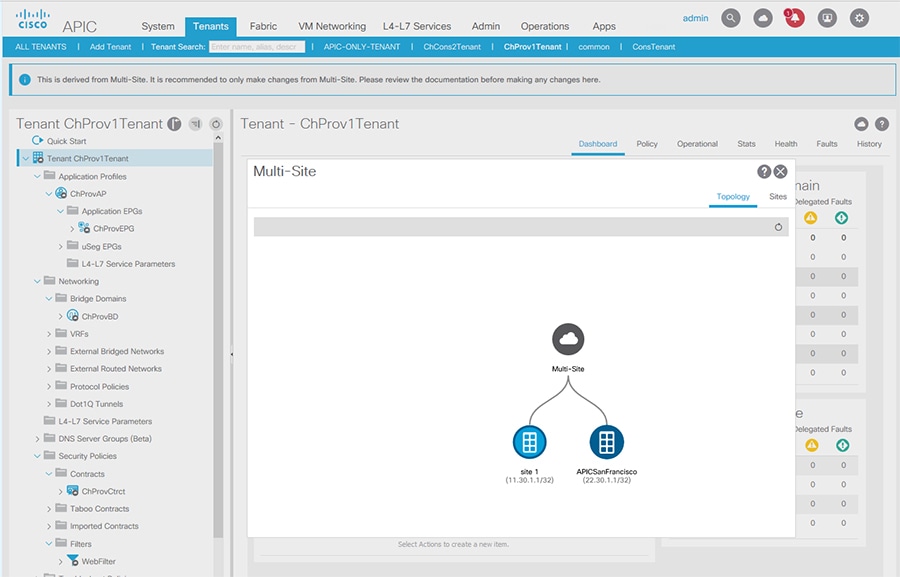
When an APIC cluster is managed by Multi-Site, cloud icons indicate the relationships with other sites.

Figure 1. Viewing Multi-Site-Managed Objects Using the APIC GUI

Before you begin

The APIC cluster/site must be set up to be managed by Cisco ACI Multi-Site.

Procedure


Step 1

To view the relationship of the APIC site with other sites, click the cloud icon at the upper right, next to the settings icons.

In the diagram, hover over the light blue site icon to see the local site details, and hover over the dark blue icon to see the remote site details.

In the image, T1 and its Application Profile, EPG, BD, VRF, and contracts are marked with cloud icons. This indicates that they are managed by Multi-Site. We recommend that you only make changes to these objects in the Multi-Site GUI.

Step 2

To view the localized or stretched usage of a VRF, bridge domain, or other objects, where there is a Show Usage button on the information page, perform the following steps; for example for Bridge Domain and VRF:

  1. On the menu bar, click Tenants and double-click on a tenant that is managed by Multi-Site.

  2. Click Networking > Bridge Domains > BD-name or Networking > VRFs > vrf-name.

Step 3

Click Show Usage.

Here you can view the nodes or policies using the object.

Note 

It is recommended to make changes to managed policies only in the Multi-Site GUI.

Step 4

To set the scope of deployment notification settings for this BD or VRF, click Change Deployment Settings. You can enable warnings to be sent for all deletions and modifications of the object on the Policy tab.

Step 5

To enable or disable Global warnings, check or uncheck the (Global) Show Deployment Warning on Delete/Modify check box.

Step 6

To enable or disable Local warnings, choose Yes or No on the (Local) Show Deployment Warning on Delete/Modify field.

Step 7

To view any past warnings, click the History tab Events or Audit Logs.


Configuring Network Mappings for Multiple Sites Using Multi-Site, Release 1.0(1)

To enable multiple sites to communicate with each other, you must configure the Network Mappings to link their L3Out connections in the Cisco ACI Multi-Site GUI.


Note

After you configure the Network Mappings, if you later delete or modify one of the linked L3Outs in APIC GUI, you must redeploy the Network Mappings to your sites from Multi-Site, unless the L3extInstP subnets are 0/0 on the remote sites.


Before you begin

This topic has been discontinued in Multi-Site, Release 1.0(2). To link L3Outs for your sites, see Connect Sites Through External EPGs.

  • Create a tenant using the Cisco ACI Multi-Site GUI and import or configure the VRF, Bridge Domain, Filters and Contracts, and Application Profile with EPGs for the tenant.

  • Deploy the tenant to multiple sites.

  • On each site (in Cisco APIC), create an L3Out connection for the local site, using the following guidelines:

    • The subnet in the L3extInstP must be the same for all inter-related sites (and variable length network masks are not supported).

    • When configuring L3Outs for various sites, each L3Out must be dedicated (not shared).

    • If you plan to configure GOLF in addition to Multi-Site, they both need separate L3Out policies to the IPN, but they can share a physical interface, as long as the same interface IP address is used.

For information about creating L3Out external connections using the APIC GUI, see Tenant Outside Networks in Cisco APIC Layer 3 Networking Configuration Guide.

Procedure


Step 1

Click Tenants.

Step 2

On a tenant that is stretched to multiple sites, click Actions and choose Network Mappings.

Step 3

Click NETWORK MAPPING.

Step 4

Under each site, click Select Network Mapping, and choose the L3Out (L3extInstP) for the site.

Step 5

Click Save.

Multi-Site enables forwarding between the L3Outs.