Cisco Smart+Connected Personalized Spaces User Guide
Bias-Free Language
The documentation set for this product strives to use bias-free language. For the purposes of this documentation set, bias-free is defined as language that does not imply discrimination based on age, disability, gender, racial identity, ethnic identity, sexual orientation, socioeconomic status, and intersectionality. Exceptions may be present in the documentation due to language that is hardcoded in the user interfaces of the product software, language used based on RFP documentation, or language that is used by a referenced third-party product. Learn more about how Cisco is using Inclusive Language.
- Updated:
- October 20, 2013
Chapter: Introduction
Introduction
This chapter provides an overview of the Cisco Smart+Connected Personalized Spaces (Smart+Connected Personalized Spaces).
• About Smart+Connected Personalized Spaces
•Logging In to the Smart+Connected Personalized Spaces
•Understanding the User Interface
•List of Color Code Indicators for a Booking
About Smart+Connected Personalized Spaces
The Smart+Connected Personalized Spaces solution enables you to plan utilization of resources at your workspace by maximizing office use and minimizing energy consumption. You can search for and book available workspaces and set your preferences, such as light settings, blinds, air conditioning, and so on.
The Smart+Connected Personalized Spaces solution is a holistic solution with an end-to-end integration for simple, flexible, and dynamic workspaces. It combines the following technologies to achieve a personalized user experience:
•Cisco Unified Communications Manager (CUCM)—For Cisco IP Phone interface integration with the Smart+Connected Personalized Spaces web portal
•Building Automation—For workspace services such as lights control, blinds, and air conditioner
•Digital Signage—To display images and messages at your workspace
The Smart+Connected Personalized Spaces solution offers the following features:
•Workspace Search—Allows you to search for an available workspace
•Workspace Booking with Preference Setting—Allows you to book a workspace for either yourself or another user and preset your preferences such as lights control, blinds, dimmer, and air conditioning.
•Checking in and out—Allows you to check in to the booked workspace at the scheduled time using either the web portal or a Cisco IP Phone available at the workspace. After using the workspace, you are checked out of the workspace.
Browser Requirements
The Smart+Connected PS application is compatible with the following browsers:
•Mozilla Firefox Version 6.0 and version 13.0
•Internet Explorer Version 8.0 and version 9.0
•Google Chrome Version 21.0
Terminology
The following terms are used in this document:
•Workspace—The physical office space such as cubicle and offices.
•Service—The customizable resources such as light controls, blinds, and air conditioners available at the workspace.
Logging In to the Smart+Connected Personalized Spaces
To log in to the Smart+Connected Personalized Spaces application, perform the following steps:
Step 1 In the Address field of the browser, enter the application server URL: http://<host>:<port>/ipsapp, and press Enter.
where the host is the IP address or the DNS name of the host on which Smart+Connected Personalized Spaces application has been deployed on the Weblogic/JBoss server , while the port is the port number that you have defined for the WebLogic/JBoss server.
The Smart+Connected Personalized Spaces Login page appears.
Step 2 Enter the username and password in the Username and Password fields, and click Login.
The Smart+Connected Personalized Spaces home page appears.
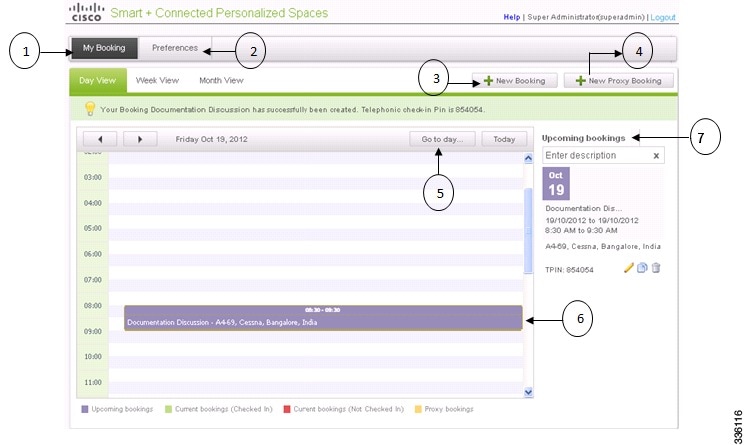
Understanding the User Interface
Figure 1-1 Elements of the Smart+Connected Personalized Spaces User Interface
List of Color Code Indicators for a Booking
Table 1-2 describes the available color code indicators that are displayed in the booking bar.


 Feedback