Cisco Terminal Services (TS) Agent Guide, Version 1.4

PDF

Cisco Terminal Services (TS) Agent Guide, Version 1.4

Configure the TS Agent

Want to summarize with AI?

Log in

Configure the TS Agent to connect with a Cloud-Delivered Firewall Management Center or On-Prem Firewall Management Center, synchronize server time, and test the REST API connection to support secure user monitoring and seamless integration.


Use the TS Agent interface to configure the TS Agent. You must save your changes and reboot the server for your changes to take effect.

Before you begin

  • If you are connecting to the Cloud-Delivered Firewall Management Center or On-Prem Firewall Management Center, configure and enable one or more Active Directory realms targeting the users your server is monitoring, as described in the Cisco Secure Firewall Management Center Device Configuration Guide.

  • If you are connecting to an On-Prem Firewall Management Center, configure a user account with REST VDI privileges.

    You must create the REST VDI role in the Firepower Management Center as discussed in Creating the REST VDI Role.

  • If you are already connected to the Cloud-Delivered Firewall Management Center or On-Prem Firewall Management Center and you are updating your TS Agent configuration to connect to a different Cloud-Delivered Firewall Management Center or On-Prem Firewall Management Center, you must end all current user sessions before saving the new configuration. For more information, see Ending a Current User Session .

  • Synchronize the time on your TS Agent server with the time on your Cloud-Delivered Firewall Management Center or On-Prem Firewall Management Center.

  • Cloud-Delivered Firewall Management Center only, get an API token as discussed in Get an API Token

  • Review and understand the configuration fields, as described in TS Agent Configuration Fields.

Procedure

1.

On the server where you installed the TS Agent, start the TS Agent as described in Start the TS Agent Configuration Interface.

2.

Click the Configure tab.

3.

Cloud-Delivered Firewall Management Center only: Click the Cloud tab at the bottom of the page.

4.

On-Prem Firewall Management Center only: Click the On-Prem tab tab at the bottom of the page.

5.

See TS Agent Configuration Fields.

6.

After you have configured the TS Agent, click Test to test the REST API connection between the TS Agent and the system.

If you have a primary and secondary On-Prem Firewall Management Center configured, the test connection to the secondary fails. This is expected behavior. The TS Agent communicates with the active On-Prem Firewall Management Center at all times. If the primary fails over and becomes the inactive On-Prem Firewall Management Center, the TS Agent communicates with the secondary (now active) On-Prem Firewall Management Center.

7.

Click Save and confirm that you want to reboot the server.


TS Agent Configuration Fields

The following fields are used to configure the settings on a TS Agent.

General Settings

Table 1. General Settings Fields

Field

Description

Example

Max User Sessions

The maximum number of user sessions you want the TS Agent to monitor. A single user can run several user sessions at a time.

This version of the TS Agent supports 29 user sessions by default, up to a maximum of 199 user sessions.

29 (the maximum supported value in this version of the TS Agent)

Server NIC

The TS Agent supports using a single network interface controller (NIC) for port translation and server-system communications. If two or more valid NICs are present on your server, the TS Agent performs port translation only on the address you specify during configuration.

The TS Agent automatically populates this field with the IPv4 address and/or IPv6 address for each NIC on the server where the TS Agent is installed. A valid NIC must have a single IPv4 or IPv6 address, or one of each type; a valid NIC cannot have multiple addresses of the same type.

Note

If the server's IP address changes, you are prompted to save the configuration and reboot the server to make the change effective.

Note

You must disable router advertisement messages on any devices connected to your server. If router advertisements are enabled, the devices may assign multiple IPv6 addresses to NICs on your server and invalidate the NICs for use with the TS Agent.

Ethernet 2 (192.0.2.1) (a NIC on your server)

System Ports

The port range you use for system processes. The TS Agent ignores this activity. Configure a Start port to indicate where you want to begin the range. Configure a Range value to indicate the number of ports you want to designate for each individual system process.

Cisco recommends a Range value of 5000 or more. If you notice the TS Agent frequently runs out of ports for system processes, increase your Range value.

Note

If a system process requires a port that falls outside your designated System Ports, add the port to the Exclude Port(s) field. If you do not identify a port used by system processes in the System Ports range or exclude it, system processes might fail.

The TS Agent automatically populates the End value using the following formula:

( [Start value] + [Range value] ) - 1

If your entries cause the End value to exceed the Start value of User Ports, you must adjust your Start and Range values.

Start set to 10000 and Range set to 5000

User Ports

The port range you want to designate for users. Configure a Start port to indicate where you want to begin the range. Configure a Range value to indicate the number of ports you want to designate for TCP or UDP connections in each individual user session.

Note

ICMP traffic is passed without being port mapped.

Cisco recommends a Range value of 1000 or more. If you notice the TS Agent frequently runs out of ports for user traffic, increase your Range value.

Note

When the number of ports used exceeds the value of Range, user traffic is blocked.

The TS Agent automatically populates the End value using the following formula:

[Start value] + ( [Range value] * [Max User Sessions value] ) - 1

If your entries cause the End value to exceed 65535, you must adjust your Start and Range values.

Start set to 15000 and Range set to 1000

Ephemeral Ports

Enter a range of ephemeral ports (also referred to as dynamic ports) to allow the TS Agent to monitor.

Start set to 49152 and Range set to 16384

Unknown Traffic Communication

Check Permit to allow the TS Agent to permit traffic over System ports; however, the TS Agent does not track port usage. System ports are used by the Local System account or other local user accounts. (A local user account exists only on the TS Agent server; it has no corresponding Active Directory account.) You can choose this option to permit the following types of traffic:

  • Permit traffic run by the Local System account (such as Server Message Block (SMB)) instead of being blocked. The Cloud-Delivered Firewall Management Center or On-Prem Firewall Management Center identifies this traffic as coming from the Unknown user because the user does not exist in Active Directory.

    Enabling this option also enables you to successfully test the connection with the Cloud-Delivered Firewall Management Center or On-Prem Firewall Management Center if you log in to the TS Agent server using a local system account.

  • When a user or system session exhausts all available ports in its range, the TS Agent allows the traffic over ephemeral ports. This option enables the traffic; the Cloud-Delivered Firewall Management Center or On-Prem Firewall Management Center identifies the traffic as coming from the Unknown user.

    This is especially useful when System ports are needed for keeping system healthy, such as domain controller updates, authentications, Windows Management Interface (WMI) queries, and so on.

Uncheck to block traffic on system ports.

n/a

Reserve Port(s)

The port(s) you want the TS Agent to ignore. Enter the ports you want to exclude as a comma-separated list.

The TS Agent automatically populates Reserve Port(s) with default port values for the Citrix MA Client (2598), Citrix Provisioning (6910), and Windows Terminal Server (3389). If you do not exclude the proper ports, applications requiring those ports might fail.

If you're using Citrix Provisioning and you're upgrading from an earlier TS Agent version, you must enter 6910 in this field.

The value you specify in the TS Agent Reserve Port(s) field must match one of the Citrix Provisioning First and Last UDP port numbers ports.

Caution

Failure to specify the correct port will cause clients to fail to boot.

Note

If a process on your server is using or listening in on a port that is not in your System Ports range, you must manually exclude that port using the Reserve Port(s) field.

Note

If there is a client application installed on your server and the application is configured to bind to a socket using a specific port number, you must use the Reserve Port(s) field to exclude that port from translation.

Typically one of the following:

  • 2598,3389 (the Citrix MA Client and Windows Terminal Server ports)

  • 2598,3389, 6910 (the Citrix MA Client, Windows Terminal Server, and Citrix Provisioning ports)

On-Prem Firewall Management Center Settings

You can configure a connection primary and, optionally, standby (failover) system appliances:

  • If your system appliance is standalone, leave the second row of FMC/REST API Connection fields blank.

  • If your system appliance is deployed with a standby (failover) appliance, use the first row to configure a connection to the primary appliance and the second row to configure a connection to the standby (failover) appliance.

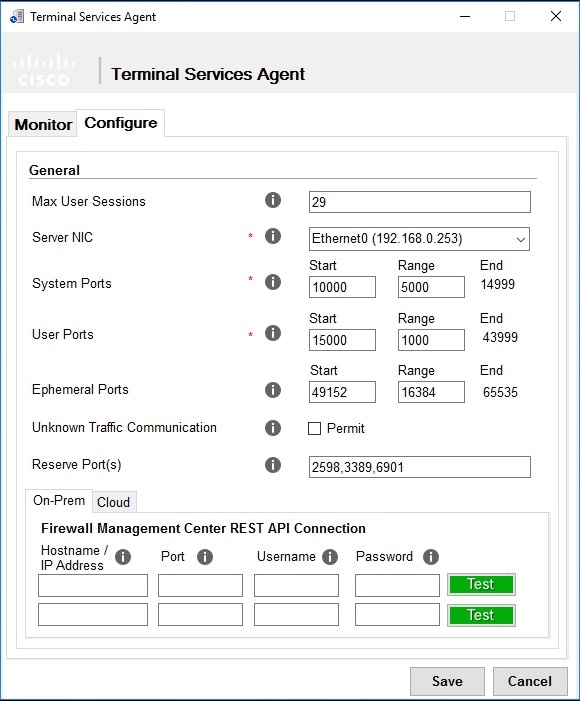
Sample On-Prem tab page:

The TS Agent's On-Prem tab page enables you to set general configuration options and Secure Firewall Manager connection information. Secure Firewall connection information includes the manager or cluster's IP address, port, user name, and password

Table 2. On-Prem Firewall Management Center Settings Fields

Field

Description

Example

Hostname / IP Address

The hostname or IP address for the primary or On-Prem Firewall Management Center.

192.0.2.1

Port

The port the or On-Prem Firewall Management Center uses for REST API communications. The TS Agent automatically populates this field to 443, the REST API port on the or On-Prem Firewall Management Center.

443

Username and Password

The or On-Prem Firewall Management Center username and password for a user with REST VDI privileges on the or On-Prem Firewall Management Center. For more information about configuring this user, see Creating the REST VDI Role.

n/a