Cisco Security Cloud Control: Secure Firewall Management

PDF

Cisco Security Cloud Control: Secure Firewall Management

Secure event connector troubleshooting

Want to summarize with AI?

Log in

Describes how to troubleshoot Secure Event Connector issues, including onboarding and registration failures, NSEL data flows, event logging problems, inactive SEC status, missing events, host removal, and health checks.


Secure Event Connector troubleshooting is a diagnostic process that involves identifying and resolving issues with Secure Event Connector functionality and performance.

Support resources

If none of the scenarios described match your issue, open a case with Cisco Technical Assistance Center (TAC) for further assistance.
Troubleshoot SEC onboarding failures

The troubleshooting scenarios describe a variety of symptoms associated with Secure Event Connector (SEC) onboarding and operational failures. Use this topic to identify and resolve the issue impacting your deployment.

SEC onboarding failed

Symptom: SEC onboarding failed.

Repair: Remove and onboard the SEC again.

Tip

Always use the copy link to copy the bootstrap data when on-boarding an SEC.

Note

If this procedure does not correct the problem, gather the troubleshooting logs and contact your Managed Service Provider or the Cisco Technical Assistance Center.

Downloading, decoding, or extracting bootstrap data failed

Messages:

  • [Error] Downloading the bootstrap package failed.

  • [Error] Extracting the bootstrap package failed.

  • [Error] Max retries exceeded for bootstrap download.

Diagnosis: Decoding bootstrap data failed.

Repair:

  • Wait briefly and retry the bootstrap operation.

  • Add a new SEC in the UI and attempt to bootstrap the new one instead.

Adequate CPU and memory not available

Message: [Error] Secure Event Connector minimum system requirements not met.

 [sdc@localhost ~]$ /usr/local/cdo/toolkit/sec.sh setup 
[2020-06-10 04:37:26] ERROR unable to setup Secure Event Connector, minimum 4 cpus and 8 GB ram required, exiting. 

Diagnosis: Adequate CPU and memory not available.

Repair: Increase the resources of your virtual machine to meet the minimum required specifications.

Host already has an SEC

Message: [Error] This host currently has an SEC enabled for the same tenant. Please remove the SEC before trying to bootstrap it again.

Diagnosis: SEC already running.

Repair: Ensure that there is no existing operational SEC in your environment. If one is present but not operational, remove it and then re-bootstrap the SEC.

Note

Ensure that you are removing an active SEC. This error message can occur when a bootstrap progresses far enough for the system to assume normal operation but fails to fully complete. As a result, it is possible that a bootstrap error is causing this situation.

To confirm, run the command sdc eventing healthcheck . If the health check reports all green, it indicates that the SEC is active and functioning properly. In such a case, removing it would disrupt an operational SEC.

Contact Security Cloud Control Support

If none of the scenarios described above match your issue, open a case with Cisco Technical Assistance Center.


Troubleshoot secure event connector registration failure

This task helps you identify and resolve common issues that prevent the Secure Event Connector (SEC) from successfully registering to the eventing cloud service.

Symptom: Registration of Cisco Secure Event Connector to cloud eventing service fails.

Diagnosis: These are the most common reasons that the SEC fails to register to the eventing cloud service.

  • The SEC is unable to reach the Eventing cloud service from SEC

    Repair: Ensure that Internet is accessible on port 443 and DNS is configured correctly.

  • Registration failure due to invalid or expired one-time-password in SEC bootstrapdata

    Repair:

Procedure

  1. SSH to the host VM as the admin user, typically cdo.

  2. Switch to the sdc user usingthe command: sudo su - sdc.

  3. View the connector log by running command sdc eventing logs --type connector.

    Note

    If the registration has failed due to an invalid token, you see an error message in the log file similar to the example below:

    context:(*contextImpl).handleFailed] registration - CE2001: Registration failed - Failed to register the device because of invalid token. Retry with a new valid token.

  4. Remove the SEC.

  5. Add a new SEC in the UI and re-onboard.

The Secure Event Connector successfully registers to the cloud eventing service and registration failures are resolved.


Collect troubleshooting logs for secure event connector

The troubleshooting command simplifies the diagnosis of issues by collecting logs, configurations, and limited system information into a single compressed archive.

If you already have a TAC case open, the compressed archive can also be sent directly to your TAC representative.

Before you begin

Follow these steps to collect troubleshooting logs for Secure Event Connector:

Procedure

  1. SSH to your host using the admin account, typically cdo.

  2. Switch to the SDC user using the command sudo su - SDC

  3. Run the appropriate troubleshoot command based on whether you have a TAC case open.

    If...

    Then...

    You do not have a TAC case open

    Run the command to gather and compress the troubleshooting bundle: SDC eventing troubleshoot

    You already have a TAC case open

    Request an upload token from your TAC representative and use the command: SDC eventing troubleshoot --case-number [your-TAC-case-number] --token [the-token-TAC-provided]

  4. If you prefer to retrieve the troubleshooting bundle manually, use SCP or SFTP.

    Locate the absolute path to the bundle provided in the last log entry after running the troubleshoot command. Then, use the following SCP command to download the bundle to your local machine:

    scp -P [22 or whichever port you SSH on]
            cdo@your-vm-ip:/opt/cdo/.cdo/troubleshooting/cdo_[tenant-name-here]
            -troubleshooting-[timestamp-here].tar.gz ./sec-troubleshooting-bundle.tar.gz
    Note

    Replace /opt/cdo/.cdo/troubleshooting/cdo_\[tenant-name-here\]-troubleshooting-\[timestamp-here\].tar.gz with the actual path displayed in the log output.

    If you want to decompress the archive to review the logs and system configurations, use the command: tar xvf ./[sec-troubleshooting-bundle-filename].tar.gz

The troubleshooting bundle is created as a compressed archive file containing logs, configurations, and system information ready for analysis or TAC submission.


Troubleshooting: SEC status is inactive in Security Cloud Control

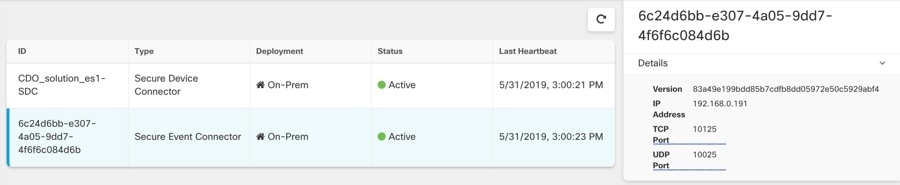
The Secure Event Connector status shows "Inactive" in the Security Cloud Control Secure Connectors page after onboarding for one of these reasons:

  • Heartbeat failed

  • Connector registration failed

Heartbeat failed: Request SEC heartbeat and refresh Secure Connector page to see if the status changes to "Active", if not check if the Secure Device Connector registration failed.

Connector registration failed: Refer issue Troubleshooting SEC Registration Failure.


The SEC is online, but there are no events in Security Cloud Control Event Logging Page

This task helps diagnose and resolve issues where the Secure Event Connector appears online in Security Cloud Control but events are not being received or displayed in the Event viewer.

Symptom: The Secure Event Connector shows "Active" in Security Cloud Control Secure Connectors page but you do not see events in Security Cloud Control Event viewer.

Solution or workaround:

Procedure

  1. SSH to your host using the admin account, typically cdo .

  2. Switch to the SDC user with the command sudo su - SDC .

  3. Perform the following checks:

    INFO success: estreamer-connector entered RUNNING state, process has stayed up for > than 1 seconds

    INFO success: estreamer-plugin entered RUNNING state, process has stayed up for > than 1 seconds

    INFO success: estreamer-rsyslog entered RUNNING state, process has stayed up for > than 1 seconds

    The image illustrates the Event Logging Page, highlighting the absence of events and emphasizing the need to check firewall rules for UDP and TCP ports related to the SEC.

    • If you have setup SDC manually using a CentOS 7 VM of your own and have the firewall configured to block incoming requests, you could execute the following commands to unblock the UDP and TCP ports:

    firewall-cmd --zone=public --add-port=<udp_port>/UDP --permanent

    firewall-cmd --zone=public --add-port=<tcp_port>/TCP --permanent

    firewall-cmd --reload

    • Using Linux network tools of your choice, check if packets are being received on these ports. If not receiving, re-check the FTD logging configuration.

    If none of the above repairs work, raise a support ticket with Security Cloud Control support..

After performing these checks and resolving any identified issues, events should begin appearing in the Security Cloud Control Event viewer. If issues persist, contact support for further assistance.


Remove an SEC from your host

Remove the SEC container along with its associated files from the Secure Device Connector (SDC) virtual machine to address issues such as Secure Event Connector registration failures or onboarding failures.

The Secure Event Connector (SEC) delete command removes the SEC container along with its associated files from the Secure Device Connector (SDC) virtual machine. This command is typically used to address issues such as Secure Event Connector registration failures or onboarding failures.

Follow these steps to remove an SEC from your host:

Procedure

  1. SSH to your host using the admin account, typically cdo.

  2. Switch to the SDC user with sudo su - SDC.

  3. Run the command SDC eventing delete.

    If applicable, you will be prompted to select the tenant you wish to delete. Follow the on-screen prompts to confirm your selection and fully remove the SEC data from the virtual machine.

The SEC container and its associated files are removed from the SDC virtual machine, resolving registration or onboarding failures.


Use health check to learn the state of your secure event connector

Use the Health Check script to gather information about the state and operational status of your Secure Event Connector (SEC).

The Secure Event Connector (SEC) Health Check script provides information on the state of your SEC.

Before you begin

Follow these steps to run Health Check:

Procedure

  1. SSH to your host using the admin account, typically cdo.

  2. Switch to the SDC user using the command sudo su - SDC

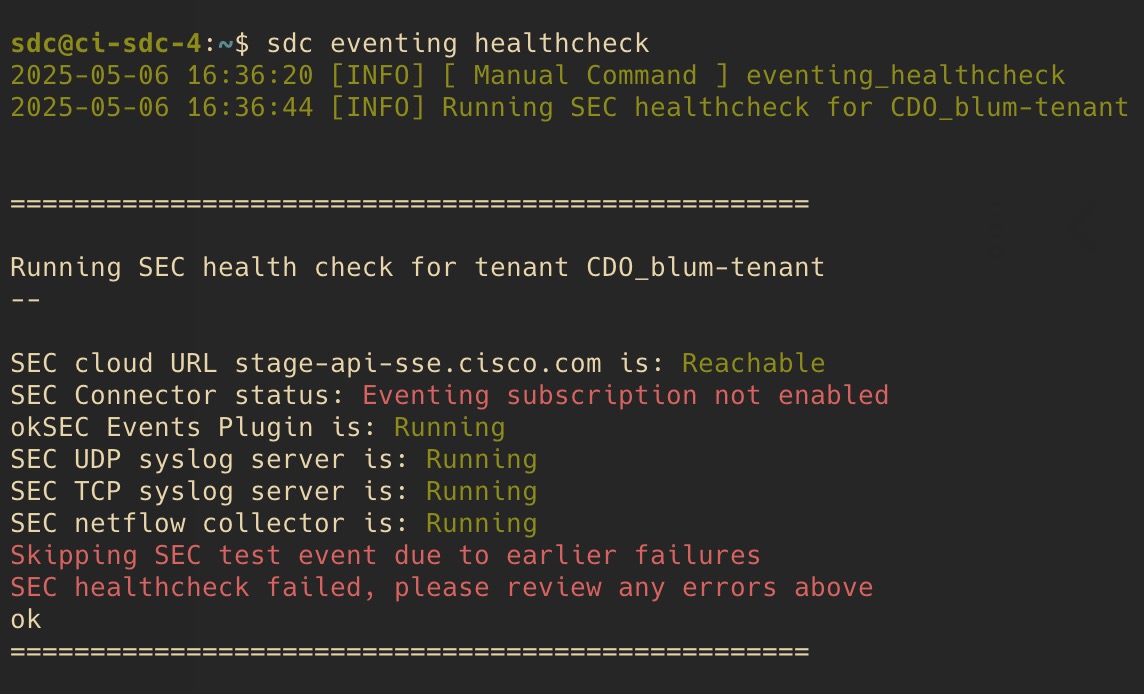
  3. Run the command SDC eventing healthcheck and, if applicable, select the tenant when prompted.

    The SEC Health Check script output displays the status of the Secure Event Connector, including the cloud URL and connectivity status.

    Values of Health Check output:

    • SEC Cloud URL: Displays the Security Cloud Control cloud URL and whether or not the SEC can reach Security Cloud Control.

    • SEC Connector: Will show "Running" if the SEC connector has been onboarded correctly and has started.

    • SEC UDP syslog server: Will show "Running" if the UDP syslog server is ready to send UDP events.

    • SEC TCP syslog server: Will show "Running" if the TCP syslog server is ready to send TCP events.

    • SEC Connector status: Will show Active if the SEC is running and onboarded to Security Cloud Control.

    • SEC Send sample event: If at the end of the health check, all the status checks are "green," the tool sends a sample event. (If any of the processes are "Down," the tool skips sending the test event.) The sample event shows up in the Event Log as a policy named "SEC-health-check."

The Health Check script displays the operational status of your SEC components and sends a test event if all systems are running correctly.