Learn how to onboard a Cisco IOS device. You can onboard a live Cisco device running Cisco IOS (Internetwork Operating System).
You can onboard a live Cisco device running Cisco IOS (Internetwork Operating System).
Cisco Security Cloud Control: Secure Firewall Management
Is this content helpful?
Thank you for your feedback. Your response has been recorded.
AI responses are currently only available to logged in users. Log in
Only ask questions about this document. To ask questions about this product as a whole, go to Technical Documentation .
Suggestions
Sorry, we couldn't generate a response for this query.
Cisco Security Cloud Control: Secure Firewall Management
Updated: November 13, 2026
Want to summarize with AI?
Log inLearn how to onboard a Cisco IOS device. You can onboard a live Cisco device running Cisco IOS (Internetwork Operating System).
You can onboard a live Cisco device running Cisco IOS (Internetwork Operating System).
Before you begin, ensure that all prerequisites are met.
Your Cisco IOS server must support ciphers that are compatible with Security Cloud Control. Currently, Security Cloud Control supports a limited set of ciphers for onboarding Cisco IOS devices. Supported ciphers are aes128-ctr, aes192-ctr, aes256-ctr, aes128-gcm, aes128-gcm@openssh.com, aes256-gcm, aes256-gcm@openssh.com.
Log in to your Secure Device Connector (SDC) and run the command ssh -vv <ip_address> to view the ciphers your server supports.
You must have an active on-premises Secure Device Connector (SDC) in your network to add a Cisco IOS device.
For more information about SDCs and deployment scenarios, refer to Secure Device Connector.
From the Security Cloud Control Home page, click Firewall.
Click Security Devices
Click the blue add button  to begin onboarding the device.
Click the Integrations tile.
If the tile is grayed out, there is no active Secure Device Connector deployed in your network for your Security Cloud Control tenant.
Enter these details in the Locate Device page.
Enter these details in the SSH Fingerprint page.
NoteCurrently, Security Cloud Control does not support connections using public key authentication.
(Optional) Enter a label for the device in the Done page. For more information about labels and label groups, refer to Labels and Label Groups.
Click Go to Security Devices to return to the Security Devices page.
After successful onboarding, the Configuration Status changes to 'Synced,' and Connectivity changes to 'Online.'
When you onboard a Cisco Integrated Services Router (ISR) or Aggregation Services Router (ASR) device to Security Cloud Control, the device’s running configuration is represented as a Cisco IOS model. This model is a copy of the device configuration and is used to centrally manage supported security settings, such as firewall and VPN policies. You can download the Cisco IOS model as a text file and import it into another tenant that you manage to replicate or reuse the configuration.
You can download the configuration for an onboarded Integrated Services Router (ISR) or Aggregation Services Router (ASR) device from Security Cloud Control and use it to bootstrap the device or save its current managed configuration locally.
From the Security Cloud Control Home page, click Firewall.
Click Security Devices.
Click the Devices tab.
Click the IOS tab and select a device.
Click Configuration under the Management section.
Click Download to download the device configuration to your local computer.
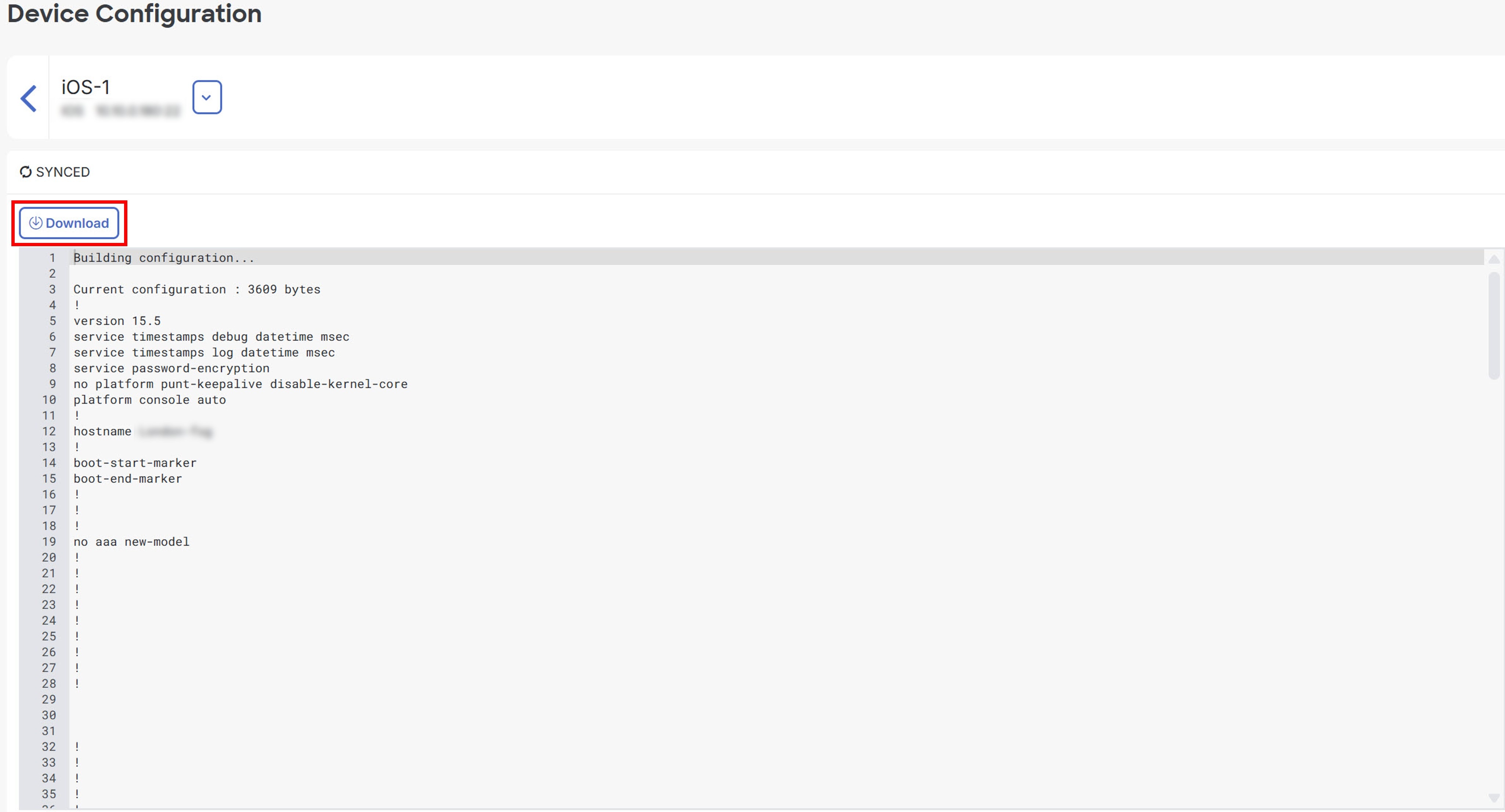
You can import an Integrated Services Router (ISR) or Aggregation Services Router (ASR) configuration file into Security Cloud Control without onboarding a physical device. Uploading a text-based configuration file creates a model device in Security Cloud Control. You can use this model for analysis, labeling, and policy management. After you import and process the configuration, the model appears in the Security Devices list for further use.
From the Security Cloud Control Home page, click Firewall.
Click Security Devices.
Click the blue add () button to import the configuration.
Click the Import tile.
Enter these details in the Configuration for Model Device page.
Once the configuration is verified, you are prompted to label the device or service. For more information about labels and label groups, refer to Labels and Label Groups.
After labeling your model device, you can view it in the Security Devices list.
NoteThe system may take some time to analyze the configuration, depending on its size and the number of devices or services.
Configuration import for offline device management is a feature that
allows you to review, analyze, and optimize device settings without requiring access to a live device in your network
creates models that represent copies of device configurations for policy review, planning, and reuse, and
processes uploaded configuration files so they appear in the Security Devices list for labeling, reviewing, and managing like other supported devices.
You can import the configurations for these device types into Security Cloud Control Firewall Management:
Adaptive Security Appliance (ASA): You can upload an ASA configuration file to create an ASA model for offline review and management. For more information, refer to Create and Import an ASA Model.
Cisco IOS devices such as Aggregation Services Routers (ASRs) and Integrated Services Routers (ISRs): You can upload a text-based running configuration file to create an IOS model for offline analysis and reuse. For more information, refer to Create and Import an ASR or ISR Model.
Need help?
(Requires a Cisco Service Contract)
The documentation set for this product strives to use bias-free language. For the purposes of this documentation set, bias-free is defined as language that does not imply discrimination based on age, disability, gender, racial identity, ethnic identity, sexual orientation, socioeconomic status, and intersectionality. Exceptions may be present in the documentation due to language that is hardcoded in the user interfaces of the product software, language used based on RFP documentation, or language that is used by a referenced third-party product. Learn more about how Cisco is using Inclusive Language.