Configure Fortinet firewall configuration migration to Secure Firewall Threat Defense using the Firewall Migration Tool in Security Cloud Control, including configuration upload, interface mapping, validation, and deployment.
The Firewall migration tool allows migrating configurations from Fortinet firewall to threat defense devices managed by your Cloud-Delivered Firewall Management Center.
You can manually derive the configuration file from your Fortinet firewall and upload it to the migration tool to begin with your migration. To learn about supported Fortinet firewall configurations, see Fortinet Configuration Support.
Procedure
-
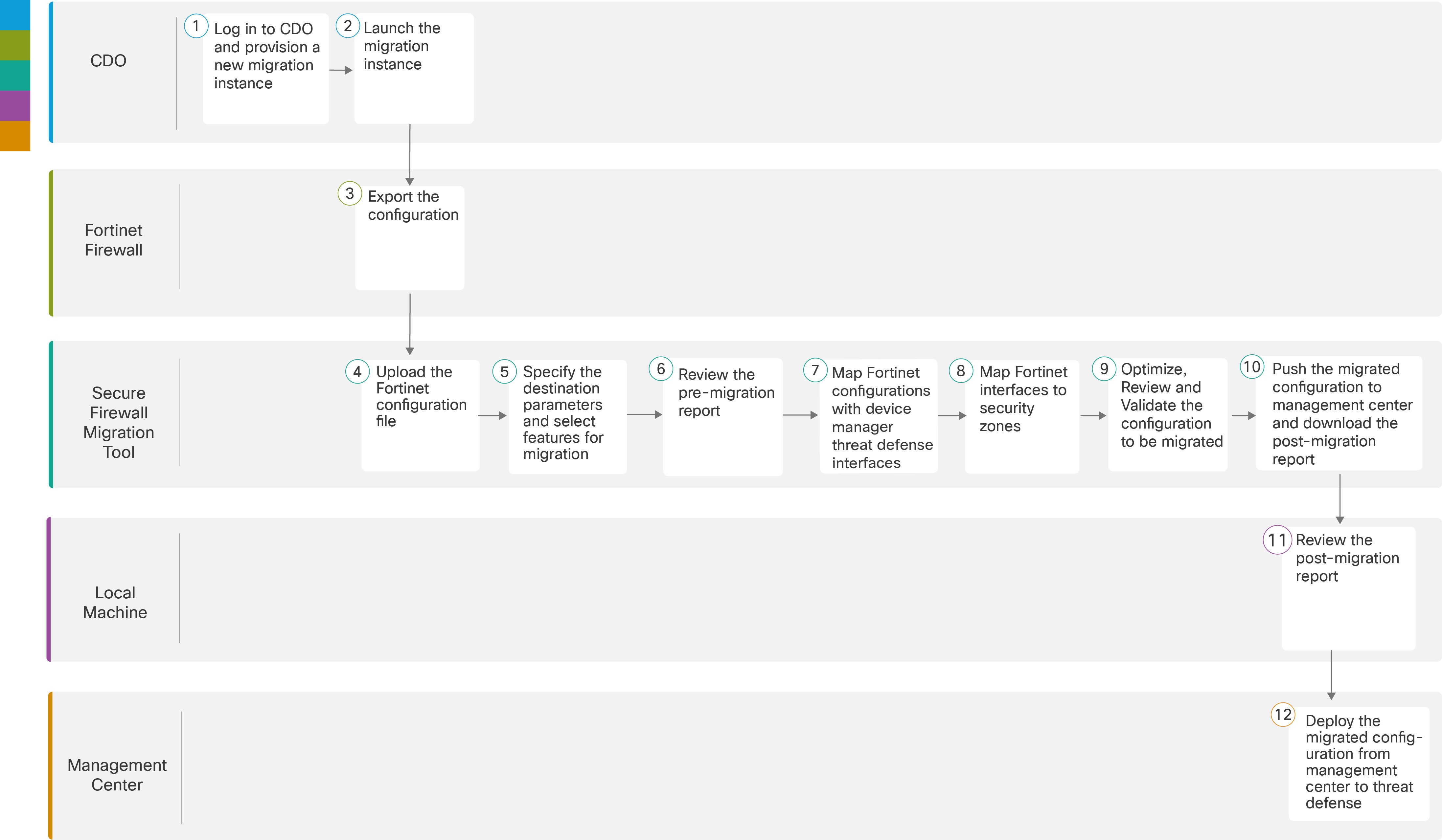
Follow the migration workflow using the table and flowchart provided.
The flowchart that follows illustrates the step-by-step procedure for migration Fortinet firewall configurations to threat defense devices:
To perform the procedure with more detailed steps, continue to Export Fortinet Firewall Configuration from Fortinet Firewall GUI in Migrating Fortinet Firewall to Secure Firewall Threat Defense with the Migration Tool guide.
Workspace
Steps

Security Cloud Control Log in to your Security Cloud Control tenant, and in the left pane, click , and click the blue plus
 button to start provisioning a new migration instance.

Security Cloud Control
After your migration instance is ready, click Launch and choose Fortinet (5.0+).

Fortinet Firewall
Export the Fortinet configuration to the local system. To export the configuration from Fortinet firewall, see Export the Configuration from Fortinet Firewall.

Secure Firewall Migration Tool
Upload the Fortinet config file exported from Fortinet firewall, see Upload the Fortinet Configuration File.

Secure Firewall Migration Tool
In this step, you can specify the destination parameters for the migration. For detailed steps, see Specify Destination Parameters for the Secure Firewall Migration Tool.
.

Secure Firewall Migration Tool
Navigate to where you downloaded the pre migration report and review the report. For detailed steps, see Review the Pre-Migration Report.

Secure Firewall Migration Tool
To ensure that the Fortinet configuration is migrated correctly, map the Fortinet interfaces to the appropriate threat defense interface objects, security zones, and interface groups. For detailed steps, see Map Fortinet Firewall Configurations with Secure Firewall Device Manager Threat Defense Interfaces.

Secure Firewall Migration Tool
Map the Fortinet interfaces to the appropriate security zones, see Map Fortinet Interfaces to Security Zones for detailed steps.

Secure Firewall Migration Tool
Optimize and review the configuration carefully and validate that it is correct and matches how you want to configure the threat defense device. For detailed steps, see Optimize, Review and Validate the Configuration to be migrated.

Secure Firewall Migration Tool
This step in the migration process sends the migrated configuration to the Cloud-Delivered Firewall Management Center and allows you to download the post-migration report. For detailed steps, see Push the Migrated Configuration to Management Center.

Local Machine
Navigate to where you downloaded the post migration report and review the report. For detailed steps, see Review the Post-Migration Report and Complete the Migration.

Management Center
Deploy the migrated configuration from the Cloud-Delivered Firewall Management Centerto threat defense.
The Fortinet firewall configuration is successfully migrated to the Secure Firewall Threat Defense device through the management center.