Cisco Security Cloud Control: Secure Firewall Management

PDF

Cisco Security Cloud Control: Secure Firewall Management

Create Catalyst SD-WAN security policies

Want to summarize with AI?

Log in

Configure Catalyst SD-WAN NGFW security policies in Security Cloud Control Firewall Management using the Create NGFW policy workflow.


Create Catalyst SD-WAN NGFW security policies to control and secure network traffic through defined sub-policies and rules.

Security policies provide granular control over network traffic flow and enable inspection of data packets based on source and destination zones, protocols, and applications.

Before you begin

Make sure you have deployed and managed these devices using a configuration group. For more information about creating configuration groups, see Configuration Groups and Feature Profiles.

Follow these steps to create Catalyst SD-WAN NGFW security policies in Security Cloud Control Firewall Management using the Create NGFW policy workflow:

Procedure

  1. From the Security Cloud Control Home page, click Firewall.

  2. Choose Policies > WAN Branch Edge.

  3. Click Add NGFW Policy on the Catalyst SD-WAN NGFW Policies page.

    This launches the Create NGFW policy workflow.

  4. On the Security Policy Name tab, enter Policy Name and Description, and under Device Solution, click the SDWAN radio button.

  5. Click Next.

  6. On the Select the optional Configuration Group to associate with the NGFW policy page, choose the configuration group to associate with the NGFW policy and click Next.

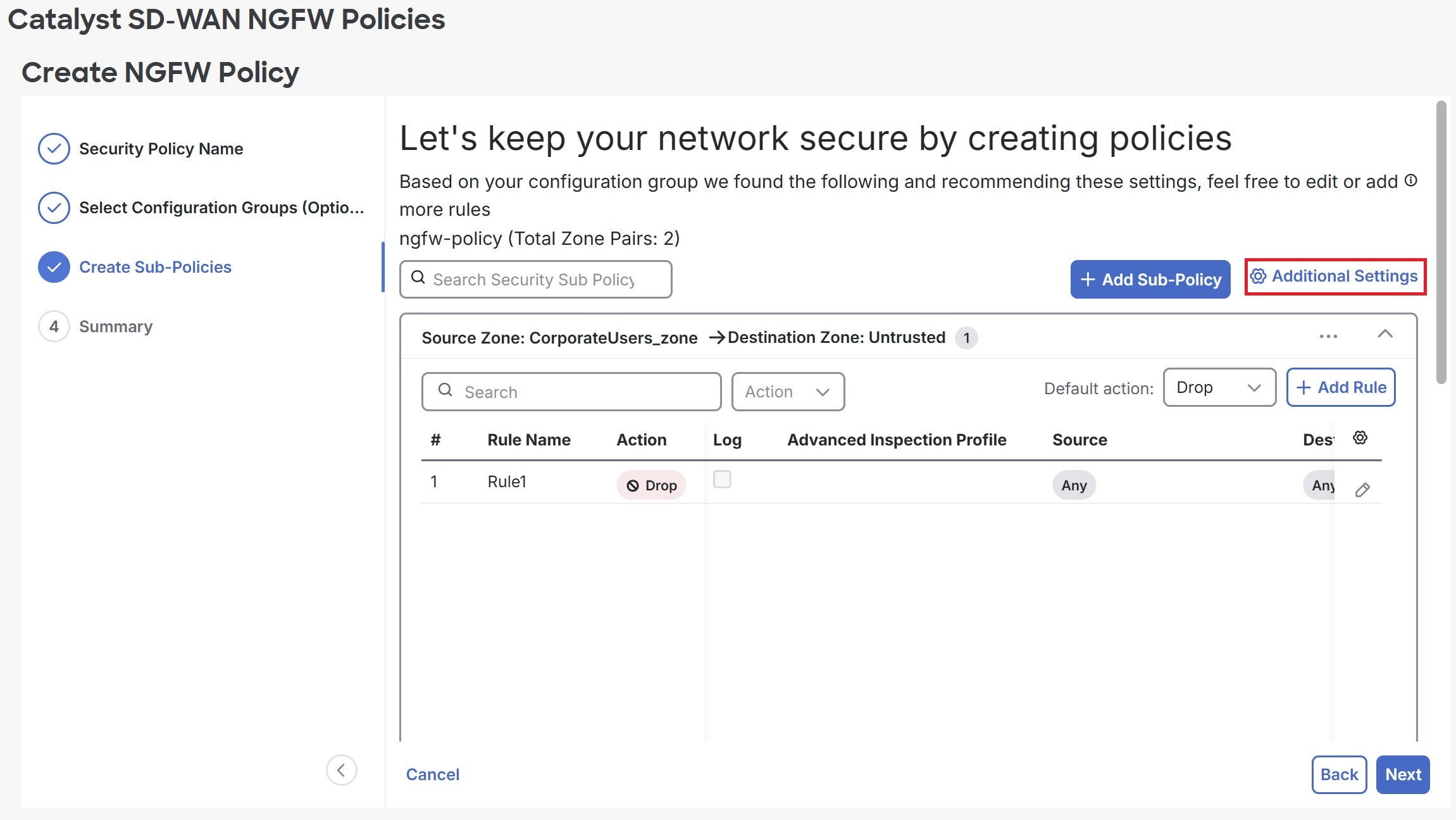
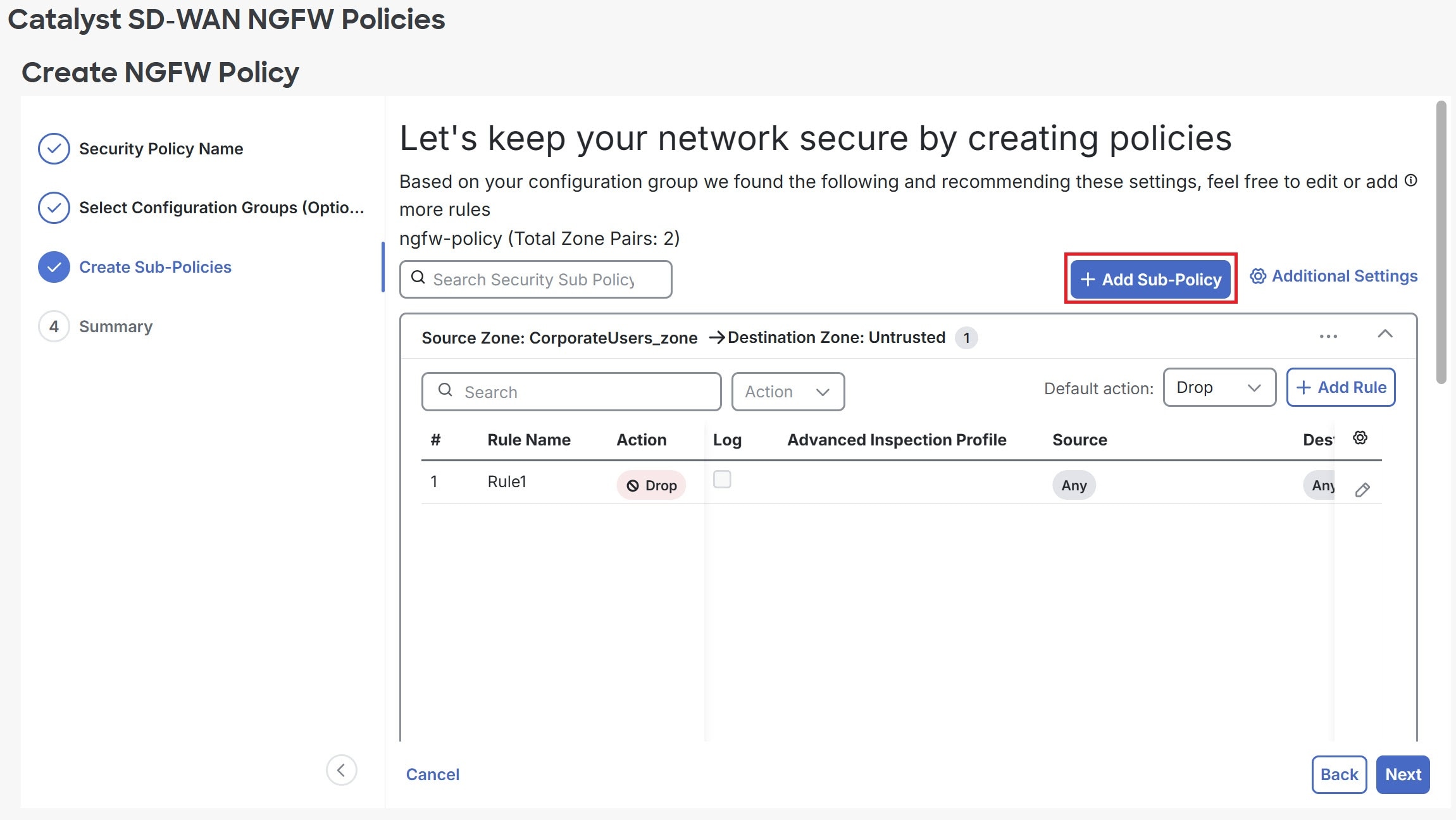
  7. On the Create Sub-Policies tab, click +Add Sub-Policy to add sub-policies for a security policy.
    Create NGFW Policy page showing the Create Sub-Policy tab.

    Field

    Description

    VPN / Interface

    Specify the VPN or the interface.

    Source Zone

    Choose the zone that is the source of the data packets. You can choose from these options:

    • Corporate_Users_zone

    • Local_Internet_for_Guests_zone

    • No_zone

    • Payment_Processing_Network_zone

    • Physical_Security_Devices_zone

    • Self

    • Untrusted

    Click + Create New to create a new Source Zone. Enter the Name and select the VPN from the drop-down.

    Note

    You can select multiple VPNs within a Source Zone.

    Destination Zone

    Select the zones to which data traffic is sent. You can choose from these options:

    • Corporate_Users_zone

    • Local_Internet_for_Guests_zone

    • No_zone

    • Payment_Processing_Network_zone

    • Physical_Security_Devices_zone

    • Self

    • Untrusted

    To create a new Destination Zone, click + Create New. Enter the Name and select the VPN from the drop-down.

    Note

    You can select multiple VPNs within a Destination Zone.

  8. Click Additional Settings to configure additional settings for a security policy. For more information about the steps used in the procedure, Configure NGFW Additional Settings.

  9. Click Save.

    Create NGFW Policy page showing the Create Sub-Policy tab.

  10. Click the ellipsis (...) at the top-left corner of the existing sub-policy to Edit, Delete, or Copy it.

  11. To add an NGFW policy rule to a sub-policy, navigate to the sub-policy and click + Add Rule.

    Field

    Description

    Rule Name

    The name of the rule.

    Sequence

    Specify the sequence.

    Match

    Choose the desired match conditions from the Add Conditions drop-down list. You can choose from these options:

    • Source

      • Geo Location

      • IPv4 Prefix

      • Port

    • Destination

      • FQDN

      • Geo Location

      • IPv4 Prefix

      • Port

    • Protocol

    • Applications

    When Identity Services Engine (ISE) is enabled, the SGT option is available in the Source and Destination fields. Identity User or User group is only supported for Source.

    Action

    Choose the desired action conditions. You can choose from these options:

    • Pass

    • Drop

    • Inspect

    • Log Events: Unified Logging for Inspect Action.

  12. To modify an existing rule, click the pencil icon to Edit, Disable, Delete, Clone rule, Add rule on top, or Add rule below.
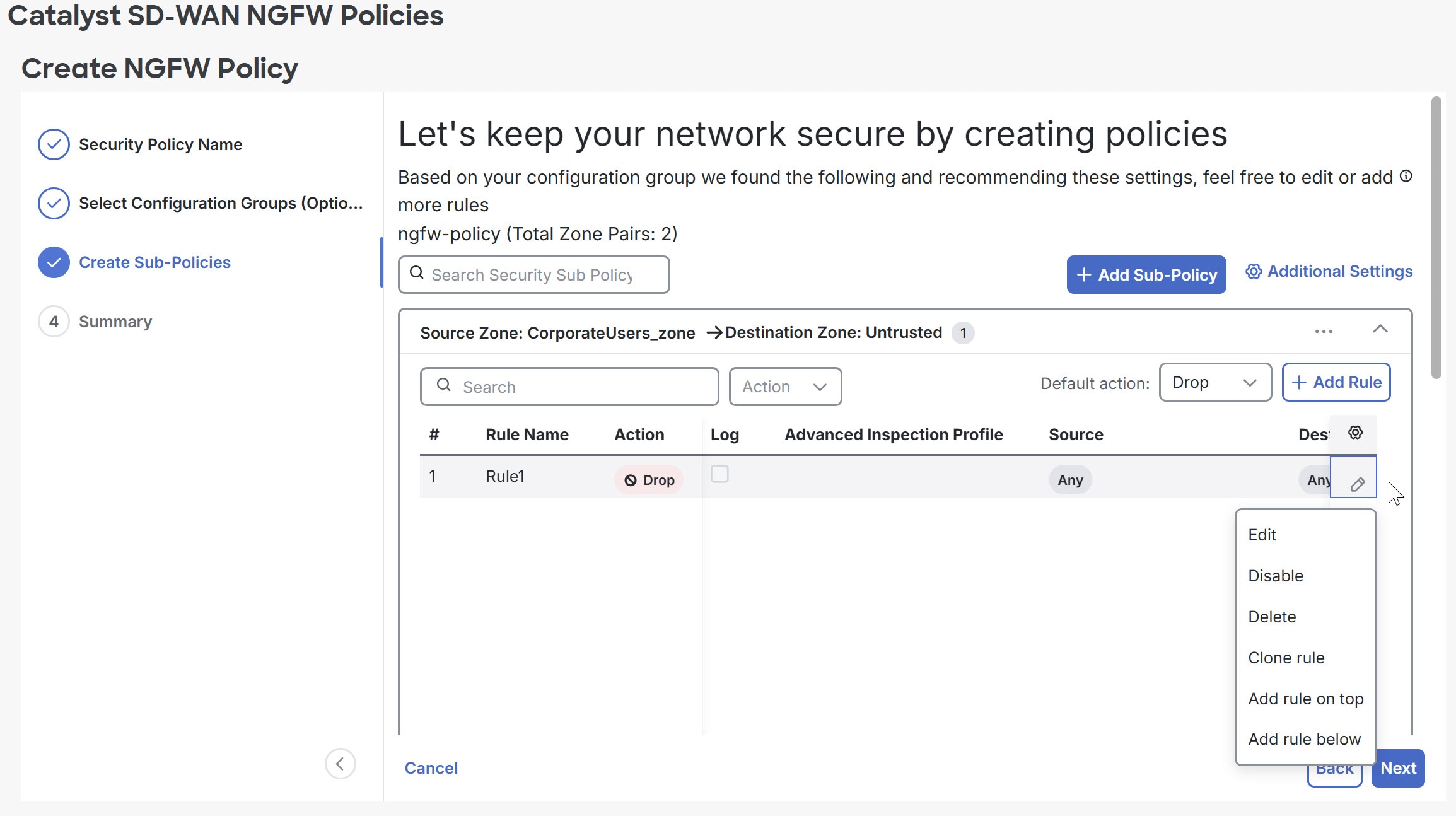
    Create NGFW Policy page showing the Create Sub-Policy tab.

  13. Click Next.

  14. Review the NGFW Policy, Sub-Policies, and Settings on the Summary page, and click Create NGFW Policy.
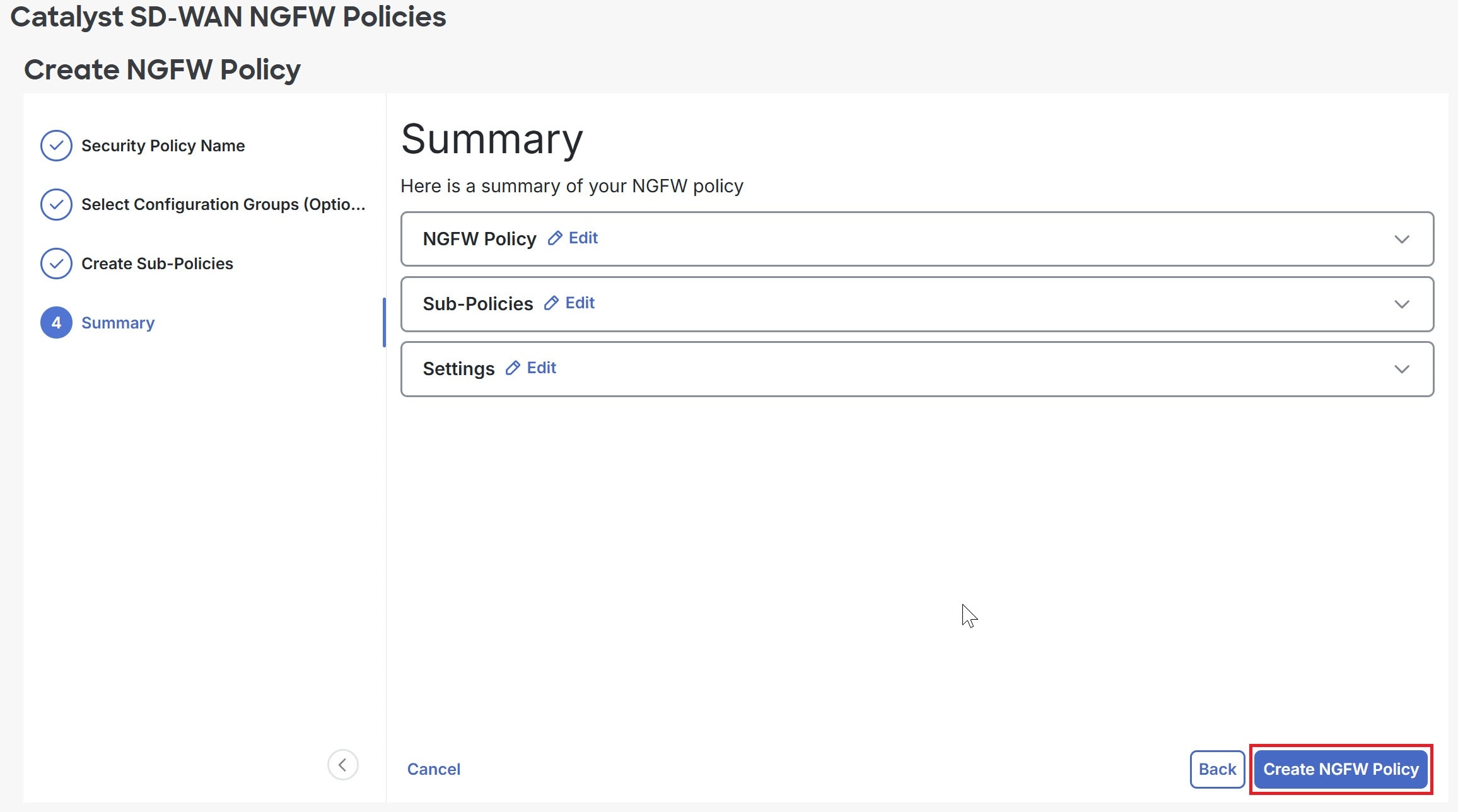
    Screenshot of the Create NGFW Policy page showing the Summary tab.

The NGFW security policy is created and available in the Catalyst SD-WAN NGFW Policies list for deployment and management.