Cisco Security Cloud Control: Secure Firewall Management

PDF

Cisco Security Cloud Control: Secure Firewall Management

Network address translation policy analysis

Want to summarize with AI?

Log in

Explains how to analyze NAT policies in Policy Analyzer and Optimizer, identify shadowed or redundant rules, review conflict ownership, and download NAT analysis reports.


Network Address Translation policy analysis is a security management capability that

  • analyzes NAT policies to find rules that are shadowed or redundant

  • helps identify rules that are not contributing to effective NAT behavior

  • provides understanding of which rule owns the conflict, and

  • enables downloading of NAT analysis reports for review.

NAT Policy Analyzer and Optimizer requirements

NAT Policy Analyzer and Optimizer has these requirements:

  • NAT Policy Analyzer and Optimizer is available only when AIOps is enabled for the tenant and for the selected data source.

  • For On-Premises Firewall Management Center, NAT Policy Analyzer and Optimizer requires Version 7.6 or later.

  • If NAT Policy Analyzer and Optimizer is disabled in AIOps settings, NAT Policy Analyzer and Optimizer operations are blocked for all data sources.

  • When AIOps is enabled for a data source, Policy Analyzer and Optimizer initiates the initial NAT synchronization and analysis for onboarded data sources.

  • NAT Policy Analyzer and Optimizer performs analysis at the management center level, not on a per-device basis.

Note

Disabled NAT rules are excluded from being analyzed by the Policy Analyzer and Optimizer.

NAT policy analysis

NAT policy analysis is a security optimization feature that

  • analyzes Cloud-Delivered Firewall Management Center and On-Premises Firewall Management Center NAT policies

  • categorizes NAT findings into shadowed rules and redundant rules, and

  • uses Policy Analyzer and Optimizer to optimize network address translation configurations.

NAT finding types

NAT Policy Analyzer and Optimizer reports these NAT finding types.

Table 1. NAT finding types and meanings

NAT finding

Meaning

How to interpret it

Shadowed NAT rule

A rule that will never evaluate network traffic because another rule that precedes it over shadows this rule.

Review the shadowing rule and the shadowed rules together. A rule is marked shadowed only when the overlap is complete for the compared dimensions.

Redundant NAT rule

A rule can be removed without changing the final NAT behavior because another rule can handle the traffic with the same effective NAT action.

Policy Analyzer and Optimizer checks the translated action for redundancy. Matching traffic criteria alone is not enough when translated source, destination, service, or PAT behavior differs.


NAT rule sections and comparison behavior

NAT Policy Analyzer and Optimizer follows the high-level NAT evaluation model used by Cisco Secure Firewall NAT policies. NAT rules are evaluated in section order: Manual NAT before Auto NAT, Auto NAT, and Manual NAT after Auto NAT.

The NAT section determines the rule comparisons that can be reported by NAT Policy Analyzer and Optimizer.

NAT section

What it contains

NAT Policy Analyzer and Optimizer comparison behavior

Manual NAT before Auto NAT

Manual or twice NAT rules evaluated before Auto NAT.

Rules in this section can be compared with rules in the same section, Auto NAT, and Manual NAT after Auto NAT.

Auto NAT

Object NAT rules whose device order is determined internally.

Auto NAT rules can participate in comparisons with Manual NAT before or after sections. NAT Policy Analyzer and Optimizer does not report shadowed or redundant rules within the same Auto NAT section.

Manual NAT after Auto NAT

Manual or twice NAT rules evaluated after Auto NAT.

Rules in this section can be compared with rules in the same section and with rules from earlier comparable sections.


Supported NAT address families for Policy Analyzer and Optimizer

NAT Policy Analyzer and Optimizer supports these address-family flows.

Flow

Traffic family

Notes

NAT44

IPv4 to IPv4

Supported for standard IPv4 NAT and PAT behavior.

NAT66

IPv6 to IPv6

Supported for IPv6 NAT behavior.

NAT64

IPv6 to IPv4

Supported when cross-family behavior is explicitly configured.

NAT46

IPv4 to IPv6

Supported when cross-family behavior is explicitly configured.


NAT policy analysis summary

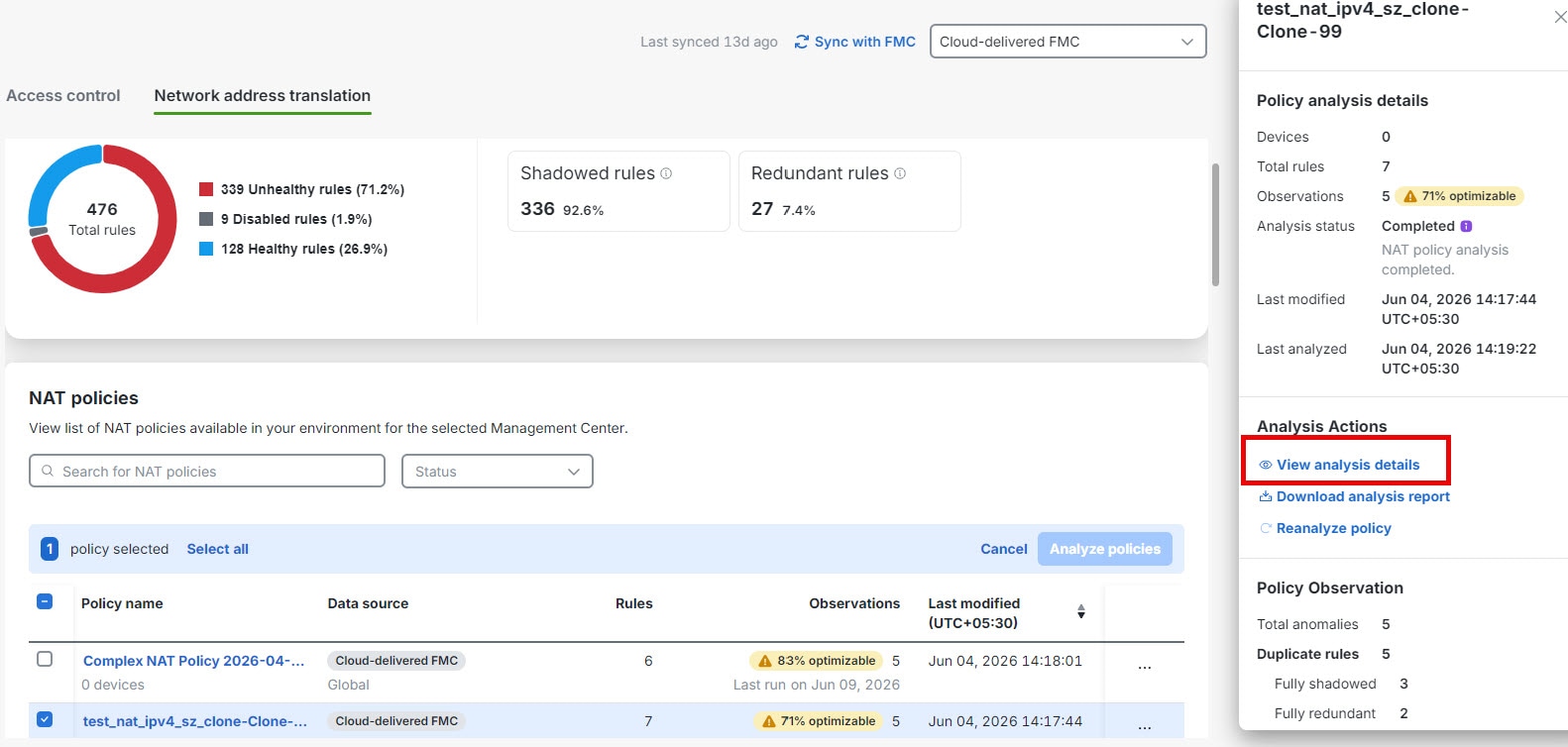
When analysis completes, select a NAT policy to review the right-pane summary and click View analysis details.

The policy-specific page displaying the anomaly details is shown.

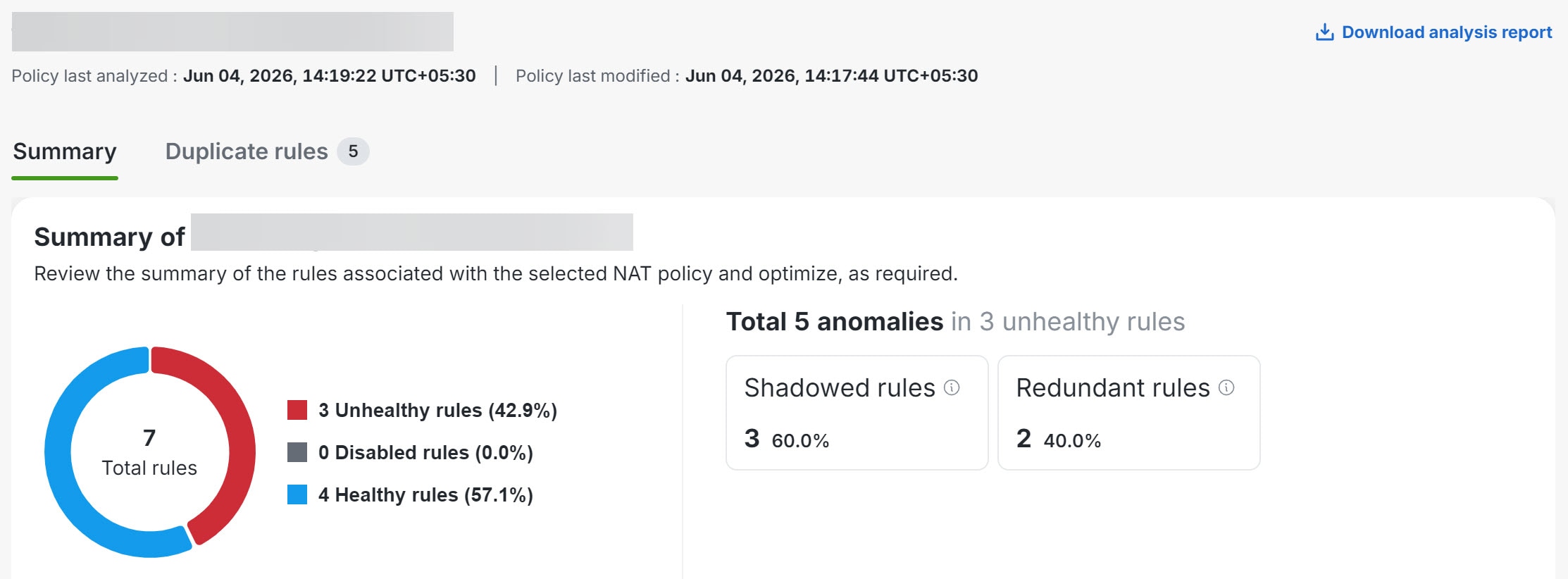
The NAT policy analysis summary displays a pie chart illustrating the health status of rules, indicating the number of unhealthy, disabled, and healthy rules for the selected NAT policy. Hovering over the pie segments reveals the percentage of each rule category.
The NAT policy analysis summary displays a pie chart illustrating the health status of rules, indicating the number of unhealthy, disabled, and healthy rules for the selected NAT policy. Hovering over the chart segments reveals the percentage of each rule category.
  • Overall summary—provides insights on how many rules are unhealthy, disabled, healthy, using a pie chart for the selected NAT policy. You can also hover over the part of the pie to view the percentage of rules.

  • Total anomalies—shows the number of rule anomalies detected in the selected NAT policy. Also indicates how many unhealthy rules contain those anomalies.


Download NAT analysis report

Download a comprehensive NAT analysis report that contains policy metadata, analysis timestamps, summary charts, counts for healthy, disabled, shadowed, and redundant rules, and tabular observation details to evaluate your NAT policy configuration.

The NAT analysis report becomes available after NAT policy analysis is complete and provides detailed information about rule configurations including NAT section, rule type, direction, interface objects, and service details. Use this report to evaluate whether changes are needed in the management center.

Follow these steps to download the NAT analysis report:

Procedure

  1. In the Policy Analyzer and Optimizer page, click Network address translation.

  2. Select a NAT policy, and in the right pane, click Download analysis report.

The NAT analysis report downloads as a PDF. The detailed rule information includes NAT section, rule type, direction, source and destination interface objects, original source, original destination, original service, translated source, translated destination, and translated service. NAT Policy Analyzer and Optimizer does not apply NAT remediations in this release.


NAT policy remediation

This task helps you resolve duplicate-rule anomalies in NAT policies by applying targeted remediation actions to affected rules.

Policy Analyzer and Optimizer stages NAT remediation changes before it updates the policy. You can stage remediation for individual rules or for all rules in a duplicate-rule observation.

The available actions depend on the NAT rule type:

  • Manual NAT rules: You can delete or disable selected manual rules

  • Auto NAT rules: You can only delete Auto NAT rules, but you cannot disable them.

Note

Back up your policy before applying any remediation. The changes made modify the NAT policy and cannot be automatically reverted.

Before you begin

  • Ensure that NAT policy analysis is complete and that duplicate-rule observations are available.

  • Verify the Policy last analyzed and Policy last modified values for the policy that you want to remediate.

Procedure

  1. In Policy Analyzer and Optimizer, select the NAT policy and under Analysis Actions, click View analysis details to open its analysis details.

  2. Click Duplicate rules and expand fully shadowed or redundant rules section that contains anomalies.

  3. Expand the observation that contains the rules that you want to remediate.

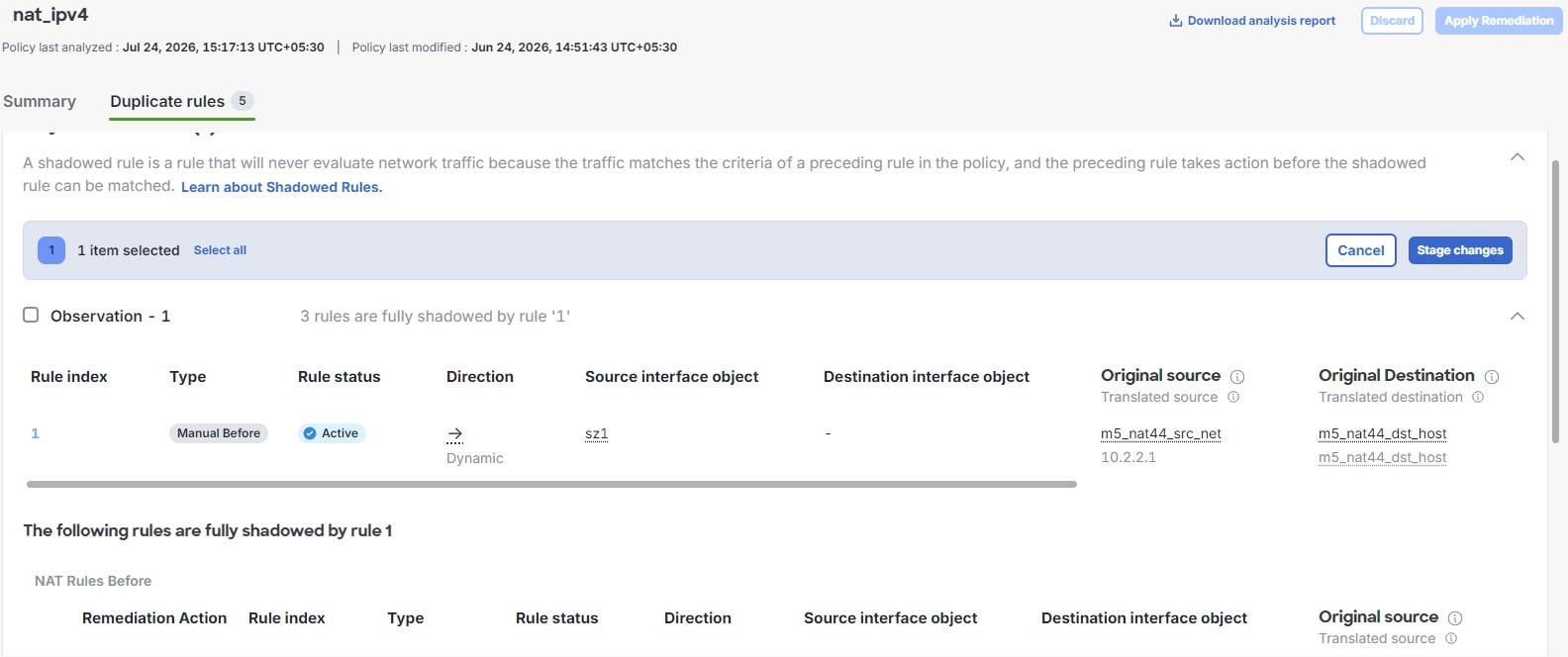
    You can select the rules or select the observation to stage all rules in that observation.

    Figure 1. NAT rule remediation
    The NAT rule remediation process allows users to select specific rules or observations to stage all associated rules for manual actions, such as deleting or disabling selected rules.
  4. Click Stage changes.

  5. In Select rules to remediate, select the action for each rule type:

    • Manual rules: Delete all selected or Disable all selected

    • Auto NAT Rules: Delete all selected. You cannot disable Auto NAT rules.

  6. Select Confirm staging.

    Note

    Staged changes are visible to any user who opens the policy in Policy Analyzer and Optimizer. They remain until a user selects Discard or Apply Remediation, or until a new analysis runs after the policy is edited.

    Click View details to inspect and review the staged changes. You can click Undo or Discard to revise the staged remediation.

  7. Select Apply Remediation.

  8. On the Apply NAT duplicate-rule remediation page, verify the policy and the number of rules to modify, and then select Apply remediation.

After you apply the remediation, Policy Analyzer and Optimizer updates the selected NAT rules and automatically starts a new analysis because the previous analysis is stale. While the new analysis runs, the Observations column for the NAT policy shows In progress. After analysis completes, review the refreshed duplicate-rule observations and policy status. If no analyzed anomalies remain, the policy can show a healthy status.


View NAT remediation history

Use remediation history to review when the remediation ran, the job that ran it, the user who started it, the remediation status, and the report for that version.

After you apply remediation to a NAT policy, Policy Analyzer and Optimizer records the remediation as a version in remediation history. The history lists the latest version first.

Note

Remediation history records changes applied to the NAT policy. It does not indicate whether the updated policy has been deployed to managed devices. Deploy the policy separately as required.

Before you begin

Apply remediation to the NAT policy. Remediation history is available after the policy has at least one remediation version.

Procedure

  1. Open Policy Analyzer and Optimizer and click the Network address translation tab.

  2. Select the NAT policy that you want to review. The policy analysis details open.

  3. Under Remediation Actions, select View remediation history. The link shows the number of remediation versions that are available.

  4. Review the remediation history. The list displays the latest remediation version first and then the older versions.

  5. Review the date and time, Job ID, user, download option, and Remediation Status for each version.

    For a completed remediation, select Download to download the remediation report.

    The remediation report is a PDF that summarizes the selected NAT remediation, its status, and the resulting changes to the policy.

    Note

    Policy Analyzer and Optimizer displays up to 10 remediation versions, from the latest version to the oldest available version.

You can view the remediation history for the NAT policy, including version details, status information, and download remediation reports for completed versions.


NAT Policy Analyzer and Optimizer and AgenticOps insights

NAT Policy Analyzer and Optimizer and AgenticOps insights are an integrated monitoring system that

  • detects NAT policy anomalies through automated analysis

  • raises NAT policy anomaly insights when issues are detected, and

  • provides navigation capabilities to review anomaly counts and access affected data sources or policies.

NAT anomaly insight management

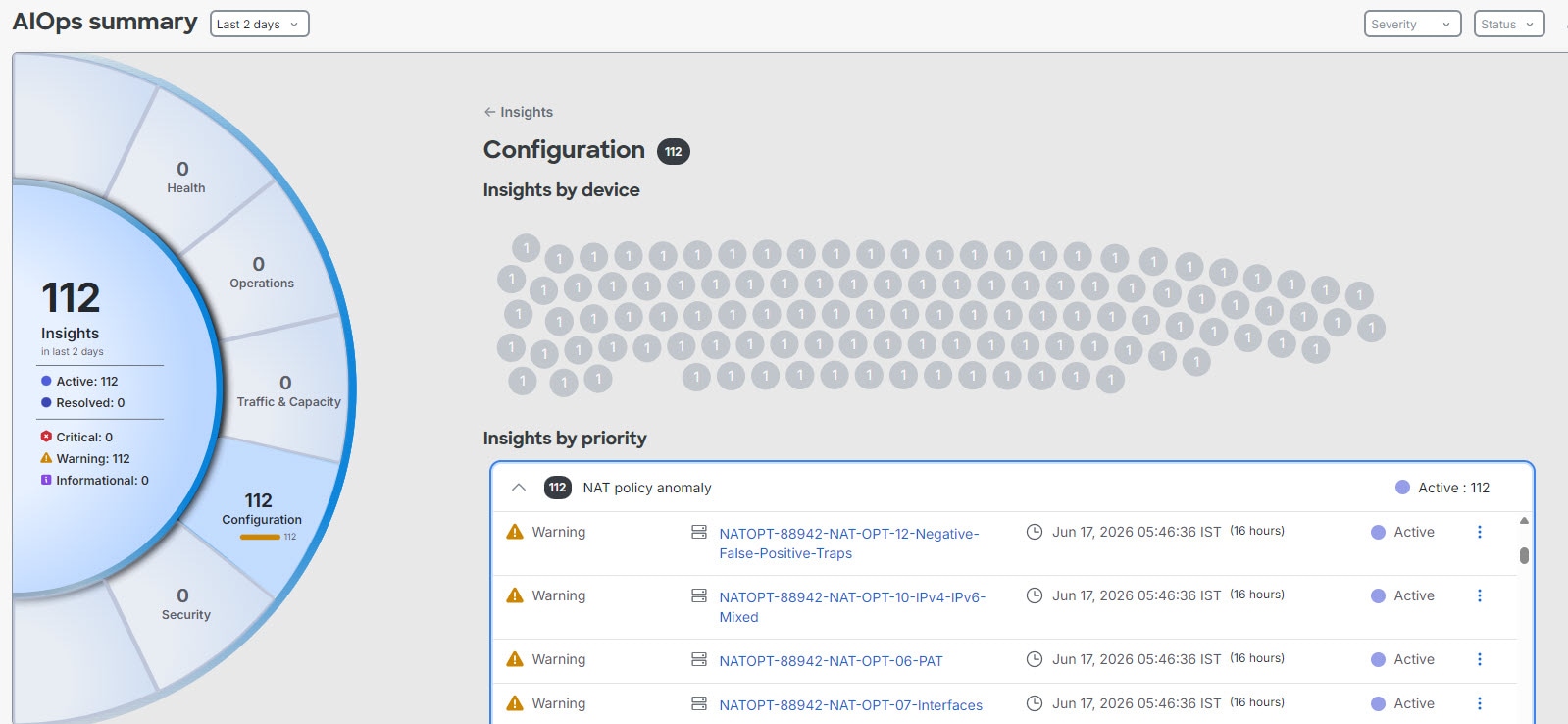
When NAT Policy Analyzer and Optimizer analysis detects NAT policy anomalies, AgenticOpscan raise a NAT policy anomaly insight. From AIOps Insights, you can review NAT anomaly counts by data source, open the affected data source or policy, and navigate back to the NAT Policy Analyzer and Optimizer analysis details.

Navigation: Insights & Reports > Summary.

The image illustrates the process of dismissing a NAT anomaly insight, highlighting the implications for future analysis and detection of NAT anomalies.

If you dismiss a NAT anomaly insight, it is dismissed for the current insight occurrence. A later scheduled analysis can raise the insight again if NAT anomalies are detected again.