- Overview of Prime Network GUI clients
- Setting Up the Prime Network Clients
- Setting Up Change and Configuration Management
- Setting Up Vision Client Maps
- Setting Up Native Reports
- Setting Up Fault Management and the Events Client Default Settings
- Viewing Devices, Links, and Services in Maps
- Drilling Down into an NE’s Physical and Logical Inventories and Changing Basic NE Properties
- Manage Device Configurations and Software Images
- How Prime Network Handles Incoming Events
- Managing Tickets with the Vision Client
- Viewing All Event Types in Prime Network
- Cisco Path Tracer
- Managing IP Address Pools
- Monitoring AAA Configurations
- Managing DWDM Networks
- Managing MPLS Networks
- Managing Carrier Ethernet Configurations
- Managing Ethernet Networks Using Operations, Administration, and Maintenance Tools
- Monitoring Carrier Grade NAT Configurations
- Monitoring Quality of Service
- Managing IP Service Level Agreement (IP SLA) Configurations
- Monitoring IP and MPLS Multicast Configurations
- Managing Session Border Controllers
- Monitoring BNG Configurations
- Managing Mobile Transport Over Pseudowire (MToP) Networks
- Managing Mobile Networks
- Managing Data Center Networks
- Monitoring Cable Technologies
- Monitoring ADSL2+ and VDSL2 Technologies
- Monitoring Quantum Virtualized Packet Core
- VSS Redundancy System
- Icon Reference
- Permissions Required to Perform Tasks Using the Prime Network Clients
- Correlation Examples
- Managing certificates
How Prime Network Handles Incoming Events
These topics explain how Prime Network handles incoming events and provides information about events and tickets in the GUI clients:
How Events Flow Through Prime Network Components
Figure 10-1 illustrates how Prime Network responds to incoming notifications from devices. The exact flow depends on how Prime Network is configured in your network. The flow is described in detail in How Prime Network Correlates Incoming Events.

Note Figure 10-1 illustrates the logical flow of events through Prime Network. The actual network communication is subject to the transport configuration between the gateway server and units.
Figure 10-1 Logical Flow of Incoming Events Received By Prime Network
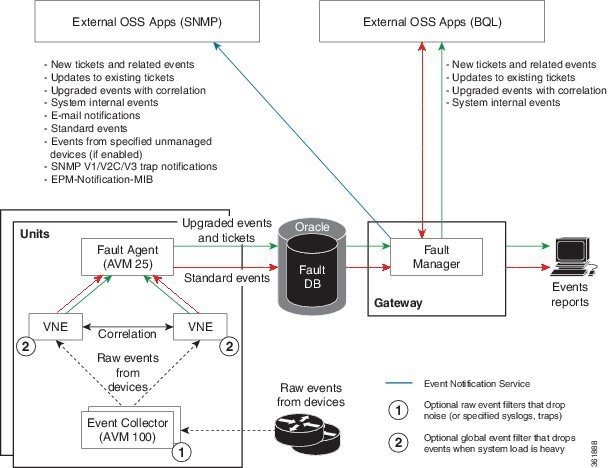
The main components involved in fault processing are described in the following table.
|
|
|
|
|---|---|---|
|
(AVM 100) |
Gateway or unit(s)1 |
Examines events for basic information and associates and distributes events to corresponding VNEs. If handling events from unmanaged devices is enabled, saves these events to the database; if an Event Notification Service is enabled, forwards these events to the gateway. If a raw event (noise) filter is enabled, drops the events.
Note |
|
|
Parses and associates events to specific components in NEs; if the NE is a physical interface, checks if alarms are disabled on the interface. Determines whether events are standard or upgraded (see Standard and Upgraded Events). Attempts to correlate the event, depending on its configuration, and enriches the event with additional information (category, nature). Forwards events to AVM 25. If a global event filter is configured and system load is high, drops any events that match the filter (by default, no filters are implemented; see the Cisco Prime Network 5.1 Administrator Guide). |
|
|
|
Opens new alarms and tickets, and persists (saves) information in the database.
AVM 25 requires a database connection to store information in the Oracle database. If a direct connection is not available, configure Prime Network to forward events to another AVM 25 that has a database connection (called using a proxy AVM 25, described in the Cisco Prime Network 5.1 Administrator Guide). |
|
|
|
||
|
|
Stores all tickets, alarms, and events which can be viewed from: |
|
|
|
If an Event Notification Service is configured, retrieves information for e-mail and trap forwarding and forwards information to external OSS applications. |
|
1.By default, the Event Collector is installed on the gateway. All supported configurations are described in the event monitoring topics in the Cisco Prime Network 5.1 Administrator Guide. |
For more details about what each component does, see How Prime Network Correlates Incoming Events.
Standard and Upgraded Events
If the VNE cannot extract adequate information about an event, it performs some basic parsing and saves the event in the database. These events are called standard events. A standard event is an event that Prime Network cannot match with any of the rules that define events of interest. Standard events are not processed for correlation. They are immediately saved to the database and marked as archived.
Standard events can be viewed from the following clients:
- From the Events client under the Standard tab.
- From the Vision client under the Network Events tab in a device inventory view. If enabled from the Administration client, standard events are also displayed in the Latest Events tab in a map view.
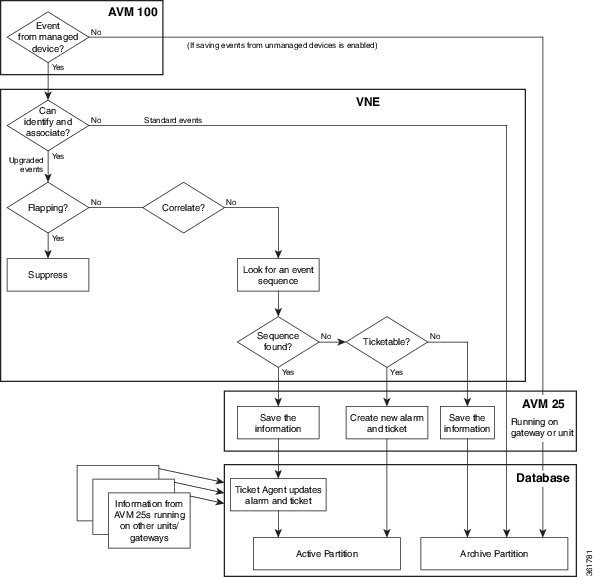
An upgraded event is an event that a VNE can match with the rules that determine events of interest. Upgraded events are parsed and if are enabled for correlation, the VNE begins the correlation process. Not all upgraded events are enabled for correlation. For an illustration of how Prime Network handles standard events, see How Prime Network Correlates Incoming Events.
How Prime Network Correlates Incoming Events
Note An event can have many additional correlation and metadata attributes that determine how Prime Network processes the event. Examples are provided in Event Correlation Examples.
The correlation process determines the causality for events, event sequences, and tickets. Causality is represented in a ticket’s correlation tree, with a root cause event at the top (for an example, see Figure 11-6). The process begins when Prime Network receives an incoming event.
The Prime Network Event Collector (AVM 100) receives all incoming events—external events like traps and syslogs. The Event Collector performs some basic parsing to associate the event with the appropriate VNE. If handling events from unmanaged devices is enabled, AVM 100 saves these events in the database. If a raw event (noise) filter is enabled, AVM 100 drops the events.
You can configure the Event Notification Service to forward these events to OSSs or e-mail recipients. This is done from the Administration client and is described in Cisco Prime Network 5.1 Administrator Guide.
The following figures illustrate how Prime Network handles events that are:
- Enabled for correlation, in Figure 10-2.
- Not enabled for correlation, in Figure 10-3.
Figure 10-2 Event Processing—Events With Correlation Enabled
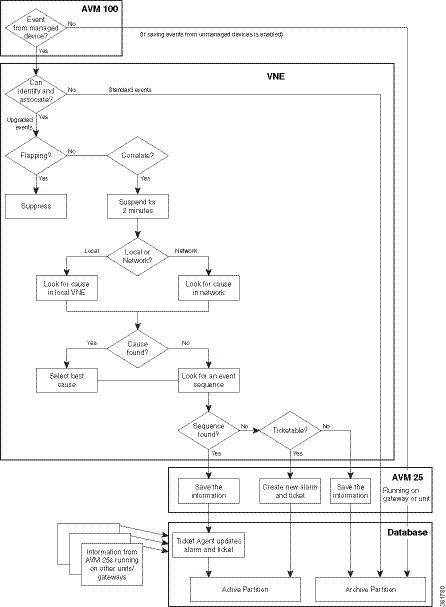
Figure 10-3 Event Processing—Events With No Correlation
Parse the Event To Identify It, Associate It With a Source, And Determine If It Is a Standard or Upgraded Event
The VNE begins the event identification process by extracting and parsing the following information from the raw event:
- Event Functionality Type—Trap, syslog, or Service event
- Event Type and Subtype—Identifier describing the fault, such as Link Down (the subtype provides further information)
- Event description strings—Content of the notification message content and a short description
- Event Severity—Event’s importance, derived from the setting for the event’s severity registry key):
– Flagging—Indicates a fault: Critical (red), Major (orange), Minor (yellow), or Warning (sky blue)
– Clearing—Indicates a fault that is resolved: Cleared (green)
– Informational—Information only (dark blue)
If the VNE cannot extract adequate information, it performs some basic parsing and saves the event in the database. These events are considered standard events. No further processing is performed on standard events. They are immediately saved to the database and marked as archived.
If the VNE can extract the information listed above, the event is considered an upgraded event and the VNE begins event association (the next step).
Some traps and syslogs may expedite polling, which means that the VNE polls the device for more information without waiting for the device’s usual polling cycle. This is the case for traps and syslogs that are likely indicators of a Service event, allowing quicker detection of any problem. (If a VNE is in the maintenance state, it does not expedite events but it will correlate events.)
The VNE continues parsing the event to identify the source location (for example, associating a port down to a device’s physical interface).
In rare cases, the event source may not yet be in the VNE model, such as when a new module is installed. Prime Network may not have finished the process of polling the device interfaces and building (populating) the model. A retry mechanism minimizes this occurrence, but if it persists, the association logic falls back to the network element that is the source of the new event.
To check a Trap, Syslog, or Service event’s default severity setting, see Checking An Event’s Registry Settings.
You can optimize the expedite polling whenever traps and syslogs are received.The optimization can be performed at 2 levels namely VNE level and System level. To enable the optimization polling, use the runRegtool command and then restart VNEs. When optimized-expedite is enabled, Prime Network waits for the specific time (delay time) that is based on the registration delay of the registration that is being expedited or window-length (default value is 20 seconds and configurable), whichever is greater, and then it will expedite.
In the span of delay time, if the same event occurs for multiple times then expedite occurs only once that is after the delay time of the last event received. Table 10-1 describes runRegTool commands for different levels.
Note ‘true’ enables the expedite optimization and ‘false’ disables the expedite optimization.
You can also override the window-length of the time span by using the following runRegTool command and then restart the VNEs:
Note The time-value should be in milli seconds.
The inventory update for this flapping event or a duplicate event happens after the flapping or duplication stops plus the “delay time”.
Examine Event for Flapping
Note Flapping detection is enabled for certain events and disabled for others (the flapping registry key is set to true or false). If an event is not configured for flapping, the VNE skips this step. To check a Trap or Syslog event’s default flapping setting, see Checking An Event’s Registry Settings.
After the event is associated with a source location, the VNE examines it to see if it is a flapping event. Flapping is a flood of consecutive event notifications related to the same alarm. It can occur when a fault causes repeated event notifications (for example, a cable with a loosely-fitting connector.) Prime Network represents the new notifications as a single event with a flapping subtype.
The VNE identifies a sequence of events as flapping if:
- All events are of the same event type and are associated with the same source.
- The event occurs more than 5 times with less than 1 minute between events (default).
If the event is part of a flapping sequence, it is suppressed (not saved in the database or displayed in the clients), and the event’s duplication count in the alarm is incremented.
During flapping, the fault management logic generates periodic event notifications with a Flapping Update subtype that also becomes part of the event sequence. After the fault stabilizes and the new event notification frequency returns to normal, the fault management logic terminates the alarms flapping mode by generating a final event notification (either Flapping Stopped Cleared or Flapping Stopped Non-cleared subtype), based on the last received new event notification.
Determine If Event Is Enabled for Correlation
The VNE examines the event to see if it is enabled for correlation—that is, whether Prime Network should attempt to find a root cause for the event. In this example, the event is called Event A:
|
|
|
|
|---|---|---|
|
|
||
|
|
Not allow other events to correlate to (be caused by) Event A. |
An example of an event with a correlate=false registry setting is a Link Down Due To Oper Down event, where the event is its own cause. An example of an event with a is-correlation-allowed=false registry setting is a syslog that does not cause other events.
The VNE attempts to identify an event sequence (see Identify Event Sequences and Hierarchies). Because clearing events are associated to their predecessor, there is no need to correlate clearing events.
To check Trap, Syslog, or Service event’s default correlation and is-correlation allowed settings, see Checking An Event’s Registry Settings
Wait for New Incoming Events
The VNE suspends its correlation process for the event for 2 minutes so other related events can be detected. During this time, the VNE does not perform processing for the new event. (Although this means event updates to the Oracle database and the Vision client are delayed by 2 minutes, the events are immediately displayed in the Vision client Network Events tab.)
Check VNE for Correlated Events (Local and Network Correlation) and Identify Root Cause
When the 2-minute suspension period has expired, the VNE begins the process of local correlation or network correlation. This is controlled by a setting in the registry.
- If an event’s activate-flow registry key is set to true, the VNE performs network (flow) correlation. Examples of events that use network correlation are LSP Down, MPLS TE Tunnel Down, and OSPF Neighbor State Change.
- If an event’s activate-flow registry key is set to false, the VNE performs local (key) correlation.
To check a Trap, Syslog, or Service event’s default activate-flow setting, see Checking An Event’s Registry Settings.
In local correlation (key correlation), the event source VNE is examined. In other words, correlation is performed on the local VNE only. Most trap and syslog events use the local correlation process.
The correlation logic examines the local VNE for possible causing events. These potential causing events must fall within the new event’s examination time: The 7 minutes before the examination process begins, or the 2 minutes after the examination process finishes. After this 9 minute period has passed, the new event expires (meaning it cannot be considered a causing event for a new incoming event).
In addition, potential causing events must be configured to allow correlation, and must contain a correlation key that matches one of the new event’s correlation keys.
In network correlation (flow correlation), the VNE examines events that occurred on different VNEs to see if they may be the cause of the local problem. Network correlation uses historic snapshots of the VNE model to search both the local and other VNEs for correlated events that meet the following criteria:
- Are configured to allow correlation.
- Arrived within the 7 minutes before the event and up to 2 minutes after the event.
- Exist on VNE components that appear on a flow path traversed according to the forwarding information of the new event.
The correlation is based on a flow that runs across the Prime Network model and topology. Network correlation is mo st successful if the event holds forwarding information, such as the IP address of a Border Gateway Protocol (BGP) neighbor, or a Frame Relay virtual connection. Network correlation is well suited for the following scenarios:
- The event represents a failure in a connection or service that spans multiple devices. For example, an MPLS traffic engineering (TE) Tunnel Down event tries to correlate to faults on the path that the tunnel traverses.
- Logically, the new event can result from events that occurred in other devices. For example, Prime Network tries to find the root cause for a Device Unreachable event in other devices by performing a flow to the management IP address.
If the VNE finds more than one potential causing event, the root cause is determined using event weight . The heavier the weight, the more likely it will be chosen as the cause. This is controlled by the weight registry key. To check a Trap, Syslog, or Service event’s default weight setting, see Checking An Event’s Registry Settings.
Identify Event Sequences and Hierarchies
Next, the VNE attempts to identify event sequences (alarms). Events that have the same type and the same source are considered part of an event sequence.
VNEs use the predecessor/successor relationship to properly handle incoming duplicates without either discarding them or creating new tickets. When an event arrives, Prime Network searches its stored alarms for a possible predecessor. It identifies possible predecessors and finds the correct predecessor by matching it against the incoming alarm according to the following rules:
- The predecessor and successor both come from the same OID.
- The predecessor and successor are of the same alarm type.
- The predecessor is not archived.
The VNE forwards to AVM 25 the information it has gathered thus far (including uncorrelated events).
Save Information to Database, and Update or Open New Alarm and Ticket
AVM 25 saves all of the information it has received to the database. The actions that Prime Network takes depends on whether Prime Network could find the event’s root cause and whether the event is ticketable (is-ticketable registry setting);
To check a Trap, Syslog, or Service event’s default is-ticketable setting, see Checking An Event’s Registry Settings.
How Prime Network Calculates and Reports Affected Parties (Impact Analysis)
Prime Network performs impact analysis for some Service events. This means Prime Network automatically calculates any service resources (pairs) that are affected by a ticket, or the specific events in a ticket. These service pairs are called affected parties and are listed in the ticket's Affected Parties tab.
Because tickets can be quite complex—for example, a ticket can include both discrete events and events that have been grouped into event sequences (alarms)—Prime Network provides several ways to view affected parties:
- To see the parties affected by a single event, check the event’s Affected Parties tab.
- To see the parties affected by all of the events in an event sequence (alarm), check the alarm’s Affected Parties tab.
- To see the parties affected by all event sequences (alarms) in a ticket, check the ticket’s Affected Parties tab.
These topics explain the information that is displayed in the Affected Parties tab, and how Prime Network calculates the information:
- Impact Analysis and Affected Status: Potential, Real, Recovered
- Accumulating the Affected Parties in an Event Sequence (Alarms)
- Accumulating the Affected Parties in the Correlation Tree
Impact Analysis and Affected Status: Potential, Real, Recovered
For each resource pair, the Affected Parties tab will displays an affected status, which indicates the degree of certainty that the pair will be impacted. Affected status can be one of the following:
- Potential—The service might be affected (for example, rerouting may prevent any problem).
- Real—The service is affected.
- Recovered—A service that was potentially affected has recovered. This only indicates that an alternate route was establish (not the service level quality).
Note If any entries begin with the word Misconfigured, it means the flow has stopped unexpectedly between the source and destination points. An unexpected termination point can be a routing entity, bridge, or VC switching entity. Because the link does not terminate as expected, the link is not actually impacted. Check the configuration and status of the affected termination points to make sure there are no errors.
Using the example from How Prime Network Calculates and Reports Affected Parties (Impact Analysis), assume that X and Y are the OIDs of edge points in the network, and a service is running between them. Link (B) Down and BGP Neighbor Loss report on the pair X < > Y as affected:
Link (B) Down reports on X < > Y as potentially affected.
BGP Neighbor Loss reports on X < > Y as real affected.
The affected severity priorities are:
Card Out reports on X < > Y as real, affected only once.This information is embedded in the ticket along with all of the correlated events. For a list of Service events for which Prime Network performs impact analysis, refer to the Cisco Prime Network 5.1 Supported Cisco VNEs.
In some cases (such as the link-down scenario in MPLS networks), Prime Network updates the affected status of the same event sequence over time because it cannot determine the fault’s effect on the network until the network has converged. For example, a Link Down alarm creates a series of affected severity updates over time. These updates are added to the previous updates in the system database. In this case, the system provides the following reports:
- The first report of a link down reports on X < > Y as potentially affected.
- Over time, the VNE identifies that this service is real affected or recovered, and generates an updated report.
- The Affected Parties tab of the Ticket Properties dialog box displays the latest severity as real affected.
- The Affected Parties Destination Properties dialog box displays both reported severities.
Accumulating the Affected Parties in an Event Sequence (Alarms)
Event sequences (alarms) can be nested. If two events form part of the same event sequence in a specific alarm, the recurring affected pairs are displayed only once in the Affected Parties tab. If different affected severities are reported for the same pair, the pair is marked with the severity that was reported by the latest event, according to the time stamp.
Accumulating the Affected Parties in the Correlation Tree
If two or more event sequences that are part of the same correlation tree report on the same affected pair of edge points but have different affected severities, the affected pairs are displayed only once in the Affected Parties tab. If different affected severities are reported for the same pair, the pair is marked with the highest severity.
Clearing, Archiving, and Purging and the Oracle Database
Note The Event Archive is no longer used as of Prime Network 4.1. For more information, see the Cisco Prime Network 5.1 Administrator Guide.
The Oracle database contains information about all ticket, standard, and upgraded events. Standard events are events from which a VNE cannot extract adequate information. As a result, the VNE only performs basic parsing and then archives the events in the database. Upgraded event are events that a VNE recognizes, parses, and attempts to correlate to other events (see Standard and Upgraded Events). If Prime Network is configured to handle notifications from unmanaged devices, those events are also stored in the Oracle database.
When a ticket is cleared, that means its root cause and all of its associated events have been cleared, and the problem no longer exists. A cleared ticket is still considered active because new events can still associate to it, which would cause the ticket to be reopened. Finally, if a ticket is unchanged for 1 hour, it is archived. Prime Network will not perform any more actions on it, and the ticket is considered inactive. Archived tickets and events are eventually purged from the database.
Viewing Archived Events in the Vision Client
In general, a limited number of archived events can be viewed from the Vision client— in the device inventory view under the Network Events tab, and in a map or list view under the Latest Events tab. You can see archived events in these cases:
- An event is associated with a ticket that was recently archived. Cleared, unchanged tickets are archived and removed from the Tickets tab after 1 hour. But the Vision client displays events from the past 6 hours, so the ticket’s events may still be available.
- An event is a standard event, which means a VNE can only perform basic parsing of the event. Standard events are immediately archived. (Standard events only appear in the Latest Events tab if this has been enabled from the Administration client. Because there can be 3 times as many standard events as upgraded events, they are not shown by default to protect system performance.)
- An event is not ticketable and did not correlate to any existing events. These events are also archived.
These topics explain in more depth how ticket and event information is cleared, archived, and purged in Prime Network:
- How Events and Tickets are Cleared and Archived
- How Events and Tickets are Purged from the Oracle Database
How Events and Tickets are Cleared and Archived
When a ticket is cleared, that means its root cause and all of its associated events have cleared. Because a new event could still associate to the ticket (for example, if the root cause recurs), a cleared ticket is still considered active. When a ticket is archived, the ticket and its associated events are moved from an active database partition to an archive database partition and the ticket is considered inactive. Archived tickets are generally removed from the clients but can be retrieved using the Events client Find in Database tool (see Finding Archived Tickets, Service Events, Syslogs, and Traps).
Clearing Fault Data
When an event, alarm, or ticket is cleared, it means it is no longer a problem. For a ticket, this means its root cause and all of its associated events have cleared. When an item is cleared, its severity icon changes to a green check mark, providing a visual indication that the problem has been addressed. (Acknowledging an event is different. Acknowledging indicates that someone is aware of the issue. Acknowledging does not change the severity icon; it just changes its Acknowledged value to True.) Because a new event could still associate to the ticket (for example, if the root cause recurs), a cleared ticket is still considered active.
Tickets can be manually cleared from the Vision client or the Events client by right-clicking the ticket and choosing Clear. The ticket description changes to Cleared due to Force Clear and all events are marked as acknowledged. The ticket’s Audit tab will display the name of the user who cleared the ticket. Once a ticket is cleared, you can manually archive it and remove it from the client display by right-clicking a ticket and choosing Remove. To perform both operations at the same time, choose Clear and Remove. But keep the following in mind:
- The remove operation cannot be reversed. After you remove a ticket, it can only be viewed from the Events client using the Find in Database tool.
- If any of the ticket’s associated events recur, Prime Network will open a new ticket instead of reopening the ticket your removed.
Tickets are also auto-cleared by Prime Network. Every 60 seconds, a special mechanism checks to see if uncleared tickets can be cleared. The mechanism looks for the following:
- If the ticket’s events are cleared, or
- If the ticket's root cause is cleared, and its other events are configured for auto-clearing (the event’s auto-cleared registry key is set to true or false). To check a Trap, Syslog, or Service event’s default auto-cleared setting, see Checking An Event’s Registry Settings.
If either of these cases is true and the ticket has not been modified in the last 4 minutes, Prime Network clears the ticket. When an event is auto-cleared, the Vision client displays an event description with Auto Cleared in the text—for example, Auto Cleared - Link Down due to Admin Down.
Administrators can also customize the following, which are disabled by default (refer to the Cisco Prime Network 5.1 Administrator Guide):
Archiving Fault Data
A ticket is archived if no new events are associated to it for 1 hour (by default). When a ticket or event is archived, it means the ticket or event is no longer active. Archived data is moved to an archive partition in the Fault Database. Some data is immediately archived in the Fault Database—standard events, new alarms and upgraded events that are not ticketable, and (if enabled) events from unmanaged devices. (Standard and upgraded events are described in.)
An auto-archiving mechanism runs every 60 seconds and archives tickets if they are unchanged for 1 hour. This protects system performance and stability. Cleared and uncleared tickets may be also archived if their number or size could adversely affect system stability. This table describes the auto-archive criteria:
How Events and Tickets are Purged from the Oracle Database
By default, Prime Network purges (deletes) event data from the Oracle database after 14 days—that is, 14 days from the event’s creation time. This purge setting is configured in the Administration client. However, events that are associated with uncleared tickets are never purged, regardless of their age.
For more information on managing the Prime Network database, refer to the Cisco Prime Network 5.1 Administrator Guide.
Checking An Event’s Registry Settings
The following documents list the default registry settings that control how Prime Network processes incoming events. All of these documents are available from Cisco.com :
 Feedback
