Cisco Configuration Engine Administration Guide 3.5.3
Bias-Free Language
The documentation set for this product strives to use bias-free language. For the purposes of this documentation set, bias-free is defined as language that does not imply discrimination based on age, disability, gender, racial identity, ethnic identity, sexual orientation, socioeconomic status, and intersectionality. Exceptions may be present in the documentation due to language that is hardcoded in the user interfaces of the product software, language used based on RFP documentation, or language that is used by a referenced third-party product. Learn more about how Cisco is using Inclusive Language.
- Updated:
- March 29, 2010
Chapter: jobs
Configuration and Image Update Jobs Manager
To access tasks for managing configuration and image update Jobs, log into the system (see "Logging In" section on page 2-1). Then, from the Home page, click the Jobs tab.
The Jobs Functional Overview page appears showing:
• Query Job
•Cancel/Stop Job
•Restart Job
•Delete Completed Job
Querying Jobs
Step 1 From the Jobs Functional Overview page, click Query Job.
The Query Job page appears (see Figure 5-1).
Figure 5-1 Query Job
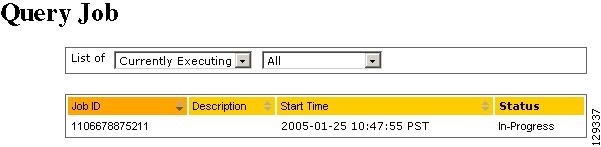
Step 2 Use the drop-down arrow in the left menu to select available list of jobs:
•Currently Executing
•Stopped
•Completed
Step 3 Use the drop-down arrow in the right menu to select the type of listing:
•All
•Image Jobs
•Config Jobs
•Delete Files Jobs
•Query Inventory Jobs
Canceling or Stopping Jobs
Step 1 From the Jobs Functional Overview page, click Cancel/Stop Job.
The Cancel/Stop Job page appears (see Figure 5-2).
Figure 5-2 Cancel/Stop Job
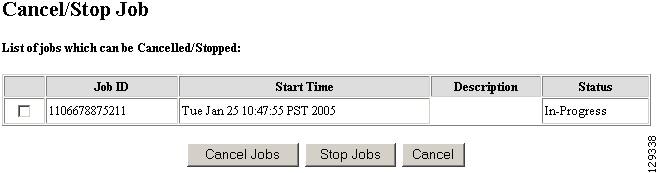
Step 2 Check to select the Job you want to cancel or stop, then click Cancel Jobs, or Stop Jobs.
Restarting Jobs
Step 1 From the Jobs Functional Overview page, click Restart Job.
The Restart Job page appears (see Figure 5-3).
Figure 5-3 Restart Job
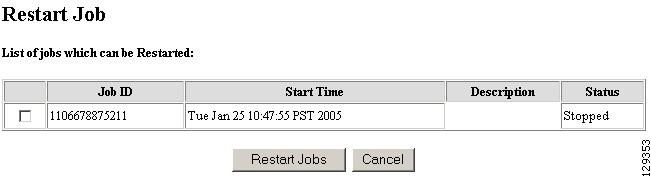
Step 2 Check to select the Job you want to restart, then click Restart Jobs.
Step 3 After the Cisco Configuration Engine restarts, the prior in-progress job will be in stopped state. Restarting such a job will make the job invalid.
Deleting Completed Jobs
Step 1 From the Jobs Functional Overview page, click Delete Completed Jobs.
The Delete Completed Jobs page appears (see Figure 5-4).
Figure 5-4 Completed Jobs List
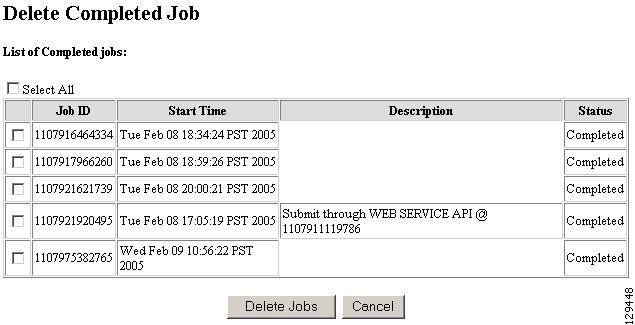
Step 2 Check to select the completed jobs you want to delete, then click Delete Jobs.
 Feedback