- Introduction
- Cisco Service Control Solution Overview
- Cisco SCA BB System Overview
- Introduction to Traffic Processing
- Getting Started with Cisco SCA BB Console
- The Network Navigator
- Using the Service Configuration Editor
- Traffic Classification Using Service Configuration Editor
- Traffic Accounting and Reporting Using the Service Configuration Editor
- Traffic Control Using the Service Configuration Editor
- Service Configuration Editor: Additional Options
- Subscriber Manager GUI Tool
- Anonymous Group Manager GUI Tool
- The Signature Editor Overview
- Additional Management Tools and Interfaces
Cisco Service Control Application for Broadband (Cisco SCA BB) User Guide
Bias-Free Language
The documentation set for this product strives to use bias-free language. For the purposes of this documentation set, bias-free is defined as language that does not imply discrimination based on age, disability, gender, racial identity, ethnic identity, sexual orientation, socioeconomic status, and intersectionality. Exceptions may be present in the documentation due to language that is hardcoded in the user interfaces of the product software, language used based on RFP documentation, or language that is used by a referenced third-party product. Learn more about how Cisco is using Inclusive Language.
- Updated:
- February 17, 2015
Chapter: The Network Navigator
- The Network Navigator Tool
- Introduction to Managing Sites
- Introduction to Managing Devices
- Password Management
- Introduction to Managing Cisco SCE Devices
- Configuring Cisco SCE and Collection Manager Devices Using a Wizard
- Applying Zones and Flavors
- Generating Tech Support Info Files for Cisco SCE Devices
- Retrieving the Online Status of Cisco SCE Devices
- Installing a Protocol Pack on a Single Cisco SCE Platform
- Introduction to Applying Service Configurations to Cisco SCE Devices
- Introduction to Retrieve Service Configurations from Cisco SCE Devices
- Installing PQI Files on Cisco SCE Devices
- Installing a Cisco SCE OS Software Package on Cisco SCE Devices
- Introduction to Managing Subscriber Manager Devices
- Introduction to Managing Collection Manager Devices
The Network Navigator
To manage a network entity—Cisco Service Control Engine (Cisco SCE) platform, Subscriber Manager (SM), or Collection Manager (CM)—from the Console, you must first define it as a device in the Network Navigator.
This chapter describes how to use the Network Navigator tool to create a model of all local and remote sites and devices that are part of the Cisco Service Control solution, how to manage the devices remotely, and other functionality that is part of the Network Navigator tool.
The Usage Analysis wizard, which can be used to create a simple model of devices and connect to them, is also described in this chapter.
This chapter consists of these sections:
- The Network Navigator Tool
- Introduction to Managing Sites
- Introduction to Managing Devices
- Working with Network Navigator Configuration Files
- Network Settings Requirements
The Network Navigator Tool
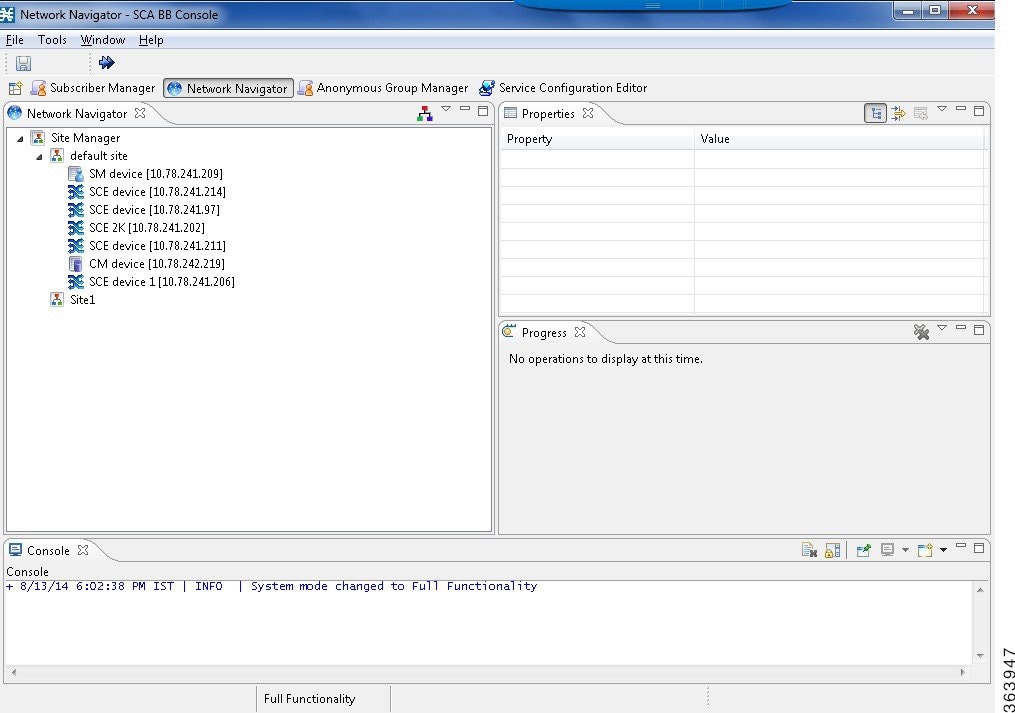
The Network Navigator tool contains four views:
- Network Navigator view—Displays all sites and devices that you have defined as part of your system, in the Site Manager tree.
- Properties view—Displays the editable properties of the node selected in the Site Manager tree in the Network Navigator view.
- Progress view—Displays a progress bar when you perform an operation on a site or device in the Site Manager tree.
- Console view—Displays log messages concerning actions performed in the Network Navigator tool.
Introduction to Managing Sites
You can manage a Cisco SCE, Subscriber Manager, or CM from the Console only if the network entity is defined as a device in the Network Navigator. After a device is added to the Network Navigator, you can perform management and monitoring operations on the device.
You can also perform operations on a group of devices. For example, you can apply the same service configuration to a group of Cisco SCE platforms. The Network Navigator enables you to group devices by adding them under the same site. A site is a group of devices that can be managed together. At installation, the Network Navigator contains a default site with no devices. You can add devices to this site or add additional sites, as described in the following sections.
Grouping devices in sites can also help to manage the passwords for these devices (see Password Managementsection).
This section explains these procedures:
Adding a Site to the Site Manager
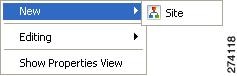
Before adding devices, you must add your sites to the Site Manager.
Introduction to Adding Devices to a Site
You can add Cisco SCE, Subscriber Manager, CM, or database devices to a site.
- Adding Cisco SCE Devices to a Site
- Adding Subscriber Manager Devices to a Site
- Adding Collection Manager Devices to a Site
- Deleting Devices
Adding Cisco SCE Devices to a Site
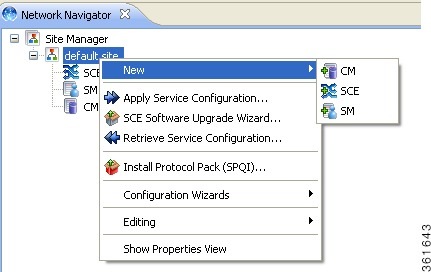
To use the Network Navigator to configure, monitor, and update the software of a Cisco SCE platform, you must first add the Cisco SCE platform to a site.
Adding Subscriber Manager Devices to a Site
To use the Network Navigator to configure, monitor, and update the software of an Subscriber Manager, you must first add the Subscriber Manager to a site.
| Step 1 | In the Site Manager tree, right-click a site. A popup menu appears. |
| Step 2 | From the menu, select New > SM . The Create New SM wizard appears. |
| Step 3 | In the Address field, enter the IP address of the Cisco Service Control Subscriber Manager. |
| Step 4 | (Optional) In the Name field, enter a meaningful name for the Subscriber Manager. |
| Step 5 | Click Finish. The Create New SM wizard closes. |
The new device is added to the site.
Adding Collection Manager Devices to a Site
To use the Network Navigator to monitor a Collection Manager, you must first add the Collection Manager to a site.
| Step 1 | In the Site Manager tree, right-click a site. A popup menu appears. |
| Step 2 | From the menu, select New > CM. The Create New CM wizard appears. |
| Step 3 | In the Address field, enter the IP address of the Collection Manager. |
| Step 4 | (Optional)In the Name field, enter a meaningful name for the Collection Manager. |
| Step 5 | Click
Finish.
The Create New CM wizard closes. |
The new device is added to the site.
Deleting Devices
| Step 1 | In the Site Manager tree, right-click a device. A popup menu appears. |
| Step 2 | From the menu, select Delete . The device is deleted and removed from the Site Manager tree. |
Deleting Sites
| Step 1 | In the Site Manager tree, right-click a site in the Site Manager tree. A popup menu appears. |
| Step 2 | If prompted, enter your password. |
| Step 3 | From the menu, select Delete . The site and all its devices are deleted and the site is removed from the Site Manager tree. |
Introduction to Managing Devices
The Network Navigator enables you to manage Cisco SCE, Cisco Service Control Subscriber Manager, Cisco Service Control Collection Manager, and database devices.
 Note | The Usage Analysis wizard enables you to create a simple model of devices and connect to those devices to perform various tasks. (See Using the Usage Analysis Wizard section.) |
This section contains these topics:
- Password Management
- Introduction to Managing Cisco SCE Devices
- Introduction to Managing Subscriber Manager Devices
- Introduction to Managing Collection Manager Devices
Password Management
Normally, before you can access a device (Cisco SCE, Cisco Service Control Subscriber Manager, Cisco Service Control Collection Manager, or database), you must enter its password. When you try to perform any operation on a site device, the Network Navigator first asks for the device username and password. (Repeating the same operation on the same device does not always require a second entry of the password.)
When performing operations on multiple devices, password entry can become tedious. The Site Master Password can help you remember some or all usernames and passwords of your element by storing them as part of the site data, and entering them for you automatically when you connect to an element.
The Site Master Password protects saved usernames and passwords in the password manager. The Password Management dialog box prompts you for the master password of the site when you wish to activate the site password manager. If you have multiple sites, each site requires a separate master password.
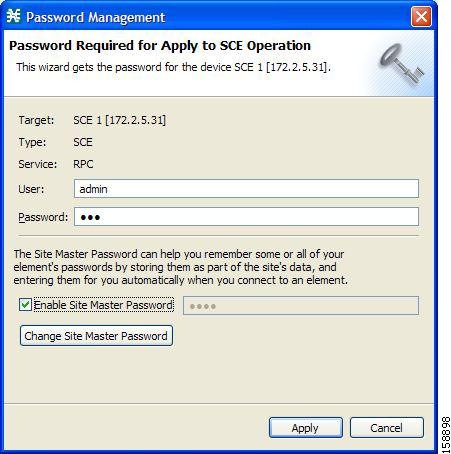
For each site, when the Password Management dialog box appears, check the Enable Site Master Password check box.
Introduction to Managing Cisco SCE Devices
This section explains the following procedures:
- Configuring Cisco SCE and Collection Manager Devices Using a Wizard
- Applying Zones and Flavors
- Generating Tech Support Info Files for Cisco SCE Devices
- Retrieving the Online Status of Cisco SCE Devices
- Installing a Protocol Pack on a Single Cisco SCE Platform
- Introduction to Applying Service Configurations to Cisco SCE Devices
- Introduction to Retrieve Service Configurations from Cisco SCE Devices
- Installing PQI Files on Cisco SCE Devices
- Installing a Cisco SCE OS Software Package on Cisco SCE Devices
Configuring Cisco SCE and Collection Manager Devices Using a Wizard
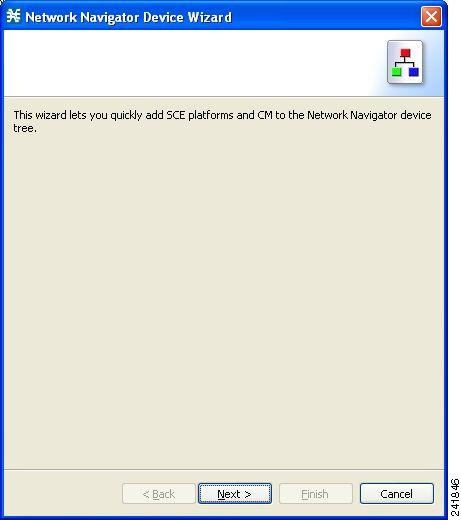
The Network Navigator Device wizard allows you to configure Cisco SCE and Cisco Service Control Collection Manager devices and connect to them.
Note | If they do not exist, devices defined in the wizard are added to the default site in the Site Manager tree. |
| Step 1 | In the Network
Navigator view toolbar, click the Configure SCE and CM devices ( ) icon.
The
Welcome window of the Network Navigator Device wizard appears. ) icon.
The
Welcome window of the Network Navigator Device wizard appears.
 | ||||
| Step 2 | Click
Next.
The SCE
IP Addresses page of the Network Navigator Device wizard opens.
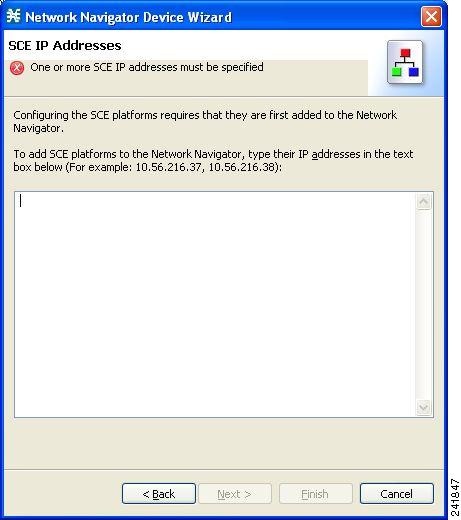 | ||||
| Step 3 | In the edit
box, enter the IP addresses of the Cisco SCE devices that should be added to
the model.
If you started from the Network Navigator, the IP addresses of the Cisco SCE devices that you selected are displayed in the edit box. You can add additional addresses.
| ||||
| Step 4 | Click
Next.
The SCE
Usernames and Passwords page of the Network Navigator Device wizard opens.
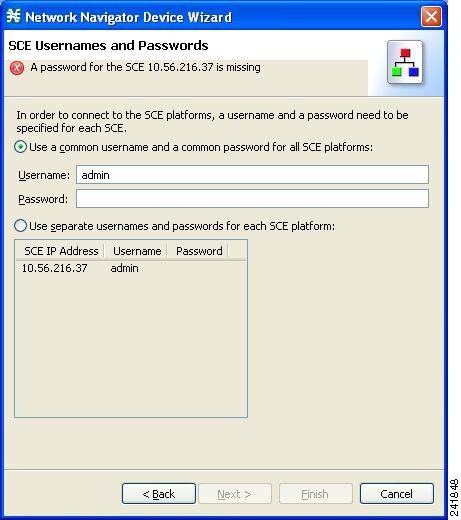 | ||||
| Step 5 | Enter the
usernames and passwords for the Cisco SCE devices.
Do one of the
following:
| ||||
| Step 6 | Click
Next.
The Cisco Service Control Collection Manager Setup page of the Network Navigator Device wizard opens. 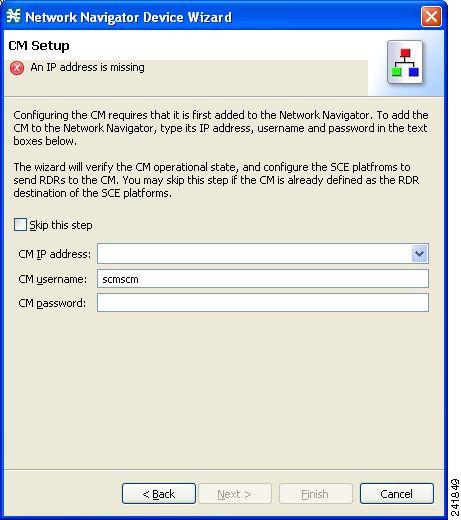 | ||||
| Step 7 | Define the
Cisco Service Control Collection Manager to use with this configuration.
Do one of the following:
| ||||
| Step 8 | Click
Next.
The
Connectivity Test page of the Network Navigator Device wizard opens.
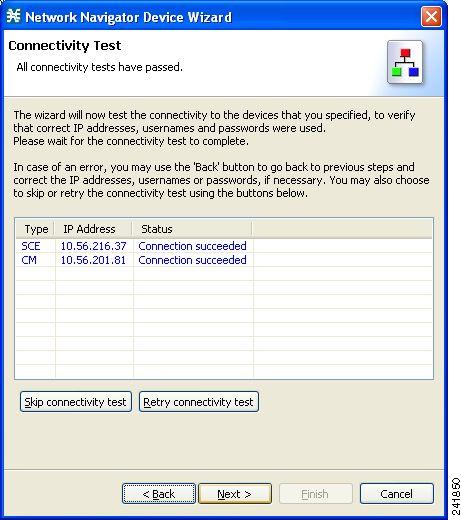 The wizard tests to see that the connections to the defined devices can be made.
| ||||
| Step 9 | Click
Next.
The Confirmation page of the Network Navigator Device wizard opens. 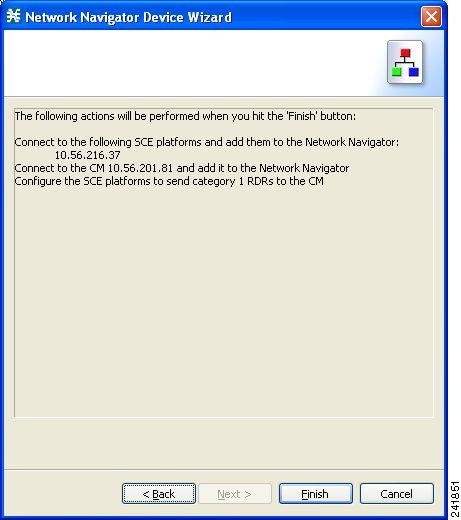 The actions that the wizard is about to take are listed on the page. | ||||
| Step 10 | Click
Finish.
The
Configuration Output page of the Network Navigator Device wizard opens.
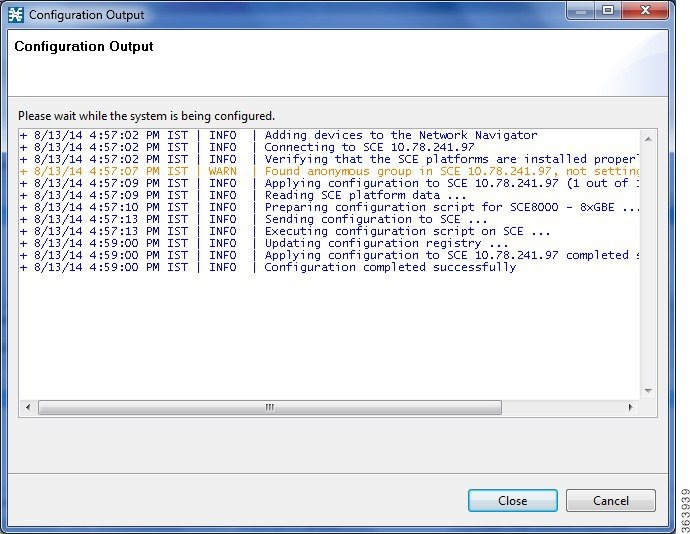 New devices are added to the default site in the Site Manager tree in the Network Navigator. 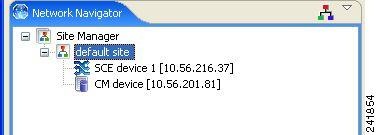 The wizard attempts to connect to all devices that you defined. The operation fails if:
If you defined a CM in Step 7, the Cisco SCE devices are configured so that the only category 1 RDR destination is the CM.
A new service configuration is created:
| ||||
| Step 11 | Click Finish. The Network Navigator Device wizard closes. |
Applying Zones and Flavors
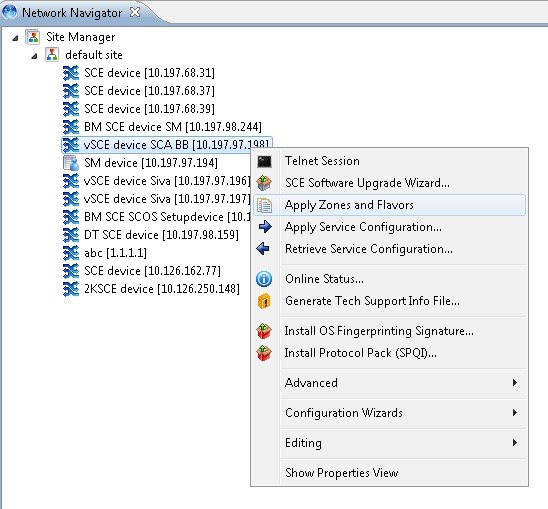
This operation allows you to apply only the zones and flavor items to the selected SCE instead of applying the whole policy to SCE. You can update the zones and flavor items without causing service disruption.
| Step 1 | In the Site Manager tree, right-click an SCE device. A popup menu appears. | ||
| Step 2 | From the Site
Manager Tree menu, select Apply Flavors and Zones.
| ||
| Step 3 | Click Apply.
The
Password Management dialog box closes.
The Zones and Flavor configuration is applied to the selected SCE device. The Cisco SCA BB checks the changes with respect to the flavors and zones and updates the corresponding zones and flavor items in the lookup table entries. Supported Features The following Cisco SCA BB features are only supported when zones and flavor items are applied to the SCE:
Unsupported Features The following Cisco SCA BB features are not supported when zones and flavor items are applied to the SCE: |
Generating Tech Support Info Files for Cisco SCE Devices
This operation generates the support file, for the Cisco SCE platform, for the use of Cisco technical support staff.
| Step 1 | In the Site
Manager tree, right-click an SCE device.
A popup
menu appears.
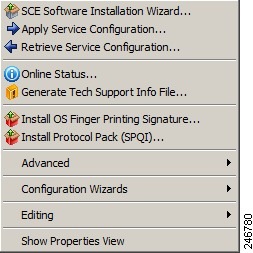 |
| Step 2 | From the Site
Manager Tree menu, select Generate Tech Support Info File .
The
Generate Tech Support Info File dialog box appears.
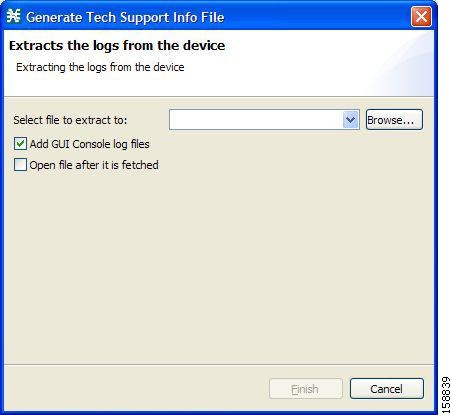 |
| Step 3 | Click Browse. A Select File dialog box appears. |
| Step 4 | Browse to the folder where you want to save the tech support info file. |
| Step 5 | In the File name field, enter a new file name, or select an existing ZIP file. |
| Step 6 | Click Open to
select the file.
If the file exists, it is overwritten when you generate the tech support info. The Select File dialog box closes. |
| Step 7 | (Optional) To add log files to the output tech support info file, check the Add GUI Console log files check box. |
| Step 8 | (Optional) Check the Open file after it is fetched check box. |
| Step 9 | Click Finish.
The Generate Tech Support Info File dialog box closes. A Password Management dialog box appears. |
| Step 10 | Enter the appropriate password. (For more information, see Password Management section.) |
| Step 11 | Click Generate.
The Password Management dialog box closes. A Generate tech support info file progress bar appears. The file is generated. |
Retrieving the Online Status of Cisco SCE Devices
This operation provides information about the current software version and operational status of the Cisco SCE platform. The enhanced Cisco SCE online statuses are categorized as:
- System—displays the platform information
- Configuration—displays the Hostname
- Status—displays the operational mode and total traffic on the Cisco SCE
For more information on monitoring Cisco SCE online status, see the Cisco SCA BB Demo Kit Quick Start Guide.
| Step 1 | In the Site
Manager tree, right-click an SCE device.
A popup menu appears. |
| Step 2 | From the menu,
select
Online Status.
A Password Management dialog box appears. |
| Step 3 | Enter the appropriate password. For more information, see Password Management section. |
| Step 4 | Enter the SNMP
RO Community String.
If SNMP is not already enabled on the Cisco SCE, it gets enabled. If RO communities are not configured on the Cisco SCE or if only RW communities are configured on the Cisco SCE, the SNMP RO community you provide here is added to the Cisco SCE. If only RO communities are configured on the Cisco SCE, the SNMP RO community you provide here is validated first against the RO communities configured on Cisco SCE. If the RO community is valid, the online status window is launched. If the RO community is not valid, a validation message appears. |
| Step 5 | Click Extract .
The Password Management dialog box closes. An Extracting info progress bar appears. The Cisco SCE online status is retrieved. 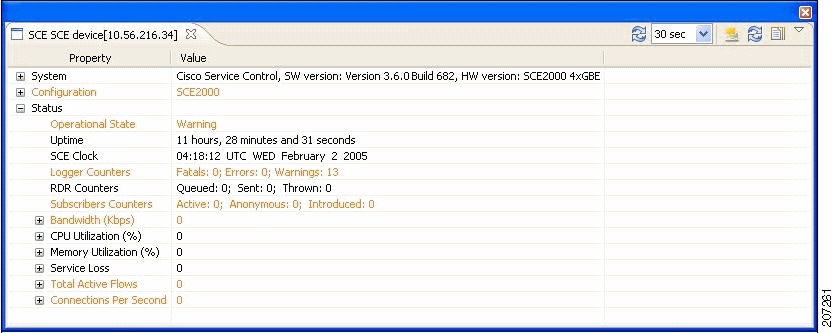 |
Installing a Protocol Pack on a Single Cisco SCE Platform
| Step 1 | In the Site Manager tree, right-click the Cisco SCE on which you plan to install the protocol pack. |
| Step 2 | From the popup
menu that appears, select Update Dynamic Signature Pack .
The Update Dynamic Signature Pack dialog box appears. 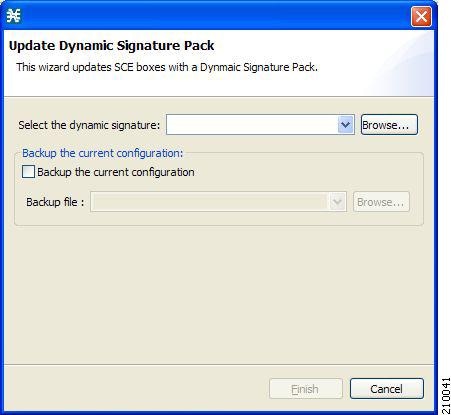 |
| Step 3 | Click Browse. A Select file dialog box appears. |
| Step 4 | From the Files of type drop-down list, select *.spqi or *.dss , depending on the file to be installed. |
| Step 5 | Browse to the file to be installed. |
| Step 6 | Click Open. The Select file dialog box closes. |
| Step 7 | (Recommended) Check the Backup the current configuration check box, click Browse , and select a backup file. |
| Step 8 | Click Finish. A Password Management dialog box appears. |
| Step 9 | Enter the appropriate password. For more information, see Password Management section. |
| Step 10 | Click Update.
The Password Management dialog box closes. An Update Dynamic Signature Pack progress bar appears. |
The service configuration on the Cisco SCE platform is updated.
Introduction to Applying Service Configurations to Cisco SCE Devices
You can apply a service configuration to a single Cisco SCE platform, to selected Cisco SCE platforms, or to all Cisco SCE platforms at one or more selected sites.
Note | The service configuration that you are applying must be open in the Service Configuration Editor. |
 Caution | If anomaly-based detection of malicious traffic is enabled, any access control list (ACL) that is configured on the Cisco Service Control Engine (Cisco SCE) platform but is not applied to anything (for example, an interface, an access map, or an SNMP community string) might be deleted when a service configuration is applied to the platform. To workaround this issue, disable anomaly-based detection of malicious traffic. In the Network Traffic tab, select Service Security . In the Service Security Dashboard, clear the Enable anomaly detection check box. |
- Applying a Service Configuration to Multiple Cisco SCE Platforms
- Applying a Service Configuration to a Single Cisco SCE Platform
Applying a Service Configuration to Multiple Cisco SCE Platforms
| Step 1 | In the Site Manager tree, select sites or Cisco SCE devices to which you are applying the service configuration and right-click one of them. | ||
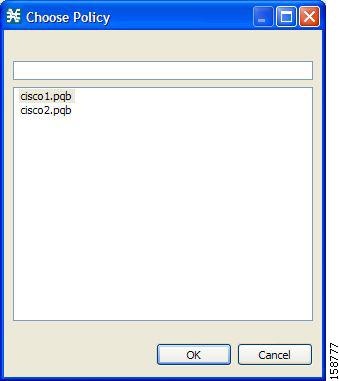
| Step 2 | From the popup menu that appears, select Apply Service Configuration. The Choose Policy dialog box appears, listing all service configurations that are open in the Service Configuration Editor.
| ||
| Step 3 | Select a service configuration from the list and click OK. A separate Password Management dialog box appears for each Cisco SCE device that you have selected. | ||
| Step 4 | For each Cisco SCE device, enter the password and click Apply . The service configuration is applied to each selected Cisco SCE platform in turn. |
Applying a Service Configuration to a Single Cisco SCE Platform
| Step 1 | In the Site Manager tree, right-click a Cisco SCE device. A popup menu appears. | ||
| Step 2 | From the menu,
select Apply Service Configuration .
The Choose Policy dialog box appears, listing all service configurations that are open in the Service Configuration Editor.
 | ||
| Step 3 | Select a service configuration from the list. | ||
| Step 4 | Click OK. A Password Management dialog box appears. | ||
| Step 5 | Enter the appropriate password. (For more information, see Password Management section) | ||
| Step 6 | Click Apply.
The Password Management dialog box closes. An Applying service configuration to Cisco SCE progress bar appears. |
The service configuration is applied to the selected Cisco SCE platform.
Introduction to Retrieve Service Configurations from Cisco SCE Devices
You can retrieve service configurations from a single Cisco SCE platform, from selected Cisco SCE platforms, or from all Cisco SCE platforms at one or more selected sites.
- Retrieving Service Configurations from Multiple Cisco SCE Platforms
- Retrieving Service Configurations from a Single Cisco SCE Platform
Retrieving Service Configurations from Multiple Cisco SCE Platforms
| Step 1 | In the Site Manager tree, select sites or Cisco SCE devices whose service configurations you want to retrieve, and right-click one of them. |
| Step 2 | From the popup menu that appears, select Retrieve Service Configuration.
A separate Password Management dialog box appears for each Cisco SCE device that you have selected. |
| Step 3 | For each Cisco SCE device, enter the password and click Retrieve .
The service configuration is retrieved from each Cisco SCE platform in turn, and is opened in the Service Configuration Editor. |
Retrieving Service Configurations from a Single Cisco SCE Platform
| Step 1 | In the Site Manager tree, right-click a Cisco SCE device. A popup menu appears. |
| Step 2 | Enter your password if prompted. |
| Step 3 | From the menu, select Retrieve Service Configuration . A Password Management dialog box appears. |
| Step 4 | Enter the appropriate password. For more information, see Password Management section. |
| Step 5 | Click Retrieve
.
The Password Management dialog box closes. A Retrieving from Cisco SCE progress bar appears. |
The service configuration is retrieved from the Cisco SCE platform and opened in the Service Configuration Editor.
Installing PQI Files on Cisco SCE Devices
This operation installs the Cisco SCA BB on the Cisco SCE platform.
Note | It is recommended to use the SCE Software Upgrade wizard when installing a PQI file on multiple Cisco SCE devices. See Upgrading the SCE Using the SCE Software Upgrade Wizard section. |
Note | Installing a PQI file usually takes a few minutes. |
| Step 1 | In the Site Manager tree, select a Cisco SCE device. |
| Step 2 | From the
Console main menu, choose Network > Install Application Software (PQI).
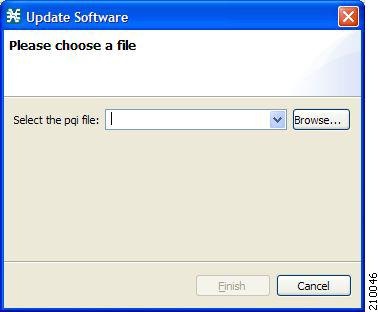
The
Update Software dialog box appears.
 |
| Step 3 | Click Browse .
A Select file dialog box appears. |
| Step 4 | Browse to the PQI file that you are installing. |
| Step 5 | Click Open.
The Select file dialog box closes. |
| Step 6 | Click Finish.
A Password Management dialog box appears. |
| Step 7 | Enter the appropriate password. For more information, see Password Management section. |
| Step 8 | Click Apply.
The Password Management dialog box closes. An Updating software to SCE progress bar appears. |
The PQI file is installed on the selected Cisco SCE.
Installing a Cisco SCE OS Software Package on Cisco SCE Devices
This operation installs the Cisco SCE OS software package (the operating system software and firmware of the Cisco SCE platform).
Note | It is recommended to use the SCE Software Upgrade wizard when installing an SCE OS software package on multiple Cisco SCE platforms. See Upgrading the SCE Using the SCE Software Upgrade Wizard section. |
| Step 1 | In the Site Manager tree, select a Cisco SCE device. |
| Step 2 | From the
Console main menu, choose Network > Upgrade SCE Platform Firmware (PKG) .
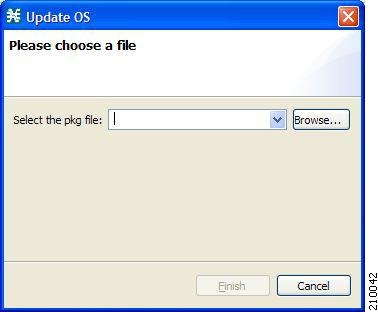
The
Update OS dialog box appears.
 |
| Step 3 | Click Browse . A Select file dialog box appears. |
| Step 4 | Browse to the PKG file containing the OS that you are installing. |
| Step 5 | Click Open. The Select file dialog box closes. |
| Step 6 | Click Finish. A Password Management dialog box appears. |
| Step 7 | Enter the appropriate password. For more information, see Password Management section. |
| Step 8 | Click Apply.
The Password Management dialog box closes. An Updating software to SCE progress bar appears. The PQI file is installed on the selected Cisco SCE. |
Introduction to Managing Subscriber Manager Devices
- Generating Tech Support Info Files for Subscriber Manager Devices
- Retrieving the Online Status of Subscriber Manager Devices
- Connecting to Subscriber Manager Devices
Generating Tech Support Info Files for Subscriber Manager Devices
This operation generates the support file, for the Subscriber Manager, for the use of Cisco technical support staff.
| Step 1 | In the Site
Manager tree, right-click an Subscriber Manager device.
A popup
menu appears.
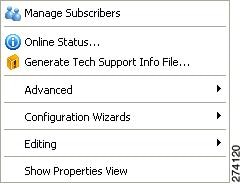 |
| Step 2 | From the menu, select Generate Tech Support Info File . The Generate Tech Support Info File dialog box appears. |
| Step 3 | Click Browse. A Select File dialog box appears. |
| Step 4 | Browse to the folder where you want to save the tech support info file. |
| Step 5 | In the File name field, enter a new file name, or select an existing ZIP file. |
| Step 6 | Click Open to
select the file.
If the file exists, it is overwritten. The Select File dialog box closes. |
| Step 7 | (Optional)To add log files to the output tech support info file, check the Add GUI Console log files check box . |
| Step 8 | Check the Open file after it is fetched check box. |
| Step 9 | Click Finish.
The Generate Tech Support Info File dialog box closes. A Password Management dialog box appears. |
| Step 10 | Enter the appropriate password. (For more information, see Password Management section.) |
| Step 11 | Click Generate.
The Password Management dialog box closes. A Generate tech support info file progress bar appears. The file is generated. |
Retrieving the Online Status of Subscriber Manager Devices
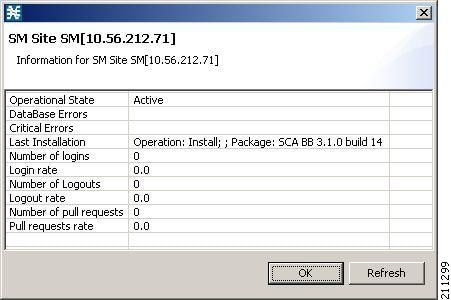
This operation provides information about the current software version and operational status of the Subscriber Manager Device.
| Step 1 | In the Site Manager tree, right-click an Subscriber Manager device. A popup menu appears. |
| Step 2 | From the menu,
select Online Status.
A Password Management dialog box appears. |
| Step 3 | Enter the appropriate password. For more information, see Password Management section |
| Step 4 | Click Extract.
The Password Management dialog box closes. An Extracting info progress bar appears. |
The Cisco Service Control Subscriber Manager online status is retrieved.
Connecting to Subscriber Manager Devices
To manage subscribers using the Subscriber Manager GUI tool, you must connect to an Subscriber Manager device.
Note | The Subscriber Manager GUI tool performs authentication on the Cisco Service Control Subscriber Manager by opening a PRPC connection to port 14374 and attempting to log in using the username and password that you entered in the Password Management dialog box. If a PRPC server with this user is not running on the Cisco Service Control Subscriber Manager, authentication fails. If you have changed the PRPC port on the Cisco Service Control Subscriber Manager, see User Authentication section. |
| Step 1 | In the Site Manager tree, right-click an Subscriber Manager device. A popup menu appears. |
| Step 2 | From the menu, select Manage Subscribers . A Password Management dialog box appears. |
| Step 3 | Enter the appropriate password. (For more information, see Password Management section.) |
| Step 4 | Click
Connecting.
The Password Management dialog box closes. A Connecting to progress bar appears. |
You connect to the Subscriber Manager, and the Console switches to the Subscriber Manager GUI tool.
What to Do Next
For an explanation of how to proceed, see Subscriber Manager GUI Tool section.
Introduction to Managing Collection Manager Devices
You can configure Collection Manager devices using a wizard. See Configuring Cisco SCE and Collection Manager Devices Using a Wizard section.
Retrieving the Online Status of CM Devices
This operation provides information about the current software version and operational status of the Collection Manager.
| Step 1 | In the Site
Manager tree, right-click a CM device.
A popup
menu appears.
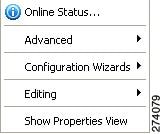 |
| Step 2 | From the menu,
select Online Status .
A Password Management dialog box appears. |
| Step 3 | Enter the appropriate password. For more information, see Password Management section. |
| Step 4 | Click Extract.
The Password Management dialog box closes. An Extracting info progress bar appears. |
The Cisco Service Control Collection Manager online status is retrieved.
For an example of a retrieved online status window (for a Cisco SCE platform), see Retrieving the Online Status of Cisco SCE Devices section .
Working with Network Navigator Configuration Files
After you add sites and devices to the Network Navigator, you can export this data to a file to back up your settings and to share them with other users, who can import your Network Navigator settings into their Console.
If you use the Site Master Password to store the passwords of the network devices, the passwords are also exported, in encrypted form. This means that other users who import this data need to only provide the Site Master Password to access the devices.
Exporting a Network Navigator Configuration
| Step 1 | From the
Console main menu, choose File > Export .
The
Export dialog box appears.
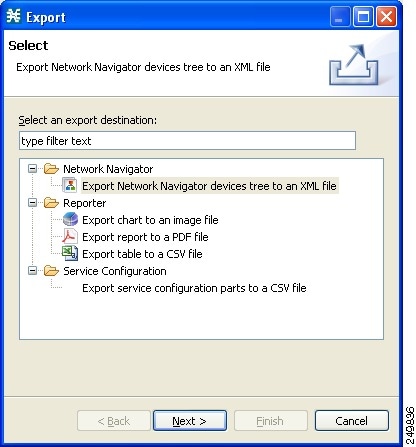 | ||
| Step 2 | From the export destination list, select Network Navigator Configuration to a file. | ||
| Step 3 | Click Next .
The
Export Network Navigator Configuration to a file dialog box appears.
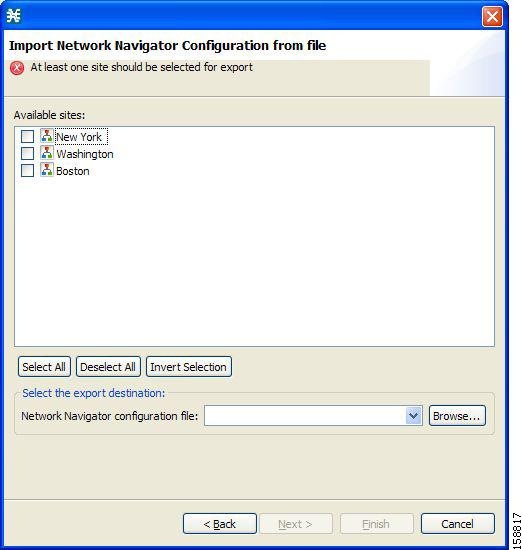 The Available sites pane lists all of the sites in the configuration. | ||
| Step 4 | Select the sites to export, using the check boxes and the select buttons. | ||
| Step 5 | In the Select the export destination area, click Browse. An Open dialog box appears. | ||
| Step 6 | Browse to the folder where you want to save the configuration file. | ||
| Step 7 | In the File name field, enter a new file name, or select an existing site_xml file. | ||
| Step 8 | Click Open to
select the file.
The Open dialog box closes. | ||
| Step 9 | Click Finish.
The Export Network Navigator Configuration dialog box closes. The configuration is saved to the file. |
Importing a Network Navigator Configuration
| Step 1 | From the
Console main menu, choose File > Import .
The
Import dialog box appears.
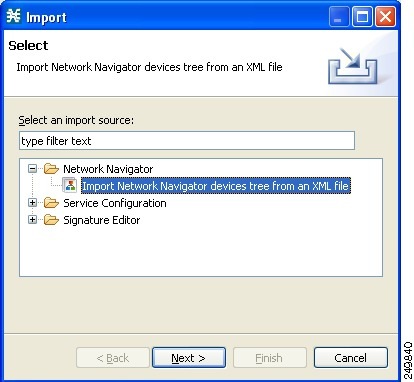 |
| Step 2 | From the import source list, select Network Navigator Configuration from file. |
| Step 3 | Click Next.
The
Import Network Navigator Configuration from file dialog box appears.
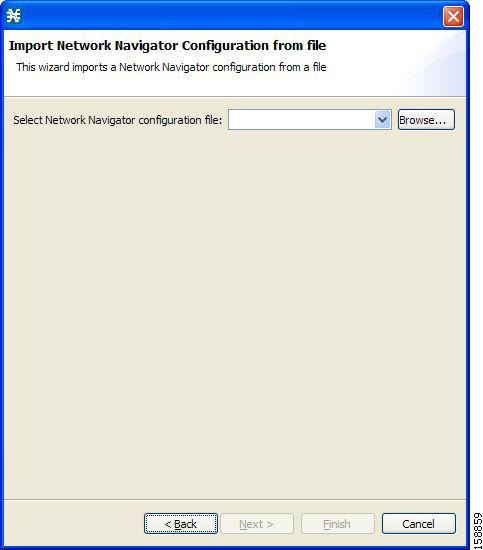 |
| Step 4 | Click Browse. An Open dialog box appears. |
| Step 5 | Browse to the folder containing the file to import, and select a site_xml file. |
| Step 6 | Click Open to select the file. The Open dialog box closes. |
| Step 7 | Click Finish .
The Import Network Navigator Configuration dialog box closes. The configuration is imported from the file. |
Network Settings Requirements
Firewall and NAT Requirements
The ports listed in the table are the default values. If you change a port in a device, you must modify the firewall/NAT settings accordingly. (Modifying the Console settings to connect to a different PRPC port is described in the following section.)
| Source | Destination | Comments |
|---|---|---|
|
Workstation |
Cisco SCE port 14374/TCP |
PRPC—Required for all Cisco SCE operations |
|
Cisco SCE |
Workstation port 21/TCP |
FTP—Required for the following Cisco SCE operations:
|
|
Cisco SCE |
Workstation ports 21000/TCP to 21010/TCP |
FTP—Alternative to port 21/TCP, required if another application on the workstation is using port21/TCP. |
|
Workstation |
Subscriber Manager port 14374/TCP |
PRPC—Required for all Subscriber Manager operations |
|
Workstation |
CM port 14375/TCP |
PRPC—Required for the CM Online Status operation and for CM authentication |
The SCA Reporter may have additional requirements for connecting to the database. For more information, see the Cisco Service Control Application Reporter User Guide.
User Authentication
User authentication is performed when a Proprietary Remote Procedure Call (PRPC) connection is made to a Cisco SCE platform, a CM, or an Subscriber Manager. For authentication to succeed, a PRPC server must be running at the destination, and you must know the username and password of a user of the server.
Note | If you change a PRPC server port in a device (SM/CM/Cisco SCE), you must add a line to the configuration file engage.ini : <IP address of device>.rpc.port=<port number> For example: 10.56.216.37.rpc.port=222 Add one line for each (non-default) port that you use. The file engage.ini is located in the folder Program files\Cisco SCA\SCA BB Console 5.1.x\plugins\policy.contribution_5.1.x\config\ . |
You define the username and password using the user/password mechanism in the Cisco SCE platform or a command-line utility in the Subscriber Manager and CM.
For more information about defining users, see the following:
- Cisco SCE—See either the “TACACS+ Authentication, Authorization, and Accounting” section in the “Configuring the Management Interface and Security” chapter of or the “TACACS+ Authentication, Authorization, and Accounting” section in the “Configuring the Management Interface and Security” chapter of.
- Cisco SCE—See either the “TACACS+ Authentication, Authorization, and Accounting” section in the “Configuring the Management Interface and Security” chapter of .
- Collection Manager—“Managing Users” section in the “Managing the Collection Manager” chapter of Cisco Service Control Management Suite Collection Manager User Guide.
- Subscriber Manager—“Information About the p3rpc Utility” section in the “Command-Line Utilities” appendix of Cisco Service Control Management Suite Subscriber Manager User Guide.
Note | PRPC authentication from the Cisco SCA BB Console to any CM/SM/Cisco SCE IP addresses other than the real IP address of the device is not supported. This is especially important when the CM/Subscriber Manager/Cisco SCE resides on the inside interface of a NATing router or firewall Workaround : Redesign your network so that the SCA BB Console is given the real IP address of the CM/SM/Cisco SCE. Disable PRPC authentication on the Cisco SCE/CM/Subscriber Manager as described in the following sections. |
Introduction to Disabling PRPC Authentication
- Disabling PRPC Authentication on a Cisco SCE Platform
- Disabling PRPC Authentication on a CM
- Disabling PRPC Authentication on an Subscriber Manager
Disabling PRPC Authentication on a Cisco SCE Platform
Disabling PRPC Authentication on a CM
| Step 1 | Edit the CM configuration file. Edit the cm/um/config/p3cm.cfg configuration file:
[RPC.Server] security_level=none |
| Step 2 | Reload the CM process. |
Disabling PRPC Authentication on an Subscriber Manager
| Step 1 | Edit the Subscriber Manager configuration file. Edit the ~pcube/sm/server/root/config/p3sm.cfg configuration file:
[RPC.Server] security_level= none |
| Step 2 | Load the configuration. Run the following CLU: p3sm --load-config |
 Feedback