Upgrading the Cisco cBR-8 Router System to Cisco IOS XE Gibraltar 16.12.1w

This section contains the upgrade procedures for the Cisco cBR-8 Router System.

If you are using telnet to access the device, make sure the value of line vty transport is correct and save the configuration.

Router# show run | begin line vty
line vty 0 4
 exec-timeout 0 0
 privilege level 15
 password 7 104D081B094410055F
 exec prompt timestamp
 transport input all
line vty 5 98
 exec-timeout 0 0
 privilege level 15
 password 7 02050D480809
 transport input all
line vty 99
 transport input all
!

The following table encompasses all versions that customers are required to update to support Cisco IOS XE Gibraltar 16.12.1w. All other firmware versions are either not upgradable by the customer, or not required to be upgraded for Cisco IOS XE Gibraltar 16.12.1w support. Use the commands in the tables to verify the firmware versions.

Table 1. Firmware Versions

Internal Name

Component Name

Required Minimum Version

Command

Supervisor CPLD

CBR-CCAP-SUP-160G CPLD

16052011/19071712

show platform

CBR-CCAP-SUP-250G CPLD

170724E0/190717E1

show platform

Supervisor ROMMON

CBR-CCAP-SUP-160G Rommon and CBR-CCAP-SUP-250G Rommon

16.7(6r)S

show platform

Line Card CPLD

CBR-CCAP-LC-40G CPLD

00000026

show platform diag

Docsis 3.1 downstream module Micro

CBR-CCAP-LC-40G Gemin2 Micro

3.1A

show platform diag

Docsis 3.1 downstream module FPGA

CBR-CCAP-LC-40G Gemini2 Apollo

4.484F

show platform diag

DPIC Uboot and FPGA

CBR-DPIC-8X10G Firmware

00010001

show platform diag

DPIC 100G Uboot and FPGA

CBR-DPIC-2X100G Firmware

00020005

show platform diag

Note

If the user wants to upgrade Supervisor CPLD to version 19071712 and 190717E1, the chassis must be running with Cisco IOS XE Gibraltar 16.12.1w or later releases.


Note

Cisco recommends that operators upgrade their On-Premise SSM Satellite software versions to v7.x or later releases, to ensure the compatibility with cBR-8.


Verify max-carrier value

Currently in Remote PHY system, max-carrier value can be configured in the downstream controller profile as well as in RPD configuration for Cisco Remote PHY Shelf 300/600/7200. This may lead to inconsistent max-carrier value configurations.

Starting from Cisco IOS XE Gibraltar 16.10.1f, max-carrier value configured in the cable rpd mode is removed and RPD will use the max-carrier value configured in the controller-profile mode for the power calculation.

Before upgrading to Cisco IOS XE Gibraltar 16.10.1f or later releases, verify if the max-carrier values configured in the RPD shelf configuration and downstream controller profile(s) associated to RPD downstream port are the same. If they are different, update the cBR-8 configuration prior to upgrade.

Below is an example of correct configuration before upgrade.

cable downstream controller-profile 1
 max-carrier 128
 max-ofdm-spectrum 384000000
 rf-chan 0 3
  type DOCSIS
  qam-profile 1
  frequency 381000000
  rf-output NORMAL
  docsis-channel-id 1

cable downstream controller-profile 2
 max-carrier 158
 max-ofdm-spectrum 384000000
 rf-chan 158
  docsis-channel-id 159
  ofdm channel-profile 20 start-frequency 579000000 width 48000000 plc 600000000


cable rpd test
 identifier 0001.0001.0001
 type shelf
 rpd-ds 0 max-carrier 128
 rpd-ds 0 base-power 33
 rpd-ds 1 max-carrier 158
 rpd-ds 1 base-power 25
 core-interface Te9/1/0
  rpd-ds 0 downstream-cable 9/0/3 profile 1
  rpd-ds 0 downstream-cable 9/0/4 profile 2
  rpd-us 0 upstream-cable 9/0/3 profile 1
 r-dti 1
 rpd-event profile 0
 rpd-55d1-us-event profile 0

Note

It is highly recommended to follow this example to check and update configuration if necessary because max-carrier value is used to compute the base power. Otherwise, after upgrade the expected base power value can be different which may affect cable modem coming online.


Note

If you upgrade from a version lower than Cisco IOS XE Fuji 16.9.1, base power range may be changed on the port with OFDM channel configured. So be aware of the potential base power change before and after the upgrade.


Upgrading from Cisco IOS XE 16.x to Cisco IOS XE Gibraltar 16.12.1w


Note

If you are upgrading from Cisco IOS XE Everest 16.6.x and Cisco IOS XE Fuji 16.7.x to Cisco IOS XE Gibraltar 16.12.1w,perform the following steps to upgrade SUP ROMMON manually. Otherwise, proceed with the IOS upgrade.


  1. Download hardware programmable devices upgrade package file cbrsup-programmable_firmware.16.12.01w.SPA.pkg from the following Cisco.com Software Center URL: https://software.cisco.com/download/type.html?mdfid=286283913&flowid=73842

  2. Copy the package file to harddisk:.

    copy <location>/cbrsup-programmable_firmware.16.12.01w.SPA.pkg harddisk:
  3. Verify the hardware programmable devices upgrade package against the md5 hash as provided in the Cisco.com Software center.

    verify /md5 harddisk:cbrsup-programmable_firmware.16.12.01w.SPA.pkg
  4. Upgrade SUP ROMMON.

    Router#Upgrade rom-mon file harddisk:cbrsup-programmable_firmware.16.12.01w.SPA.pkg r0
    Wait for the following output on the console:
    ROMMON upgrade complete.
    To make the new ROMMON permanent, you must restart the RP
    
    Router#Upgrade rom-mon file harddisk:cbrsup-programmable_firmware.16.12.01w.SPA.pkg r1
    Wait for the following output on the console:
    ROMMON upgrade complete.
    To make the new ROMMON permanent, you must restart the RP


    Note

    To save time, we can combine reloading the SUP with the ISSU process.


Upgrading with ISSU

Before you begin


Note

If you are upgrading from Cisco IOS XE Everest 16.7.x to Cisco IOS XE Gibraltar 16.12.1w, contact Cisco TAC for special procedures.


Note

Due to the new SUP250 WAN FPGA firmware included in the Cisco IOS XE Gibraltar 16.12.1w package, it is recommended to upgrade the cBR-8 system following the steps in Upgrading using reload, otherwise the new SUP250 WAN FPGA firmware will not take effect.


Note

If you are upgrading from Cisco IOS XE Everest 16.6.x to Cisco IOS XE Gibraltar 16.12.1w, complete pre-upgrade steps 1 to 4 before proceed.


Before upgrading the system, make sure the following requirements are met:

  • The cBR-8 has two SUPs setup.

    
    Router# show redundancy | include Location|state
                   Active Location = slot 4
            Current Software state = ACTIVE
           Uptime in current state = 2 days, 21 hours, 37 minutes
                  Standby Location = slot 5
            Current Software state = STANDBY HOT 
           Uptime in current state = 2 days, 21 hours, 30 minutes
    
  • Standby SUP must be in hot standby.

    
    Router# show redundancy | include Location|state
                   Active Location = slot 4
            Current Software state = ACTIVE
           Uptime in current state = 2 days, 21 hours, 37 minutes
                  Standby Location = slot 5
            Current Software state = STANDBY HOT 
           Uptime in current state = 2 days, 21 hours, 30 minutes
    
  • Line card redundancy is in stable state with state Active and Stdby warm.

    
    Router# show redundancy linecard all 
    Load for five secs: 14%/1%; one minute: 8%; five minutes: 8%
    Time source is NTP, 15:23:26.697 PST Thu Jan 17 2019
    
                  LC     My         Peer       Peer     Peer                       
    Slot Subslot  Group  State      State      Slot     Subslot  Role     Mode     
    --------------------------------------------------------------------------------
     1   -        0      Active     Stdby Warm 0        -        Active   Primary  
     2   -        0      Active     Stdby Warm 0        -        Active   Primary  
     3   -        0      Active     Stdby Warm 0        -        Active   Primary  
     6   -        0      Active     Stdby Warm 0        -        Active   Primary  
     0   -        0      -          -          Multiple None     Standby  Secondary
    
  • Auto-boot is enabled.

    
    Router# show bootvar
    Load for five secs: 14%/0%; one minute: 14%; five minutes: 10%
    Time source is NTP, 15:46:59.837 PST Thu Jan 17 2019
    
    BOOT variable = bootflash:IOSXE/packages.conf,12;
    CONFIG_FILE variable = 
    BOOTLDR variable does not exist
    Configuration register is 0x2
    
    Standby BOOT variable = bootflash:IOSXE/packages.conf,12;
    Standby CONFIG_FILE variable = 
    Standby BOOTLDR variable does not exist
    Standby Configuration register is 0x2
    
  • Both SUPs are in the sub-package mode, running the same image from the same path.

    
    Router# show bootvar
    Load for five secs: 14%/0%; one minute: 14%; five minutes: 10%
    Time source is NTP, 15:46:59.837 PST Thu Jan 17 2019
    
    BOOT variable = bootflash:IOSXE/packages.conf,12;
    CONFIG_FILE variable = 
    BOOTLDR variable does not exist
    Configuration register is 0x2
    
    Standby BOOT variable = bootflash:IOSXE/packages.conf,12;
    Standby CONFIG_FILE variable = 
    Standby BOOTLDR variable does not exist
    Standby Configuration register is 0x2
    
  • Target consolidated image cbrsup-universalk9.16.12.01w.SPA.bin is copied to active SUP in the same directory of the packages.conf file that the system is booted up with.

  • Download two files from the following Cisco.com Software Center URL:

    https://software.cisco.com/download/type.html?mdfid=286283913&flowid=73842

    • IOS XE Software Version 16.12.1w: cbrsup-universalk9.16.12.01w.SPA.bin

    • IOS XE Hardware Programmable Devices Version 16.12.1w: cbrsup-programmable_firmware.16.12.01w.SPA.pkg

  • The free space on boot device on both SUPs must be greater than 1.8 GB.

    
    Router# dir bootflash: | include bytes total                                                
    7804653568 bytes total (1311854592 bytes free)
    

Note

Do not power cycle the cBR-8 router during the firmware upgrade process. Power cycling the chassis may corrupt the ROMMON/Uboot image.


Procedure


Step 1

Copy Cisco IOS XE Gibraltar 16.12.1w package to bootflash:.


copy <location>/cbrsup-universalk9.16.12.01w.SPA.bin bootflash:<sub-pkg-dir>/ 

Step 2

Verify Cisco IOS XE Gibraltar 16.12.1w package against the md5 hash as provided in the Cisco.com Software center.


verify /md5 bootflash:<sub-pkg-dir>/cbrsup-universalk9.16.12.01w.SPA.bin 

Step 3

Copy the hardware programmable devices upgrade package to harddisk: if the file has not been copied already.


copy <location>/cbrsup-programmable_firmware.16.12.01w.SPA.pkg harddisk: 

Step 4

Verify the hardware programmable devices upgrade package against the md5 hash as provided in the Cisco.com Software center.


verify /md5 harddisk:cbrsup-programmable_firmware.16.12.01w.SPA.pkg 

Step 5

Check system status prior to upgrade. Save the information to compare against the system status after upgrade. For the commands to use to check the status, see the show commands at the end of this section.

Step 6

Check line card CPLD version via show platform . If it is not the latest version 00000026, upgrade line card CPLD following the sub steps below. Otherwise skip this step.

  1. Run the following pre-upgrade commands on the SUP IOS:

    
    upgrade hw-programmable cable active_SUP daggit pre-upgrade slot LC_slot_# 
    

    Example:

    Router# upgrade hw-programmable cable R0 daggit pre-upgrade slot 0
    Daggits pre-upgrade successful
    
  2. Upgrade the line card CPLD firmware using the SUP IOS command.

    Note 
    Do not reboot the line card until the upgrade is complete. Upgrade takes approximately 15 minutes.
    
    upgrade hw-programmable cable LC_slot_# daggit pkg_name firmware_pkg_location_path 
    

    Example:

    Router# upgrade hw-programmable cable 0 daggit pkg_name /harddisk/cbrsup-programmable_firmware.16.12.01w.SPA.pkg
    
    
  3. After the upgrade is complete (takes approximately 15 minutes), the line card moves to unknown state. Check the status of the line card using the show platform command. When the line card is in unknown state, run the following command to recover the line card:

    
    upgrade hw-programmable cable active_SUP daggit lc-recovery slot LC_slot_# 
    

    Example:

    
    Router# upgrade hw-programmable cable R0 daggit lc-recovery slot 0
    
  4. The line card moves from booting to active state. Check the version of the line card using the show platform command to make sure version is changed to 00000026.

    Example:

     
    cBR8#show platform
    ……
    Slot      CPLD Version        Rommon Version
    --------- ------------------- ---------------------------------------
    
    0         00000026            2011.03.18
    … 
    
    
  5. When the line card is in active state, run the following command to verify the upgrade.

    
    upgrade hw-programmable cable active_SUP daggit post-active slot LC_slot_# 
    

    Example:

     
    Router# upgrade hw-programmable cable R0 daggit post-active slot 0
    SUCCESS: Daggit_ver-37 : Booted from upgradable Image-1
    
    
Step 7

Upgrade Docsis 3.1 downstream modules in all slots.

Note 

Do not upgrade if they already have the correct FPGA/Micro firmware version as shown in Table 1, otherwise the line card will be in unknown state.


Upgrade hw-programmable cable <slot> dsphy all pkg_name/harddisk/cbrsup-programmable_firmware.16.12.01w.SPA.pkg

Step 8

Wait for the system log message asking the user to reload the line card that was upgraded.

001860: Jun 15 19:05:05.904 PDT: %IOSXE-5-PLATFORM: CLC0: cdman: Suggest reload the line card for new FW to take effect using CLI: hw slot <slot-id> reload
Step 9

Perform ISSU.

request platform software package install node file bootflash:cbrsup-universalk9.16.12.01w.SPA.bin

Step 10

To monitor the ISSU progress, use the command below.

request platform software package install node attach

Step 11

Use these CLI to check status after ISSU.

show version 
show version r0 running
show version r1 running
show version r0 provisioned
show version r1 provisioned
Note 

If both Docsis 3.1 OFDM channels and downstream load balancing are configured, then Docsis 3.1 CMs will come up in a Docsis 3.0 bonding group after ISSU from Cisco IOS XE Everest 16.6.x. The workaround procedure is:

  1. Admin shut all OFDM channels. This can be done from a script, or from cut and paste of the CLI. There is no need to have a delay between successive shuts. For example:

    configure terminal
        controller Integrated-Cable 2/0/0
            rf-chan 158
                shut
    
  2. Wait for 30 seconds.

  3. Admin perform no-shut on all OFDM channels. This may be done from a script, or from cut and paste of the CLI. There is no need to have a delay between successive no-shuts. For example:

    configure terminal
        controller Integrated-Cable 2/0/0
            rf-chan 158
                no shut
    
  4. Reset all Docsis 31 CMs. For example:

    clear cable modem d31-capable reset

What to do next

Perform verification test to determine if the upgrade is successful, include:

  • Verify the router is running the new IOS-XE release using show version command.

  • Check facility alarms using show facility-alarm status command.

  • Check the status of the power supplies using show environment power command.

  • Check PS status using show platform hardware slot P<0-5> mcu status command.

  • Complete trace routes to known good off-network IP address using the source address of customer CPE blocks to verify routing is working.

  • Check logs for error messages using show log command.

These show commands may be useful in the verification test:

  • show redundancy

  • show platform

  • show platform diag

  • show environment

  • show redundancy linecard all

  • show isis neighbors

  • show ip ospf neighbor

  • show ip route rip

  • show ip mroute

  • show cops servers

  • show cable modem voice

  • show cable calls

  • show cable metering verbose

  • show cable licenses all

  • show inventory

Upgrading using reload

Before you begin


Note

If you are upgrading from Cisco IOS XE Everest 16.6.x and Cisco IOS XE Fuji 16.7.x to Cisco IOS XE Gibraltar 16.12.1w, complete pre-upgrade steps 1 to 4 before proceed.


Before upgrading the system, make sure the following requirements are met:

Procedure


Step 1

Copy Cisco IOS XE Gibraltar 16.12.1w package to bootflash: and stby-bootflash:.


copy <location>/cbrsup-universalk9.16.12.01w.SPA.bin bootflash: 
copy <location>/cbrsup-universalk9.16.12.01w.SPA.bin stby-bootflash: 

Step 2

Verify Cisco IOS XE Gibraltar 16.12.1w package against the md5 hash as provided in the Cisco.com Software center.


verify /md5 bootflash:cbrsup-universalk9.16.12.01w.SPA.bin 
verify /md5 stby-bootflash:cbrsup-universalk9.16.12.01w.SPA.bin 

Step 3

Copy the hardware programmable devices upgrade package to harddisk:.


copy <location>/cbrsup-programmable_firmware.16.12.01w.SPA.pkg harddisk: 

Step 4

Verify the hardware programmable devices upgrade package against the md5 hash as provided in the Cisco.com Software center.


verify /md5 harddisk:cbrsup-programmable_firmware.16.12.01w.SPA.pkg 

Step 5

Configure the chassis to boot the system with Cisco IOS XE Gibraltar 16.12.1w image.


Configure terminal
no boot system
boot system bootflash:cbrsup-universalk9.16.12.01w.SPA.bin
config-register 0x2
end
write mem

Step 6

If you are upgrading from Cisco IOS XE Everest 16.6.x and Cisco IOS XE Fuji 16.7.x, and both SUP ROMMON versions are not 16.7(6r)S, upgrade SUP ROMMON.

Router#Upgrade rom-mon file harddisk:cbrsup-programmable_firmware.16.12.01w.SPA.pkg r0
Wait for the following output on the console:
ROMMON upgrade complete.
To make the new ROMMON permanent, you must restart the RP

Router#Upgrade rom-mon file harddisk:cbrsup-programmable_firmware.16.12.01w.SPA.pkg r1
Wait for the following output on the console:
ROMMON upgrade complete.
To make the new ROMMON permanent, you must restart the RP

Step 7

Check line card CPLD version via show platform . If it is not the latest version 00000026, upgrade line card CPLD following the sub steps below. Otherwise skip this step.

  1. Run the following pre-upgrade commands on the SUP IOS:

    
    upgrade hw-programmable cable active_SUP daggit pre-upgrade slot LC_slot_# 
    

    Example:

    Router# upgrade hw-programmable cable R0 daggit pre-upgrade slot 0
    Daggits pre-upgrade successful
    
  2. Upgrade the line card CPLD firmware using the SUP IOS command.

    Note 
    Do not reboot the line card until the upgrade is complete. Upgrade takes approximately 15 minutes.
    
    upgrade hw-programmable cable LC_slot_# daggit pkg_name firmware_pkg_location_path 
    

    Example:

    Router# upgrade hw-programmable cable 0 daggit pkg_name /harddisk/cbrsup-programmable_firmware.16.12.01w.SPA.pkg
    
    
  3. After the upgrade is complete (takes approximately 15 minutes), the line card moves to unknown state. Check the status of the line card using the show platform command. When the line card is in unknown state, run the following command to recover the line card:

    
    upgrade hw-programmable cable active_SUP daggit lc-recovery slot LC_slot_# 
    

    Example:

    
    Router# upgrade hw-programmable cable R0 daggit lc-recovery slot 0
    
  4. The line card moves from booting to active state. Check the version of the line card using the show platform command to make sure version is changed to 00000026.

    Example:

     
    cBR8#show platform
    ……
    Slot      CPLD Version        Rommon Version
    --------- ------------------- ---------------------------------------
    
    0         00000026            2011.03.18
    … 
    
    
  5. When the line card is in active state, run the following command to verify the upgrade.

    
    upgrade hw-programmable cable active_SUP daggit post-active slot LC_slot_# 
    

    Example:

     
    Router# upgrade hw-programmable cable R0 daggit post-active slot 0
    SUCCESS: Daggit_ver-37 : Booted from upgradable Image-1
    
    
Step 8

Upgrade Docsis 3.1 downstream modules in all slots.

Note 

Do not upgrade if they already have the correct FPGA/Micro firmware version as shown in Table 1, otherwise the line card will be in unknown state.


Upgrade hw-programmable cable <slot> dsphy all pkg_name/harddisk/cbrsup-programmable_firmware.16.12.01w.SPA.pkg

Step 9

Wait for the system log message asking the user to reload the line card that was upgraded.

001860: Jun 15 19:05:05.904 PDT: %IOSXE-5-PLATFORM: CLC0: cdman: Suggest reload the line card for new FW to take effect using CLI: hw slot <slot-id> reload
Step 10

Reload the system.

Router#reload

Step 11

If the system is running with SUP250, perform no shut on 100G interface after the system comes up for the first time.


What to do next

Perform verification test to determine if the upgrade is successful, include:

  • Verify the router is running the new IOS-XE release using show version command.

  • Check facility alarms using show facility-alarm status command.

  • Check the status of the power supplies using show environment power command.

  • Check PS status using show platform hardware slot P<0-5> mcu status command.

  • Complete trace routes to known good off-network IP address using the source address of customer CPE blocks to verify routing is working.

  • Check logs for error messages using show log command.

These show commands may be useful in the verification test:

  • show redundancy

  • show platform

  • show platform diag

  • show environment

  • show redundancy linecard all

  • show isis neighbors

  • show ip ospf neighbor

  • show ip route rip

  • show ip mroute

  • show cops servers

  • show cable modem voice

  • show cable calls

  • show cable metering verbose

  • show cable licenses all

  • show inventory

Upgrading Supervisor CPLD Firmware


Note

When upgrading SUP0, run the CLI with the R0 setting while controlling SUP0. And when upgrading SUP1, run the CLI with the R1 setting.


Note

This guide assumes SUP0 is in active state and SUP1 is in standby hot state at the beginning.


Perform step 1 to 4 using console connection of active SUP0:

Before you begin


Note

If the supervisor SO CPLD version is lower than 1511_1401 (SUP 160) or 15111401 (SUP 250), the supervisor SIO CPLD version is lower than 1511_1301 (SUP 160) or 15111301 (SUP 250), physically power cycle the chassis when upgrading the supervisor FPGA.


Before upgrading the firmware, make sure the following requirements are met:

  • Cisco cBR-8 router is running with Cisco IOS XE Gibraltar 16.12.1w or later releases.

  • 2 supervisors are running in the Cisco cBR-8 router and the redundancy is enabled.

  • Download the file from the following Cisco.com Software Center URL:

    https://software.cisco.com/download/type.html?mdfid=286283913&flowid=73842

    • IOS XE Hardware Programmable Devices Version 16.12.1w: cbrsup-programmable_firmware.16.12.01w.SPA.pkg

  • Console access for both supervisors are required.

  • Copy the new firmware package to the cBR-8 using FTP.

    
    copy ftp://<location>/cbrsup-programmable_firmware.16.12.01w.SPA.pkg bootflash:
    copy ftp://<location>/cbrsup-programmable_firmware.16.12.01w.SPA.pkg stby-bootflash:


Procedure


Step 1

Set the config register to 0.


configure terminal
config-register 0x0
end
write memory

Step 2

Run the following command to prepare for R0 upgrade.


upgrade hw-programmable cable R0 viper pkg_name /bootflash/cbrsup-programmable_firmware.16.12.01w.SPA.pkg

On SUP 250, you will see one of the following outputs:

  • It takes 10~20 minutes to upgrade. Console would hung. Please don't do any operation during the upgrade.
    You are upgrading Viper firmware using bootflash/cbrsup-programmable_firmware.16.12.01w.SPA.pkg image on SUP0, SUP0 is active.
    Upgrade from assigned pkg file bootflash/cbrsup-programmable_firmware.16.12.01w.SPA.pkg
    Using viper firmware /tmp/viper/mount/supve_viper_fpga_psirt.bin
    Size of Viper Upgrade image: 16777216 bytes
    No.of parts: 65536
    Upgrading golden image...
    65536+0 records in
    65536+0 records out
    16777216 bytes (17 MB, 16 MiB) copied, 688.873 s, 24.4 kB/s
    Upgrading primary image...
    65536+0 records in
    65536+0 records out
    16777216 bytes (17 MB, 16 MiB) copied, 675.19 s, 24.8 kB/s
    Viper upgrade clean up 0
    Upgrade successfully. Please make sure Rommon version is matched.
    Please power cycle the chassis to let the new firmware take effect
    
  • It takes 10~20 minutes to upgrade. Console would hung. Please don't do any operation during the upgrade.
    You are upgrading Viper firmware using bootflash/cbrsup-programmable_firmware.16.12.01w.SPA.pkg image on SUP0, SUP0 is active.
    Upgrade from assigned pkg file bootflash/cbrsup-programmable_firmware.16.12.01w.SPA.pkg
    The golden viper is not compatible with assigned firmware /tmp/viper/mount/supve_viper_fpga_psirt.bin, no upgrade will be performed
    Viper upgrade clean up 2
    
    Note 

    This output means the SUP already has the latest version it can support, skip the rest of the steps.

On SUP 160, you will see one of the following outputs:

  • It takes about 10 minutes to upgrade. Console would hung. Please don't do any operation during the upgrade.
    You are upgrading Viper firmware using bootflash/cbrsup-programmable_firmware.16.12.01w.SPA.pkg image
    Upgrade from assigned pkg file /bootflash/cbrsup-programmable_firmware.16.12.01w.SPA.pkg
    Using viper firmware /tmp/viper/mount/viper_fpga.bin
    Size of Viper Upgrade image: 16777216 bytes
    No.of parts: 65536
    65536+0 records in
    65536+0 records out
    Viper upgrade clean up 0
    Upgrade successfully. Please make sure Rommon version is matched.
    Please power cycle the chassis to let the new firmware take effect
    
  • It takes 10~20 minutes to upgrade. Console would hung. Please don't do any operation during the upgrade.
    You are upgrading Viper firmware using harddisk/cbrsup-programmable_firmware.16.12.01w.SPA.pkg image on SUP0, SUP0 is active.
    Upgrade from assigned pkg file harddisk/cbrsup-programmable_firmware.16.12.01w.SPA.pkg
    The golden viper is not compatible with assigned firmware /tmp/viper/mount/supve_viper_fpga_psirt.bin, no upgrade will be performed
    Viper upgrade clean up 2
    
    Note 

    This output means the SUP already has the latest version it can support, skip the rest of the steps.

Note 

Do not power cycle the chassis in this step.

Step 3

Run the following command to prepare for R1 upgrade.


upgrade hw-programmable cable R1 viper pkg_name /bootflash/cbrsup-programmable_firmware.16.12.01w.SPA.pkg

You will see the similar output as the one in Step 2.

Note 

Do not power cycle the chassis in this step.

Step 4

If the supervisor SO CPLD version is 15111401 and the supervisor SIO CPLD version is 15111301 on both supervisors, follow step 5 - 11 to do the upgrade. Otherwise proceed to step 12.


Router#show platform diag 
Load for five secs: 6%/1%; one minute: 7%; five minutes: 8%
Time source is NTP, 16:05:43.546 PST Thu Feb 8 2018
Chassis type: CBR-8-CCAP-CHASS
<SNIP>
Slot: SUP0, CBR-CCAP-SUP-160G
        Physical insert detect time : 00:01:58 (1d03h ago)
        CPLD version                : 16052011
        ViperSO CPLD version        : 15111401
        ViperSIO CPLD version       : 15111301
        Rommon version              : 16.7(1r)S
        Blackbird version           : 00000112
        Raptor ESI version          : 0001003b
        Raptor MAC version          : 00010031
        SUP-PIC CPLD version        : 14071504
        SUP-DC CPLD version         : 14072207
        DTI Client FPGA version     : 00000005
        DTI Firmware version        : 00000A03
        Cortina PHY version         : 201402061607
        SUP PSOC 0 version          : v4.0.9         
        SUP PSOC 1 version          : v4.0.8         
        SUP PSOC 2 version          : v4.1.0_IVB     
        SUP PSOC 3 version          : v4.0.6         
        SUP-DC PSOC 0 version       : v4.0.8        
        SUP-DC PSOC 1 version       : v4.0.5         
        SUP-PIC PSOC 0 version      : V2.0.6         
        SUP-PIC PSOC 1 version      : V2.0.6         
<SNIP>
Slot: SUP1, CBR-CCAP-SUP-160G
        Physical insert detect time : 00:02:26 (1d03h ago)
        CPLD version                : 16052011
        ViperSO CPLD version        : 15111401
        ViperSIO CPLD version       : 15111301
        Rommon version              : 16.7(1r)S
        Blackbird version           : 00000112
        Raptor ESI version          : 0001003b
        Raptor MAC version          : 00010031
        SUP-PIC CPLD version        : 14071504
        SUP-DC CPLD version         : 14072207
        DTI Client FPGA version     : 00000005
        DTI Firmware version        : 00000A03
        Cortina PHY version         : 201402061607
        SUP PSOC 0 version          : v4.0.9         
        SUP PSOC 1 version          : v4.0.8         
        SUP PSOC 2 version          : v4.1.0_IVB     
        SUP PSOC 3 version          : v4.0.6         
        SUP-DC PSOC 0 version       : v4.0.9        
        SUP-DC PSOC 1 version       : v4.0.5         
        SUP-PIC PSOC 0 version      : V3.0.0         
        SUP-PIC PSOC 1 version      : V3.0.0         
<SNIP>  
Step 5

Set SUP0 to ROMMON using the following command.

redundancy force-switchover

Perform the following steps 6 to 7 using console connection of current active SUP1.

Step 6

Power cycle the SUP0 to set it to ROMMON.

test platform hardware slot R0 oir power-cycle

This command will reset and re-initialize the ROMMON. The new version of the supervisor CPLD will now take effect. Verify if it matches the following new version.

SUP 160 new version: 0x19071712

SUP 250 new version: 0x190717E1

Step 7

Boot SUP0 into IOS XE using SUP0 console connection.


dir bootflash:
boot bootflash:cbrsup-universalk9.16.12.01w.SPA.bin

Wait utill SUP0 is in standby hot.

Step 8

Set SUP1 to ROMMON using the following command.

redundancy force-switchover

Perform the following steps 9 to 11 using console connection of current active SUP0.

Step 9

Power cycle the SUP1 to set it to ROMMON.

test platform hardware slot R1 oir power-cycle

This command will reset and re-initialize the ROMMON. The new version of the supervisor CPLD will now take effect. Verify if it matches the following new version.

SUP 160 new version: 0x19071712

SUP 250 new version: 0x190717E1

Step 10

Boot SUP1 into IOS XE using SUP1 console connection.


dir bootflash:
boot bootflash:cbrsup-universalk9.16.12.01w.SPA.bin

Wait utill SUP1 is in standby hot.

Step 11

Wait for the chassis to become SSO and settled down. Then go to step 16. If you skipped step 5 to 10, perform step 12 to 15.

Note 

You need physical access to the chassis to power cycle the chassis.

Step 12

Reload the system by issuing reload command on the active SUP.

Router#reload

Step 13

Power cycle both supervisors.

Step 14

Verify if the new version matches the following on both SUPs.

SUP 160 new version: 0x19071712

SUP 250 new version: 0x190717E1

Step 15

Boot both SUP0 and SUP1 into IOS XE using SUP0 and SUP1 console.


dir bootflash:
boot bootflash:cbrsup-universalk9.16.12.01w.SPA.bin

Wait till SUP0 become standby hot.

Step 16

Once the system is up and running, perform the following checks.

  • Set config register to normal boot.

    
    configure terminal
    config-register 0x2102
    end
    write memory
    
    
  • Execute show redundancy command to ensure both SUPs are listed, one is active and the other is standby hot.

  • Execute show proc CPU sorted | ex 0.00 command.

  • Execute show platform diag command.


Installing DPIC 100G Card

This chapter serves as a guideline to install a new DPIC 100G card (PID: cBR-DPIC-2X100G) in cBR-8. DPIC 100G must be working with cBR CCAP second generation Remote PHY linecard (G2 RPHY LC for short. PID: CBR-CCAP-LC-G2-R), it supports 2 working modes: 100G + 100G (link redundancy) and 4x10G + 4x10G (both active-active and link redundancy). DPIC 100G and G2 RPHY LC work with existing SUP-60G/SUP-160G/SUP-250G and is supported from Cisco IOS XE Gibraltar 16.12.1.

PIC card type

Ports on card

SFP/QSFP

DPIC-100G

2x100G

QSFP-100G-xx/QSFP-40G-xx/ QSFP-4X10G-xx

DPIC-40G

2x4x10G

SFP-10G-xx

LCHA is supported only for G2 RPHY LC + DPIC 100G with same DPIC working mode, 2x100G protects 2x100G mode, 2x4x10G protects 2x4x10G mode. Mixed mode redundancy is not supported. G2 RPHY LCHA follows the original rules.


Note

Install cBR CCAP Remote PHY linecard (RPHY LC for short. PID: CBR-CCAP-LC-40G-R) continuously from top to bottom (slot 0, 1, 2, …) and install G2 RPHY LC continuously from bottom to top (slot 9, 8, 7, …). An exception is that protect linecard needs to be G2 RPHY LC installed in slot 0.


DPIC-100G 2x100G configuration note:

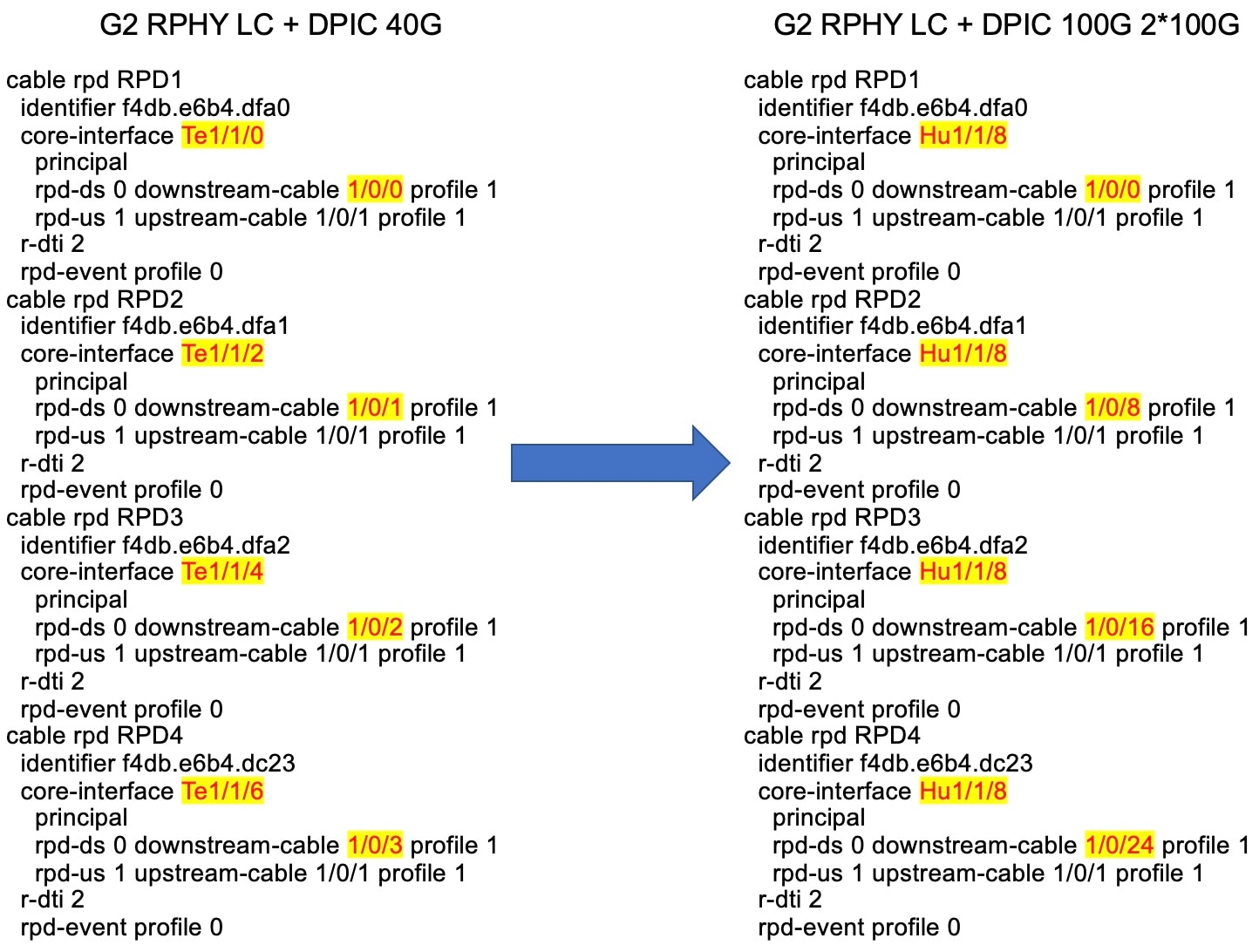
  1. If you are using DPIC-100G 2x100G mode, please replace TenGigE interface with HundredGigE interface in RPD configuration:

    cable rpd node_313
     identifier badb.ad13.419a
     type shelf
     core-interface Hu1/1/8
      principal
      rpd-ds 0 downstream-cable 1/0/19 profile 32
      rpd-us 0 upstream-cable 1/0/38 profile 37
      rpd-us 1 upstream-cable 1/0/39 profile 38
     r-dti 6
     rpd-event profile 0
     rpd-55d1-us-event profile 0
    
  2. Balance downstream controllers to different groups if you want to make full utility of the bandwidth.

    For G2 RPHY LC supporting DPIC-100G 2x100G mode, 32 downstream controllers are divided into 4 XFI groups, each XFI group supports 9Gbps data bandwidth at most. The bandwidth restriction is inherited from DPIC 40G design.

    Downstream controller group

    XFI group

    0 - 7

    0

    8 - 15

    1

    16 - 23

    2

    24 - 31

    3

    Below is an example of the configuration comparation between G2 RPHY LC + DPIC 40G and G2 RPHY LC + DPIC 100G 2*100G mode.

Pre-steps

This section contains pre-steps before installing DPIC 100G card.

  1. Copy Cisco IOS XE Gibraltar 16.12.1 package to bootflash: and stby-bootflash:.

    
    copy <location>/cbrsup-universalk9.16.12.01.SPA.bin bootflash: 
    copy <location>/cbrsup-universalk9.16.12.01.SPA.bin stby-bootflash: 
    
    
  2. Verify Cisco IOS XE Gibraltar 16.12.1 package against the md5 hash as provided in the Cisco.com Software center.

    
    verify /md5 bootflash:cbrsup-universalk9.16.12.01.SPA.bin 
    verify /md5 stby-bootflash:cbrsup-universalk9.16.12.01.SPA.bin 
    
    
  3. Copy the special firmware programming package to harddisk: and stby-harddisk:.

    
    copy <location>/cbrsup-programmable_firmware.16.12.01.SPA.pkg harddisk: 
    copy <location>/cbrsup-programmable_firmware.16.12.01.SPA.pkg stby-harddisk: 
    
    
  4. Verify the special firmware programming package against the md5 hash as provided in the Cisco.com Software center.

    
    verify /md5 harddisk:cbrsup-programmable_firmware.16.12.01.SPA.pkg 
    verify /md5 stby-harddisk:cbrsup-programmable_firmware.16.12.01.SPA.pkg 
    
    
  5. Check SUP ROMMON version with show platform command.

    
    Slot      CPLD Version        Rommon Version                          
    --------- ------------------- --------------------------------------- 
    SUP0      170724E0            16.7(2r)S                           
    SUP1      170724E0            16.7(2r)S                           
    

    If the ROMMON version is lower than 16.7(4r)S, upgrade it following the sub steps below. Otherwise skip to the next step.

    1. Upgrade SUP ROMMON.

      Router#Upgrade rom-mon file harddisk:cbrsup-programmable_firmware.16.12.01.SPA.pkg r0
      Wait for the following output on the console:
      ROMMON upgrade complete.
      To make the new ROMMON permanent, you must restart the RP
      
      Router#Upgrade rom-mon file harddisk:cbrsup-programmable_firmware.16.12.01.SPA.pkg r1
      Wait for the following output on the console:
      ROMMON upgrade complete.
      To make the new ROMMON permanent, you must restart the RP
      
      
    2. Reload SUP, do not power cycle the system during the upgrade.

    3. Verify if the ROMMON version is upgraded to 16.7(4r)s after boot up.

  6. Copy RPD image to tftp/http server. Upgrade RPD image via SSD command on SUP.

    cable rpd slot x ssd 3.0.0.52 http xxx.sign.SSA

    Check all RPD upgrade successfully after RPD boot up via command show cable rpd verison .


Note

After upgrade, RPD may not be able to go online due to compatibility issue with current cBR image. Ignore this issue and continue upgrade.


Note

After upgrade to IOS XE 16.12.1, the command rpd-ds index max-carrier value under RPD configuration mode is not supported anymore on cBR-8 (max-carrier can be configured under DS profile configuration mode). And the power value for rpd-ds index base-power value may be changed.


Replace RPHY LC/G2 RPHY LC/DPIC 40G with G2 RPHY LC/DPIC 100G (2x4x10G mode)

Procedure


Step 1

Copy the current configuration to a server and edit it manually. Replace the following highlighted part with “CBR-CCAP-LC-G2-R r-phy DPIC-G2-10GE”

Existing configuration:

card 0/0 cBR-CCAP-LC-40G r-phy
card 1/0 cBR-CCAP-LC-40G r-phy
card 2/0 cBR-CCAP-LC-40G r-phy
card 3/0 cBR-CCAP-LC-40G r-phy
card 4/1 sup-pic-2x100g-8x10g
card 5/1 sup-pic-2x100g-8x10g
card 6/0 cBR-CCAP-LC-40G r-phy
card 7/0 cBR-CCAP-LC-40G r-phy
card 8/0 cBR-CCAP-LC-40G r-phy
card 9/0 cBR-CCAP-LC-40G r-phy

New configuration:

card 0/0 CBR-CCAP-LC-G2-R r-phy DPIC-G2-10GE
card 1/0 CBR-CCAP-LC-G2-R r-phy DPIC-G2-10GE
card 2/0 CBR-CCAP-LC-G2-R r-phy DPIC-G2-10GE
card 3/0 CBR-CCAP-LC-G2-R r-phy DPIC-G2-10GE
card 4/1 sup-pic-2x100g-8x10g
card 5/1 sup-pic-2x100g-8x10g
card 6/0 CBR-CCAP-LC-G2-R r-phy DPIC-G2-10GE
card 7/0 CBR-CCAP-LC-G2-R r-phy DPIC-G2-10GE
card 8/0 CBR-CCAP-LC-G2-R r-phy DPIC-G2-10GE
card 9/0 CBR-CCAP-LC-G2-R r-phy DPIC-G2-10GE
Step 2

Copy the modified configuration file to harddisk:.

Note 

G2 RPHY LC only supports US sharing ratio 1:4. If there is configuration for 1:8, switch it to 1:4 or remove it.

Step 3

Copy the modified configuration file to startup-config.

Step 4

Modify config-register 0x0, reload chassis and enter ROMMON.

Step 5

Power off the chassis.

Step 6

Loosen the hook screw on RPHY LC/G2 RPHY LC/DPIC 40G and pull out the card from chassis.

Step 7

Insert the G2 RPHY LC/DPIC 100G into chassis and tighten the hook screw.

Step 8

Insert QSFP-40G-xx or QSFP-4X10G-xx with breakout cables (MPO-4LC Duplex) into DPIC 100G interfaces.

Step 9

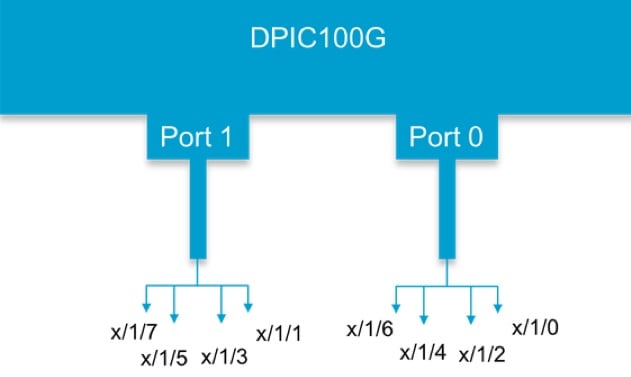
Connect original fibers to breakout cable with butt joint. Port mapping: the first port is mapped to TenGiga 0, 2, 4, 6, the second port is mapped to TenGiga 1, 3, 5, 7.

Note 

DPIC 100G board silk print has wrong port number shown on board. The right ports number are as follows.

This image is not available in preview/cisco.com

Step 10

Power on chassis and enter ROMMON.

Step 11

Boot up cBR-8 with IOS image.

Step 12

After the system enters IOS mode, verify the status of G2 RPHY LC/DPIC 100G with show platform command.


Slot      Type                State                 Insert time (ago) 
--------- ------------------- --------------------- ----------------- 
0         CBR-CCAP-LC-G2-R    ok                    01:55:41      
0/1       CBR-DPIC-2X100G     ok                    01:44:33      
1         CBR-CCAP-LC-G2-R    ok                    01:55:41      
1/1       CBR-DPIC-2X100G     ok                    01:44:32      
2         CBR-CCAP-LC-G2-R    ok                    01:55:41      
2/1       CBR-DPIC-2X100G     ok                    01:44:33      
3         CBR-CCAP-LC-G2-R    ok                    01:55:41      
3/1       CBR-DPIC-2X100G     ok                    01:44:32      
6         CBR-CCAP-LC-G2-R    ok                    01:55:41      
6/1       CBR-DPIC-2X100G     ok                    01:44:32      
7         CBR-CCAP-LC-G2-R    ok                    01:55:41      
7/1       CBR-DPIC-2X100G     ok                    01:44:32      
8         CBR-CCAP-LC-G2-R    ok                    01:55:41      
8/1       CBR-DPIC-2X100G     ok                    01:44:32      
9         CBR-CCAP-LC-G2-R    ok                    01:55:41      
9/1       CBR-DPIC-2X100G     ok                    01:44:32      

Step 13

Verify if all RPDs and CMs are coming online with show cable rpd and show cable modem commands.

Step 14

(optional) Expand DS/US channels to 1024/256 by modifying cable controller profiles.

Step 15

Modify config-register = 0x2102 according customer requirement.

Step 16

Save configure to harddisk:.

Step 17

Check the system health and service.

  • show version

  • show platform

  • show platform diag

  • show environment

  • show cable modem summary total

  • show processes cpu sorted

  • show logging


Replace RPHY LC/G2 RPHY LC/DPIC 40G with G2 RPHY LC/DPIC 100G (2x100G mode) via No Card Command

For this Scenario, all original configuration for RPHY LC/G2 RPHY LC + DPIC 40G card can not be applied to new G2 RPHY LC + DPIC 100G mode. Please plug-out RPHY LC/G2 RPHY LC and removed all card configuration on this slot. Then config this slot.

Procedure


Step 1

Boot up chassis with IOS image. Remove linecard to be removed from redundancy group if any.

Step 2

Shutdown all mac domain interfaces for the linecard to be removed. Cisco IOS XE Gibraltar 16.12.1 has 32 MD per linecard.

Example:

Router(config)#interface Cable 1/0/0
Router(config-if)#shutdown
Step 3

Shutdown all DPIC interfaces for this linecard if any.

Example:

Router(config)#interface tenGigabitEthernet 1/1/0
Router(config-if)#shutdown
Step 4

Shutdown the linecard to be removed.

Example:

Router(config)#hw-module slot 1 shutdown
Router(config)#hw-module subslot 1/1 shutdown
Step 5

Delete slot configuration.

Example:

Router(config)#no card 1/0 cBR-CCAP-LC-40G r-phy

or

Router(config)#no card 1/0 CBR-CCAP-LC-G2-R r-phy
Step 6

Pull out linecard and corresponding DPIC.

Step 7

Configure 2x100G mode for DPIC 100G card before inserting DPIC 100G card.

Example:

Router(config)#card 1/0 CBR-CCAP-LC-G2-R r-phy DPIC-G2-100GE
Step 8

Enable the linecard.

Example:

Router(config)#no hw-module slot 1 shutdown
Router(config)#no hw-module subslot 1/1 shutdown
Step 9

Insert DPIC 100G into the slot and tighten the hook screw.

Step 10

Insert G2 RPHY LC into the slot and tighten the hook screw.

Step 11

Connect QSPF and fiber to chassis and make sure network configuration is working for 1588 server and CNR server.

Step 12

After the G2 RPHY LC boots up, verify the status with show platform command.


Slot      Type                State                 Insert time (ago) 
--------- ------------------- --------------------- ----------------- 
0         CBR-CCAP-LC-G2-R    ok                    01:55:41      
0/1       CBR-DPIC-2X100G     ok                    01:44:33 

Step 13

Make sure RPD setup and configurations is correct, refer to RPD software configuration guide.

100G mode configuration example:

  • DPIC interface configuration:

    interface HundredGigE1/1/8
     vrf forwarding hu118
     ip address x.x.x.x x.x.x.x
     cdp enable
     ipv6 address x:x:x:x:x:x/x
     ipv6 enable
     ipv6 nd ra suppress all
     no shutdown
  • RPD configuration:

    cable rpd nodex
     identifier x.x.x
     core-interface Hu1/1/8
      principal
      rpd-ds 0 downstream-cable 1/0/0 profile 1
      rpd-us 0 upstream-cable 1/0/0 profile 1
     r-dti 1
     rpd-event profile 0
     rpd-55d1-us-event profile 0
  • Fiber-node configuration:

    cable fiber-node 1
     downstream Downstream-Cable 1/0/0
     upstream Upstream-Cable 1/0/0
  • Cable interface configuration:

    interface Cable1/0/0
     downstream Downstream-Cable 1/0/0 rf-channel 0-23
     upstream 0 Upstream-Cable 1/0/0 us-channel 0
     upstream 1 Upstream-Cable 1/0/0 us-channel 1
     upstream 2 Upstream-Cable 1/0/0 us-channel 2
     upstream 3 Upstream-Cable 1/0/0 us-channel 3
     cable upstream bonding-group 1
      upstream 0
      upstream 1
      upstream 2
      upstream 3
      attributes 80000000
     cable bundle 1
  • WB interface configuration:

    interface Wideband-Cable1/0/0:0
     cable bundle 1
     cable rf-channels channel-list 0-7 bandwidth-percent 10

8x10G mode configuration example:

  • DPIC interface configuration:

    interface TenGigabitEthernet1/1/0
     vrf forwarding te110
     ip address x.x.x.x x.x.x.x
     cdp enable
     ipv6 address x:x:x:x:x:x/x
     ipv6 enable
     ipv6 nd ra suppress all
     no shutdown
  • RPD configuration:

    cable rpd nodex
     identifier x.x.x
     core-interface Te1/1/0
      principal
      rpd-ds 0 downstream-cable 1/0/0 profile 1
      rpd-us 0 upstream-cable 1/0/0 profile 1
     r-dti 1
     rpd-event profile 0
     rpd-55d1-us-event profile 0
  • Fiber-node configuration:

    cable fiber-node 1
     downstream Downstream-Cable 1/0/0
     upstream Upstream-Cable 1/0/0
  • Cable interface configuration:

    interface Cable1/0/0
     downstream Downstream-Cable 1/0/0 rf-channel 0-23
     upstream 0 Upstream-Cable 1/0/0 us-channel 0
     upstream 1 Upstream-Cable 1/0/0 us-channel 1
     upstream 2 Upstream-Cable 1/0/0 us-channel 2
     upstream 3 Upstream-Cable 1/0/0 us-channel 3
     cable upstream bonding-group 1
      upstream 0
      upstream 1
      upstream 2
      upstream 3
      attributes 80000000
     cable bundle 1
  • WB interface configuration:

    interface Wideband-Cable1/0/0:0
     cable bundle 1
     cable rf-channels channel-list 0-7 bandwidth-percent 10
Note 

If CM is not w-online as expected. Delete CM with command clear cable modem cable X/X/X all delete .

Step 14

Configure LC to redundancy group if needed.

Step 15

Save configure to harddisk: and startup-config.

Step 16

Check the system health and service.

  • show version

  • show platform

  • show run | in card

  • show cable rpd

  • show ip interface brief | in X/0/

  • show ip interface brief | in X/1/

  • show platform diag

  • show environment

  • show cable modem summary total

  • show processes cpu sorted

  • show logging


Install G2 RPHY LC/DPIC 100G in Empty Slot


Note

G2 RPHY LC/DPIC 100G can only run with IOS image, otherwise it may cause unexpected consequence, such as SUP crash.


Procedure


Step 1

Boot up chassis with IOS image. Remove linecard to be removed from redundancy group if any.

Step 2

Check if the card configuration exists for the target blank slot (slot 1 in the example).

Example:

Router#show run | s card 1
card 1/0 cBR-CCAP-LC-40G r-phy

If there is card configuration, proceed to next step. Otherwise skip to Step 6.

Step 3

Shutdown all mac domain interfaces for this linecard. Cisco IOS XE Gibraltar 16.12.1 has 32 MD per linecard.

Example:

Router(config)#interface Cable 1/0/0
Router(config-if)#shutdown
Step 4

Shutdown all DPIC interfaces for this linecard if any.

Example:

Router(config)#interface tenGigabitEthernet 1/1/0
Router(config-if)#shutdown
Step 5

Delete slot configuration of the target blank slot.

Example:

Router(config)#no card 1/0 cBR-CCAP-LC-40G r-phy

Step 6

Configure 2x100G or 2x4x10G mode for DPIC 100G before install DPIC card.

Example:

Router(config)#card 1/0 CBR-CCAP-LC-G2-R r-phy DPIC-G2-100GE

or

Router(config)#card 1/0 CBR-CCAP-LC-G2-R r-phy DPIC-G2-10GE
Step 7

Insert DPIC 100G into the slot and tighten the hook screw.

Step 8

Insert G2 RPHY LC into the slot and tighten the hook screw.

Step 9

Connect QSPF and fiber to chassis and make sure network configuration is working for 1588 server and CNR server.

Step 10

After the G2 RPHY LC boots up, verify the status with show platform command.


Slot      Type                State                 Insert time (ago) 
--------- ------------------- --------------------- ----------------- 
0         CBR-CCAP-LC-G2-R    ok                    01:55:41      
0/1       CBR-DPIC-2X100G     ok                    01:44:33 

Step 11

Make sure RPD setup and configurations is correct, refer to RPD software configuration guide.

100G mode configuration example:

  • DPIC interface configuration:

    interface HundredGigE1/1/8
     vrf forwarding hu118
     ip address x.x.x.x x.x.x.x
     cdp enable
     ipv6 address x:x:x:x:x:x/x
     ipv6 enable
     ipv6 nd ra suppress all
     no shutdown
  • RPD configuration:

    cable rpd nodex
     identifier x.x.x
     core-interface Hu1/1/8
      principal
      rpd-ds 0 downstream-cable 1/0/0 profile 1
      rpd-us 0 upstream-cable 1/0/0 profile 1
     r-dti 1
     rpd-event profile 0
     rpd-55d1-us-event profile 0
  • Fiber-node configuration:

    cable fiber-node 1
     downstream Downstream-Cable 1/0/0
     upstream Upstream-Cable 1/0/0
  • Cable interface configuration:

    interface Cable1/0/0
     downstream Downstream-Cable 1/0/0 rf-channel 0-23
     upstream 0 Upstream-Cable 1/0/0 us-channel 0
     upstream 1 Upstream-Cable 1/0/0 us-channel 1
     upstream 2 Upstream-Cable 1/0/0 us-channel 2
     upstream 3 Upstream-Cable 1/0/0 us-channel 3
     cable upstream bonding-group 1
      upstream 0
      upstream 1
      upstream 2
      upstream 3
      attributes 80000000
     cable bundle 1
  • WB interface configuration:

    interface Wideband-Cable1/0/0:0
     cable bundle 1
     cable rf-channels channel-list 0-7 bandwidth-percent 10

8x10G mode configuration example:

  • DPIC interface configuration:

    interface TenGigabitEthernet1/1/0
     vrf forwarding te110
     ip address x.x.x.x x.x.x.x
     cdp enable
     ipv6 address x:x:x:x:x:x/x
     ipv6 enable
     ipv6 nd ra suppress all
     no shutdown
  • RPD configuration:

    cable rpd nodex
     identifier x.x.x
     core-interface Te1/1/0
      principal
      rpd-ds 0 downstream-cable 1/0/0 profile 1
      rpd-us 0 upstream-cable 1/0/0 profile 1
     r-dti 1
     rpd-event profile 0
     rpd-55d1-us-event profile 0
  • Fiber-node configuration:

    cable fiber-node 1
     downstream Downstream-Cable 1/0/0
     upstream Upstream-Cable 1/0/0
  • Cable interface configuration:

    interface Cable1/0/0
     downstream Downstream-Cable 1/0/0 rf-channel 0-23
     upstream 0 Upstream-Cable 1/0/0 us-channel 0
     upstream 1 Upstream-Cable 1/0/0 us-channel 1
     upstream 2 Upstream-Cable 1/0/0 us-channel 2
     upstream 3 Upstream-Cable 1/0/0 us-channel 3
     cable upstream bonding-group 1
      upstream 0
      upstream 1
      upstream 2
      upstream 3
      attributes 80000000
     cable bundle 1
  • WB interface configuration:

    interface Wideband-Cable1/0/0:0
     cable bundle 1
     cable rf-channels channel-list 0-7 bandwidth-percent 10
Note 

If CM is not w-online as expected. Delete CM with command clear cable modem cable X/X/X all delete .

Step 12

Configure LC to redundancy group if needed.

Step 13

Save configure to harddisk: and startup-config.

Step 14

Check the system health and service.

  • show version

  • show platform

  • show run | in card

  • show cable rpd

  • show ip interface brief | in X/0/

  • show ip interface brief | in X/1/

  • show platform diag

  • show environment

  • show cable modem summary total

  • show processes cpu sorted

  • show logging


Replace RPHY LC/G2 RPHY LC/DPIC 40G with G2 RPHY LC/DPIC 100G (2x100G mode) by Modifying Configuration File

Procedure


Step 1

Copy the current configuration to a server and edit it manually. Replace the card type with “CBR-CCAP-LC-G2-R r-phy DPIC-G2-100GE”. Modify other necessary configuration, including RPD configuration and DPIC configuration. Refer to Step 12.

Step 2

Copy the modified configuration file to harddisk:.

Note 

G2 RPHY LC only supports US sharing ratio 1:4. If there is configuration for 1:8, switch it to 1:4 or remove it.

Step 3

Copy the modified configuration file to startup-config.

Step 4

Modify config-register 0x0, reload chassis and enter ROMMON.

Step 5

Power off the chassis.

Step 6

Loosen the hook screw on RPHY LC/G2 RPHY LC/DPIC 40G and pull out the card from chassis.

Step 7

Insert the G2 RPHY LC/DPIC 100G into chassis and tighten the hook screw.

Step 8

Connect QSPF and fiber to chassis and make sure network configuration is working for 1588 server and CNR server.

Step 9

Power on the chassis and enter ROMMON.

Step 10

Boot up cBR-8 chassis with IOS image.

Step 11

After the system enters IOS mode, verify the status of G2 RPHY LC/DPIC 100G with show platform command.


Slot      Type                State                 Insert time (ago) 
--------- ------------------- --------------------- ----------------- 
0         CBR-CCAP-LC-G2-R    ok                    01:55:41      
0/1       CBR-DPIC-2X100G     ok                    01:44:33      
1         CBR-CCAP-LC-G2-R    ok                    01:55:41      
1/1       CBR-DPIC-2X100G     ok                    01:44:32      
2         CBR-CCAP-LC-G2-R    ok                    01:55:41      
2/1       CBR-DPIC-2X100G     ok                    01:44:33      
3         CBR-CCAP-LC-G2-R    ok                    01:55:41      
3/1       CBR-DPIC-2X100G     ok                    01:44:32      
6         CBR-CCAP-LC-G2-R    ok                    01:55:41      
6/1       CBR-DPIC-2X100G     ok                    01:44:32      
7         CBR-CCAP-LC-G2-R    ok                    01:55:41      
7/1       CBR-DPIC-2X100G     ok                    01:44:32      
8         CBR-CCAP-LC-G2-R    ok                    01:55:41      
8/1       CBR-DPIC-2X100G     ok                    01:44:32      
9         CBR-CCAP-LC-G2-R    ok                    01:55:41      
9/1       CBR-DPIC-2X100G     ok                    01:44:32      

Step 12

Verify if all RPDs and CMs are coming online with show cable rpd and show cable modem commands.


DPIC 100G working mode switchover

DPIC 100G card supports 2x100GE and 2x4x10GE working mode. To switchover the working mode, remove existing linecard configuration first, then configure the new working mode. Both linecard and DPIC card reload are needed.

Method 1: Re-configure CMTS without Reload

Procedure

Step 1

Boot up chassis with IOS image. Remove linecard to be removed from redundancy group if any.

Step 2

Shutdown all mac domain interfaces for the target linecard.

Example:

Router(config)#interface Cable 1/0/0
Router(config-if)#shutdown
Step 3

Shutdown all DPIC interfaces for this linecard if any.

Example:

Router(config)#interface tenGigabitEthernet 1/1/0
Router(config-if)#shutdown
Step 4

Shutdown the linecard and DPIC card.

Example:

Router(config)#hw-module slot 1 shutdown
Router(config)#hw-module subslot 1/1 shutdown
Step 5

Delete the existing linecard/DPIC card configuration.

Example:

Router(config)#no card 1/0 CBR-CCAP-LC-G2-R r-phy DPIC-G2-100GE

or

Router(config)#no card 1/0 CBR-CCAP-LC-G2-R r-phy DPIC-G2-10GE
Step 6

Change SFP/QSFP module to match the target working mode and make sure the network is working.

Step 7

Configure linecard/DPIC card to expected working mode.

Example:

Router(config)#card 1/0 CBR-CCAP-LC-G2-R r-phy DPIC-G2-10GE

or

Router(config)#card 1/0 CBR-CCAP-LC-G2-R r-phy DPIC-G2-100GE
Step 8

Enable the linecard/DPIC card.

Example:

Router(config)#no hw-module slot 1 shutdown
Router(config)#no hw-module subslot 1/1 shutdown
Step 9

After the G2 RPHY LC boots up, verify the status with show platform command.


Slot      Type                State                 Insert time (ago) 
--------- ------------------- --------------------- ----------------- 
1         CBR-CCAP-LC-G2-R    ok                    04:06:50      
1/1       CBR-DPIC-2X100G     ok                    04:00:40

Step 10

Make sure RPD setup and configurations is correct, refer to RPD software configuration guide.

100G mode configuration example:

  • DPIC interface configuration:

    interface HundredGigE1/1/8
     vrf forwarding hu118
     ip address x.x.x.x x.x.x.x
     cdp enable
     ipv6 address x:x:x:x:x:x/x
     ipv6 enable
     ipv6 nd ra suppress all
     no shutdown
  • RPD configuration:

    cable rpd nodex
     identifier x.x.x
     core-interface Hu1/1/8
      principal
      rpd-ds 0 downstream-cable 1/0/0 profile 1
      rpd-us 0 upstream-cable 1/0/0 profile 1
     r-dti 1
     rpd-event profile 0
     rpd-55d1-us-event profile 0
  • Fiber-node configuration:

    cable fiber-node 1
     downstream Downstream-Cable 1/0/0
     upstream Upstream-Cable 1/0/0
  • Cable interface configuration:

    interface Cable1/0/0
     downstream Downstream-Cable 1/0/0 rf-channel 0-23
     upstream 0 Upstream-Cable 1/0/0 us-channel 0
     upstream 1 Upstream-Cable 1/0/0 us-channel 1
     upstream 2 Upstream-Cable 1/0/0 us-channel 2
     upstream 3 Upstream-Cable 1/0/0 us-channel 3
     cable upstream bonding-group 1
      upstream 0
      upstream 1
      upstream 2
      upstream 3
      attributes 80000000
     cable bundle 1
  • WB interface configuration:

    interface Wideband-Cable1/0/0:0
     cable bundle 1
     cable rf-channels channel-list 0-7 bandwidth-percent 10

8x10G mode configuration example:

  • DPIC interface configuration:

    interface TenGigabitEthernet1/1/0
     vrf forwarding te110
     ip address x.x.x.x x.x.x.x
     cdp enable
     ipv6 address x:x:x:x:x:x/x
     ipv6 enable
     ipv6 nd ra suppress all
     no shutdown
  • RPD configuration:

    cable rpd nodex
     identifier x.x.x
     core-interface Te1/1/0
      principal
      rpd-ds 0 downstream-cable 1/0/0 profile 1
      rpd-us 0 upstream-cable 1/0/0 profile 1
     r-dti 1
     rpd-event profile 0
     rpd-55d1-us-event profile 0
  • Fiber-node configuration:

    cable fiber-node 1
     downstream Downstream-Cable 1/0/0
     upstream Upstream-Cable 1/0/0
  • Cable interface configuration:

    interface Cable1/0/0
     downstream Downstream-Cable 1/0/0 rf-channel 0-23
     upstream 0 Upstream-Cable 1/0/0 us-channel 0
     upstream 1 Upstream-Cable 1/0/0 us-channel 1
     upstream 2 Upstream-Cable 1/0/0 us-channel 2
     upstream 3 Upstream-Cable 1/0/0 us-channel 3
     cable upstream bonding-group 1
      upstream 0
      upstream 1
      upstream 2
      upstream 3
      attributes 80000000
     cable bundle 1
  • WB interface configuration:

    interface Wideband-Cable1/0/0:0
     cable bundle 1
     cable rf-channels channel-list 0-7 bandwidth-percent 10
Note 

If CM is not w-online as expected. Delete CM with command clear cable modem cable X/X/X all delete .

Step 11

Configure LC to redundancy group if needed.

Step 12

Save configure to harddisk: and startup-config.

Step 13

Check the system health and service.

  • show version

  • show platform

  • show run | in card

  • show cable rpd

  • show ip interface brief | in X/0/

  • show ip interface brief | in X/1/

  • show platform diag

  • show environment

  • show cable modem summary total

  • show processes cpu sorted

  • show logging


Method 2: Reload CMTS with Modified Configuration File

Procedure

Step 1

Save existing running-config to startup-config.

Step 2

Edit startup-config to match the new card/interfaces.

Example:

Old configuration:

card 1/0 CBR-CCAP-LC-G2-R r-phy DPIC-G2-10GE

interface TenGigabitEthernet1/1/0
 vrf forwarding te118
 ip address 120.104.2.129 255.255.255.128
 cdp enable
 ipv6 address 2001:120:104:2:129::1/80
 ipv6 enable
 ipv6 nd ra suppress all
 
interface HundredGigE1/1/8
 no ip address
 shutdown

cable rpd node2
 core-interface Te1/1/0
 

New configuration:

card 1/0 CBR-CCAP-LC-G2-R r-phy DPIC-G2-100GE

interface TenGigabitEthernet1/1/0
 no ip address
 shutdown
 
interface HundredGigE1/1/8
 vrf forwarding te118
 ip address 120.104.2.129 255.255.255.128
 cdp enable
 ipv6 address 2001:120:104:2:129::1/80
 ipv6 enable
 ipv6 nd ra suppress all

cable rpd node2
 core-interface Hu1/1/8
 
Step 3

Reboot the chassis with modified startup-config.

Note 

This method will print out harmless traceback information that caused by different mode configuration in .board.conf and startup-config.

Step 4

Change SFP/QSFP module to match the target working mode and make sure the network is working.


G2 RPHY LC U-boot and CPLD Upgrade

The latest G2 RPHY LC U-boot (Rommon) version is 2013.07.14 k2.4, CPLD (daybreak) version is 00000033. If the current version is lower than the latest version, upgrade following the steps below.

Upgrade U-boot

Procedure

Step 1

Upgrade the Uboot using the following command:

upgrade hw-programmable cable slot-id rommon pkg_name firmware-name 
Note 

This CLI takes about 1 minutes to complete, DO NOT powercycle or OIR G2 RPHY LC when the CLI is executing.

Example:

upgrade hw-programmable cable 1 rommon pkg_name /harddisk/cbrsup-programmable_firmware.16.12.01.SPA.pkg
 UBOOT:
   FILE    : /tmp/fpd/mount/uboot-kobol.bin
   VERSION : U-Boot 2013.07.14 k2.4 
   BYTES   : 2097152
   Upgrade Field Region: SUCCESS! Please reload the card to let the new firmware take effect.

Step 2

Reload G2 RPHY LC and check U-boot version with show platform .

Example:

Router#hw-module slot 1 reload
Proceed with reload of module? [confirm] y

Router#show platform
…….

Slot      CPLD Version        Rommon Version                          
--------- ------------------- --------------------------------------- 
0         0000007F            2013.07.14 k2.0                     
1         0000007F            2013.07.14 k2.4


Upgrade CPLD

Procedure

Step 1

Upgrade the CPLD using the following command:

upgrade hw-programmable cable slot-id daybreak pkg_name firmware-name 
Note 

This CLI takes about 1 minutes to complete, DO NOT powercycle or OIR G2 RPHY LC when the CLI is executing.

Example:

upgrade hw-programmable cable 1 daybreak pkg_name /harddisk/cbrsup-programmable_firmware.16.12.01.SPA.pkg

Step 2

Post upgrade the CPLD using the following command:

upgrade hw-programmable cable active-sup daybreak post-upgrade slot slot-id 
Note 

This CLI takes about 1 minutes to complete, DO NOT powercycle or OIR G2 RPHY LC when the CLI is executing.

Example:

upgrade hw-programmable cable r0 daybreak post-upgrade slot 1
The upgrade will take about 3 minutes, please DON'T power cycle the chassis during this period.
LC will be power up after the upgrade automatically...

Step 3

Wait for about 5 minutes, the linecard will reboot automatically once the command is complete. If the linecard does not reboot automatically, reload the linecard with below command:

Example:

Router#hw-module slot 1 reload
Proceed with reload of module? [confirm] y

Step 4

Check upgraded CPLD version with show platform .

Example:

Router#show platform
……
 
Slot      CPLD Version        Rommon Version                          
--------- ------------------- --------------------------------------- 
1         00000033            2013.07.14 k2.4
SUP0      170724E0            16.7(2r)S                           
SUP1      170724E0            16.7(2r)S


Upgrade DPIC 100G FPD

If you find ?.? in show hw-module all fpd output, upgrade the DPIC 100G FPD using the following steps.

Procedure


Step 1

Upgrade the DPIC 100G FPD using the following command:

upgrade hw-module subslot slot-id/1 fpd bundled reload 

Example:

Router#upgrade hw-module subslot 1/1 fpd bundled reload
% The following FPD will be upgraded for CBR-DPIC-2X100G (H/W ver = 2.0) in subslot 1/1:

	 ================== =========== =========== ============
	 Field Programmable   Current     Upgrade   Estimated
	 Device: "ID-Name"    Version     Version   Upgrade Time
	 ================== =========== =========== ============
	 61-CBR DIGI G2 PIC     ?.?         2.5       00:05:00
	 ================== =========== =========== ============

% NOTES:
  - Use 'show upgrade fpd progress' command to view the progress of the FPD
    upgrade.
  - The target card will be automatically reloaded after the upgrade
    operation. This reload will interrupt normal operation of the card. If
    necessary, ensure that appropriate actions have been taken to redirect
    card traffic before starting the FPD upgrade.

% Are you sure that you want to perform this operation? [no]: yes
% Initiating the upgrade operation on the target card ...
  (Use "show upgrade fpd progress" command to see upgrade progress)

Step 2

Check upgrade status with show upgrade fpd progress .

Example:

Router#show upgrade fpd progress

Load for five secs: 82%/4%; one minute: 93%; five minutes: 89%
Time source is NTP, *18:18:58.268 CST Mon May 6 2019


FPD Image Upgrade Progress Table:

 ==== =================== ====================================================
                                               Approx.
                          Field Programmable    Time     Elapsed
 Slot Card Type           Device : "ID-Name"   Needed      Time    State
 ==== =================== ================== ========== ========== ===========
  1/1 CBR-DPIC-2X100G     61-CBR DIGI G2 PIC  00:05:00   00:00:58  Updating...
 ==== =================== ====================================================

Step 3

After the upgrade is complete, show hw-module all fpd output will show correct version.