
Skillsoft Java Issue and Workaround
Users attempting to launch Skillsoft (Skillport) courses (complete list can be found in this PDF) may be experiencing issues, depending on what version of Java they currently have installed as well as what browser they're using to access the PEC.
Currently, this workaround is only for PC users. We are looking into a solution for Mac users.
Current Issue
- Some of the users using Firefox may get this kind of screen on launching Skillsoft content.

- Others may get a message to install missing plugins.
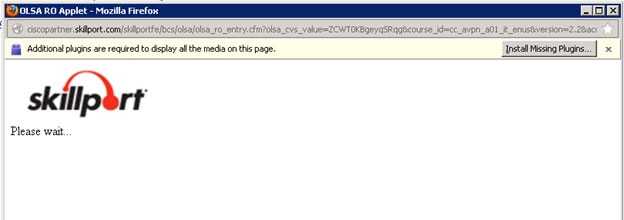
- Even after installing the latest version content fails to load in Firefox.
Solution/work around
- Work around to this is to use Internet Explorer 9 or 10.
- If user is using an older version of Java they might see below message on internet explorer to update their Java versions. Users may update their Java.

- Most users will have to allow applet to get executed on their browsers.

- You may share this link with users to find their Java version. http://www.java.com/en/download/installed.jsp.
Special Instructions for those running Internet Explorer version 7.0 or 8.0
You will need to make a small adjustment to ensure proper communication. Follow these steps:
- Open a new browser
- Go to Tools >> Internet Options >> Security Tab
- Select the "Internet" zone, make sure the internet zone security level setting is set to Medium
- Select the "Local intranet" zone
- Click the Sites button and then Advanced
- Uncheck "Require server verification..."
- In the Address of Website field, enter *.cisco.com. Click Add, then Yes, Close and then OK
- Click "Custom level..." button
- In the settings pane, find "Display mixed content" and set it to enable
- In the settings pane, find "Use pop-up blocker" and set it to disable, then click OK
- Select the "Trusted sites" zone
- Click the Sites button
- Uncheck "Require server verification..."
- In the Address of Website field, enter *. partnerelearning.com. Click Add, then Yes, and Close
- Click "Custom level..." button
- In the settings pane, find "Display mixed content" and set it to enable
- In the settings pane, find "Use pop-up blocker" and set it to disable, and then click OK
- Click OK and restart the web browser
Additionally you may go through this website for more info on similar issues http://support.skillsoft.com/customer/javainstructions.htm. Also, users with latest JRE may face similar issues due to a security fix implemented by Java. Details are here http://docs.oracle.com/javase/7/docs/technotes/guides/jweb/no_redeploy.html.
A complete list of Skillsoft courses can be found in this PDF.