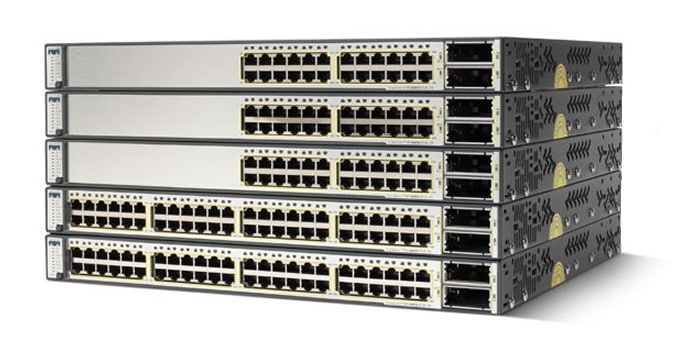
SmartInstall provides a suite of capabilities that help deploy new Catalyst switches and manage them effectively at very low operating costs. SmartInstall helps with initial switch deployment, switch configuration management, and switch replacement. This white paper will explain the practical benefits of deploying SmartInstall, configurable options for deployment based on different network scenarios, best practices and customization options.
Intended audience is networking professionals who want to deploy and manage Cisco LAN switches easily and save operational expenses. As an example, SmartInstall configuration will be created for an imaginary Cisco customer called SmartCustomer Corporation based on their network infrastructure. This will help the readers understand SmartInstall configuration and also leverage its customization capabilities.
SmartInstall and Borderless Networks
The Borderless Networks Architecture (Figure 1) is composed of sustainability, ease of operations, borderless experience, and borderless security. SmartInstall is one component in the ease of operations section of the Borderless Network.
Figure 1. Borderless Networks
SmartInstall is a comprehensive set of capabilities to simplify and improve LAN switch deployment and reduce total cost of ownership. SmartInstall helps organizations deliver operational excellence and scale services on the network.
SmartInstall enables plug-and-play configuration and image-management for zero-touch deployment for new and existing Cisco Catalyst LAN switches and zero-touch replacement of existing switches that might have gone bad.
SmartInstall also extends the capability to manage existing switches in the network providing image and configuration upgrade. This white paper explains how to successfully deploy SmartInstall with its use cases and configuration options using the example of an imaginary Cisco customer called SmartCustomer Corporation.
Benefits of SmartInstall
• Easy deployment: Configuring SmartInstall is an easy and one-time task. Once the configuration is complete, switches can be added to the network in zero-touch fashion. The time taken to add a switch to the network reduces significantly as SmartInstall automates the process, thereby eliminating delays that might occur due to manual switch deployment. Also, in the future, should the switch go faulty, SmartInstall enables easy zero-touch switch replacement.
With SmartInstall, the network administrator can ship the replacement switch to the intended location, and ask someone (even a non-technical person) to can replace the switch. Once the new switch is powered on, the SmartInstall-enabled network completes the new switch integration into the existing network.
• Easy maintenance: SmartInstall not only helps with initial switch deployment but also helps with switch configuration management. It conducts configuration backup when a switch changes its configuration. SmartInstall also has mechanisms in place for subsequent Cisco IOS® Software and configuration upgrades on groups of switches, using a single CLI. Another advantage of using SmartInstall is its customization capability which helps get a different configuration file available with SmartInstall which
• Cost savings: SmartInstall is capable of reducing operation expenses by reducing the amount of time and expertise taken to install new switches and replace in-operational switches. A detailed cost-saving analysis is included in the next section.
Cost Savings with SmartInstall
Table 1 shows cost savings with SmartInstall as compared the central staging mode of operation
Table 1. SmartInstall Cost Savings
To Install and Maintain a Single Switch per Year
Without SmartInstall
*
With SmartInstall
Description
Cost per Device
Time (Hr)
*
Description
Cost per Device
Time (Hr)
Switch installation (image/configuration)
Manual load per switch image and configuration
$65
1
*
Zero-touch, plug and play
$0
0
Switch upgrade and/or replacement: assumes one upgrade per year
Manually load the new image and/or configuration
$65
1
*
Automatic: SmartInstall director is the single management point to instruct image/configuration upgrades. The zero touch capability of SmartInstall automatically provides the same image and configuration of the replaced switch
$0
0
Configuration backup
Manual
$20
0.3
*
Zero-touch system is backed up automatically any time there is a configuration change
$0
0
Total per switch
$150
2.3
*
Total per switch
$0
0
Total savings per switch per year
$150 or 2.3 hours
Total savings for a 100-switch network
$15,000 or 230 hours
Components of SmartInstall
SmartInstall works in a client-server mode. It is made up of the following components (Figure 2):
• Director: A switch or router in the network that helps the installation of other switches. The switch/router plays the role of the server.
• Client: Switch in the network, which gets the image and configuration from the director switch. This switch plays the role of the client. Client switches running Cisco IOS Software Release 12.2.52SE or later understand the SmartInstall feature. Client switches running Cisco IOS Software releases older than 12.2.52SE do not understand SmartInstall but become SmartInstall capable after booting up.
• Groups: Classification of client switches based on switch model and other parameters for better management.
• External TFTP server (optional): Helps with storing image files for multiple client switch models and their respective configuration files.
Client switches must support archive download-sw command.
Recommended software version for director functionality in Cisco Catalyst Switch: Cisco IOS Software Release 12.2.55SE1.
Recommended software version for director functionality in G1 and G2 routers: 15.1.(3)T.
How does SmartInstall work?
SmartInstall is suited for deployment and management of campus and branch topologies for new and existing switches in the network. In the following sections, the document describes the typical topologies for campus and branch scenarios.
When SmartInstall is enabled in the network, it works as follows:
1. New client switch is powered on and connected to the existing network.
2. Director discovers new client switch through Cisco Discovery Protocol.
3. Client switch has no configuration on it (zero configuration), hence VLAN 1 is enabled by default. Client requests IP address for interface VLAN 1 using DHCP.
4. DHCP server (based on the director switch or externally) provides the client switch with the IP address for interface VLAN 1. During this process, the director detects the IP address of the client switch and adds it to its SmartInstall database.
5. SmartInstall is initiated and the following files are downloaded thereafter (total time for download and reboot is approximately 5 - 8 minutes):
a. Client learns director IP address OR downloads client_cfg.txt *.
b. Client downloads the switch configuration file.
c. Client downloads the Imagelist file**
d. Client downloads image file.
e. Client reboots with new image.
* Client switches running Cisco IOS Software Release 12.2.52SE or later learn about the director IP address through the DHCP options. Client switches running Cisco IOS Software Release versions that are older than 12.2.52SE learn about the director by downloading the client_cfg.txt. Client_cfg.txt is explained later in this white paper.
** The Imagelist contains the name of the Cisco IOS image for a switch group. This file is created by the director and is stored on the configured TFTP server. The client switch downloads this file to learn about the IOS image file that it needs to download. Imagelist is explained in detail "Text Files Created by SmartInstall" section.
SmartInstall supports Cisco IOS based DHCP server on the director, on other Cisco switches/routers and third-party DHCP servers based on Windows and Linux. In case of any external DHCP server, DHCP snooping must be enabled on the director, and the director must be between the DHCP server and the client switch. This is required as the director snoops the DHCP offer packet and inserts its details in the packet.
Warning: When the client switch boots up and the client switch console is usable, do not enter anything on the client switch console, as this might terminate the SmartInstall operation. If you do, please type " write erase" and reload the switch without saving any configuration.
Any switch that joins the network outside the join window will not get the SmartInstall configured image and configuration files. This helps make sure that SmartInstall is active only during a certain window of time and not open always. Join Window should be configured such that it matches the time when network maintenance is performed.
Choosing the Right TFTP Server
TFTP server serves the following purposes:
• Serve configuration files for client switches
• Serve IOS image files for client switches
• Store client configuration back-up files
• Store IOS imagelist files
The TFTP server can be external on a central server or internal (on the director switch flash). The decision depends on the topology of the campus. Tables 2 and 3 can be used as a reference to decide what type of TFTP server is best suited for a deployment scenario.
Table 2. Using Director Flash-Based TFTP Server
Pros
Cons
Client image file, configuration file, and backup configuration versions stored locally on the director flash, avoiding the need for an external device.
Limited storage space due to flash size restrictions. (In case of the Cisco Catalyst 3k as the director.) Recommendation: Director switch with a 64 MB flash should hold no more than 2 tar files for client IOS software images.
Avoids the use of external TFTP server: saves money, and also file download is very fast as compared to an external TFTP server, which may be across the cloud (depending on the speed of the WAN uplink on the router)
• Not scalable.
• No backup of the director flash contents like client backup configuration files, which can be lost in case of a Director switch failure.
In case of using a stack of 3750 switches as the Director switch each Director must have a copy of the client IOS image and the configuration file.
Recommended when:
All client switches are of the same model
An integrated services router (ISR) behaves as the director
Small topology with less than 10 client switches of the same model.
Table 3. Using External TFTP Server
Pros
Cons
Lots of storage space for images, configuration, and backup configuration files for multiple client switch groups.
Requires an external TFTP device: extra infrastructure.
Saves space on the Director switch flash.
Extra configuration for file permissions in case of a Linux TFTP server.
Scalable in large deployments with multiple IOS images and configuration files for different models of client switches. Useful in a multiple director environment as well.
With a central TFTP server for a large deployment across the WAN with multiple directors, the individual locations may experience variable download speeds.
Recommended when:
1) Many client groups are defined
2) Multiple directors are configured
3) There is a need for central management of all image and configuration files for multiple campus or branch locations.
4) Networks plan to expand with more devices and hence need for more storage space.
SmartInstall in the Campus
Figure 3. Typical Campus Topology
In a campus-type topology, the Cisco Catalyst 3k series switch can play the role of the director switch. Recommended switch for the director role is the C3750X switch due to its larger flash size (64 MB).
SmartInstall is designed to work with .tar Cisco IOS Software images for the client switches, and hence it is mandatory to use a .tar Cisco IOS Software image. Example: "c2960s-universalk9-tar.122-55.SE.tar" Cisco IOS Software is available for download at http://www.cisco.com.
After a switch is upgraded using SmartInstall, the director automatically enables configuration backup on the client switch to track the switch configuration changes made by the network administrator. Configuration files are stored on the director switch flash by default but can be changed to store on an external TFTP server as well.
SmartInstall in the Branch
Figure 4. Typical Branch Topology
Typical branch-type deployments have switches in the closet that provide connectivity to the various end devices in the branch and an ISR that provides connectivity to the WAN. In such a scenario, it's useful to use the SmartInstall director capability of the ISR.
The director router could use its flash to store client switch Cisco IOS Software images and configuration files or use an external TFTP server for the same. Tables 2 and 3 explain the advantages and disadvantages of choosing one over the other.
SmartInstall in a Topology with the Same Switch Model
Figure 5 shows a simple SmartInstall deployment with a single model of client switches. In such cases, it is useful to use the default setting for Cisco IOS image and configuration file, which is the easiest to configure. The configured Cisco IOS image and configuration setting applies to all client switches.
Figure 5. Topology with Same Model of Client Switches
Director-based flash is the right choice for TFTP server in such cases if the flash has at least 20 MB of free space.
When the director switch detects new client switches or switches with zero configuration, it provides the image and configuration as defined in the default group settings.
SmartInstall can also upgrade Cisco IOS Software for existing client switches, which have configuration on them using the on-demand upgrade capability present in SmartInstall.
SmartInstall in a Topology with Different Switch Models
The concept of groups in SmartInstall help network administrators to successfully push image and configuration to each of the switch models. A group is a built-in feature, which helps identify one switch model from the other. There are two types of groups: built-in and custom.
The built-in groups are for the switches, which are currently supported by Cisco. These include all the Cisco Catalyst 3560/3560g/3560e/3560x, 3750/3750g/3750e/3750x, and 2960/2960g/2960S/2360 switches. Each built-in group has two parameters that the user must configure: image and configuration file for switches that belong to the group.
Figure 6. SmartInstall Topology using Groups
Custom groups provide the flexibility to add uniqueness to switches, which fit into the same built-in group. Custom group has three input parameters: image, configuration, and match. While image and configuration represent the image and configuration file for the switches that qualify for that group, the match criterion tells the director the basis on which a given switch is different than the other switches that belong to the same model.
For the 2960C compact switches, built-in group support is not present in Cisco IOS Software Release 12.2.55SE, hence it is supported as a custom group. (Built-in group support for 2960C series and 3560C series compact switches will be available in Cisco IOS Software Release 12.2.58SE.)
Custom groups are of four types:
• Product ID: The match criterion here is the product ID of the switch. This custom group is useful when introducing a new switch model in the network that is currently not supported under the built-in groups. Hence product ID-based groups provide future-proofing. Example: Adding the 3560C and the 2960C compact switches to an existing SmartInstall network with the director running Cisco IOS Software Release 12.2.55SE. In this software release, the 3560C and 2960C switches are not a part of the existing built-in group list. Hence, creating a custom product ID based group is the best choice.
• MAC address based: The match criterion here is the MAC address of the switch. The user can configure multiple MAC addresses within one MAC address-based custom group. A typical use case for this scenario is when the user wants only certain switches of the same model in the network to have a different configuration as compared to the other switches. Example: In a university campus type deployment, if switches in the dorms need a different configuration as compared to the switches in the engineering building, and if all these switches belong to the same model, then the user gets to choose some switches and configure a MAC address-based custom group for them.
• Connectivity based: The match criteria here are the interface number and the IP address of the intermediate switch between the director and the client. The client switch should be directly connected to this intermediate switch. This group helps the director identify client switches based on their location and treat the switch with a different configuration if appropriate. Example: If the user wants switches to have a location-specific configuration, connectivity-based group is useful.
• Stack-based: The match criterion here is that the client switches must be stacked. All the Cisco Catalyst 3750, 3750E, 3750X, and 2960S series switches are supported here. This group supports same hardware and mixed hardware (3750G, 3750E, 3750X, and so on) stacks. In the match criteria for this group, the user gets to configure all the switch models and their respective stack member numbers as match criteria. Example: A stack of 3750X 24-port, 3750X with 48-port PoE, 3750X 24-port PoE can qualify as one stack-based custom group.
Configuration Backup and Switch Replacement
Configuration backup for the client switches is enabled by default when SmartInstall is configured on the Director. This creates a backup of the existing running configuration of every client switch and saves it in a repository. This repository is by default on the director switch flash under a subdirectory called vstack. Every time a user changes the configuration on any of the client switches and enters write memory on the client switch console, the director switch creates a backup of the new configuration to record the most recent configuration.
Users also have the provision to configure the backup on an external TFTP server.
SmartInstallDirector#dir flash:vstack
Directory of flash:/vstack/
3 -rwx 2155 Oct 13 2010 14:06:41 +00:00 2960s-081f.f388.8a00.REV2
4 -rwx 6192 Jan 4 2011 14:07:06 +00:00 2960s-0026.527c.ba00.REV2
As shown in the preceding code, the subdirectory has configuration files for the client switches. Every file name follows the naming convention of "hostname-Base Ethernet MAC Address-REV1 or REV2" (most recent version).
If the client-to-director connection is lost after issuing the write memory command, the backup process fails. In such a case, the client switch tries to reestablish the connection so that the client file is backed up on the director. If the user entered the write memory command more than once, the files associated with the last write memory command event are backed up on the director. If the client reloads or fails before receiving feedback that the backup was successful, any changes made to the client startup do not take effect until the user reloads the client.
When a client switch fails because of any reason, a notification is sent to the director switch about the client down event associated to the Ethernet interface where the client was connected to the network. At this time, the network administrator replaces the faulty switch with a new client switch of the same model. This new switch must connect to the network using the Ethernet interfaces as the client switch it is replacing.
When this switch is powered on with zero configuration, the director gets a client up event for the port on which client connected is connected. It identifies the new switch as a replacement for the previous switch. The director then pushes the last known good configuration to the client switch along with the Cisco IOS Software image configured for that client group.
The zero-touch switch replacement enables the administrator to have someone with minimal technical expertise replace the faulty switch. This reduces cost, effort and time taken to replace the switch.
Text Files Created by SmartInstall
Imagelist for a group: In case of built-in groups and custom groups, when the user defines the group, the director switch creates a text file with the Cisco IOS Software image name in it and transfers it to the TFTP server. This file is called the "imagelist" for that group. When the client switch is added to the network, after getting the IP address on VLAN 1, the director identifies the group to which the particular client switch belongs.
It then directs the client to download the imagelist from the TFTP server. The downloaded imagelist tells the client switch exactly which Cisco IOS Software file to download from the TFTP server. After this, the client downloads the image. The TFTP server must have an imagelist for every group (built-in or custom) that is created on the director.
An imagelist for a built-in group of Cisco Catalyst 2960 switch, 48-port with LAN-lite license level looks like:
2960-48-lanlite-imagelist.txt
An imagelist for a custom group of 2960 with the name "2960-custom" looks like:
2960-custom-imagelist.txt
Client_cfg.txt: This file is created when a user enables SmartInstall on a director switch or router. It is stored on the director flash. When a client switch running a Cisco IOS Software image prior to 12.2.52SE is added to the network, it downloads client_cfg.txt to establish communication with the director.
A switch that has a Cisco IOS Software release of 12.2.52SE or later gets the director switch IP address in the DHCP options and hence does not need the client_cfg.txt file. Deleting this file will abort SmartInstall for client switches that have a Cisco IOS Software image release older than 12.2.52SE. Hence, do not delete the client_cfg.txt file. The contents of this file are as follows:
!
version 12.2
!
enable password cisco
!
username cisco
!
do telnet 10.0.0.33 18843
!
end
!
In this case, 10.0.0.33 is the IP address of the director switch. The username and password is only used during the initial connection with the Director switch. Once connectivity is established, the Director can provide more secure password to access the client switch via the client configuration file.
SmartCustomer Corporation
SmartCustomer Corporation is an imaginary Cisco customer who has purchased numerous Cisco Catalyst 3750X, Cisco Catalyst 2960S, and Cisco Catalyst 2960C switches for a campus deployment. Cisco Catalyst 3750X and 2960S will be deployed in the closet and Cisco Catalyst 2960C is the compact switch that will be deployed in the conference rooms across the campus.
SmartCustomer decides to use SmartInstall for pushing the configuration and Cisco IOS Software images on all of its switches. After the rack mounting of the switches, SmartCustomer uses a 3750X switch as its director and configures SmartInstall settings on the switch. The other client switches will be turned on after the SmartInstall configuration is complete on the 3750X switch.
SmartCustomer decided to use an external TFTP server as it has different models of the client switch (2960S, 2960C) in the network. Figure 7 shows the topology for SmartCustomer.
Figure 7. SmartCustomer Topology
SmartCustomer's Director Switch Configuration
In SmartCustomer's deployment, the company has defined a built-in group for its Cisco Catalyst 3750X, Cisco Catalyst 2960S switches and a product ID-based custom group for its 2960C compact switches. The TFTP server is external and DHCP server is based on the Director switch. The SmartInstall specific section of running configuration for SmartCustomer's director switch is as follows: