Guest

Support

Base Station Client Utility

 Feedback

Table Of Contents

Base Station Client Utility

Overview

Requirements

Information You Need For Configuration

Configuring the Wireless PC

BSCU Installation and Setup

Client Pull-Down Menu Options

Load New Client Firmware

Edit Client Properties

Statistics

Status

TCP/IP Linktest

RF Connection Test

Base Station Pull-Down Menu

Set Up Base Station

Load New Firmware into Base Station

Load New Modem Firmware

Options Pull-Down Menu

Install Additional Computer

Preferences

Getting Help

Exiting BSCU


Base Station Client Utility


This chapter provides a general introduction to the Cisco Aironet Base Station Client Utility (BSCU) and describes the installation, screens, and options.

Here's what you'll find in this chapter:

Overview

Configuring the Wireless PC

BSCU Installation and Setup

Client Pull-Down Menu Options

Base Station Pull-Down Menu

Options Pull-Down Menu

Getting Help

Exiting BSCU

Overview

The Cisco Aironet Base Station Client Utility (BSCU) simplifies the configuration and setup of the base station and the associated Cisco Aironet IEEE 802.11 DSSS client radio card (hereafter refered to as the client radio card) in the wireless PC. With the utility, you can configure and upgrade firmware on the client radio card, configure and upgrade firmware in the base station, perform diagnostic tests on the wireless network, and view current status and statistics of the client card.


Caution Installing the BSCU configures the client radio card for Home Networking. To use the radio card in an enterprise system, you must reconfigure the card for the enterprise network using the Cisco Aironet Client Utility (ACU). The ACU is located on the Cisco Aironet 340 Series Base Station CD.

Requirements

The BSCU requires an installed Cisco Aironet client radio card in a PC running one of the following operating systems:

Microsoft Windows 95


Note To support BSCU in Windows 95 and 95A requires the installation of IE4 or greater for needed networking files.


Microsoft Windows 98

Microsoft Windows NT

Microsoft Windows 2000

Microsoft Windows Me

Information You Need For Configuration

The base station is configured from a wireless PC with a client radio card. For wireless devices to establish initial communications with the base station, certain parameters must be set on the wireless devices and the base station. For proper operation, parameters in the base station must match the ISP settings.

Before configuring the base station, gather the following information (your network administrator or ISP should be able to provide any missing information):

Choose the operating mode of the base station from the following options:

Cable or DSL modem mode for connections to an ISP through a cable or DSL modem.

Dial-up mode connects the base station to a telephone line and uses the internal modem to communicate with an ISP.

PPP-over-Ethernet mode connects the base station to an ISP by using a Point-to-Point Protocol over a cable or DSL modem.

Access Point mode supports a standalone wireless network or connects to an internal LAN for wireless access. This configuration allows wireless terminals to access local LAN resources such as printers and servers.

For radio parameters, the following information is needed:

SSID—Service Set Identifier (SSID) is a special unique name assigned to a wireless radio network for identification purposes. To communicate, all wireless PCs and the base station must use the same SSID. Typically, this can be any name (1 to 32 ACSII characters); for example: Fido, Rover, 123, Air Plane, Apollo 10, Base Station 1, Charlie Brown, Alice, and so on.

WEP Encryption Key—A special sequence of characters used to restrict access to the wireless network. If you are using encryption, all wireless PCs and the base station must use the same encryption key. This is the same as the Wired Equivalent Privacy (WEP) Key parameter of an enterprise wireless device. Typically, this can be any value (1 to 13 ASCII characters or 1 to 26 hexadecimal characters); for example: 1234567890123, 5ABC234590123, 101Hubble2011, a@5gh%jk&V2+$, 31A454F1234BC89DE45CDE1237, and so on.


Note In some ISP systems, the Login username might have a longer format similar to username@ISPname.net, or username@netname.ISPname.net.


For dial-up modem operation, gather the following information:

Login username—The name of the ISP account.

Login password—The password associated with the ISP account.

Phone number—The dial-in telephone number for the ISP.

Tone or pulse dial—A telephone line setting used by the modem.

Domain name—The domain name of the ISP network; for example: ISPname.net or netname.ISPname.net.

For Cable or DSL modem operation, gather the following information:

Base station name—The name assigned to the base station.

Auto DHCP—Indicates whether an external DHCP server is used.

Base station IP address—The ISP assigned external address.

Subnet Mask—The ISP assigned subnet mask.

Default Gateway—The ISP assigned gateway.

DNS Server 1—The ISP assigned primary server.

DNS Server 2—The ISP assigned secondary server.

Domain name—The domain name of the ISP network; for example: ISPname.net or netname.ISPname.net.

For PPP-over-Ethernet operation, gather the following information:

Login username—The name of the ISP account.

Login password—The password associated with the ISP account.

Service name—The name of the ISP service.

Domain name—The domain name of the ISP network; for example: ISPname.net or netname.ISPname.net.

For Access Point operation, gather fhe following information:

Base station name—The name assigned to the base station.

Auto DHCP—Indicates whether an external DHCP server is used.

Base station IP address—The base station assigned IP address.

Subnet Mask—The base station network subnet mask.

Default Gateway—The network gateway.

DNS Server 1—The network primary server.

DNS Server 2—The network secondary server.

Configuring the Wireless PC

You can use the BSCU from a wireless PC to set and change the base station's configuration parameters. However, the wireless PC must be properly configured to communicate with the base station. To revise the wireless PC network parameters, refer to "Wireless PC Network Settings," and the Help guides provided by your operating system.


Step 1 In the PC's TCP/IP Protocol properties set your radio card to automatically obtain an IP address from a DHCP server. This is the easiest and recommended method; however, you can manually set the following IP address information:

Set the IP address to 192.168.200.xxx. Where xxx is a value from 102 to a maximum value of 254.

Set the subnet mask to 255.255.255.000.

Set the default gateway to 192.168.200.1.


BSCU Installation and Setup

The BSCU is installed from the Cisco Aironet 340 Series Base Station CD shipped with the unit. The setup program installs the BSCU and the Base Station Connection Status utility (see Chapter 4).


Note If the Base Station Connection Status utility was previously installed, right-click the telephone icon in the system tray and select exit prior to installing the BSCU.


Follow these steps to install the BSCU:


Step 1 Put the Cisco Aironet 340 Series Base Station CD in the CD-ROM drive of the wireless PC used to configure the base station.

Step 2 Use Microsoft Windows Explorer to view the contents of the CD. Double-click the BSCU folder, and double-click the setup.exe file. Follow the steps provided by the installation wizard.


Note You can specify a specific destination and program folder or use the default folders indicated by the BSCU.


Step 3 Select Talk To A Base Station To Access The Internet, when requested by the installation wizard.


Note The option Talk Directly To Other Computers is not used with the base station.


After the utility is installed, double-click the BSCU icon located on the computer desktop to activate the utility. The BSCU main screen is shown in .

Figure 2-1

BSCU Main Screen

The main screen provides a status line and the time on the bottom of the screen. The status line indicates whether the client radio card is associated or not. When it is associated, the status line indicates the base station name and the IP address where it is associated. If the client radio card is unable to obtain the IP address from the base station, the base station MAC address is displayed.

The main screen contains four pull-down menu options:

Client—used to change the client radio parameters (see page 7). From this selection, you can configure a client radio card to match base station settings, examine wireless network information, test the wireless network, or load new firmware into a client radio card.

Base Station—used to set-up the base station and client radio card (page 25). From this selection, you can initially configure or change base station settings, select operating modes (connection types) or load new base station and modem firmware.

Options—used for optional features (see page 42). From this selection, you can load client radio card configuration information to a floppy disk for use in setting up additional wireless PCs or change the BSCU Status Bar clock to display seconds.

Help—provides help on the BSCU screen parameters (see page 45).

When initially setting up or changing base station parameters, use the Base Station tab. From this tab, you can configure the base station parameters and the BSCU will automatically configure the client radio card to match your settings.

After you set up or change the base station parameters, use the Client tab in all the other wireless PCs to configure their client radio cards to match your new base station settings.

Client Pull-Down Menu Options

The Client pull-down menu (see ) specifies several options that are associated with the client radio card in the PC. Table 2-1 describes the pull-down menu options.

Figure 2-2 Client Pull-Down Menu Screen
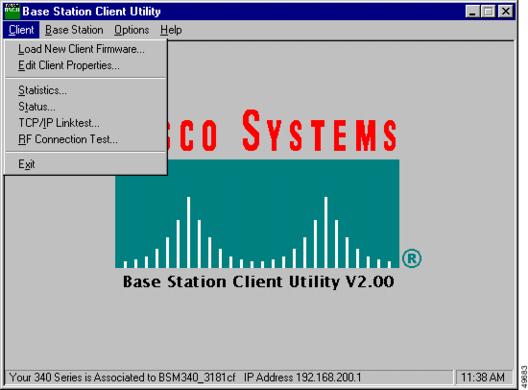
Table 2-1 Client Pull-Down Menu Options  

Parameter
Description

Load New Client Firmware

Loads new firmware into the client radio card. (see page 8)

Edit Client Properties

Sets client radio card parameters. (see page 8)

Statistics

Shows the current receive and transmit statistics of the client radio card. (see page 13)

Status

Shows the current setting and status of the client radio card, including firmware version number, data rate, output power, frequency, association status, and more. (see page 16)

TCP/IP Linktest

Uses the Windows TCP/IP protocol to perform a link test on the wireless network and provides an overall link quality rating. (see page 18)

RF Connection Test

Supports active and passive modes. In passive mode, the current status is read from the client radio card every second. In active mode, the current status is obtained using data packets sent to and received from a specified destination device. (see page 20)


Load New Client Firmware

This option loads new firmware into the client radio card located in the wireless PC running BSCU. When you select this option, an Open dialog box appears that helps you locate or specify the desired new firmware image file (similar to filename.img).

After you specify the firmware image file, the client radio card's firmware is updated and a completion status is displayed.


Caution If power fails during the loading of new firmware, your client radio card might be inoperable. If you are unable to reload new firmware, contact technical support for assistance.

Edit Client Properties

This option helps you verify or change the parameter settings for the client radio card in the wireless PC. The Wireless Client Network Parameters screen (see ) appears when the Edit Client Properties option is selected. Table 2-2 describes the screen parameters and indicates how to change the values. Table 2-3 describes the buttons on the bottom of the screen.

Figure 2-3 Wireless Client Network Parameters Screen
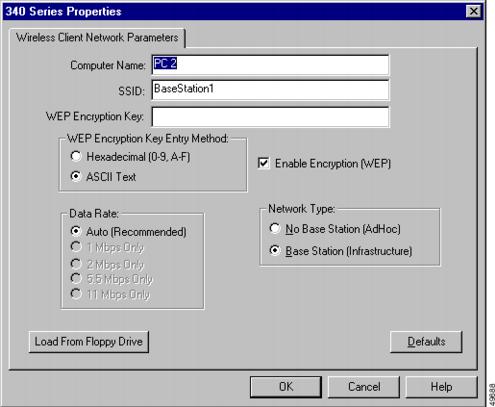
The Computer Name shown on the screen is the name used by your Microsoft operating system to identify your computer on the wired network. This name is also used to identify your wireless PC on the wireless network. This name must be unique for each wireless PCs.


Caution Inadvertently changing the Computer Name setting can cause other network programs on the PC to be inoperable and your PC login password to be unrecognized. Use caution when changing this setting.


Note The SSID and WEP Encryption Key settings in the client radio card for all wireless PCs must exactly match the base station settings.


Note For security reasons the WEP Encryption Key value is not constantly displayed. The key value is displayed while being entered and will display until you accept the changes on the Wireless Client Network Parameters screen, by clicking the OK button (see Figure 2-3).


Table 2-2 Wireless Client Network Parameters  

Parameter
Description

Computer Name

The name assigned to the wireless PC and used to identify the PC on the wireless and wired networks. All computer names on a network must be unique.

To change this value, enter a new name in the entry box.

Range: 1 to 16 ASCII characters

Default: Operating system's Network paremeter setting

SSID

Identifies the base station's radio network and must be used by all wireless devices communicating with the base station.

To change this value, enter a new name in the entry box.

Range: 1 to 32 ASCII characters

Default: tsunami

WEP Encryption Key Entry Method

Selects the encryption key entry method.

Range: Hexadecimal (0-9, A-F) or ASCII Text

Default: Hexadecimal (0-9, A-F)

WEP Encryption Key

Used with 128-bit encryption to provide security. The encryption key used must be set up exactly the same on all wireless devices and the base station. On enterprise wireless devices the encryption key corresponds to the WEP key.

To change the key, enter a new encryption key in the entry box.


Note The WEP Encryption Key parameter is only available on client radio cards that support 128-bit WEP.


Note The WEP Encryption Key is only displayed during entry. After the key is entered, the field is blank.


(For extra information see WEP Key Conversion.)

Range: ASCII entry—1 to 13 ASCII characters

Hex entry—1 to 26 characters using 0 to 9 and A to F.

Default: 30313233343536373839303132—Hex entry


Note The ASCII characters you can use are the printable characters displayed on the PC keyboard.


Data Rate

Specifies the data rate used to communicate with the base station. For the home wireless network this option cannot be changed.

Default: Auto

Enable Encryption (WEP)

Enables or disables the use of 128-bit encryption. A check mark in the selection box indicates WEP Encryption is enabled, and a blank box indicates WEP Encryption is disabled.

To change this option, click in the selection box.


Note This parameter is available only on client radio cards that support 128-bit WEP.


Range: Enabled or Disabled

Default: 128-bit Encryption Enabled

Network Type

The Base Station (Infrastructure) option indicates the radio card communicates with a base station. The No Base Station (AdHoc) option indicates the radio card uses Ad-Hoc mode to communicate with another wireless device (for additional information refer to the Cisco Aironet Client Utility (ACU) documentation for your client card). To change this option, click the desired selection.

Range: No Base Station (AdHoc) or

Base Station (Infrastructure)

Default: Base Station (Infrastructure)


Table 2-3 Buttons on the Wireless Client Network Parameters Screen

Button
Description

Load From Floppy Drive

Loads a configuration file saved from the Install Additional Computer selection of the Options menu.

Defaults

Sets the base station default values for the parameters.

OK

Saves any changes and exits the screen.

Cancel

Exits the screen without saving any changes.

Help

Provides information on the screen and its parameters.


The base station's default parameters are shown below:

SSID—tsunami

Encryption key entry method—Hexadecimal (0-9, A-F)

WEP Encryption Key—30313233343536373839303132 (Hex entry)

Network Type—Base Station (Infrastructure)

Data Rate—Auto

Encryption—Enabled


Note The following base station radio settings are not shown in the BSCU screens and you cannot change them in the utility.


Authentication Type—Open

Encryption—128-bit Encryption

Association—Mixed Cells allowed


Note The base station default parameters are set to 128-bit encryption and mixed-cell operation. For client radio cards that do not support 128-bit encryption and mixed-cell operation, the BSCU does not provide the WEP Encryption Key and Enable Encryption (WEP) options.


Note After the base station is configured with non-default values, mixed-cell operation is no longer active.


WEP Key Conversion

The BSCU supports two entry methods for the WEP Encryption Key parameter:

ASCII—1 to 13 ASCII characters

When using the ASCII option, the BSCU converts each ASCII character into its corresponding 8-bit hexadecimal code value. For example: the entry 1 2 3 4 A B C ! @ # [ is converted into 31 32 33 34 41 42 43 21 40 23 5B 00 00 (spaces added for clarity). In this example, two null characters were inserted to complete the entry.


Note For entries less than 13 characters, the BSCU inserts ASCII null characters to complete the 13 characters. Each ASCII null character converts into the 00 hexadecimal character.


Note The entry is case sensitive; for example, the "a "character is different from the "A" character.


Hexadecimal—1 to 26 characters, using 0 to 9 and A to F

When using the Hexadecimal option, the BSCU converts two entered characters into one 8-bit hexadecimal code. For example: the entry 1 2 3 8 9 0 5 6 A B C D E F 7 is converted into 12 38 90 56 AB CD EF 70 00 00 00 00 00 (spaces added for clarity). In this example, 11 null characters are inserted to complete the entry.


Note For entries less than 26 characters, the BSCU inserts ASCII null characters to complete the 26 characters. Two ASCII null characters convert into the 00 hexadecimal character.


Note The entry is not case sensitive; that is, you can use upper or lower case alpha characters (A to F or a to f).


Statistics

The Statistics option provides the current receive and transmit statistics from the client radio card once per second. The 340 Series Statistics screen is shown in :

Figure 2-4 340 Series Statistics Screen
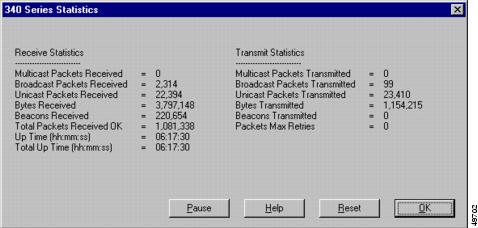
The 340 Series Statistics screen is divided into Receive Statistics and Transmit Statistics. The Receive Statistics area provides information regarding received data packets and beacons (see Table 2-4). The Transmit Statistics area provides information on transmitted data packets and beacons (see Table 2-5). The buttons on the bottom of the 340 Series Statistics screen are defined in Table 2-6.

Table 2-4 Receive Statistics  

Parameter
Description

Multicast Packets Received

Number of multicast packets received successfully. Multicast packets are TCP/IP messages that are sent from a single device to multiple members of an address group.

Broadcast Packets Received

Number of broadcast packets received successfully. Broadcast packets are messages that are sent to all devices in the network.

Unicast Packets Received

Number of unicast packets received successfully. A unicast packet is a message specifically addressed to the wireless device.

Bytes Received

Number of bytes of data received successfully.

Beacons Received

Number of beacons received successfully. A beacon is a wireless LAN packet that signals the availability and presence of the wireless device. Typically, beacon packets are sent by Access Points and base stations; however, a client radio card sends beacons when operating in No Base Station (AdHoc) mode.

Total Packets Received OK

Total number of data packets received successfully.

Up Time (hh:mm:ss)

Amount of time (in hours, minutes, and seconds) that the client radio card operated since last reset. If the card operated more than 24 hours, the time is displayed as days, hours, minutes, and seconds.

Total Up Time (hh:mm:ss)

Total amount of time (in hours, minutes, and seconds) that the client radio card has been operating. If the card operated more than 24 hours, the time is displayed as days, hours, minutes, and seconds.


Table 2-5 Transmit Statistics

Parameter
Description

Multicast Packets Transmitted

Number of multicast packets transmitted.

Broadcast Packets Transmitted

Number of broadcast packets transmitted.

Unicast Packets Transmitted

Number of unicast packets transmitted.

Bytes Transmitted

Number of bytes of data transmitted.

Beacons Transmitted

Number of beacons transmitted. Typically, beacon packets are sent by Access Points and base stations; however, a client radio card sends beacons when operating in No Base Station (AdHoc) mode.

Packets Max Retries

Number of packets that failed to be transmitted successfully after the maximum number of retries.


Table 2-6 Buttons on the Statistics Screen

Button
Description

Pause

Freezes the information on the screen and prevents it from being updated.

Help

Provides information on the screen and its parameters.

Reset

Temporarily clears any values and resets them to 0 (except Total Up Time).

OK

Exits the screen.


Status

The 340 Series Status screen (see ) shows the current settings and status of the client radio card, including firmware version number, data rate, output power, frequency, association status, etc. The status information from the radio card is updated once per second. Table 2-7 describes the 340 Series Status screen parameters. Table 2-8 describes the buttons on the bottom of the 340 Series Status screen.

Figure 2-5 340 Series Status Screen
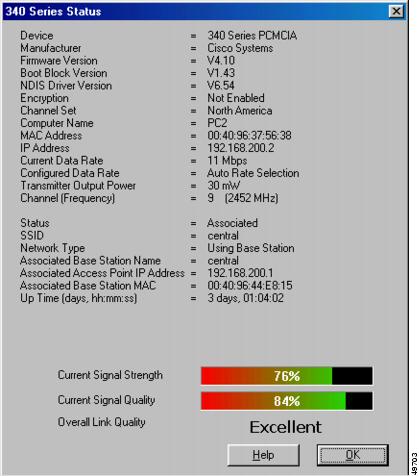
Table 2-7 340 Series Status Screen Parameters  

Parameter
Description

Device

Shows the type of client radio card being used.

Manufacturer

Indicates Cisco Systems, the manufacturer of the client radio card.

Firmware Version

Indicates the firmware version of the client radio card.

Boot Block Version

Indicates the version of the radio's boot block.

NDIS Driver Version

Indicates the version of the NDIS driver being used on the wireless PC.

Encryption

Indicates if encryption is enabled or not.

Channel Set

Indicates the regulatory domain (country) that the client radio card uses.

Computer Name

Indicates the name of the wireless PC. This name is used to identify the client radio card at the base station.

MAC Address

Indicates the MAC address assigned to the client radio card.

IP Address

Indicates the IP address of the wireless PC.

Current Data Rate

Indicates the current data rate being used by the radio card.

Configured Data Rate

Indicates the data rate setting of the client radio card.

Transmitter Output Power

Indicates the transmitter output power of the client radio card.

Channel (Frequency)

Indicates the frequency being used by the client radio card.

Status

Indicates whether the radio card is associated with the base station or is in No Base Station (Ad-Hoc) mode.

SSID

Indicates the name of the radio network specified on the client radio card. This name must be the same as the base station setting.

Network Type

Indicates the network type being used: Base Station (Infrastructure) or No-Base Station (Ad-Hoc). Base Station mode is used to communicate with the base station. No-Base Station mode is used for communicating directly (point-to-point) with another wireless device.

Associated Base Station Name

Indicates the base station name where the client radio card is associated.

Associated Access Point IP Address

Indicates the base station IP address on the wireless network.

Up Time (hh:mm:ss)

Indicates the amount of time (in hours, minutes, and seconds) that the client radio card operated since last reset. If the card operated for more than 24 hours, the time is displayed as days, hours, minutes, and seconds.

Current Signal Strength

Received signal strength indicator for all received packets shown in bar graph format. The values can range from 0% to 100%.

Current Signal Quality

Provides a measure of signal quality in bar graph format. The values can range from 0% to 100%.

Overall Link Quality

Indicates the probability of successfully communicating on the wireless network with the base station. The rating is derived from both the Current Signal Strength and the Current Beacons Received values as shown below:

Excellent: greater than 75%.

Good: greater than 40% but less than 75%.

Fair: greater than 20% but less than 40%.

Poor: less than 20%


Note When the radio card is not associated, the Link Quality rating changes to Not Associated.


Table 2-8 Buttons on the Status Screen

Button
Description

OK

Exits the screen.

Help

Provides information on the screen and its parameters.


TCP/IP Linktest

This option uses the TCP/IP protocol to perform a link test on the wireless or wired network and provides an overall link quality rating based on the transmitted and received data packets. illustrates the TCP/IP Linktest screen, and Table 2-9 describes the parameters on the screen.


Note The TCP/IP protocol must be installed and operational on the wireless PC being used in this test.


You can use this test to evaluate the performance of the RF link on which the wireless PC is located. The statistics are constantly updated until the test is stopped. The test can be started and stopped as often as desired. Both current and cumulative totals are presented.

Figure 2-6 TCP/IP Linktest Screen
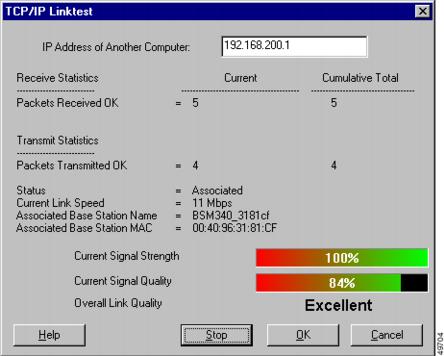
Table 2-9 TCP/IP Linktest Screen Parameters  

Parameter
Description

IP Address of Another Computer

Specifies the IP address of the destination device (wired or wireless) to be used in the TCP/IP test. Typically, this is the base station IP address, but it can be changed to any device (wired or wireless).

Default: Base station IP address

Receive Statistics

Packets Received OK

Indicates the number of data packets received successfully. The Current value indicates the number for the current test. The Cumulative Total is the combined number of packets received successfully during all tests.

Transmit Statistics

Packets Transmitted OK

Indicates the number of data packets transmitted successfully. The Current value indicates the number for the current test. The Cumulative Total is the combined number of packets transmitted successfully during all tests.

Status

Indicates whether the radio card is associated with the base station or in No-Base Station (AdHoc) mode.

Current Link Speed

Specifies the data rate being used during the test.

Associated Base Station Name

Indicates the base station name.

Associated Base Station MAC

Indicates the base station MAC address.

Current Signal Strength

Received signal strength indicator for all received packets shown in bar graph format. The values can range from 0% to 100%.

Current Signal Quality

Indicates the current signal quality in bar graph format. The values can range from 0% to 100%.

Overall Link Quality

Indicates the ability to successfully communicate on the wireless network with the base station. The rating is derived from both the Current Signal Strength and the Current Beacons Received values as shown below:

Excellent: greater than 75%.

Good: greater than 40% but less than 75%.

Fair: greater than 20% but less than 40%.

Poor: less than 20%


Note When the radio card is not associated, the Link Quality rating changes to Not Associated.


Table 2-10 Buttons on the TCP/IP Linktest Screen 

Button
Description

Help

Provides information on the screen and its parameters.

Start

This button initiates a test. When the test is started the button changes into the Stop button.

Stop

This button stops a test that is running. When the test is stopped, the button changes into the Start button.

OK

Terminates the test, resets statistics to zero, and exits the screen.

Cancel

Exits the screen without starting the test.


RF Connection Test

The RF Connection Test reads the current status from the client radio card once per second to quickly scan wireless signal strength. This test can be set up for single or continuous operation.

The test has two modes of operation: passive (default) and active. The passive mode does not initiate any RF network traffic but only monitors the RF traffic to provide signal strength, signal quality, and link-speed indications. shows the RF Connection Test screen and illustrates the passive mode parameters being monitored.

The active mode actively sends and receives packets to or from the associated base station and indicates percent complete and percent successful. Active mode is initiated when you change the default test configuration using the Setup button. illustrates the RF Connection Test screen with the active mode test results shown.

If the wireless PC is portable, you can use the active mode to determine the wireless network coverage area by performing the test in various locations.

Table 2-11 describes the parameters on the RF Connection Test screens. Table 2-12 describes the buttons on the bottom of the RF Connection Test screens. shows the RF Connection Test Setup screen. Table 2-13 describes the parameters and indicates how to change them. Table 2-14 describes the buttons on the bottom of the RF Connection Test Setup screen.

Figure 2-7 RF Connection Test Screen - Passive Mode
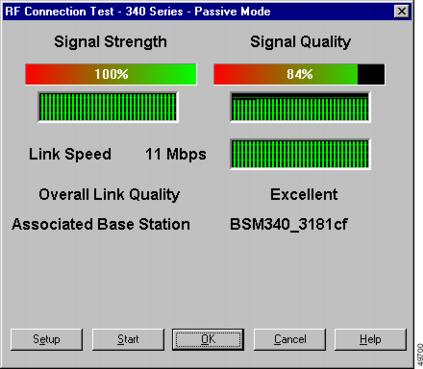
This screen illustrates the default screen of the RF connection test. The results from passive mode operation of the RF connection test indicate the receive side the wireless network is active and operational, but not that the wireless PC can successfully transmit to the base station.

The passive mode operation of the RF connection test does not cause additional loading on the wireless network because it does not transmit messages. This test can be used to provide a quick view of the condition of the wireless network from the wireless PC's location. Typically, when the overall link quality is excellent or good the wireless PC should be able to communicate successfully on the wireless network from the current location.

Figure 2-8 RF Connection Test Screen - Active Mode
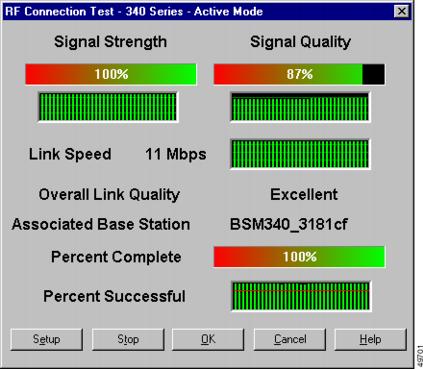
The active mode test is a better indication of the condition of the RF link because messages flow in both directions—to the base station and from the base station.

Table 2-11 RF Connection Test Parameters  

Parameter
Description

Signal Strength

Indicates the signal strength indicator for all received packets in bar graph format and histogram format. The graphs are updated once per second.

The bar graph format indicates values from 0% to 100%.

The histogram format provides a quick visual indication of signal strength trends occurring over time. It represents the values over an approximately 30-second time frame.

Signal Quality

Indicates the current signal quality in bar graph format. The values can range from 0% to 100%.

Link Speed

Indicates the data rate being used to communicate with the base station.

Overall Link Quality

Indicates the ability to successfully communicate on the wireless network with the base station. The rating is derived from both the Current Signal Strength and the Current Beacons Received values as shown below:

Excellent: greater than 75%.

Good: greater than 40% but less than 75%.

Fair: greater than 20% but less than 40%.

Poor: less than 20%


Note When the radio card is not associated, the Link Quality rating will change to Not Associated.


Associated Base Station

Indicates the base station name where the client radio card is associated.

Percent Complete

Available only in active mode and shows the percentage of messages that were transmitted successfully. When configured for continious operation, the Percent Complete value contineously cycles from 0 to 100%.

Percent Successful

Available only in active mode and shows the percentage of messages that were successfully transmitted and a response successfully received.


Table 2-12 Buttons on the RF Connection Test Screen 

Button
Description

Setup

Allows the user to change test default parameters (see and Table 2-13).

Start

Initiates a test. When the test is started, the button becomes the Stop button.

Stop

Stops a test that is running. When the test is stopped, the button changes into the Start button.

OK

Terminates the test, resets statistics to zero, and exits the screen.

Cancel

Exits the screen without starting the test.

Help

Provides information on the screen and its parameters


You can use the RF Connection Test Setup screen to change the default settings and enter active mode. In active mode, the test can evaluate the wireless network from the wireless PC's location by transmitting messages and receiving responses.

You can use the Setup screen to specify a base station by entering its MAC address. The test can also be set to operate continuously or to be directed to a wireless device of another manufacturer.

Figure 2-9 RF Connection Test Setup Screen
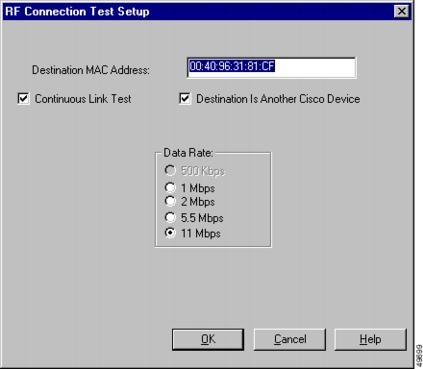
Table 2-13 RF Connection Test Setup Parameters  

Parameter
Description

Destination MAC Address

Identifies the destination device using its MAC address. Typically, this field uses a format similar to 0040963181CF. To change the destination, enter a new MAC address into the entry box.


Note The base station MAC address is located on the bottom of the unit and is the default value in this field.


Default: associated base station MAC address

Continuous Link Test

Specifies whether the test operates continuously or only once. A check mark indicates continuous operation. To change the test operation, click the selection box.

Default: once

Destination Is Another Cisco Aironet Device

Specifies the type of destination device; Cisco Aironet device or a wireless device from another manufacturer. A check mark indicates a Cisco Aironet device. Uncheck the box for a wireless device from another manufacturer. To change the test operation, click in the selection box.

Default: Cisco Aironet device

Data Rate

Specifies the data rate used to communicate. To change the data rate, click in the selection box for the desired rate.

Range: 1 Mbps, 2 Mbps, 5.5 Mbps, or 11 Mbps

Default: 11 Mbps


Table 2-14 Buttons on the RF Connection Test Setup Screen

Button
Description

OK

Saves parameters and exits the screen.

Cancel

Exits the screen without changing parameters.

Help

Provides information on the screen and its parameters.


Base Station Pull-Down Menu

The Base Station pull-down menu allows you to initially configure or change the base station and client radio card settings (see ). Table 2-15 defines the selectable options in the pull-down menu.

Figure 2-10 Base Station Pull-Down Menu

Table 2-15 Base Station Pull-Down Menu Options

Parameter
Description

Set Up Base Station

You can use this option to set-up the configuration parameters in the base station and the client radio card (see "Set Up Base Station" section).

Load New Firmware Into Base Station

You can use this option to load new firmware into the base station (see "Preferences" section).

Load New Modem Firmware

You can use this option to load new firmware into the base station's optional modem (see "Load New Modem Firmware" section).


Set Up Base Station

The Set Up Base Station option allows you to set up and configure the base station and the client radio card in the wireless PC. When you select this option, the Set Up Base Station With My Settings Screen appears; on it you can view the current base station configuration settings. You can change the settings by clicking Edit Base Station Settings, or you can accept the current settings by clicking OK.

When you click OK to accept the base station settings, the BSCU configures the base station to the settings, then automatically configures the client radio in the wireless PC to the same base station settings.

The configuration parameters displayed on the Set Up Base Station With My Settings Screen depend upon the selected base station mode (connection type). The screen parameter descriptions are provided in the sections on connection properties.

illustrates the base station default parameter settings, and Table 2-16 describes the buttons on the bottom of the screen.

Figure 2-11 Set Up Base Station With My Settings Screen
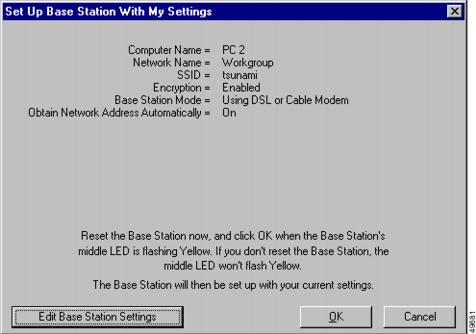
Table 2-16 Buttons on the Setup Base Station With My Settings Screen

Button
Description

Edit Base Station Settings

Allows you to configure the base station radio and operating mode (connection type) parameters (see Base Station Wireless Network Parameters).

OK

Saves parameters and exits the screen.

Cancel

Exits the screen without changing parameters.


Base Station Wireless Network Parameters

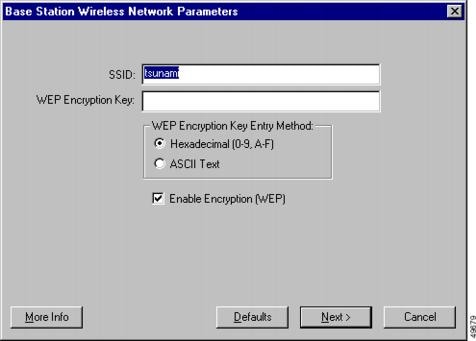
When you click the Edit Base Station Settings button, the Base Station Wireless Network Parameters Screen () displays allowing you to accept or change the SSID, the WEP key entry method, the WEP Encryption Key, and the encryption setting for the base station and client card. When you are satisfied with the parameter settings on the screen, click Next. This saves the base station wireless network configuration parameters and displays the Base Station Properties Screen.

Table 2-17 describes the parameters on the Base Station Wireless Network Parameters Screen, and Table 2-18 describes the buttons on the bottom of the screen.

Figure 2-12 Base Station Wireless Network Parameters Screen

Note The SSID and WEP Encryption Key settings in the client radio card for all wireless PCs must exactly match the settings in the base station. After you change these parameters in the base station, use the BSCU in all the other wireless PCs to reconfigure their client cards to match the new settings.


Note For security reasons the WEP Encryption Key value is not constantly displayed. The key value is displayed while you are entering it and continues to display until you accept the base station configuration changes by clicking OK on the Set Up Base Station With My Settings screen (see Figure 2-11).


Table 2-17 Base Station Wireless Network Parameters  

Parameter
Description

SSID

Identifies the base station's radio network and must be used by all wireless devices communicating with the base station.

To change this value, enter a new name in the entry box.

Range: 1 to 32 ASCII characters

Default: tsunami

WEP Encryption Key Entry Method

Selects the encryption key entry method. To changes this value, click Hexadecimal (0-9, A-F), or ASCII Text.

Range: Hexadecimal (0-9, A-F) or ASCII Text

Default: Hexadecimal (0-9, A-F)

WEP Encryption Key

Provides security with 128-bit encryption. The encryption key must be set up exactly the same on all wireless devices and the base station. On enterprise wireless devices the encryption key corresponds to the WEP key.

This entry is only available on client radio cards that support 128-bit WEP.


Note This entry is only available on client radio cards that support 128-bit WEP.


(For additional information see "WEP Key Conversion" section.)

Range: ASCII entry—1 to 13 ASCII characters

Hex entry—1 to 26 characters using 0 to 9 and A to F

Default: 30313233343536373839303132—Hex entry


Note The ASCII characters you can use are the printable characters displayed on the PC keyboard


Enable Encryption (WEP)

Enables or disables the use of 128-bit encryption. A check mark in the selection box indicates WEP Encryption is enabled, and a blank box indicates WEP Encryption is disabled.

To change this option, click in the selection box.


Note This entry is available only on client radio cards that support 128-bit WEP.


Range: Enabled or Disabled

Default: 128-bit Encryption Enabled


Table 2-18 Buttons on the Base Station Wireless Network Parameters Screen

Button
Description

More Info

Provides information on the screen and its parameters.

Defaults

Sets the base station default values for the parameters (see Base Station Default Parameters).

Next

Saves any changes, and exits the screen (see Base Station Properties).

Cancel

Exits the screen without saving any changes, and returns to the Set Up Base Station With My Settings screen.


Base Station Default Parameters

The base station default parameters are shown below:

SSID—tsunami

Encryption key entry method—Hexadecimal (0-9, A-F)

WEP Encryption Key—30313233343536373839303132 (Hex entry)

Network Type—Base Station (Infrastructure)

Data Rate—Auto

Encryption—Enabled


Note The following base station radio settings are not shown in the BSCU screens and you cannot change them in the utility.


Authentication Type—Open

Encryption—128-bit Encryption

Association—Mixed Cells allowed


Note The base station default parameters are set to 128-bit encryption and mixed-cell operation. For client radio cards that do not support 128-bit encryption and mixed-cell operaton, the BSCU does not provide the WEP Encryption Key and Enable Encryption (WEP) options.


Note Once the base station is configured with non-default values, mixed-cell operation is no longer active.


WEP Key Conversion

The BSCU supports two entry methods for the WEP Encryption Key parameter:

ASCII—1 to 13 ASCII characters

When using ASCII option, the BSCU converts each ASCII character into its corresponding 8-bit hexadecimal code value. For example: the entry 1 2 3 4 A B C ! @ # [ is converted into 31 32 33 34 41 42 43 21 40 23 5B 00 00 (spaces added for clarity). In this example, two null characters were inserted to complete the entry.


Note For entries less than 13 characters, the BSCU inserts ASCII null characters to complete the 13 characters. Each ASCII null character converts into the 00 hexadecimal character.


Note The entry is case sensitive; for example, the "a " character is different from the "A" character.


Hexadecimal—1 to 26 characters, using 0 to 9 and A to F.

When using the Hexadecimal option, the BSCU converts two entered characters into one 8-bit hexadecimal code. For example: the entry 0 1 2 3 8 9 0 5 A B C D E F 7 is converted into 01 23 89 05 AB CD EF 70 00 00 00 00 00 (spaces added for clarity). In this example, 11 null characters were inserted to complete the entry.


Note For entries less than 26 characters, the BSCU inserts ASCII null characters to complete the 26 characters. Two ASCII null characters convert into the 00 hexadecimal character.


Note The entry is not case sensitive; that is, you can use upper or lower case alpha characters (A to F or a to f).


Base Station Properties

The Base Station Properties Screen allows you to select the following connection type options:

Use Built In 56K Modem for Internet Connection (see "Dial-Up Modem Properties" section)

Use Cable or DSL Modem for Internet Connection (see "Cable/DSL Modem Properties" section)

Use PPP over Ethernet for Internet Connection (see "PPP-Over-Ethernet Properties" section)

Use as Access Point for Wireless Clients Only (see "Access Point Properties" section)

Figure 2-13 illustrates the Base Station Properties Screen containing the default connection type (operating mode). Table 2-19 describes the buttons on the bottom of the screen.

Figure 2-13 Base Station Properties Screen

Table 2-19 Buttons on the Base Station Properties Screen

Button
Description

More Info

Provides additional information on the screen parameters.

Back

Returns to the Base Station Wireless Network Properties screen.

Next

Saves parameters and goes to the next screen (see the following connection type descriptions).

Cancel

Exits the screen without changing parameters, and returns to the Set Up Base Station With My Settings Screen.


Dial-Up Modem Properties

You can use the dial-up modem option to enter information required to access the dial-up facility for your ISP. shows the Dialup Modem Properties Screen. Table 2-20 describes the dial-up modem properties and how to change the parameters. Table 2-21 describes the buttons on the bottom of the screen.


Caution When the base station is configured for dial-up operation, do not connect it to a wired LAN being supported by another DHCP server. This might produce conflicting IP address assignments on the wired LAN because the base station DHCP server function supports both wireless and wired devices in dial-up mode.


Note The base station does not support the proprietary AOL dial-up protocol.


Note If your wireless PC's Internet browser and e-mail programs initiate auto-dial, you must reconfigure the programs to use a LAN connection rather than a dial-up connection to prevent them from attempting to dial the ISP.


Figure 2-14 Dialup Modem Properties Screen
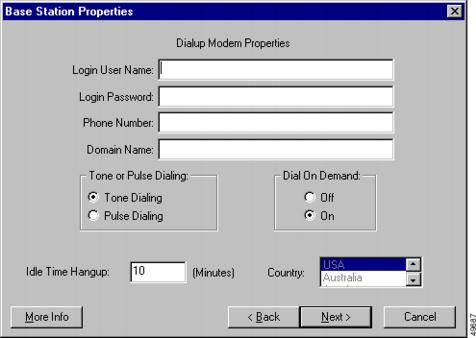
Table 2-20 Dialup Modem Parameters  

Parameter
Description

Login User Name

Specifies the name you use to log into your ISP account. Enter a new name in the edit box to change this parameter.


Note In some ISP systems, the login username might have a longer format similar to username@ISPname.net. or username@netname.ISPname.net.


Range: 1 to 50 ASCII characters

Default: no default value

Login Password

Specifies the password you use to access your ISP account. Enter a new password in the edit box to change this parameter.

Range: 1 to 50 ASCII characters

Default: no default value

Phone Number

Specifies the telephone number you use to access the dial-in facility of your ISP. Enter a new telephone number to change this parameter.


Note In some telephone systems, you must include the area code for a local telephone number.


Range: 1 to 50 numbers

Default: no default value

Domain Name

Specifies the domain name for your ISP; for example: ISPname.net. Enter a new name in the edit box to change this parameter.

Range: 1 to 50 ASCII characters

Default: no default value

Tone or Pulse Dialing

Specifies the type of dialing method the modem uses to dial telephone numbers. Click Tone Dialing or Pulse Dialing to change the setting.

Range: tone or pulse

Default: Tone Dialing

Dial on Demand

When set to On, enables the modem to automatically dial up and log onto your ISP account whenever Internet access is required. When set to Off, you must manually initiate the dial-up operation.

Click On or Off to change this setting.


Note When set to Off, you must manually initiate the connection by clicking Connect on the BSCS screen or clicking Start a connection on the base station Main menu screen when using your Internet browser.


Range: On or Off

Default: On

Idle Time Hangup

Specifies the amount of idle time allowed before the modem will hang up the telephone. Enter a new value in the edit box to change this setting.

Range: 1 to 120 minutes

Default: 10 minutes

Country

Specifies the country setting for the integrated modem. To change the Country setting, scroll to the desired country using the up or down button.

Default: USA


Table 2-21 Buttons on the Dialup Modem Properties Screen  

Button
Description

More Info

Provides additional information on the screen parameters.

Back

Returns to the Base Station Properties screen so you can make a different selection.

Next

Saves parameters, exits the screen, and returns to the Set up Base Station With My Settings screen.

Cancel

Exits the screen without changing parameters and returns to the Set up Base Station With My Settings screen.


Cable/DSL Modem Properties

With the cable or DSL modem option you can configure a high-speed connection for the base station. You can change the parameters used to access your ISP account, but the parameter values must be obtained from your ISP.

shows the Cable/DSL Modem Properties Screen, and Table 2-22 describes the screen parameters. Follow the instructions in the table to set or change any parameter. When you are satisfied with the parameter settings, click Next.

Table 2-23 describes the manual entry prameters and Table 2-24 describes the buttons on the bottom of the screen.

Figure 2-15 Cable/DSL Modem Properties Screen
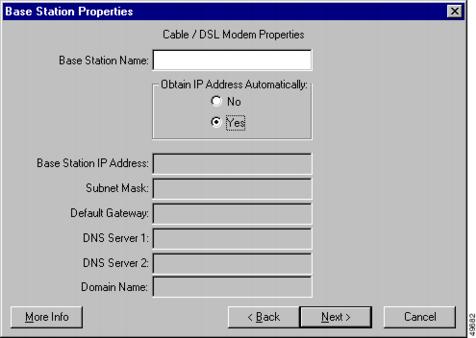
Table 2-22 Cable/DSL Modem Parameters

Parameter
Description

Base Station Name

Specifies the name used to identify the base station. To change this value, enter a new name in the entry box.


Note A blank entry box (no visible value) will result in the base station name being replaced with a null entry (no assigned name).


Note A new name is activated when the base station power is cycled by removing and reconnecting the power cable.


Range: 1 to 16 ASCII characters

Default: BSM340_xxxxxx, or BSE340_xxxxxx

(The xxxxxx denotes the last six digits of the base station MAC address—a unique hardware-based number used to identify the base station on Ethernet links.)

(The BSM denotes the modem option, and the BSE denotes an Ethernet only option.)

Obtain IP Address Automatically

When this entry is set to On, the base station automatically obtains IP address information from a DHCP server. When this entry is set to Off, you must manually enter the network values provided by your ISP (refer to Table 2-23 for manual entry information needed).

To change this field, click On or Off.

Range: On or Off

Default: On


Table 2-23 Manual Entry of IP Address Information  

Parameter
Description

Base Station IP Address

Specifies the IP address used by the base station on the Internet. Enter a new IP Address in the edit box to change this parameter.

Default: no default value

Subnet Mask

Specifies the address mask used to determine whether a message is to or from a supported subnet. A typical format for the entry is 255.255.0.0. Enter a new subnet mask in the edit box to change this parameter.

Default: no default value

Default Gateway

Specifies the IP address for the Internet gateway used for routing messages to external networks. Enter a new IP address in the edit box to change this parameter.

Default: no default value

DNS Server 1

Specifies the IP address of the primary DNS server. Enter a new IP address in the edit box to change this parameter.

Default: no default value

DNS Server 2

Specifies the IP address of the secondary DNS server. Enter a new IP address in the edit box to change this parameter.

Default: no default value

Domain Name

Specifies the domain name for your ISP; for example: ISPname.net. Enter a new name in the edit box to change this parameter.

Range: 1 to 50 ASCII characters

Default: no default value


Table 2-24 Buttons on the Cable/DSL Modem Properties Screen

Button
Description

More Info

Provides additional information on the screen parameters.

Back

Returns to the Base Station Connection Type screen so you can make a different selection.

Next

Saves parameters, exits the screen, and returns to the Set up Base Station With My Settings screen.

Cancel

Exits the screen without changing parameters.


PPP-Over-Ethernet Properties

The PPP-over-Ethernet mode is used when your ISP uses the Point-to-Point Protocol through a cable or DSL modem. You can change the parameters used to access your ISP account, but you must obtain the parameter values from your ISP. Figure 2-16 contains the PPP Over Ethernet Properties screen. Follow the instructions in Table 2-25 to set or change any parameters. Table 2-26 describes the buttons on the bottom of the PPP Over Ethernet Properties screen.


Note In some ISP systems, using a login username is the only way to identify that PPP-over-Ethernet is being used in your cable or DSL modem configuration.


Figure 2-16 PPP Over Ethernet Properties Screen
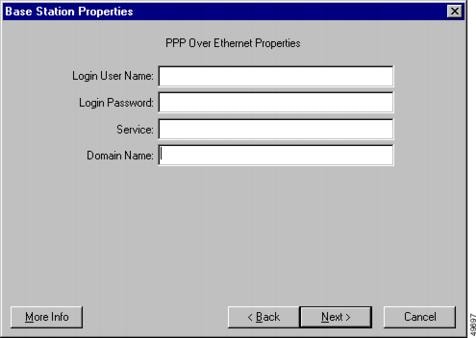
Table 2-25 PPP Over Ethernet Properties Screen Parameters

Parameter
Description

Login User Name

Specifies the name you use to log into your ISP account. Enter a new name in the edit box to change this parameter.


Note In some ISP systems, the login username might have a longer format similar to: username@ISPname.net, or username@netname.ISPname.net.


Range: 1 to 50 ASCII characters

Default: no default value

Login Password

Specifies the password you use to access your ISP account. Enter a new password in the edit box to change this parameter.

Range: 1 to 50 ASCII characters

Default: no default value

Service

Specifies the ISP service for this connection. Enter a new service in the edit box to change this parameter.

Range: 1 to 50 ASCII characters

Default: no default value

Domain Name

Specifies the domain name for your ISP; for example: ISPname.net.

Enter a new name in the edit box to change this parameter.

Range: 1 to 50 ASCII characters

Default: no default value


Table 2-26 Buttons on the PPP Over Ethernet Properties Screen

Button
Description

More Info

Provides additional information on the screen parameters.

Back

Returns to the Base Station Connection Type screen so you can make a different selection.

Next

Saves parameters, exits the screen, and returns to the Set Up Base Station With My Settings screen.

Cancel

Exits the screen without changing parameters.


Access Point Properties

In Access Point mode the base station can connect to an internal wired LAN. In this mode the wireless devices can access the wired LAN for network resources. The Access Point Properties screen is shown in Figure 2-17 and the parameters are listed in Table 2-27; follow the instructions in the table to set or change any parameter. Table 2-28 describes the manual entry prameters and Table 2-29 describes the buttons on the bottom of the Access Point Properties screen.

shows the manual network address fields. The extra network address fields occur when the Obtain IP Address Automatically parameter is set to No. When this parameter is set to Yes, the base station automatically obtains the network address information from an external DHCP server on the wired network.

In Access Point mode the base station does not provide a DHCP server function or a NAT function for the wireless or wired devices. If the wired network contains a DHCP server, the wireless PCs can be set to automatically obtain network information through DHCP when using the radio card. The base station functions as a typical Access Point and pass DHCP packets to or from the DHCP server.


Note To obtain the base station IP address when using an external DHCP server, you can use the IP Setup Utility (IPSU) found on the Cisco Aironet 340 Series Base Station CD (see Installing the IPSU).


Figure 2-17 Access Point Properties Screen
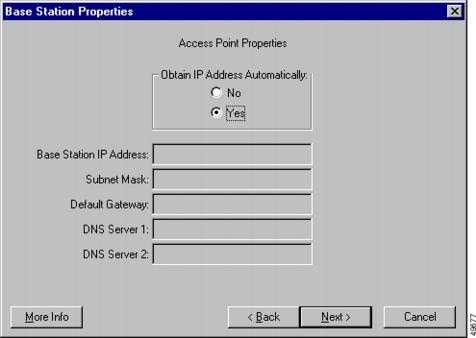
Table 2-27 Access Point Properties Parameters 

Parameter
Description

Obtain IP Address Automatically

When this parameter is set to On, the base station obtains IP address information from an external DHCP server. When this parameter is set to Off, you must manually enter the network information shown in Table 2-28.

To change this parameter, click On or Off.

Range: On or Off

Default: On

See Table 2-28 for manual entry information.


Table 2-28 Manual IP Address Information  

Parameter
Description

Base Station IP Address

Specifies the IP address used by the base station on both the wireless and wired networks. Enter a new IP address in the edit box to change this parameter.


Note To configure the base station, the wireless PC must be on the same subnet as the base station.


Default: no default value

Subnet Mask

Specifies the address mask used to determine whether a message is to or from a supported subnet. A typical format for the entry is 255.255.0.0. Enter a new subnet mask in the edit box to change this parameter.

Default: no default value

Default Gateway

Specifies the IP address for the gateway used for routing messages to external networks. Enter a new IP address in the edit box to change this parameter.

Default: no default value

DNS Server 1

Specifies the IP address of the primary DNS server. Enter a new IP address in the edit box to change this parameter.

Default: no default value

DNS Server 2

Specifies the IP address of the secondary DNS server. Enter a new IP address in the edit box to change this parameter.

Default: no default value


Table 2-29 Buttons on the Access Point Properties Screen  

Button
Description

More Info

Provides additional information on the screen parameters.

Back

Returns to the Base Station Connection Type screen so you can make a different selection.

Next

Saves parameters, exits the screen, and returns to the Set Up Base Station With My Settings screen.

Cancel

Exits the screen without changing parameters.


Load New Firmware into Base Station

With the Load New Firmware Into Base Station option you can upgrade the firmware in the base station. A standard Open dialog box appears, allowing you to locate the appropriate base station firmware image file. The image file has a name similar to filename.450. Select the file and then click the Open button. The firmware update progress is indicated by a progress bar showing the percentage complete. When the upgrade is finished, the progress bar indicates 100%.]


Note During the firmware upgrade, do not turn the base station power off. Failure to fully complete the upgrade may result in a non-operatable unit.


You can exit the process without loading new firmware by selecting the Cancel button.

Load New Modem Firmware

With the Load New Modem Firmware option you can upgrade the firmware in the base station modem. A standard Open dialog box appears in which you can locate the appropriate base station modem firmware file. The firmware file has a name similar to filename.MDM. Select the file and then click the Open button. The firmware update progress is indicated by a progress bar showing the percentage complete. When the upgrade is finished, the progress bar indicates 100%


Note During the firmware upgrade, do not turn the base station power off. Failure to fully complete the upgrade may result in a non-operatable unit.


You can exit the process without loading new firmware by clicking the Cancel button.

Options Pull-Down Menu

The Options pull-down menu (see ) allows you to create a floppy disk copy of the configuration information to use when configuring new wireless PCs. Also, it enables you to revise the Status Bar Clock setting to display seconds. Table 2-30 defines the selectable options in the pull-down menu.

Figure 2-18 Options Pull-Down Menu

Table 2-30 Options Pull-Down Menu Selections

Parameter
Description

Install Additional Computer

You can use this option to save the client radio card configuration parameters to a disk file to set up another wireless PC (see "Install Additional Computer" section).

Preferences

You can use this option to display seconds in the Status Bar Clock (see "Preferences" section).


Install Additional Computer

You can use the Install Additional Computer option to save the client radio card configuration parameters to set up additional wireless PCs with a client radio card. The configuration information is saved to a floppy disk for portability to a new wireless PC when you click Save to Floppy Drive on the bottom of the Install Additional Computer screen.

shows the Install Additional Computer screen and Table 2-31 describes the buttons on the bottom of the screen.

The following configuration information is saved:

PC's network name

SSID

WEP Encryption Key

Encryption enabled or disabled

Figure 2-19 Install Additional Computer Screen
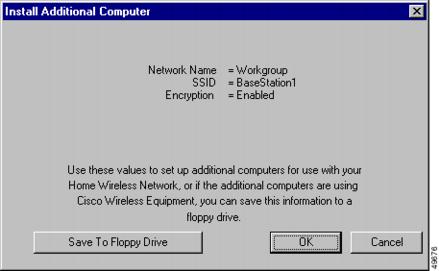
Table 2-31 Buttons on the Install Additional Computer Screen

Button
Description

Save To Floppy Drive

You can use this button to save the client radio card configuration parameters to a floppy disk. The floppy disk can be used to configure a client radio card in another wireless PC (see "Edit Client Properties" section).

OK

Saves parameters and exits the screen.

Cancel

Exits the screen without changing parameters.


Preferences

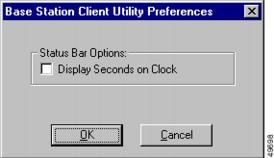
With the Preferences option you can display seconds in the Status Bar Clock that appears on the bottom of the Cisco Aironet Base Station Client Utility's main screen (see Figure 2-1). illustrates the Preferences Option screen. To configure the Status Bar Clock to display seconds, click Display Seconds on Clock.

Figure 2-20 Preferences Option Screen
Getting Help

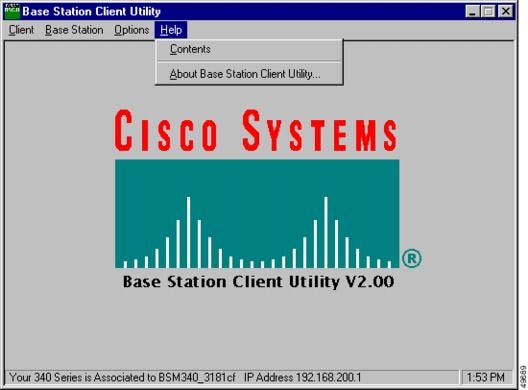
To access information about BSCU, press F1 or select Contents from the Help pull-down menu (see Figure 2-21). An overview of BSCU is displayed.

From the Overview of the Cisco Aironet Base Station Client Utility screen, you can access additional information.

To access information on specific menu options, click Contents; double-click Base Station Client Utility Commands, the desired menu (such as Options Menu), and the desired topic (such as Preferences).

To access information on specific parameters, click Contents; then double-click the following selections when they appear: Configurable Parameters, Series 340/350 Wireless LAN Adapter, Wireless Network Parameters, and the desired parameter (such as Computer Name).

To access information on specific diagnostic topics, click Contents; double-click Run Time Diagnostic Information, a diagnostic category (such as Running a TCP/IP Linktest), and the desired topic (such as TCP/IP Linktest).

To search for a specific topic, click Index, select an index entry, and click Display.

To search for a specific word or phrase, click Contents or Index, click the Find tab, and follow the instructions in the Find Setup Wizard window.

Figure 2-21

Help Pull-Down Menu Screen

Exiting BSCU

To exit BSCU, select Exit from the Client pull-down menu (see Figure 2-22).

Figure 2-22 Exit Option