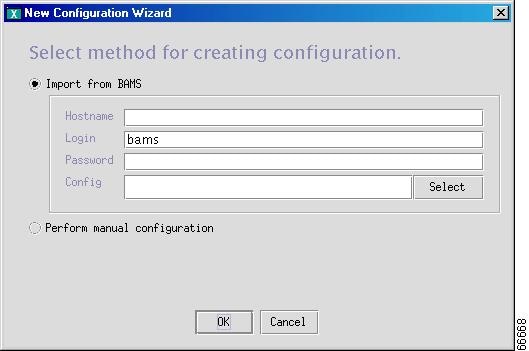
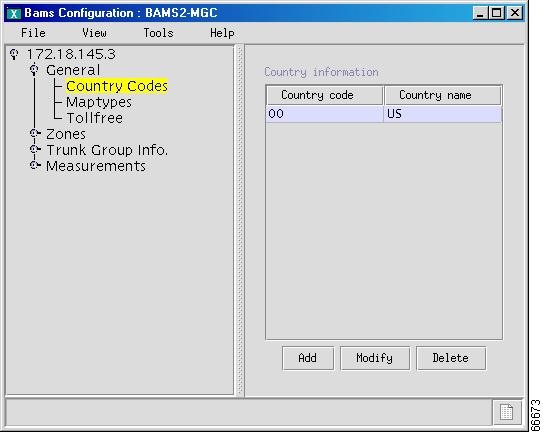
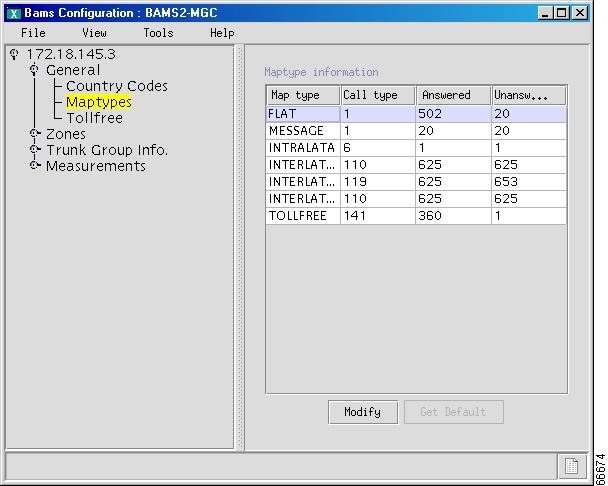
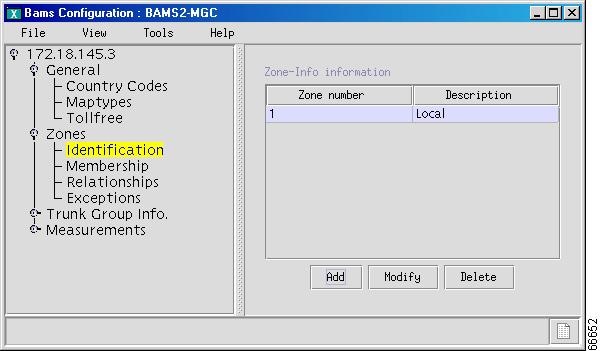
Table Of Contents
Using the Voice Services Provisioning Tool to Provision a Cisco Media Gateway Controller
Configuring the Cisco MGC
Adding an MGC Host
Adding Ethernet Cards and Interfaces
Configuring SS7 Signaling Services
Adding Adjacent Point Codes
Add Point Codes
Add Destination Point Codes
Add Origination Point Code
Add Linksets
Adding and Changing Linkset Properties
Add C7 IP Links
Add SS7 Subsystems (Mated Pairs)
Configure SS7 Paths
Configure SS7 Routes
Configure FAS Signaling
Add or Modify FASPath properties
Configuring Media Gateway Control Links
Adding External Nodes
Configuring MGWs
Adding a Broadband or Narrowband Service Card
Adding an IPFAS Signaling Service
Adding IP Links for IPFAS
Changing IPFAS Signaling Service Properties
Adding an MGCP Signaling Service
Adding and Changing MGCP Signaling Service Properties
Add an IP Link for MGCP
Configuring Bearer Traffic
Importing Trunk Groups and Trunks
Add a Trunk Group
Adding Trunks
Deleting Trunks from a Trunk Group
Adding Route Groups and Routes
Hierarchical View of Provisioned Components
Performing an Integrity Check
Checking Integrity for MGC Signaling Configuration
Checking Traffic Against MGC Configuration
Viewing Generated MML
Viewing Generated Cisco MGW Commands
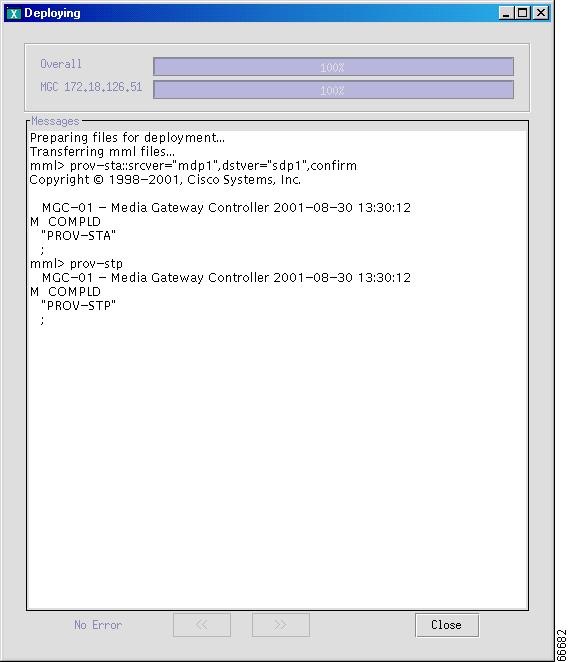
Deploying a New Configuration
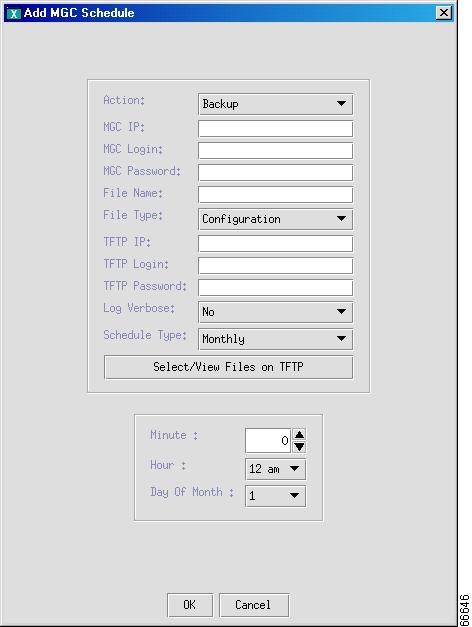
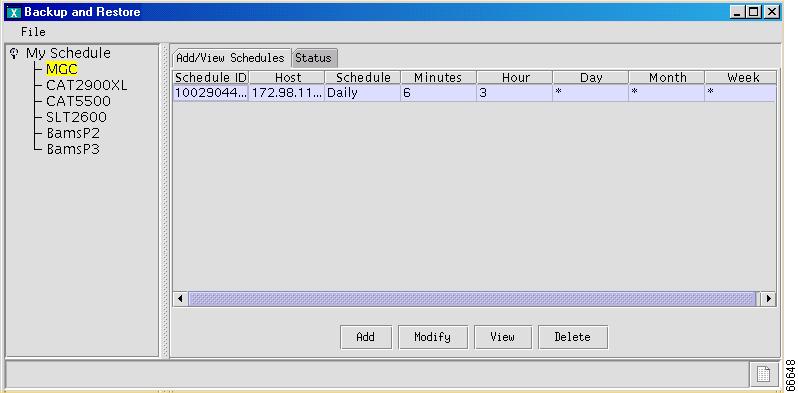
Backup and Restore
Schedule An Activity
Check Status of Backup or Restore
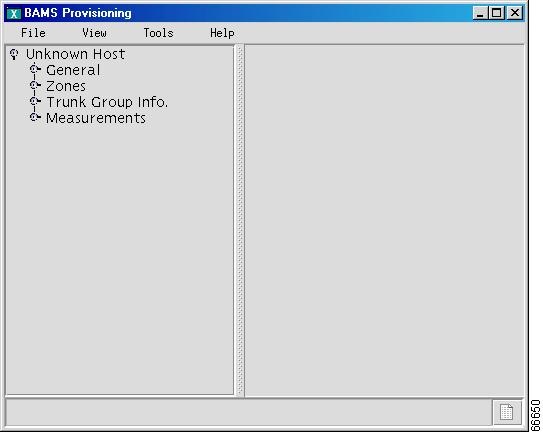
Provisioning the Billing and Measurements Server
Starting a BAMS Provisioning Session
BAMS Provisioning
Provisioning General Information
Provisioning Zones
Provisioning Trunk Group Information
Provisioning Measurements
Using the Voice Services Provisioning Tool to Provision a Cisco Media Gateway Controller
This chapter shows you how to use version 1.6.X of the Voice Services Provisioning Tool (VSPT) to provision a Cisco Media Gateway Controller (MGC).
Depending on the VSPT software version you are using, the screens you see may not appear exactly as the screen examples in this chapter.
Tip
Before you begin provisioning, you should have a list of components you want to provision, including the component names, IP addresses, properties, and other parameters. These can be created using the worksheets provided in "Planning Worksheets." In addition, descriptions of the properties and values contained in the VSPT are included in "Components and Properties," and in this chapter. You should review this information before you begin provisioning and keep it available to refer to during provisioning.
Provisioning a Cisco MGC is a complex process that can be logically divided into the following steps:
•
Configuring the Cisco MGC
•
Configuring communications between the Cisco MGC and external SS7 signaling points (SPs), such as STPs
•
Configuring call control links between the Cisco MGC and the media gateways
•
Configuring bearer traffic
The provisioning procedures described in this chapter follow the sequence for provisioning a "typical" Cisco MGC configuration.
Note
The configuration of your MGC contain different components than those described in this chapter, requiring additional provisioning procedures. Please refer to "Planning for Provisioning," for more provisioning information.
This chapter shows how to use version 1.6 of the VSPT to provision a typical Cisco Media Gateway Controller (MGC) and contains the following sections:
•
Configuring the Cisco MGC
•
Configuring SS7 Signaling Services
•
Configuring Media Gateway Control Links
•
Configuring Bearer Traffic
Configuring the Cisco MGC
To provision a Cisco MGC, configure the following basic network elements:
•
Active MGC host
•
Standby MGC host, if applicable
•
Ethernet cards and interfaces installed in the Cisco MGC host
Adding an MGC Host
The Cisco MGC host is a Sun workstation running the Cisco MGC software. Table 4-1 lists the MGC host properties. Use the information in the table to add an MGC host (and a standby host, if you are configuring a redundant MGC).
Table 4-1 MGC Property Properties
Property Name
|
Description
|
Default
|
Valid Values
|
MGC Hostname
|
IP address that identifies the target MGC host
|
None
|
User defined
|
Login/Password
|
Specifies the valid MGC login and password
|
None
|
User defined
|
BAMS Config
|
Identifies the name of the Billing and Measurement Server (BAMS) configuration, in dotted decimal notation
|
<UNSET>
|
x.x.x.x
|
IP Addr:1
|
IP address, in dotted decimal notation, of the MGC primary interface used for signaling and control
|
None
|
x.x.x.x
|
IP Addr:2
|
IP address, in dotted decimal notation, of a secondary interface used for signaling and control backup
|
None
|
x.x.x.x
|
Failover
|
Indicates if this is a failover configuration
|
None
|
No, Yes
|
Failover IP Addr:1
|
IP address, in dotted decimal notation, of the primary interface for signaling on the standby MGC (if included)
|
None
|
x.x.x.x
|
Failover IP Addr:2
|
IP address, in dotted decimal notation, of the secondary interface for signaling on the standby MGC (if included)
|
None
|
x.x.x.x
|
Perform the following steps to add an MGC host and a standby host, if applicable. Where necessary, refer to Table 4-1 for property values.
Step 1
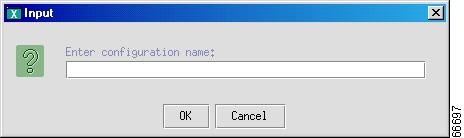
Start a new provisioning session, and click File > New. A screen similar to the one shown in Figure 4-1 appears.
Figure 4-1 Name Configuration
Step 2
Enter a name for the new configuration, and click OK.
Step 3
Click the Perform manual configuration radio button, and click OK.
Step 4
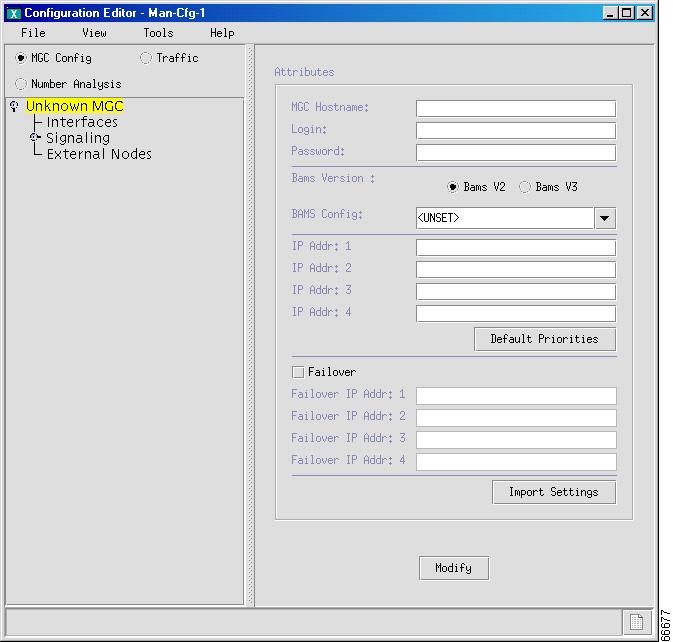
Click the MGC Config radio button, and click Unknown MGC. A screen similar to the one shown in Figure 4-2 appears.
Figure 4-2 Adding a Cisco MGC Host
Step 5
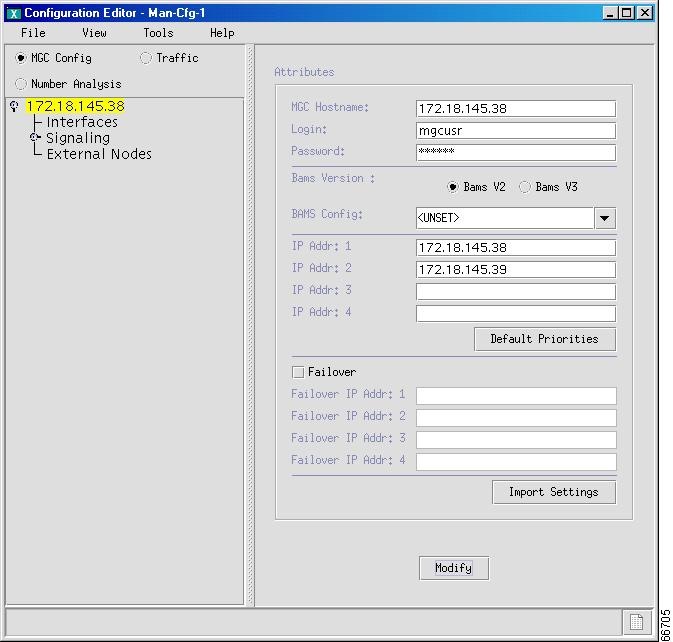
Enter the IP address of the MGC host, for example, 172.18.145.38.
Step 6
Enter a valid MGC login ID and password.
Step 7
Select the radio button corresponding to the version of the Billing and Management Server (BAMS) you are using, and select the BAMS configuration, if applicable.
Note
VSPT 1.6 currently supports BAMS Phase 2 only. See the current release notes for this application for further information about future support for BAMS Phase 3.
Step 8
Enter the network addresses (IP Addr: 1 and IP Addr: 2) in dotted notation; for example, 172.18.145.3, or click Import Settings to import the network addresses.
Step 9
Indicate whether the MGC has a failover MGC and, if it does, enter the network addresses (Failover IP Addr: 1 and Failover IP Addr: 2).
Click Modify. The hierarchical tree displaying "Unknown MGC" changes to the MGC host name you entered in Step 5, (see Figure 4-3), and "Modification complete" is displayed briefly on the bottom left section of the screen.
Figure 4-3 MGC Host Added
Adding Ethernet Cards and Interfaces
Interfaces components identify connections to the network Ethernet cards or adapters installed in the Cisco MGC host. They permit IP communication between the Cisco MGC and the Cisco SLTs.
Table 4-2 lists interface properties. Use the values in the table as you add interfaces to your MGC.
Table 4-2 Interface Properties
Property
|
MML Parameter
|
Description
|
Default
|
Valid Values
|
Name
|
name
|
Identifies a physical card in the MGC
|
Card-x
|
Up to 80 alphanumeric characters
|
Description
|
desc
|
Describes the adapter card
|
Card
|
Up to 128 alphanumeric characters
|
Type
|
type
|
Identifies the type of adapter card in the MGC
|
Ethernet
|
Ethernet—Ethernet ATM—ATM card ITK—E1/T1 card V35—V.35 card
|
Slot
|
slot
|
Identifies the physical slot in which the adapter card is installed
|
0
|
0 through 3
|
Perform the following steps to add an Ethernet interface to the Cisco MGC. If necessary, refer to Table 4-2 for property values.
Step 1
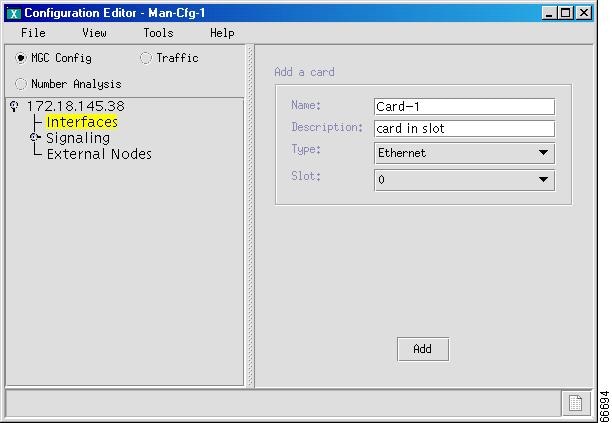
Click Interfaces in the right pane of the main VSPT window. A screen similar to the one shown in Figure 4-4 appears.
Figure 4-4 Adding Interface Cards
Step 2
Enter the interface name.
Step 3
Enter a description for the interface.
Step 4
Select the card type.
Step 5
Select the slot in which the card is installed.
Step 6
Click Add. The hierarchical tree on the left pane of the main VSPT window changes to reflect the card you added.
Step 7
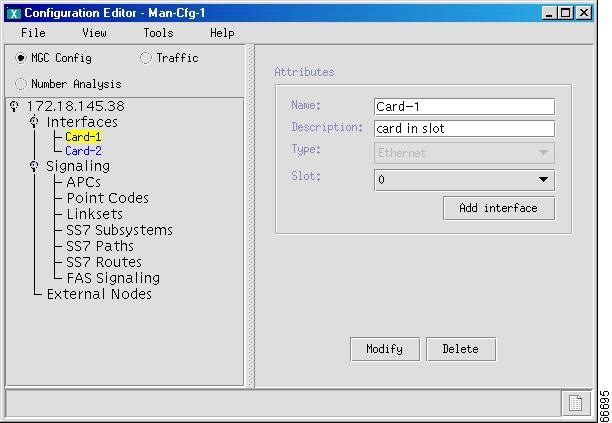
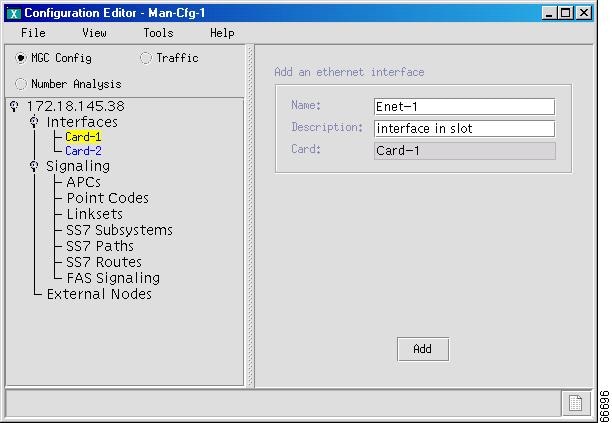
Click the Ethernet interface card you are configuring on the hierarchical tree on the left pane of the main VSPT window. A screen similar to the one shown in Figure 4-5 appears.
Figure 4-5
Adding an Interface
Step 8
Click Add Interface. A screen similar to the one shown in Figure 4-6 appears.
Figure 4-6 Interface Parameters
Step 9
Enter a name.
Step 10
Enter a description.
Step 11
The Card field contains the name of the card for which you are adding an interface. Verify that you have selected the correct card.
Step 12
Click Add.
Step 13
Repeat Step 7 through Step 12 for each card you configured.
Configuring SS7 Signaling Services
SS7 signaling services identify all signaling types processed by the Cisco MGC. To configure SS7 signaling services, you must:
•
Add Point Codes
•
Add Linksets
•
Add C7 IP Links
•
Add SS7 Subsystems (Mated Pairs)
•
Configure SS7 Paths
•
Configure SS7 Routes
Adding Adjacent Point Codes
Adjacent point codes (APCs) are the SS7 network addresses of the STPs (or SSP directly connected to the SLT) that connect to the MGC node. The MGC node communicates with external SSPs and SCPs through an STP.
Table 4-3 lists the APC properties. Use the values in the table as you add APCs to the Cisco MGC.
Table 4-3 APC Properties
Property
|
MML Parameter
|
Description
|
Default
|
Valid Values
|
Name
|
name
|
Identifies the adjacent point code MML name.
|
STP-x
|
Up to 80 alphanumeric characters
|
Description
|
desc
|
Describes the point code. Use up to 128 alphanumeric characters.
|
APC
|
Up to 128 alphanumeric characters
|
NetAddr
|
netaddr
|
Enter point code in this field. Valid for both ITU and North American point codes.
|
0.0.0
|
User defined
|
NetIndicator
|
netind
|
Identifies the type of node receiving the point code.
|
National
|
International (reserved for international) or National (reserved for national)
|
Use the following procedure to add the APCs for STPs. Where necessary, refer to Table 4-3 for property values.
Step 1
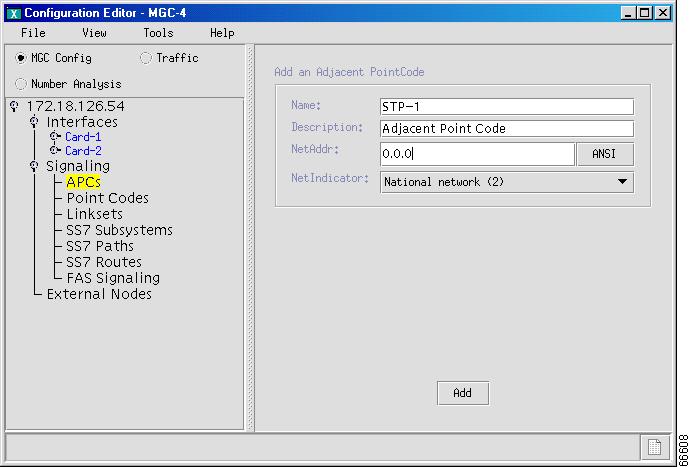
Click the icon next to Signaling to expand the hierarchical tree in the left pane of the main VSPT window, and click APCs. A screen similar to the one shown in Figure 4-7 appears.
Figure 4-7 Adding Adjacent Point Codes
Step 2
Enter the name. (For example, STP-1.)
Step 3
Enter the description. (For example, Adjacent Point Code.)
Step 4
Enter the network address in dotted notation (for example, 172.18.145).
Step 5
On the NetIndicator drop-down menu, select the desired value:
•
International network—Used if the node is an international gateway.
•
Spare (for international use)—Used in countries where multiple carriers share point codes; networks are differentiated by this indicator.
•
National network—Used if the node routes calls through the national network.
•
Reserved—For national use. Do not use.
Step 6
Click Add. The hierarchical tree in the left pane of the main VSPT window changes to reflect the adjacent point code you added (STP-1).
Step 7
To add additional APCs, repeat Step 1 through Step 6 for each APC.
Add Point Codes
Every signaling point in the SS7 network is identified by a unique point code. Provision point codes using the following subsections:
•
Add Destination Point Codes
•
Add Origination Point Code
Note
Point codes provide the basis for the addressing scheme for the SS7 network. ITU point codes contain 14 bits, and ANSI point codes contain 24 bits.
Add Destination Point Codes
A destination point code (DPC) is an SS7 network address that identifies an SS7 network node, such as an STP, SSP, or media gateway, with which the MGC node communicates.
Use the following procedure to add the DPCs for the ILEC and CLEC switches:
Step 1
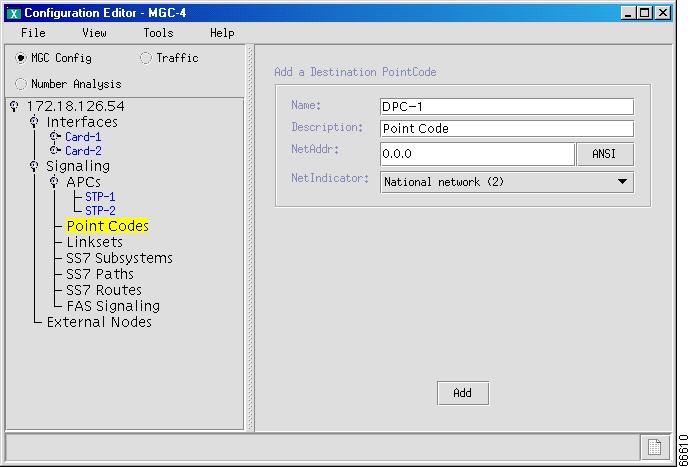
Click Signaling > Point Codes on the left pane of the main VSPT window. A screen similar to that shown in Figure 4-8 appears.
Figure 4-8 Adding DPC
Step 2
Enter the DPC name.
Step 3
Enter the description of the DPC.
Step 4
Enter the network address of the DPC in dotted notation, for example, 172.18.145.3.
Step 5
On the NetIndicator drop-down menu, select the network indicator:
•
International network—Used if the node is an international gateway (default value).
•
Spare (for international use)—Used in countries where multiple carriers share point codes; networks are differentiated by this indicator.
•
National network—Used if the node routes calls through the national network.
•
Reserved—For national use. Do not use.
Step 6
Click Add. The hierarchical tree in the left pane of the main VSPT window changes to reflect the destination point code you added.
Add Origination Point Code
The origination point code (OPC) is an SS7 network address that identifies a Cisco MGC. Use the following procedure to configure the OPCs for the Cisco MGC:
Step 1
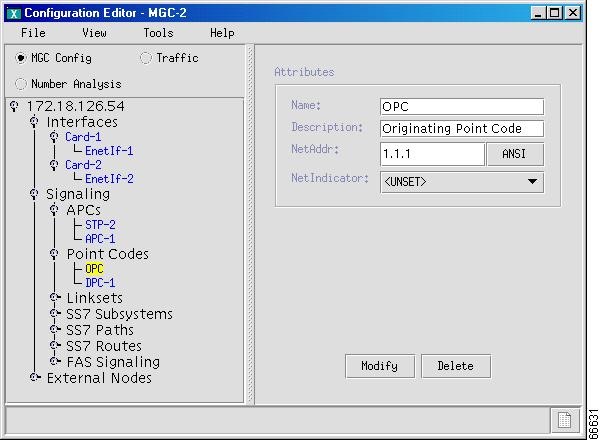
Click Signaling > Point Codes > OPC in the left pane of the main VSPT window. A screen similar to the one shown in Figure 4-9 appears:
Figure 4-9 Add OPC
Step 2
Enter the name of the OPC.
Step 3
Enter the description of the OPC.
Step 4
Enter the net address of the OPC, and specify whether it is ANSI or ETSI.
Step 5
On the NetIndicator drop-down menu, select the desired value:
•
International network—Used if the node is an international gateway.
•
Spare (for international use)—Used in countries where multiple carriers share point codes; networks are differentiated by this indicator.
•
National network—Used if the node routes calls through the national network.
•
Reserved—For national use. Do not use.
Step 6
Click Modify. The hierarchical tree in the left pane of the main VSPT window changes to reflect the OPC you added.
Add Linksets
A linkset is a logical group of links that transport SS7 signals to the Cisco MGC. Linksets can consist of the following:
•
Links from the Cisco MGC (OPC) to an adjacent STP (APC)
•
Links from the Cisco MGC (OPC) to a destination (a DPC acting as an APC, if there is no STP)
Table 4-4 lists linkset properties. Use the values in the table as you add linksets to your MGC.
Table 4-4 Linkset Properties
Property
|
MML Parameter
|
Description
|
Default
|
Valid Values
|
Name
|
name
|
Identifies the linkset MML name
Must start with an alphabetical character.
|
Lnkset-x
|
Up to 10 alphanumeric characters
|
Description
|
desc
|
Describes the linkset
|
Lnkset
|
Up to 128 alphanumeric characters
|
Point Code
|
apc
|
Identifies the adjacent point codes components for the SS7 node providing the linkset
|
<UNSET>
|
User defined.
|
Protocol
|
proto
|
Identifies the protocol family associated with this linkset
|
SS7-ANSI
|
SS7-ITU SS7-ANSI SS7-UK SS7-China SS7-Japan
|
Type
|
type
|
Indicates how the signaling link is terminated on the Cisco MGC
|
IP
|
IP (when SLTs and used)
TDM (when adapter cards are used)
|
Use the following procedure to add the linksets between the MGC node and the STPs. Where necessary, refer to Table 4-4 for property values:
Step 1
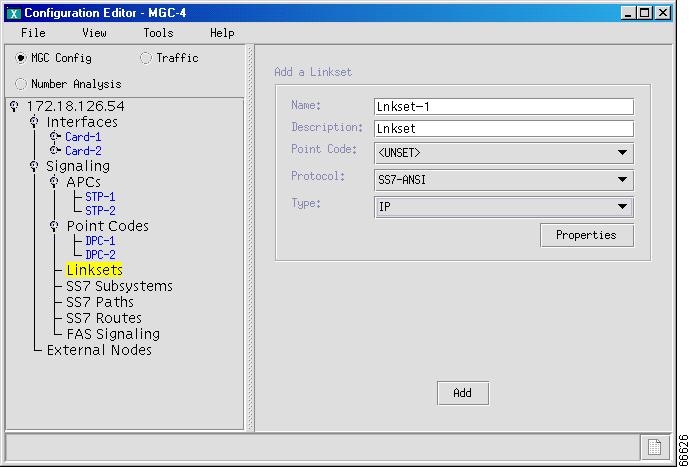
Click LinkSets. A screen similar to the one shown in Figure 4-10 appears.
Figure 4-10 Adding Linksets
Step 2
Enter the linkset name. (For example, Linkset-1.)
Step 3
Enter the description of the linkset. (For example, Linkset.)
Step 4
On the Point Code drop-down menu, select the desired APC or DPC component for this linkset. (For example, STP-1.)
Step 5
On the Protocol drop-down menu, select the desired protocol:
•
SS7-ANSI
•
SS7-China
•
SS7-ITU
•
SS7-Japan
•
SS7-UK
Step 6
On the Type drop-down menu, select the link termination type.
Step 7
Click Add. The hierarchical tree in the left pane of the main VSPT window changes to reflect the linkset you added.
Note
After creating the linksets, you must create the links in each linkset by adding C7 IP links. Refer to the "Add C7 IP Links" section.
Adding and Changing Linkset Properties
You can add and change the properties of a linkset after it is created, including message and timer values. Changes apply to all linksets you create. You do not have to change the default properties. For a list of linkset properties, default values, and descriptions, see the Cisco Media Gateway Controller Software Release 7 Provisioning Guide.
Perform the following steps to add or change linkset properties:
Step 1
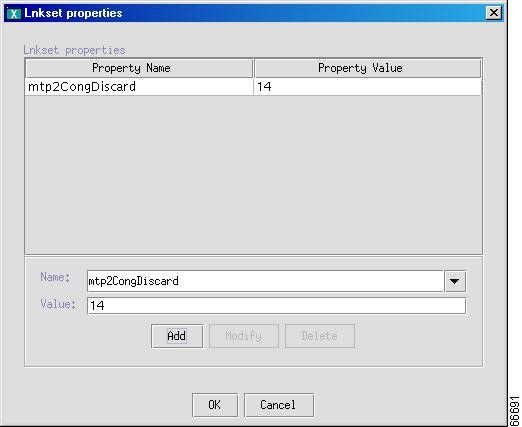
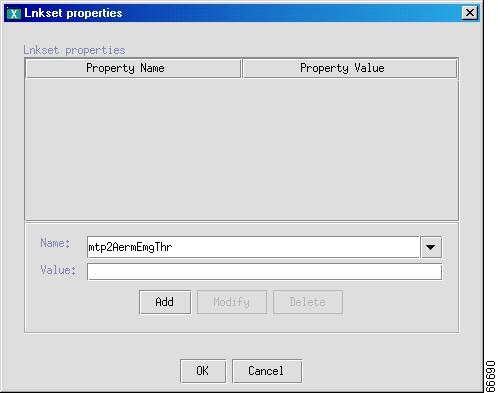
Highlight the appropriate linkset in the left pane, and click Properties to display the list of properties. A screen similar to the one shown in Figure 4-11 appears.
Figure 4-11 Adding and Changing Linkset Properties
Step 2
To add a property, select the property in the Name drop-down list, enter a value in the Value text box, and click Add. A screen similar to the one shown in Figure 4-12 appears, with the property and value added. After a property has been added, its value can be modified.
Figure 4-12 Linkset Property Added
Step 3
To modify an existing property, click the name of the property in a screen similar to the one shown in Figure 4-11.
Step 4
In the value field, overwrite the property value with the desired value.
Step 5
Click Modify.
Step 6
Click OK when you are finished modifying properties.
Note
You cannot modify properties until after you have created the linkset.
Add C7 IP Links
You must configure links for all physical connections bearing signals that enter and exit the Cisco MGC. This includes SS7 signals from the SSP (ILEC switch) and signal links to the media gateway.
A C7 IP link component identifies one link within a linkset that enters the Cisco MGC through an SLT. Table 4-5 lists the C7 IP link properties. Use the values in the table as you add links to linksets.
Table 4-5 C7 IP Link Properties
Property
|
MML Parameter
|
Description
|
Default
|
Valid Values
|
Name
|
name
|
Identifies the MML name for the link.
|
C7ip-1
|
Up to 10 alphanumeric characters, beginning with an alpha character
|
Description
|
desc
|
Describes the link.
Up to 128 alphanumeric characters.
|
C7Iplink
|
Up to 128 alphanumeric characters
|
Interface
|
if
|
Selects the interface on which the link is entering the VSC3000.
|
<UNSET>
|
User defined
|
IP Addr
|
ipaddr
|
Identifies the IP address of the VSC3000 set in the IP_Addr field in the XECfgParm.dat file.
|
<UNSET>
|
Addr1 Addr2 Addr3 Addr4
|
Port
|
port
|
Identifies the UDP port of the VSC3000 that listens for the signaling communications.
|
7000
|
Any non-well known UDP port greater than 1024
|
Priority
|
pri
|
Identifies the priority value of the link.
|
1
|
1 through 4
Give links the same priority for load sharing
|
Peer Address
|
peeraddr
|
Identifies the IP address of the Cisco SLT.
|
None
|
User defined
|
Linkset
|
lnkset
|
Displays the linkset to which this link belongs.
|
None
|
User defined
|
SLC
|
slc
|
Unique identifier for the link.
Corresponds to the Signaling Link Code (SLC) received from the carrier.
|
0
|
0 through 15
|
SLT Port
|
sltport
|
Identifies the WIC port of the Cisco SLT for the link.
|
0
|
0 through 3
|
IP Gateway
|
ipgateway
|
Identifies the IP address, in dotted decimal notation, of the gateway.
|
None
|
x.x.x.x
|
IP Net Mask
|
ipnetmask
|
Identifies the IP net mask, in dotted decimal notation, of the gateway.
|
None
|
x.x.x.x
|
Add a C7 IP link for each physical SS7 link that is connected to the SS7 network through the Cisco SLT. Each link corresponds to a linksets you created in the "Add Linksets" section.
Use the following procedure to add C7 IP links. Where necessary, refer to Table 4-5 for property values.
Step 1
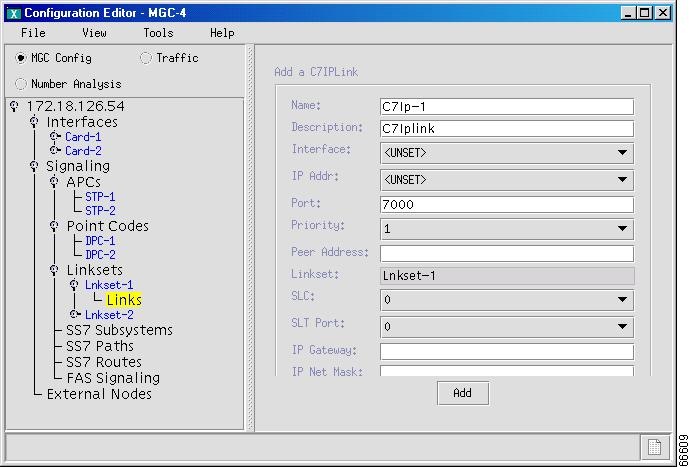
Under LinkSets, in the left pane of the main VSPT window, click Lnkset-1 (the linkset you created in the "Add Linksets" section). A screen similar to the one shown in Figure 4-13 appears.
Figure 4-13 Adding C7 IP Links
Step 2
Enter the name.
Step 3
Enter the description.
Step 4
On the Interface drop-down menu, select the Ethernet interface for this link.
Step 5
On the IP Addr drop-down menu, select the IP address of the Cisco MGC:
•
Addr1
•
Addr2
•
Addr3
•
Addr4
Note
The numbered address for this value is found in the XECfgParm.dat file you set up during your initial system configuration. See the Cisco Media Gateway Controller Software Release 7 Installation and Configuration Guide for more information.
Step 6
Enter the number of a UDP port on the Cisco MGC. You can use any unused UDP port number, but you should not use ports 1 through 1024 (these are reserved for other applications).
Step 7
Enter a priority. The value range is 1 through 4, and 1 is the highest priority.
Note
To enable loadsharing, use the same priority (1) for each C7 IP link. Traffic is routed equally over the links is there is a failure.
Step 8
Enter the IP address of the Cisco SLT in the peer address field.
Note
You do not enter a peer port value, because the actual peer port value is found in the *.stPort field in the XECfgParm.dat file you set up during your initial system configuration. See the Cisco Media Gateway Controller Software Release 7 Installation and Configuration Guide for more information.
Step 9
Click Linkset, and choose the linkset for this link.
Step 10
Enter the appropriate signaling link code (SLC) for the line between the Cisco SLT and the STP. The SLC can be any integer from 0 through 15.
Step 11
Enter the SLT port. This is the physical port on the Cisco SLT.
Note
The SLT port number must be unique for a given link on a particular Cisco SLT. For example, if you have a 2T WAN interface card (WIC) in slot 0 of the Cisco SLT, you can use port value 0 for the first link you configure. The second link on that WIC uses the port value 1.
Step 12
Enter the IP address of the gateway in the IP Gateway field.
Step 13
Enter the subnet mask of the gateway in the IP Net Mask field.
Step 14
Click Add. The hierarchical tree in the left pane of the main VSPT window changes to reflect the C7 IP link you added.
Add SS7 Subsystems (Mated Pairs)
An SS7 subsystem allows the Cisco MGC to route traffic over the C-links between mated STPs to provide network reliability. The links to these STPs are defined in the "Add Linksets" section.
The SS7 subsystem provides local number portability (LNP) support through an SCP. Because the SS7 subsystem is an instance of an application, you need to configure a subsystem for each application type of service (for example, LNP). The SS7 subsystem is also used to connect an STP to an SCP database for AIN queries. In this case, there is no mated STP.
Table 4-6 lists SS7 subsystem properties. Use the values in the table as you add SS7 subsystems to your MGC.
Table 4-6 SS7 Subsystem Properties
Property
|
MML Parameter
|
Description
|
Default
|
Valid Values
|
Name
|
name
|
Identifies the MML name for this SS7 subsystem.
|
Ss7ss-1
|
Up to 80 alphanumeric characters.
|
Description
|
desc
|
Describes the subsystem.
|
SS7 Subsystem
|
Up to 128 alphanumeric characters.
|
Subsystem Type
|
|
Identifies the type of subsystem.
|
None
|
Mating APCs
AIN Services
|
TCAPIP or APC
|
svc
|
Identifies the STP (or STP pair) to be used for TCAP messages.
|
<UNSET>
|
User defined.
|
Priority
|
pri
|
Identifies the priority value of the route. Used for load sharing.
|
1
|
1 through 16
|
Subsystem number
|
ssn
|
Identifies the desired SCP services. The value is provider specific.
|
0
|
x.x.x.x
|
STP/SCP Index
|
stpscpind
|
Identifies each SCP in a virtual switch configuration.
|
0
|
0 through 99
|
Transport Protocol
|
transproto
|
Identifies the transport protocol used for TCAP messages. Accessing SCPs with SS7 uses the SCCP protocol.
|
TCP/IP
|
SCCP
TCP/IP
|
Protocol Family
|
proto
|
Identifies the protocol family used for SS7 messages.
|
<UNSET>
|
SS7-ANSI
SS7-ITU
|
Use the following procedure to add SS7 subsystems for the STPs. Where necessary, refer to Table 4-6 for property values.
Step 1
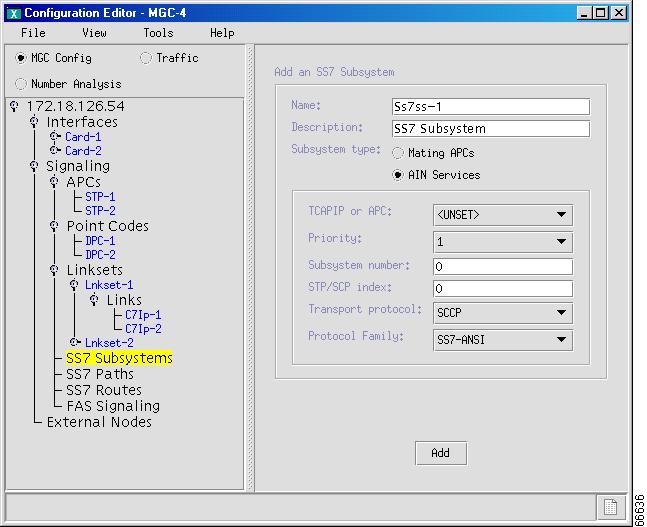
Click Signaling > SS7Subsystems in the left pane of the main VSPT window. A screen similar to the one shown in Figure 4-14 appears.
Figure 4-14 Adding Mated pairs
Step 2
Enter the name.
Step 3
Enter the description.
Step 4
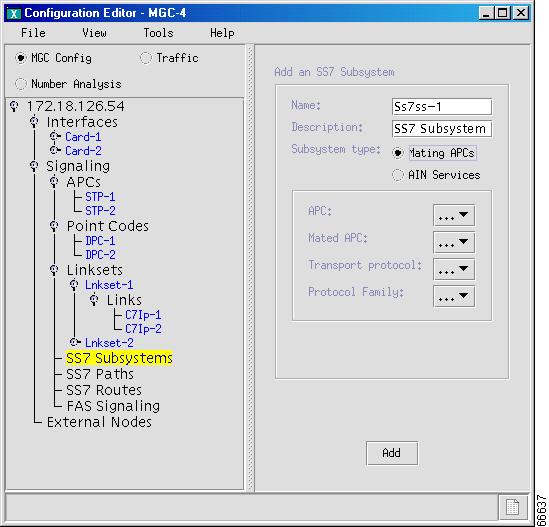
Select the appropriate radio button for the subsystem type you are adding. If you are identifying mated STPs, click the Mating APCs button. If you are using the subsystem for AIN queries, click the AIN Services button. In this example we are mating APCs. After you click the Mating APCs button, a screen similar to the one shown in Figure 4-15 appears:
Figure 4-15 Configure Mated Subsystem
Step 5
Enter the name.
Step 6
Enter the description.
Step 7
Select the subsystem type.
Step 8
On the Mated APC drop-down menu, select the APC of the second STP of the mated pair.
Step 9
On the Transport Protocol drop-down menu, click TCPIP when identifying mated STPs. For AIN, click SCCP or TCPIP.
Step 10
On the Protocol Family drop-down menu, select the protocol family:
•
SS7-ANSI—Use when identifying mated STPs or using the subsystem for AIN queries.
•
SS7-China
•
SS7-ITU—Use when identifying mated STPs or using the subsystem for AIN queries
•
SS7-Japan
•
SS7-UK.
Note
If you have multiple linksets to an STP that use different protocol families, you must also have multiple SS7 subsystems, one for each linkset that uses a specific protocol.
Step 11
Click Add. The hierarchical tree on the left pane of the main VSPT window changes to reflect the mated pair you added.
Configure SS7 Paths
An SS7 signaling service identifies the path over which the MGC node communicates, using a specific protocol, with a remote MGC or switch. The MML component name is SS7PATH. Table 4-7 lists the SS7 signaling service properties. Use the values in the table as you add SS7 paths to your MGC.
Table 4-7 SS7 Signaling Service Properties
Property
|
MML Parameter
|
Description
|
Default
|
Valid Values
|
Name
|
name
|
Identifies the SS7 service path.
|
None
|
Up to 10 alphanumeric characters.
|
Description
|
desc
|
Describes the SS7 service path.
|
None
|
Up to 128 alphanumeric characters.
|
Point Code
|
dpc
|
Specifies the point code of the SSP in the service path.
|
<UNSET>
|
User defined.
|
Side
|
side
|
Distinguishes the network equipment (like a switch) from the user equipment (like a terminal adapter or PBX). (Used for ISDN systems.)
|
network
|
Network User
|
MDO
|
mdo
|
Identifies the protocol (MDO file name) for this SS7 service path. You select the MDO file name from a drop-down list.
|
ANSISS7_STANDARD
|
See list.
|
Customer Group ID
|
custgrpid
|
Contains a unique identifier for the number analysis file. (Used with nailed solutions only.)
|
0000
|
000-9999 Up to 4-digit alphanumeric characters.
|
Customer Group Table
|
custgrptbl
|
Contains the number analysis table index used in combination with the Customer Group ID as a unique key to identify the number analysis file used for this signal service. (Not currently used.)
|
0101
|
0000-9999
|
Use the following procedure to add SS7 signaling service paths to the switch (identified by the DPC). If you have a signaling service from the Cisco MGC to a PSTN switch, use the SS7 path component to add the service to your configuration. Where necessary, refer to Table 4-7 for property values.
Step 1
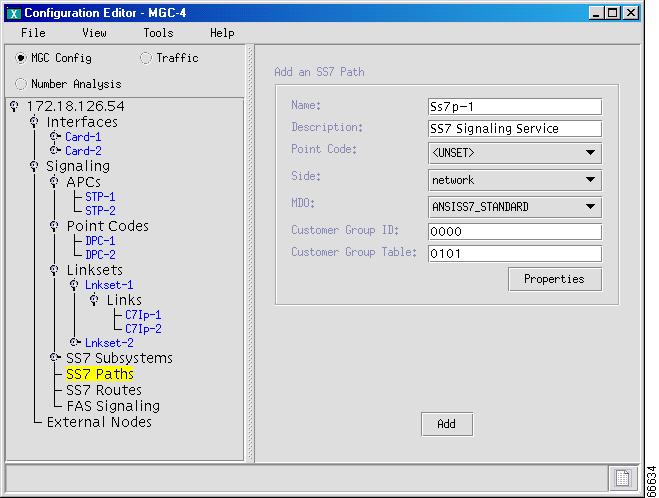
Click SS7 Paths in the left pane of the main VSPT window. A screen similar to the one shown in Figure 4-16 appears.
Figure 4-16 Adding SS7 Paths
Step 2
Enter the name of the SS7 signaling path.
Step 3
Enter the description of the SS7 signaling path.
Step 4
On the Side drop-down menu, select the side (Q.931 call model side):
•
Network
•
User
Step 5
On the Point Code drop-down menu, select the destination point code (the point code of the PSTN switch) for this signaling service.
Step 6
On the MDO drop-down menu, select the protocol for this signaling service; for example, ANSISS7_STANDARD. Supported protocols are listed on the drop-down menu.
Step 7
Enter the customer group ID.
Step 8
Enter the customer group table.
Step 9
Click Add. The hierarchical tree on the left pane of the main VSPT window changes to reflect the SS7 path you added.
Configure SS7 Routes
An SS7 route is a path, through a linkset, between one MGC node and another MGC node or a switch. In the following example, the SS7 routes indicate the linksets that carry SS7 signals between the MGC node and the ILEC Class 5 switch or CLEC Class 5 switch.
You must define a separate route for each remote switch.
Table 4-8 lists the SS7 route properties. Use the values in the table as you add SS7 routes to your MGC.
Table 4-8 SS7 Route Properties
Property
|
MML Parameter
|
Description
|
Default
|
Valid Values
|
Name
|
name
|
Identifies the MML name for a route set.
|
Ss7r-1
|
Up to 10 alphanumeric characters
|
Description
|
desc
|
Description of the route.
|
SS7 Route
|
Up to 128 alphanumeric characters
|
Originating PC
|
opc
|
Select the MML name of the MGC point code.
|
<UNSET>
|
User defined
|
Destination PC
|
dpc
|
Select the point code of the destination switch delivering bearer traffic to the solution.
|
<UNSET>
|
User defined
|
Linkset
|
lnkset
|
Select the linkset over which the SS7 signals travel.
|
<UNSET>
|
User defined
|
Priority
|
pri
|
Sets the priority value of the route. Create load sharing by setting all routes to the same number.
|
1
|
1 through 4
|
You must add an SS7 route for each signaling path from the Cisco MGC to the PSTN switch through the linksets you have created to the STPs. You should create two routes to the PSTN switch, with each route passing through a different STP of a mated pair.
Use the following procedure to add SS7 routes to the MGC. Where necessary, refer to Table 4-8 for property values.
Step 1
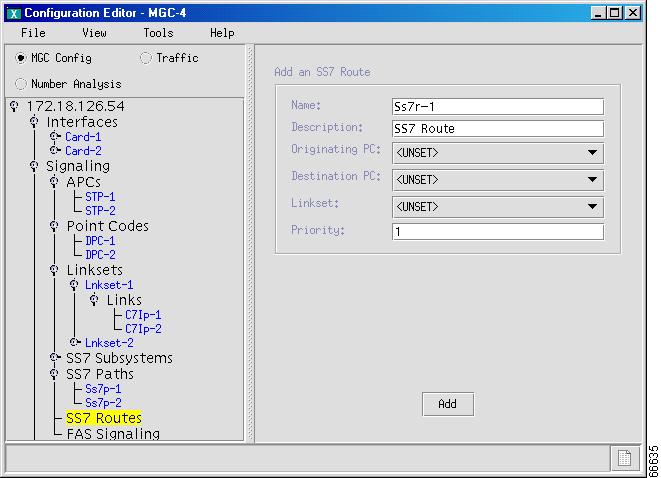
Click SS7 Routes in the left pane of the main VSPT window. A screen similar to the one shown in Figure 4-17 appears.
Figure 4-17 Adding SS7 Routes
Step 2
Enter the name.
Step 3
Enter the description.
Step 4
On the Originating PC drop-down menu, select the origination point code for this route.
Step 5
On the Destination PC drop-down menu, select the signal destination point code of the PSTN switch.
Step 6
On the Linkset drop-down menu, select the linkset for this route.
Step 7
Enter the priority.
Note
Routes can share signaling traffic. To enable load sharing, set the priorities the same for each route.
Step 8
Click Add. The hierarchical tree on the left pane of the main VSPT window changes to reflect the SS7 route you added.
Configure FAS Signaling
A facility associated signaling (FAS) service uses the same path for signaling and voice circuits. Table 4-9 lists the FAS signaling service properties. Use the values in the table as you add FAS signaling services to your MGC.
Table 4-9 FAS Signaling Service Properties
Property
|
MML Parameter
|
Description
|
Default
|
Valid Values
|
Name
|
name
|
Identifies the MML name of the FAS signaling service.
|
Fas-1
|
Up to 10 alphanumeric characters
|
Description
|
desc
|
Describes the FAS signaling service.
|
Faspath signaling service
|
Up to 128 alphanumeric characters.
|
Side
|
side
|
Distinguishes the network equipment from the user equipment.
|
network
|
network
user
|
MDO
|
mdo
|
Identifies the protocol (MDO file name) for this FAS signaling service. You select the MDO file name from a drop-down list.
|
|
See list
|
Customer Group ID
|
custgrpid
|
Contains a unique identifier for the number analysis file.
|
0000
|
0000-9999
|
Customer Group Table
|
custgrptbl
|
Contains the number analysis table index used in combination with the customer group ID as a unique key to identify the number analysis file used for this signal service.
|
0101
|
0101
|
A/B Flag
|
abflag
|
Specifies DPNSS a or b side.
|
n
|
A side B side n—NA
|
Call Reference Length
|
crlen
|
Identifies the field length (1 or 2 bytes) for the call reference number.
|
2—standard ETSI
|
0—DPNSS 1—1 byte 2—2 bytes
|
Use the following procedure to configure FAS signaling for the Cisco MGC. Where necessary, refer to Table 4-9 for property values.
Step 1
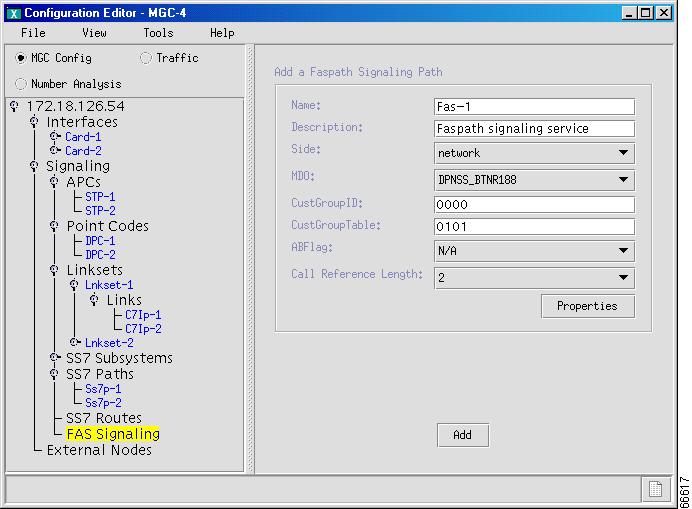
Click Signaling > FAS Signaling in the left pane of the main VSPT window. A screen similar to the one shown in Figure 4-18 is displayed.
Figure 4-18 Add FAS Signaling
Step 2
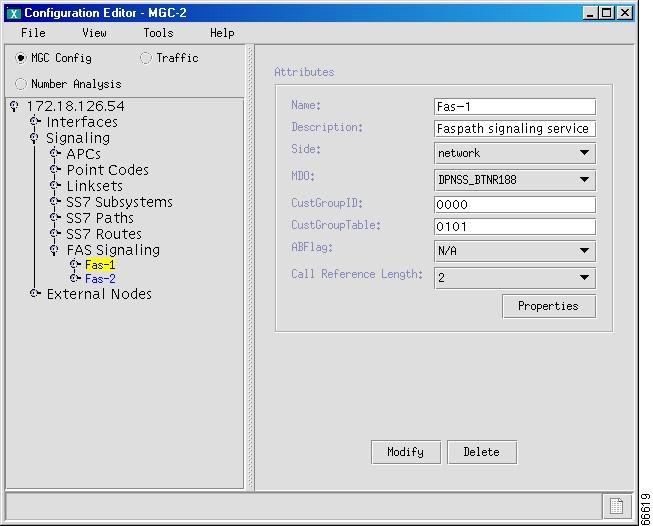
Click Add. A screen similar to the one shown in Figure 4-19 is displayed.
Figure 4-19 Configure FAS Signaling
Step 3
Enter the name.
Step 4
Enter the description.
Step 5
On the Side drop-down menu, select the Q.931 call side model:
•
Network
•
User
Step 6
On the MDO File Name drop-down menu, select the protocol for this signaling service.
Step 7
Enter the customer group ID (formerly the VNETID).
Step 8
Enter the customer group table.
Step 9
On the A/B Flag drop-down menu, select a value.
Step 10
On the Call Reference Length drop-down menu, select 0, 1, or 2.
Step 11
Click Add. The hierarchical tree in the left pane of the main VSPT window changes to reflect the FAS signaling service you added.
Add or Modify FASPath properties
Use the following procedure to add or modify FASPath properties:
Step 1
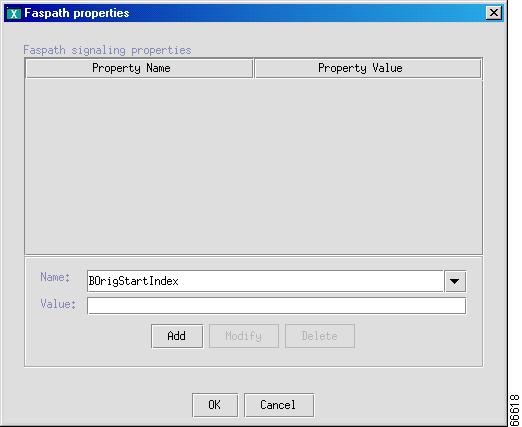
Click Properties in the window shown in Figure 4-19. A screen similar to the one shown in Figure 4-20 is displayed.
Figure 4-20 FASPath Properties
Step 2
To add a property, select the property in the Name drop-down list.
Step 3
Enter the property value in the Value drop-down list.
Step 4
Click Add. The new property and value appear on the top portion of the screen.
Step 5
To modify a property, click the property you want to change.
Step 6
In the value field, overwrite the property value with the desired value.
Step 7
Click Modify.
Step 8
Click OK when you are finished adding or modifying properties.
Configuring Media Gateway Control Links
Media gateway (MGW) control links provide the communication path used by the signaling controller to control the bearer traffic passing through each media gateway. Configure MGW control links using the components in the following paragraphs.
Note
You need to configure cards and interfaces for MGW control links just as you configured the cards and interfaces used for signaling links. You might be able to use the same cards and interfaces previously planned for your MGW control links. For information on configuring cards and interfaces, refer to the "Configuring the Cisco MGC" section.
Adding External Nodes
An external node is a node with which the MGC communicates, either directly or indirectly. Here the media gateway is the external node. Table 4-10 lists the external node properties. Use the values in the table as you add external nodes to your MGC.
Table 4-10 External Node Properties
Field Name
|
MML Parameter
|
Description
|
Default
|
Valid Values
|
Name
|
name
|
Identifies the MML name for the external node
|
External-1
|
Up to 10 alphanumeric characters; must start with a letter
|
Description
|
desc
|
Describes the external node.
|
External Node
|
Up to 128 alphanumeric characters
|
Type
|
type
|
Lists the various external nodes supported.
|
<UNSET>
|
<UNSET> AS3660 AS5200 AS5300 AS5350 AS5400 AS5800 AS5850 AS7200 CAT8510 CAT8540 LS1010 MGC MGX8260 SCP UNKNOWN VISM
|
Use the external node component to add MGWs. You must create an external node for each MGW.
Note
Cisco SLTs perform MTP layer 2 processing only, and you do not need to add them as external nodes when provisioning.
Use the following procedure to add an external node to the MGC. Where necessary, refer to Table 4-10 for property values.
Step 1
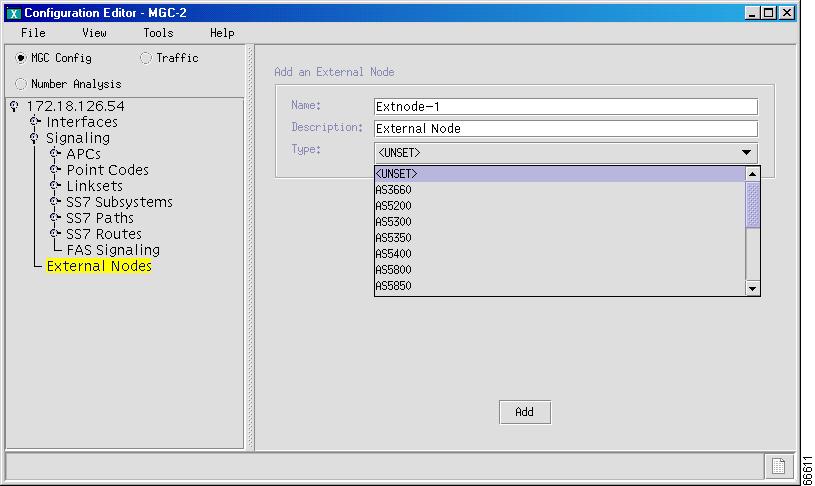
Click External Node in the left pane of the main VSPT window. A screen similar to the one shown in Figure 4-21 appears.
Figure 4-21 Adding External Nodes
Step 2
Enter the name.
Step 3
Enter the description.
Step 4
On the Type drop-down menu, select the type of external node you are adding. For example, click MGX8260, and click Add. The hierarchical tree in the left pane of the main VSPT window changes to reflect the external node that you added (for example, Cisco MGX 8260).
Configuring MGWs
An MGW is the interface between the QoS packet network and the PSTN/ISDN network. A gateway digitizes and compresses voice calls from the PSTN, creating IP packets for routing to another gateway (for forwarding to the PSTN) or to a terminal.
Note
The components to be configured vary according to the type of external node you have added.
Table 4-11 lists the MGW properties. Use the values in the table as you configure MGWs.
Table 4-11 MGW Properties
Field Name
|
Description
|
Default
|
Valid Values
|
Name
|
MML name for external node
|
<gateway name>
|
Up to 80 alphanumeric characters
|
Description
|
Description of the external node.
|
None
|
Up to 128 alphanumeric characters
|
Type
|
Previously defined external node type.
|
<MGX8260>
|
User defined
|
MGX Hostname
|
Identifies the target MGX8260's IP address.
|
None
|
User defined
|
Login / Password
|
Configures valid MGX login and password.
|
None
|
User defined
|
MGCP Domain
|
Defines the domain name used by the VSC3000 when it sends MGCP connection messages that control bearer/trunk circuits.
|
None
|
User defined
|
DS1 Type
|
Specifies the DS1 as E1 (Europe) or T1 (North America).
|
T1
|
E1 T1
|
IP Address #1
|
IP address, in dotted decimal notation, of the MGX's primary IP interface, used for signaling and control.
|
None
|
x.x.x.x
|
IP Subnet Mask #1
|
Defines the IP mask, in dotted decimal notation, for this IP interface.
|
None
|
x.x.x.x
|
IP Address #2
|
IP address, in dotted decimal notation, of a secondary interface used for signaling or control backup.
|
None
|
x.x.x.x
|
IP Subnet Mask #2
|
Defines the IP mask for this IP interface.
|
None
|
No, Yes
|
Clock Source Slot
|
Identifies the card slot on the MGX 8260 that is providing the timing source. Ignored if internal clock is selected.
|
9
|
9-16
|
Clock Source Line
|
Identifies the DS1/DS3 line number from which timing is derived. Ignored if internal clock is selected.
|
1 (if slot 9-10
501 (if slot 11-16)
|
1-16
501-06
|
Clock Source Type
|
Defines the source for timing.
|
external
|
broadband narrowband external internal
|
Clock Src Card Type
|
External clock can be derived from the Building Integrated Timing Source (BITS) input or an OC-3 optical input on the SCC card. Ignored if internal clock is selected.
|
bits
|
bits oc3
|
Rack Number
|
Physical identification of rack.
|
<UNSET>
|
1-7
|
Network Mode
|
Determines how the MGC node is used.
|
Local
|
local VoATM VoIP
|
Use the following procedure to configure the external node as an MGW. Where necessary, refer to Table 4-11 for property values.
Step 1
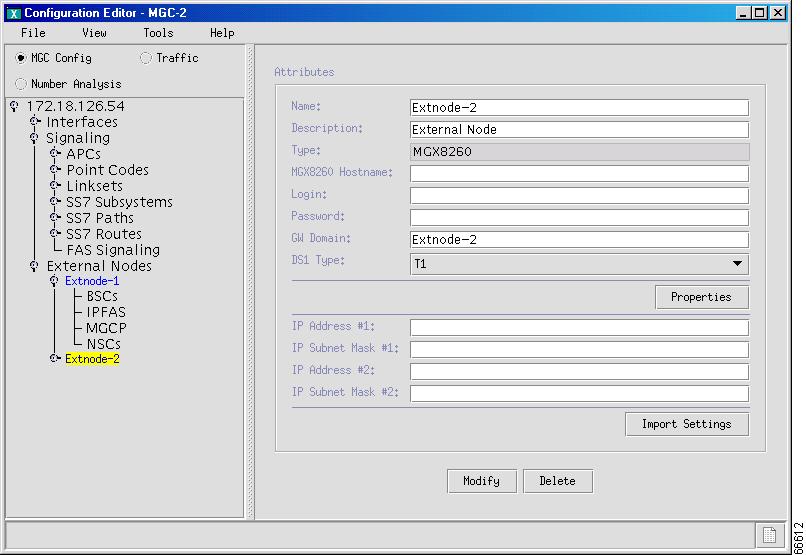
Click the external node that you just added, in the left pane of the main VSPT window. A screen similar to the one shown in Figure 4-22 appears.
Figure 4-22 Configuring an MGW
Step 2
Enter a name for the external node
Step 3
Enter a description of the external node.
Step 4
Enter an IP address in the MGX 8260 Hostname field.
Step 5
Enter a valid Cisco MGW login ID and password.
Step 6
Enter the gateway domain.
Note
You can import settings from the Cisco MGW you specified with the MGX 8260 hostname by clicking Import Settings. You see a screen similar to the one shown in Figure 4-22 while the settings are being imported.
Step 7
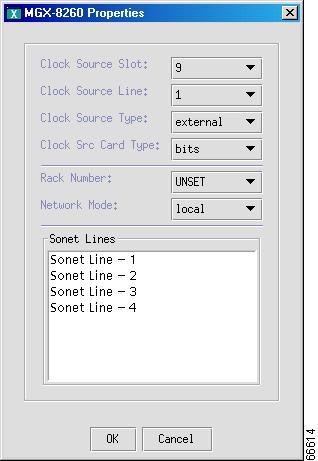
Click Properties. A screen similar to the one shown in Figure 4-23 appears.
Figure 4-23 Properties
Step 8
On the Clock Source Slot, Clock Source Line, Clock Source Type, and Clock Src Card Type drop-down menus, select the desired value for each, and click OK.
Step 9
If you did not import the settings, enter the network addresses and masks (IP Address #1, IP Subnet Mask #1, IP Address #2, and IP Subnet Mask #2) in dotted notation; for example, 172.18.145.3.
Step 10
Click Modify. The hierarchical tree in the left pane of the main VSPT window changes to reflect the MGW you added.
Adding a Broadband or Narrowband Service Card
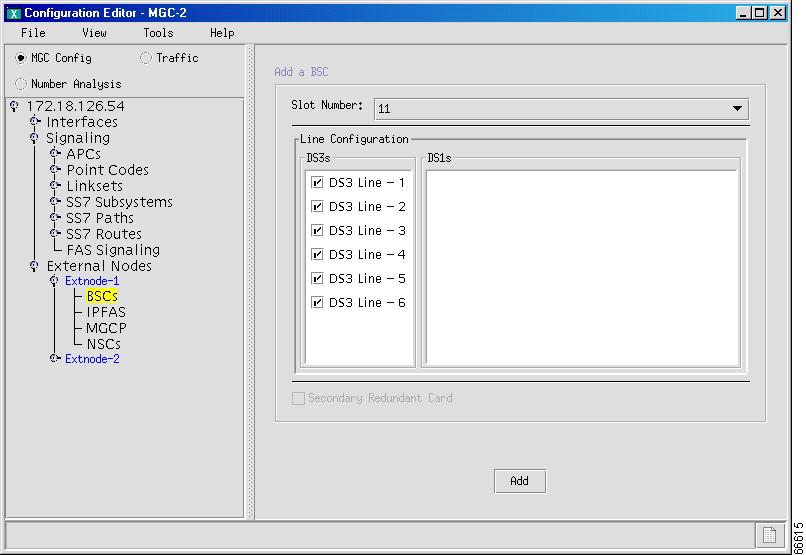
A broadband switching card (BSC) provides high density TDM switching capability to the MGX8260. If a BSC is installed in the external gateway, provision it beginning with Step 1, below. If a narrowband service card (NSC) is installed, start with Step 5.
Step 1
Expand the tree under the MGW in the left pane of the main VSPT window, and click BSC. A screen similar to the one shown in Figure 4-24 appears.
Figure 4-24 Configured BSCs
Step 2
Select the slot number of the card in the Slot Number drop-down list.
Step 3
Indicate whether it is a secondary redundant card, and select the appropriate DS3 line numbers.
Step 4
Click Add, to add the BSC.
Step 5
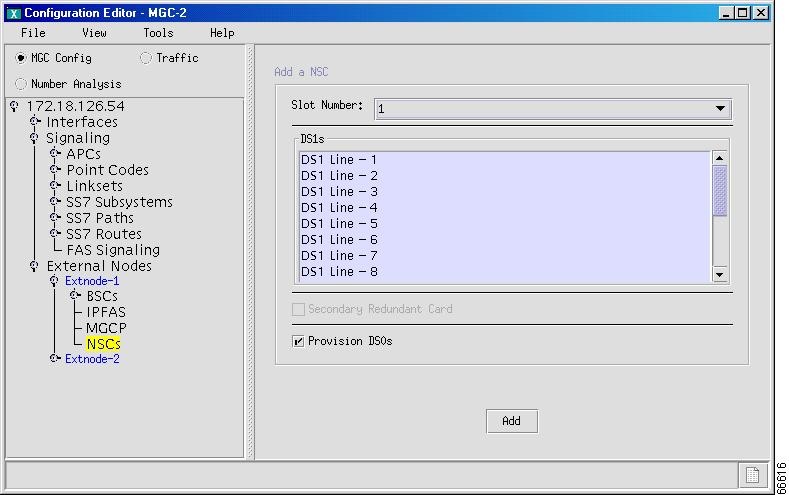
To provision an NSC installed in the external gateway, expand the tree under the media gateway, and click NSC. A screen similar to the one shown in Figure 4-25 appears.
Figure 4-25 Add an NSC
Step 6
Select the slot number of the NSC in the Slot Number drop-down list.
Step 7
Select one or more DS1 lines by clicking on them to highlight them.
Step 8
To automatically provision the DS0s on the line, click the Provision DS0s checkbox.
Step 9
Indicate whether the card is a secondary redundant card.
Step 10
Click Add. The hierarchical tree in the left of the screen changes to reflect the service card you added.
Adding an IPFAS Signaling Service
An Internet Protocol Facility Associated Signaling (IPFAS) signaling service defines the FAS or NFAS over IP transport service or signaling path from a MGC node to a media gateway. Table 4-12 lists the IPFAS signaling service properties.
Table 4-12 IPFAS Signaling Service Properties
Property
|
MML Parameter
|
Description
|
Default
|
Valid Values
|
Name
|
name
|
Identifies the MML name of the IPFAS service path.
|
Ipfas-1
|
Up to 10 alphanumeric characters.
|
Description
|
desc
|
Describes the IPFAS service path.
|
Ipfaspath signaling service
|
Up to 128 alphanumeric characters.
|
External Node
|
extnode
|
Identifies the external node.
|
None
|
User defined.
Up to 10 alphanumeric characters; cannot start with a number.
|
Side
|
side
|
Distinguishes the network equipment (like a switch) from the user equipment (like a terminal adapter or PBX). (Used for ISDN systems.)
|
network
|
network
user
|
MDO
|
mdo
|
Identifies the protocol (MDO file name) for this IPFAS service path. You select the MDO file name in a drop-down list.
|
Bell_1268
|
See list.
|
Customer Group ID
|
custgrpid
|
Contains a unique identifier for the number analysis file. (Used with nailed solutions only.)
|
0000
|
0000 - 9999
|
Customer Group Table
|
custgrptbl
|
Contains the number analysis table index used in combination with the customer group ID as a unique key to identify the number analysis file used for this signal service. (Not used with this release.)
|
0101
|
0101
|
A/B Flag
|
abflag
|
Specifies DPNSS a or b side
(Field is ignored for ETSI.)
|
n
|
A side B side n-NA
|
Call Reference Length
|
crlen
|
Identifies the field length (1 or 2 bytes) for the call reference number.
|
2—standard ETSI
|
0—DPNSS 1—1 byte 2—2 bytes
|
Use the following procedure to add the ipfaspaths from the media gateway. The MML component name is IPFASPath. In the following example, it is the PRI backhaul path from the media gateway. Where necessary, refer to Table 4-12 for property values.
Step 1
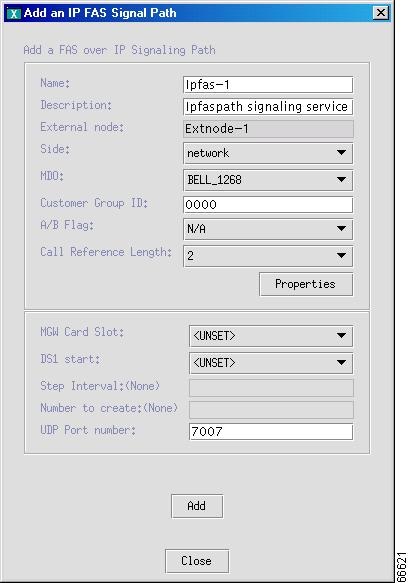
Click IPFAS in the left pane of the main VSPT screen, and click Add under the first textbox in the right pane. A screen similar to the one shown in Figure 4-26 appears.
Figure 4-26 Adding an IPFAS Signaling Service
Step 2
Enter the name.
Step 3
Enter the description.
Step 4
On the Side drop-down menu, select the side (Q.931 call model side):
•
Network
•
User
Step 5
On the MDO File Name drop-down menu, select the protocol for this signaling service; for example, BELL_1268 or ATT_41459. Supported protocols are listed on the drop-down menu.
Step 6
Enter the customer group ID (formerly VNETID).
Step 7
On the A/B Flag drop-down menu, select a value.
Step 8
On the Call Reference Length drop-down menu, select 0, 1, or 2.
Step 9
On the MGW Card Slot drop-down menu, select a value.
Step 10
On the DS1 start drop-down menu, select a value.
Step 11
Enter a step interval.
Step 12
Enter the number of IPFASPaths to create multiple IPFASPaths.
Note
You cannot have more than 168 IP links using the same UDP connection (same local port, local IP address, remote port, and remote address).
Step 13
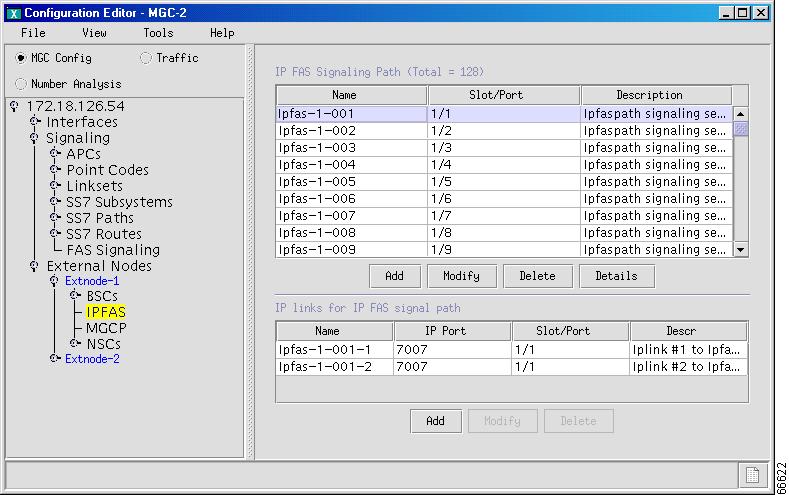
Click Add. The top portion of the screen changes to reflect the IPFAS signaling service you added, and the D channel for the IP FAS signal path is displayed in the lower portion of the screen (see Figure 4-27).
Note
Each FAS PRI defined in the Cisco MGW requires its own IPFASPath. Define an IPFASPath for each PRI D channel on the Cisco MGW.
Figure 4-27 IPFAS Signaling Service Added
Adding IP Links for IPFAS
AN IP link for IPFAS identifies the IP link connection to support the IPFAS service between an MGC node Ethernet interface and an MGW. Table 4-13 lists the IP link properties. Use the values in the table as you add IP links to the MGC.
Table 4-13 IP Link Properties
Property
|
MML Parameter
|
Description
|
Default
|
Valid Values
|
Name
|
name
|
Identifies the MML name for the IP link.
|
Mgcp-1-1
|
Up to 80 alphanumeric characters
|
Description
|
desc
|
Describes the link.
Up to 128 alphanumeric characters.
|
Iplink#1 to Mgcp-1
|
Up to 128 alphanumeric characters
|
Interface
|
if
|
Select the interface used for VSC to gateway communications.
|
None
|
User defined
|
IP Addr
|
ipaddr
|
Identifies the IP address of the VSC set at the IP_Addr fields in the XECfgParm.dat file.
|
IP_Addr1
|
IP_Addr1 IP_Addr2 IP_Addr3 IP_Addr4
|
Port
|
port
|
Identifies the UDP port on the VSC for gateway communications.
|
2427
|
Any non-well known UDP port greater than 1024
|
Priority
|
pri
|
Identifies the priority value of the link. Give links same priority for load sharing
|
1
|
1
|
Peer Address
|
peeraddr
|
Identifies the IP address configured for the gateway.
|
x.x.x.x
|
User defined
|
Peer Port
|
peerport
|
Identifies the port on the gateway that receives messages.
|
2427
|
Any non-well known UDP port greater than 1024
|
Signal Slot
|
sigslot
|
Identifies the physical slot of the card that supports the IPFAS D-channel.
This value is only used to support IPFAS.
|
0
|
0—none
1 through 16
|
Signal Port
|
sigport
|
Identifies the DS1 port that is carrying the PRI D-channel (Q.931 signaling). This value is only used to support IPFAS.
|
0
|
0—none
1 through 336
|
Service
|
svc
|
Identifies the signaling service that this link supports.
|
None
|
User defined
|
Use the following procedure to add IPFASPath IP links. Where necessary, refer to Table 4-13 for property values.
Step 1
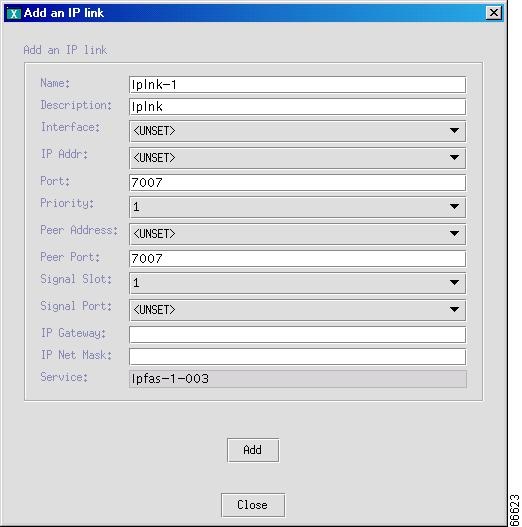
Highlight the IPFAS signaling path in the top pane of the window shown in Figure 4-27, and click the Add button in the lower pane of the window. The window shown in Figure 4-28 appears.
Figure 4-28 Add an IP Link
Step 2
Enter the name.
Step 3
Enter the description.
Step 4
On the Interface drop-down menu, select the Ethernet interface for this link.
Step 5
On the IP Addr drop-down menu, select the IP address of the Cisco MGC.
•
IP Addr1
•
IP Addr2
•
IP Addr3
•
IP Addr4
Note
The address for this value, in dotted decimal notation, is found in the XECfgParm.dat file you set up during your initial system configuration. See the Cisco Media Gateway Controller Software Release 7 Installation and Configuration Guide for more information.
Step 6
Enter a number for the UDP port on the Cisco MGC. You can use any unused UDP port number, but you should not use 1 through 1024 (these are reserved for other applications).
Step 7
On the Priority drop-down menu, select a priority. The value range is 1 through 4, and 1 is the highest priority.
Step 8
On the Peer Address drop-down menu, select the peer address.
Step 9
Enter the port number in the peer port field.
Step 10
On the Signal Slot and Signal Port drop-down menus, select values.
Caution 
Because of a 0-based and 1-based addressing issue, the SigSlot number does not correspond to the card number on the Cisco MGW, and the SigPort number does not correspond to the DS1 number on the Cisco MGW.
Step 11
Enter the IP gateway and the IP net mask.
Step 12
Click Add. The new IP links for the IP FAS signaling path appear in the lower portion of the window.
Step 13
Continue adding IP links to the IP FAS signaling paths, as needed.
Changing IPFAS Signaling Service Properties
You can modify the properties of the IPFAS signaling services you have created. These properties apply to all IPFAS signaling services you create. You do not have to change the default properties. For a list of signaling service properties, default values, and descriptions, see the Cisco Media Gateway Controller Software Release 7 Provisioning Guide.
Use the following procedure to add or change IPFAS signaling service properties:
Step 1
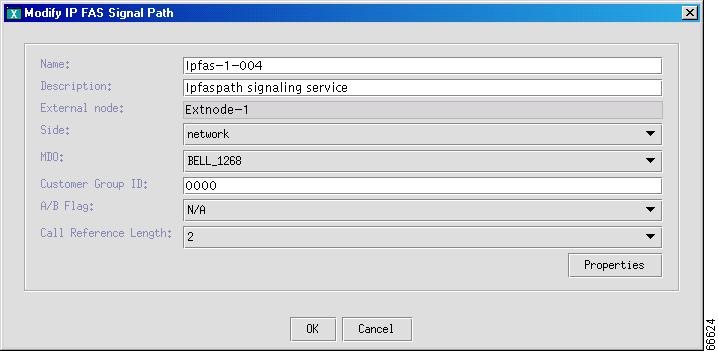
On a screen similar to the one shown in Figure 4-27, select a IPFAS signaling service on the top portion of the screen, and click Modify. A screen similar to the one shown in Figure 4-29 appears.
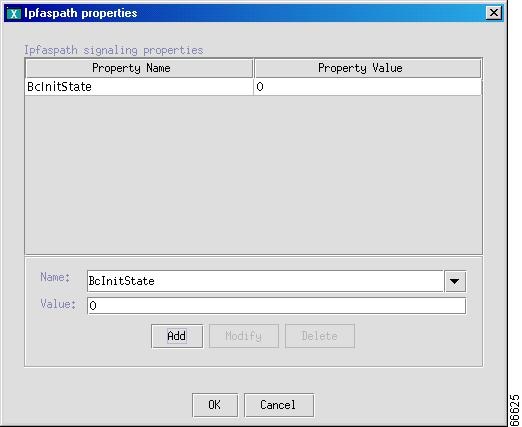
Figure 4-29 Adding and Changing IPFAS Signaling Properties
Step 2
To modify the IPFAS path configuration, change the property on this screen.
Step 3
To modify a property, click Properties. A screen similar to the one shown in Figure 4-30 appears.
Figure 4-30 IPFAS Signaling Service Property Added
Step 4
To add a property, select the property in the Name drop-down list.
Step 5
Enter the property value in the Value drop-down list.
Step 6
Click Add. The new property and value appear on the top portion of the screen.
Step 7
To modify a property, click the property you want to change.
Step 8
In the value field, overwrite the property value with the desired value.
Step 9
Click Modify.
Step 10
Click OK when you are finished adding or modifying properties.
Note
You cannot modify properties until after you have created the IPFAS signaling service.
Adding an MGCP Signaling Service
The MGCP signaling service specifies the path that the MGC node uses to communicate with an MGW. The MML component name is MGCPPATH. Table 4-14 lists the MGC signaling service properties. Use the values in the table as you add an MGCP signaling service.
Table 4-14 MGC SIgnaling Service Properties
Property
|
MML Parameter
|
Description
|
Default
|
Valid Values
|
Name
|
name
|
Identifies the MML name for the MGCP signaling service.
|
Mgcp-1
|
Up to 10 alphanumeric characters
|
Description
|
desc
|
Describes the service path.
|
Mgcppath Signaling Service
|
Up to 128 alphanumeric characters
|
External Node
|
extnode
|
Identifies the gateway for this signaling service.
|
None
|
User defined
|
Note
You must set the mgcpDomainNameRemote and mgcpHeartbeatInterval properties for all MGCP signaling services defined in your Cisco Media Gateway Controller. For more information, see the "Adding and Changing MGCP Signaling Service Properties" section.
Use the following procedure to add MGCP signaling service paths to the MGW. Where necessary, refer to Table 4-14 for property values.
Step 1
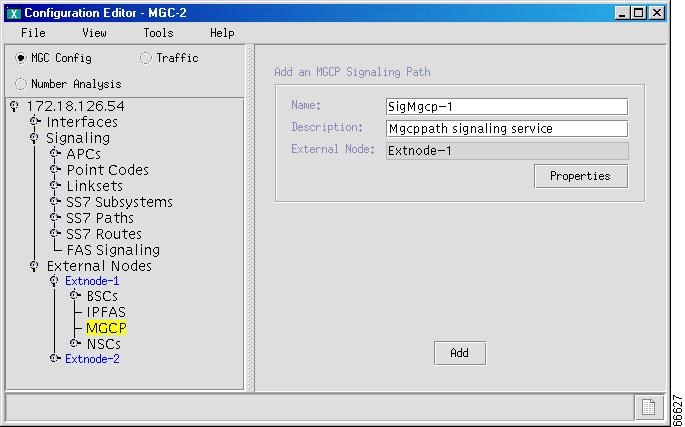
Click MGCP on the left pane of the main VSPT screen. A screen similar to the one shown in Figure 4-31 appears.
Figure 4-31 Adding MGCP Signaling Service
Step 2
Enter the name.
Step 3
Enter the description.
Step 4
Click Add. The hierarchical tree in the left pane of the main VSPT window changes to reflect the MGCP link you added.
Adding and Changing MGCP Signaling Service Properties
Add or change the properties of the signaling service you have created. Your additions or changes are applied to all signaling services you create. You do not have to change the default properties. For a list of signaling service properties, default values, and descriptions, see the Cisco Media Gateway Controller Software Release 7 Provisioning Guide.
You must set the following properties for all MGCP signaling services defined in your Cisco Media Gateway Controller:
•
mgcpDomainNameRemote = heartbeat@media gateway MGCP domain name
The media gateway MGCP domain name is a property of the MGW object. You can derive the MGCP domain name from the MGCP path object because each MGCP path object refers to an external node and each external node refers to an MGW.
•
mgcpHeartbeatInterval = 1
Use the following procedure to add or change MGCP signaling service properties:
Step 1
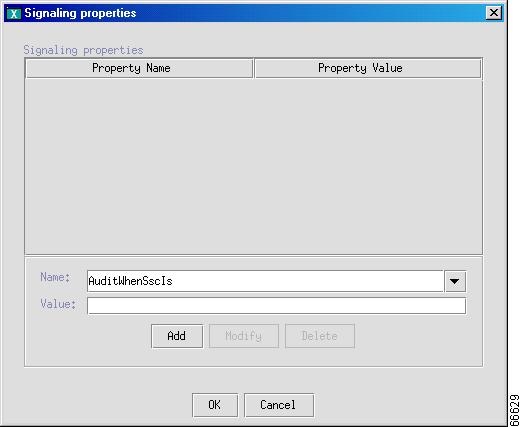
Highlight the MGCP signaling service you just added, and click Properties to display the list of properties. A screen similar to the one shown in Figure 4-32 appears.
Figure 4-32 Adding and Changing MGCP Signaling Properties
Step 2
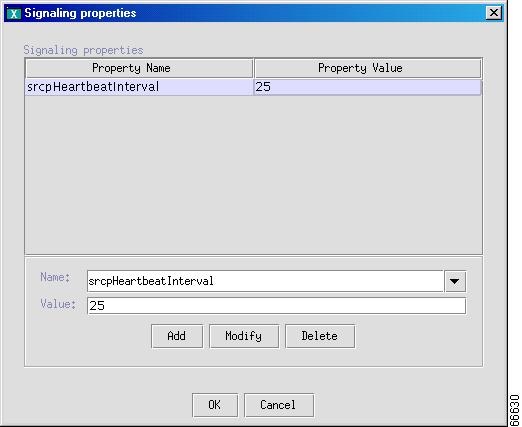
If you want to add a property, select the property from the Name drop-down list, enter a value, and click Add. A screen similar to the one shown in Figure 4-33 appears with the property added.
Figure 4-33 MGCP Signaling Service Property Added
Step 3
To modify a property, click the property you want to change.
Step 4
In the value field, overwrite the property value with the desired value.
Step 5
Click Modify.
Step 6
Click OK when you are finished.
Note
You cannot modify properties until after you have created the MGCP signaling service.
Add an IP Link for MGCP
An IP link for MGCP identifies the connection that supports the MGCP service between an MGC Ethernet interface and a media gateway. Use the following procedure to add an MGCP IP link:
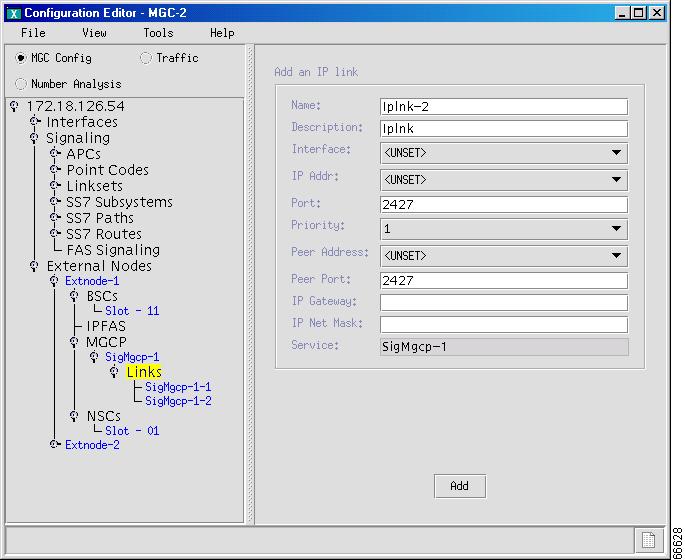
Step 1
In the left pane of the main VSPT window, expand the tree under MGCP, highlight the signaling service for which you want to add an IP link, and click Links. A screen similar to the one shown in Figure 4-34 appears.
Figure 4-34 Adding MGCP IP Links
Step 2
Enter the name.
Step 3
Enter the description.
Step 4
On the Interface drop-down menu, select the Ethernet interface for this link.
Step 5
On the IP Addr drop-down menu, select the IP address of the Cisco MGC.
•
IP Addr1
•
IP Addr2
•
IP Addr3
•
IP Addr4
Note
The numbered address for this value is found in the XECfgParm.dat file you set up during your initial system configuration. See the Cisco Media Gateway Controller Software Release 7 Installation and Configuration Guide for more information.
Step 6
Enter a number of the UDP port on the Cisco MGC. You can use any unused UDP port number (2427 is recommended for MGCP), but you should not use 1 through 1024 (these are reserved for other applications).
Step 7
On the Priority drop-down menu, select a priority. The value range is 1 through 4, and 1 is the highest priority.
Step 8
On the Peer Address drop-down menu, select the peer address.
Step 9
Enter the port number in the peer port field.
Step 10
Verify that the Service field lists the MGCP service to which you want to add a link.
Step 11
Click Add. The hierarchical tree on the left of the screen changes to reflect the MGCP IP link you added.
Configuring Bearer Traffic
Bearer traffic includes information on the trunk groups, trunks, and trunk routing required by an MGC to direct calls. It uses this information in conjunction with a dial plan to perform number analysis and route selection.
A trunk is a speech path between any two switches. Trunks are DS0 endpoints; one trunk can ride on one DS0, or one DS0 can carry one trunk. A trunk group is a collection of DS0 circuits arranged so that dialing a single trunk number provides access to the entire trunk group, and a trunk route is a set of trunk groups.
The configuration example in this section uses SS7 and PRI trunks.
The two main scenarios you are likely to follow when setting up the MGC node for call routing are described in Table 4-15.
Table 4-15 Setting Up the MGC Node for Call Routing
If you want to:
|
Perform these steps:
|
Create a new configuration
|
• Add all of the trunk groups, one by one, using the instructions in the "Add a Trunk Group" section.
• Add all of the trunks to the configured trunk groups, trunk group by trunk group, using the instructions in the "Adding Trunks" section.
• Add all of the route groups, one by one, using the instructions in the "Adding Route Groups and Routes" section.
• Build a dial plan using the instructions in the Cisco Media Gateway Controller Software Release 7 Dial Plan Guide.
|
Modify an existing configuration
|
• Load the existing configuration into the Voice Services Provisioning Tool:
– If you are modifying a local configuration, click File > Open, and specify the configuration you want to modify.
– If you are modifying a configuration on an MGC, click File > Import, and specify the configuration you want to import.
• Add, modify, or delete trunk groups using the instructions in the "Add a Trunk Group" section.
• Add or delete trunks on a trunk group basis, using the instructions in the "Adding Trunks" section.
• Add, modify, or delete route groups using the instructions in the "Adding Route Groups and Routes" section.
• Build a dial plan using the instructions in the Cisco Media Gateway Controller Software Release 7 Dial Plan Guide.
|

Caution 
You must provision SS7 components before the PRI components. When trunk groups are provisioned by the importing of customer trunk group files, all of the existing trunk groups and trunks are deleted. PRI trunk groups and trunks are provisioned by the use of individual MML commands, which do not delete all of the existing trunk groups and trunks. If the PRI components are provisioned before SS7 components, all of the PRI trunk groups and trunks are deleted.
Importing Trunk Groups and Trunks
You can import the trunk groups and trunks to make them available to the MGC. Consider importing a trunk group for initial provisioning only. When you import a trunk group, all of the existing trunk groups are replaced by the imported trunk groups, and all existing trunks are deleted.
Note
The trunk file must contain all trunks (CIC) in a trunk group.
Perform the following steps to import a trunk group or trunk:
Step 1
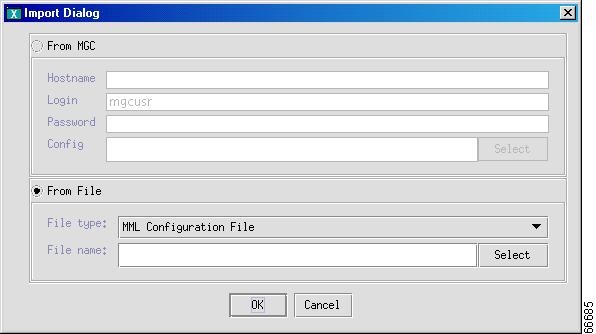
Click File > Import. A screen similar to the one shown in Figure 4-35 appears.
Figure 4-35 Importing Files
Step 2
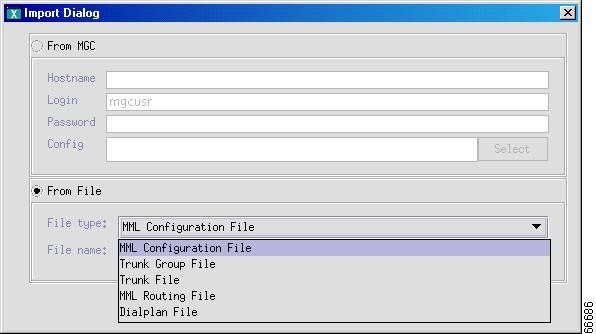
Click From File, and on the File type drop-down menu, select the type of file you want to import (see Figure 4-36).
Figure 4-36 Imported File Type
Step 3
Enter the name of the file you want to import. If you do not know the name of the file, click Select. A screen similar to the one shown in Figure 4-37 appears and displays a list of files available for importation.
Figure 4-37 Selecting the File to Import
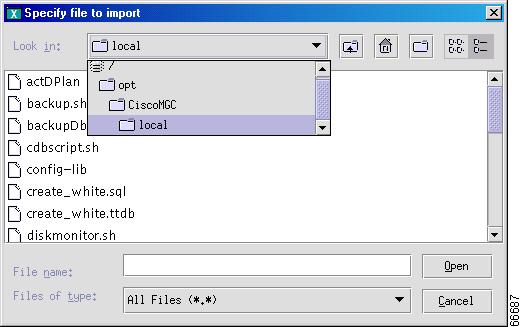
Step 4
Locate the file you want to import, and click Open. A screen similar to the one shown in Figure 4-36 appears again, and the full path name of the file you selected appears in the file name box.
Step 5
Click OK. The file you selected is imported.
Add a Trunk Group
Tip
For information about importing the trunk group file, see the "Importing Trunk Groups and Trunks" section.
Use the following procedure to add a trunk group:
Step 1
Click the Traffic radio button in the top portion of the main VSPT screen.
Step 2
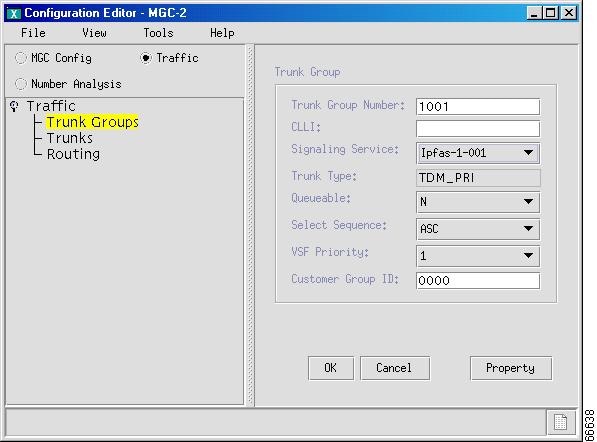
Click Trunk Groups > Add. A screen similar to the one shown in Figure 4-38 appears.
Figure 4-38 Defining a Trunk Group
Note
For a complete description of trunk group properties and values, refer to the Cisco Media Gateway Controller Software Release 7 Provisioning Guide.
Step 3
Enter the trunk group number.
Step 4
Enter the Common Language Location Identification (CLLI).
Step 5
On the Signal Service drop-down menu, select the type of signal service.
Step 6
On the Trunk Type drop-down menu, select the type of trunk.
Step 7
On the Queueable drop-down menu, indicate whether or not the trunk group can be queued.
Step 8
On the Select Sequence drop-down menu, select the sequence.
Step 9
On the VSF Priority drop-down menu, select the priority.
Step 10
Enter the customer group ID.
Step 11
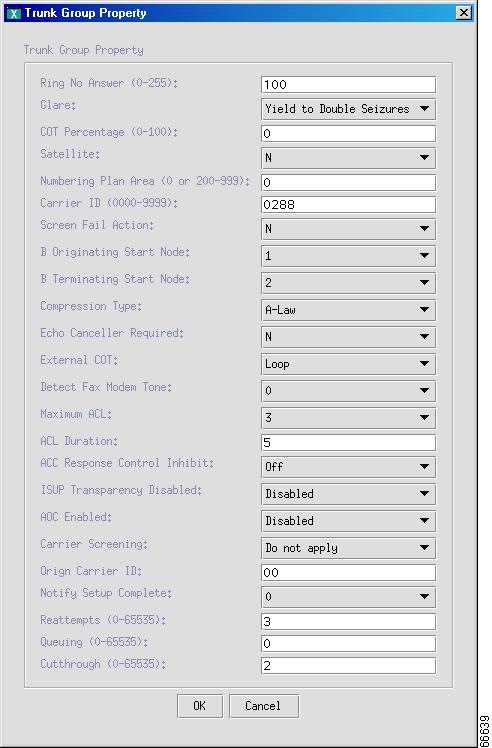
To configure additional properties for this trunk group, click the Property button. A screen similar to the one displayed in Figure 4-39 appears.
Figure 4-39 Trunk Group Properties
.
Step 12
Configure any of the properties displayed in this window by modifying the selected property value.
Step 13
When you are done modifying properties, click OK to return to the previous window.
Step 14
Click OK. A screen similar to the one shown in Figure 4-40 appears, with the trunk group added.
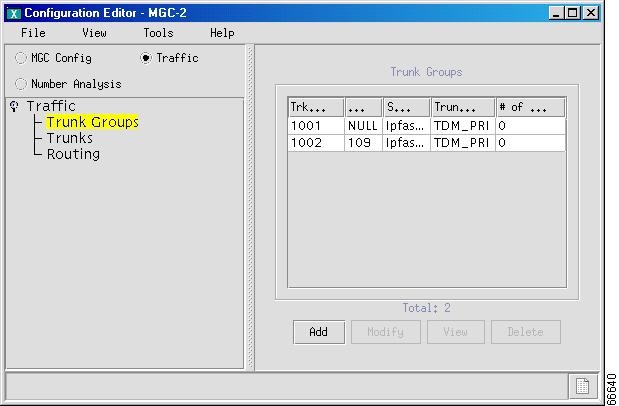
Figure 4-40 Trunk Group Added
Note
After you have added a trunk group, you cannot delete it if there are still trunks defined in the trunk group or if there are existing route groups that refer to the trunk group. To maintain the integrity of the data in the traffic configuration branch, you have to first delete all trunks in the trunk group and remove any references to the trunk group from the route groups; then you can delete the trunk group.
Adding Trunks
Use the following procedure to add trunks to a trunk group:
Step 1
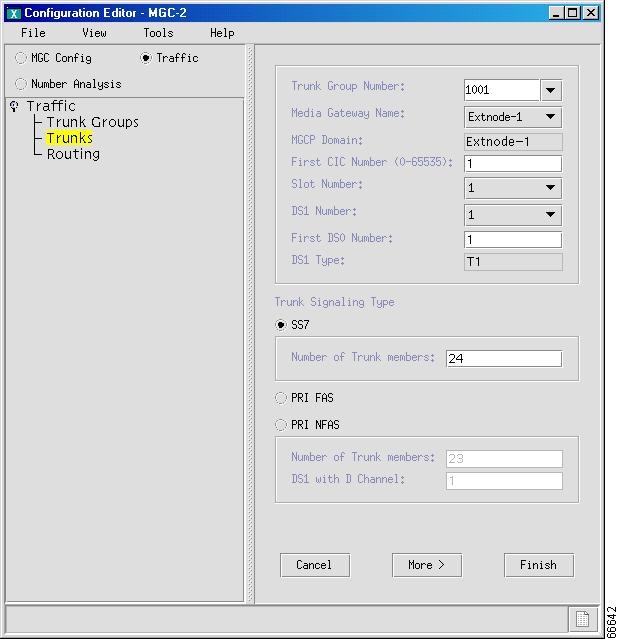
Click Traffic > Trunks in the left pane of the main VSPT window, and click Add. A screen similar to the one shown in Figure 4-41 appears.
Figure 4-41 Adding a Trunk
Step 2
On the Trunk Group Number drop-down menu, select the number of the trunk group you are configuring.
Step 3
On the Gateway Name drop-down menu, select the gateway (external node). This step might not be required if the gateway can be determined by trunk group signaling.
Step 4
Enter the MGC domain name.
Step 5
Enter the first trunk CIC number.
Step 6
On the Slot Number drop-down menu, select the slot number.
Step 7
Enter the DS1 number.
Step 8
Enter the first DS0 number.
Step 9
Enter the DS1 type. The trunk type is displayed.
Step 10
Click SS7, PRI FAS, or PRI NFAS, and enter the appropriate properties:
•
SS7—Enter the number of trunk members.
•
PRI FAS and PRI NFAS—Enter the number of trunk members and the number of the DS1 with the D channel.
Note
For PRI, one channel is reserved for signaling (D channel). For FAS, it is channel 24. For NFAS, it is channel 24, but on only one DS1.
Step 11
Enter the number of trunk members in the trunk group.
Step 12
Click More if you want to add more trunks into other trunk groups.
Step 13
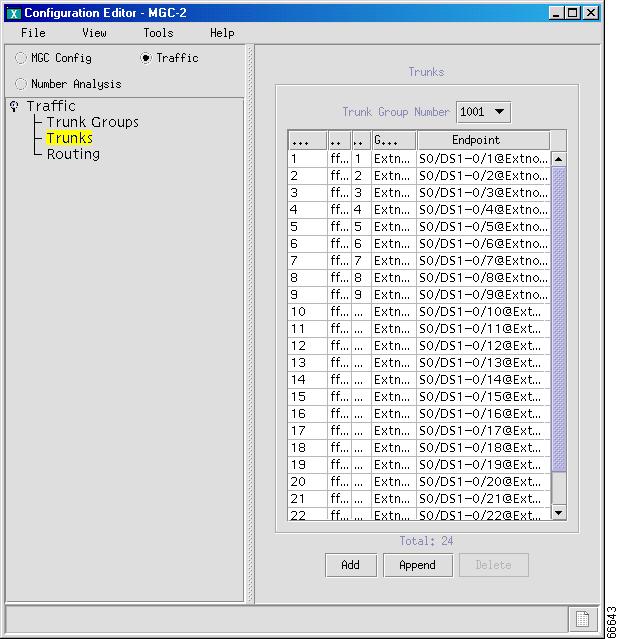
When you are done adding trunks to a trunk group, click Finish, and a screen similar to the one shown in Figure 4-42 appears.
Figure 4-42 Trunks Added
Deleting Trunks from a Trunk Group
Use the following procedure to delete individual trunks from a trunk group:
Step 1
On the Trunks Added screen shown in Figure 4-42, use the Trunk Group Number drop-down menu to select the trunk group from which you want to delete trunks.
Step 2
Select the individual trunks you want to delete:
•
To delete all the trunks in a trunk group, click Delete All.
•
To select a range of trunks, click on the first trunk in the range, hold down the Shift key, and click the last trunk in the range.
•
To select nonsequential trunks, hold down the Control key, and click each trunk.
Step 3
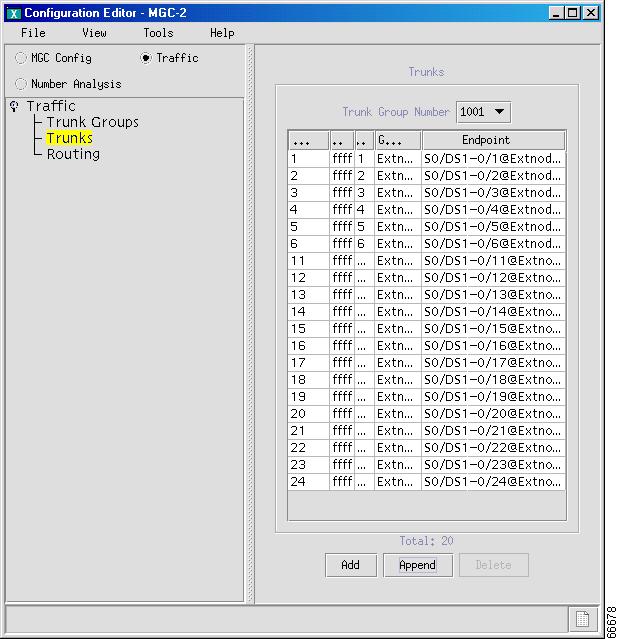
When you have finished selecting trunks, click Delete to delete the selected trunks. A screen similar to the one displayed in Figure 4-43 is displayed.
Figure 4-43 Trunks Deleted
Adding Route Groups and Routes
A route group is a collection of routes going to the same endpoint. Define the route groups, and then associate a trunk group with each route group. Use the following procedure to add a route group:
Step 1
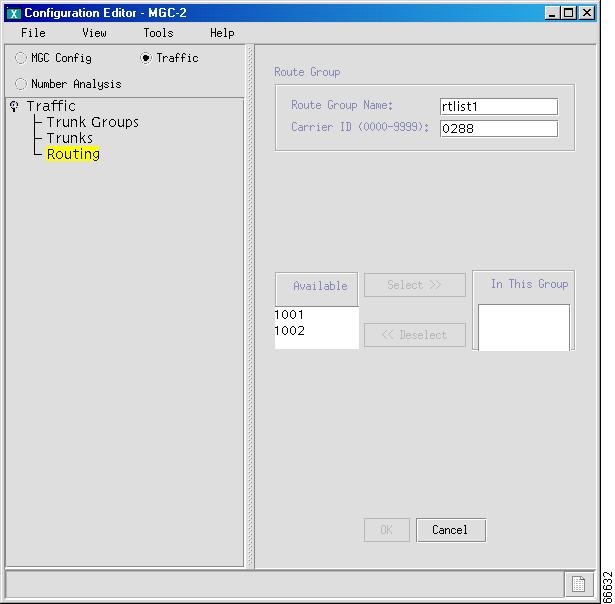
Click Routing in the left pane of the main VSPT window, and click Add. A screen similar to the one shown in Figure 4-44 appears.
Figure 4-44 Adding a Route
Step 2
Enter a route group name.
Step 3
Enter a carrier ID.
Step 4
To associate the route group with a previously defined trunk group, select a group in the Available box, and click Select.
Tip
To select more than one trunk group, hold down the Control key while you select each group.
Step 5
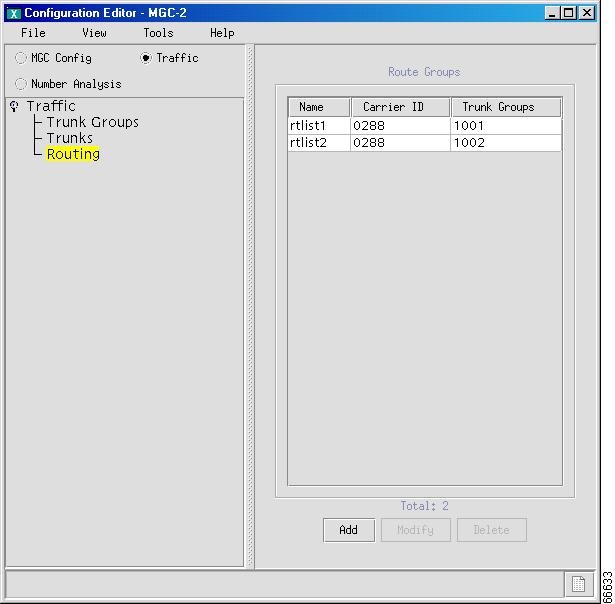
When you are done adding route groups, click OK. A screen similar to the one shown in Figure 4-45 appears with the route groups added.
Figure 4-45 Route Group Added
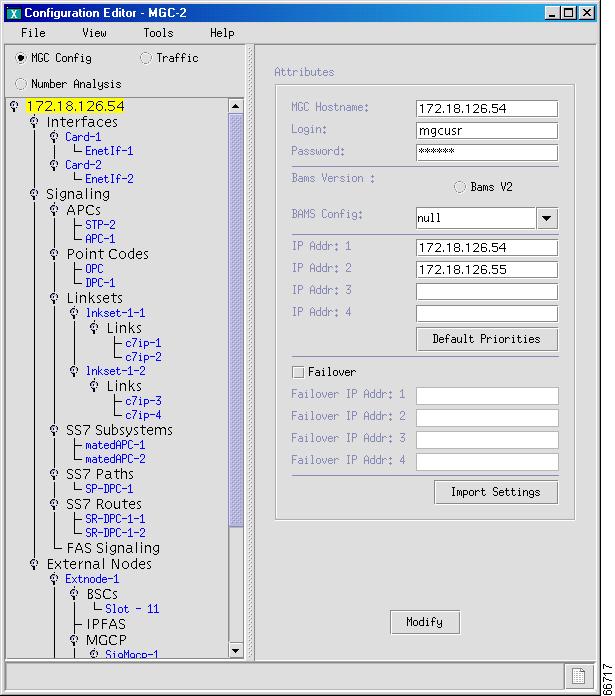
Hierarchical View of Provisioned Components
The results of the provisioning session you completed are visible in the hierarchical tree in the left pane of the main VSPT screen. You can expand the branches to view individual component (see Figure 4-46).
Figure 4-46 Hierarchical Tree of Components
Performing an Integrity Check
When provisioning is complete, you can perform an integrity check to prevent possible configuration errors. The integrity check verifies:
•
Integrity for MGC signaling configuration
•
Traffic against MGC configuration
•
Dial plan results
Each integrity check is explained in more detail in the following subsections.
Checking Integrity for MGC Signaling Configuration
When you perform an integrity check for an MGC signaling configuration, the Voice Services Provisioning Tool does the following:
•
Checks that the hostname is specified for the MGC
•
Checks that the login/password is specified for the MGC
•
Checks that MGC ipaddrs are specified
•
Checks that if MGC failover is specified, then the failover IPs are specified
•
Checks that the MGX hostname is specified
•
Checks that the MGX login and password are specified
•
Checks the MGX IPaddrs
•
For EXTNODES where it refers to an MGX, checks PeerAddrs on IPLNK to ensure that they are addresses on the specified MGX
•
For IPFAS IPLNKS:
–
Ensures that SigSlot/SigPort are specified
–
Checks SigSlot/SigPort on MGX to ensure that they are valid as specified on the MGX
–
Ensures that MGC ports and MGX ports match on the IPLNK
–
Checks that all IPLNKs under a single IPFASPath map to the same port number
Note
The number of IPFAS sessions utilizing a given port is displayed because some IPLNKs might use different port IDs.
Checking Traffic Against MGC Configuration
When you perform an integrity check of traffic against the MGC configuration, the Voice Services Provisioning Tool does the following:
•
When D channels are defined as FAS and NFAS PRI in the trunk group/trunk section, verifies that IPFASPath signaling services with corresponding IPLNKs are configured
•
If IPFASPath signaling services defining a D channel are configured, checks that corresponding trunk group/trunk in the traffic information, and a corresponding NFAS/FAS PRI, is defined
•
Checks that signaling services defined for trunk groups exist in the configuration
For information about an integrity check of dial plan results, refer to the Cisco Media Gateway Controller Software Release 7 Dial Plan Guide.
Use the following procedure to perform an integrity check of your configuration:
Step 1
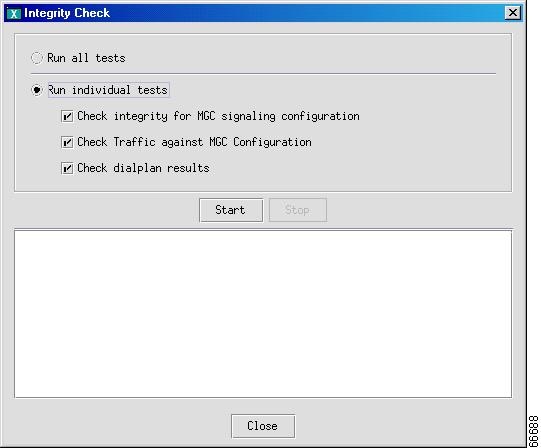
On the main VSPT menu bar, click Tools > Integrity Check. A screen similar to the one shown in Figure 4-47 appears.
Figure 4-47 Integrity Check
Step 2
Indicate the tests you want to run, and click Start.
When the tests finish, a screen similar to the one in Figure 4-48 appears and displays the results of the integrity checks performed.
Figure 4-48 Integrity Check Results
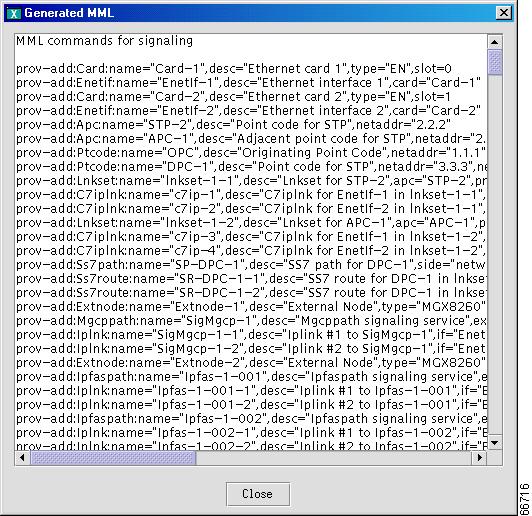
Viewing Generated MML
The VSPT application automatically generates the MML commands to provision your Cisco MGC and saves these commands in a file to be executed when you deploy the configuration. If you want to view the MML commands generated from your VSPT provisioning session, click View > MML. Screens displaying generated MML commands, similar to the one shown in Figure 4-49, appear.
Figure 4-49 First Generated MML Screen
Viewing Generated Cisco MGW Commands
To view the Cisco MGW commands generated from your provisioning session, click View > MGW Commands. A screen with generated Cisco MGW commands, similar to that shown in Figure 4-50, appears.
Figure 4-50 Generated Cisco MGW Commands
Deploying a New Configuration
When you finish defining a configuration, you must deploy that configuration to the Cisco MGC. A new configuration should not be deployed during times of peak load on the Cisco MGC.
The new configuration can be deployed completely or in parts, known as an incremental deployment. Deploying incrementally allows you to verify each component type configuration before proceeding to the next component deployment.
The Cisco MGC does not support some incremental deployment processes. If you have problems with an incremental deployment, you should visually inspect the commands to ensure that you have properly configured the desired components. Modify those presenting the problem, or cancel the deployment and redeploy as a new configuration.
If you want to delete a component and plan to reuse the component name, delete the component, deploy the session, and verify that the component has been deleted before reusing the name.
Use the following procedure to deploy a new configuration:
Step 1
Click Tools > Deploy on the main VSPT menu. A screen similar to the one shown in Figure 4-51 appears.
Figure 4-51 Deploying a Configuration
Step 2
Enter the name for the configuration on the destination MGC.
Step 3
Select the configuration it is based on from the Based on configuration drop-down list.
Step 4
To incrementally deploy a configuration component type, click Advanced. A screen similar to the one shown in Figure 4-52 appears.
Figure 4-52 Incremental Deployment Component Selector
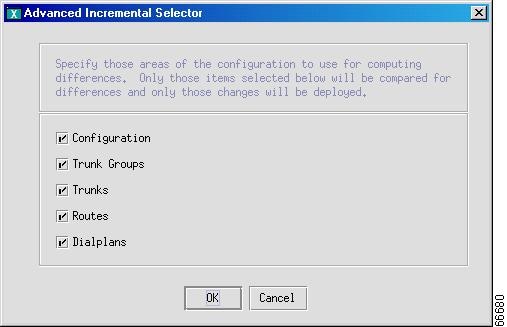
Step 5
Select one or more component types to deploy, and click OK.
Step 6
Indicate how you want to deploy the configuration:
•
If you want to send the configuration to the MGC but not activate it, click the button next to Send Configuration to MGC Only.
•
If you want to send the configuration to the MGC and activate it, click the button next to Send and Activate Configuration.
•
If you have a continuous-service configuration with two Cisco MGC hosts, click the button next to Send, Activate and Synchronize failover. The configuration is saved on the active host and copied to the standby host. You must restart the standby server after reconfiguration before the changes will become active.
•
If you do not want to deploy to the MGC but only to MGXs, click the box next to Do not deploy to MGC.
Step 7
Select the gateways you want to deploy, if applicable.
Step 8
Click OK. A screen similar to the one shown in Figure 4-53 appears and displays the status as the current provisioning session is deployed.
Figure 4-53 Deployment Progress
Note
In a continuous-service configuration, the XECfgParm.dat file on each machine must be configured. If you experience problems, verify the XECfgParm.dat files on both machines. Refer to Chapter 2, "Installing Cisco Media Gateway Controller Software," in Cisco Media Gateway Controller Software Release 7 Installation and Configuration Guide.
Backup and Restore
The VSPT backup and restore tool enables a user to create, modify, and delete scheduled backups and restores hourly, daily, weekly, or monthly or on demand. Backup and restore activities can be performed on any of the following devices that have been configured for the MGC:
•
MGC host—Active configuration
•
CAT5500—Configuration and image on Flash
•
CAT2900XL—Running-config and image on Flash
•
SLT2600—Running-config and image on Flash
•
BAMS P2—Active configuration
•
BAMS P3—Active configuration
The backup and restore tool also provides the status of each activity and generates user-viewable status logs.
Note
This tool operates in coordination with the MGC server operating system and can be used by only one UNIX login, specified during the installation process.
Schedule An Activity
Use the following procedure to open the VSPT backup and restore tool and schedule an activity:
Step 1
Click Tools > Backup and Restore on the main VSPT menu bar. A screen similar to the one shown in Figure 4-54 appears.
Figure 4-54 Backup and Restore Utility
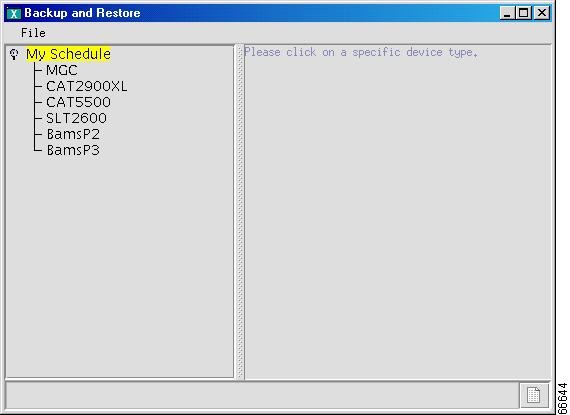
Step 2
Click the component for which you want to schedule a backup or restore. In the following example, the MGC is backed up. A screen similar to the one shown in Figure 4-55 appears when you click the MGC component.
Figure 4-55 Scheduling a Backup or Restore
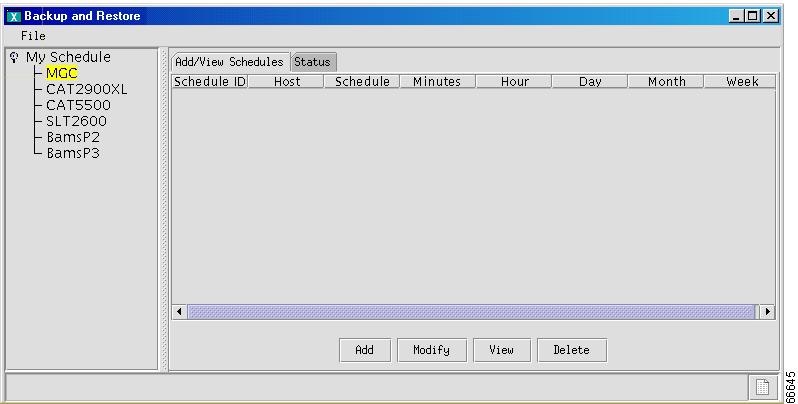
Note
If you want to perform a restore, a backup file must have already been created and must be available on the MGC.
Step 3
To schedule a backup or restore, highlight the component you want to back up or restore in the left pane of the main backup and restore tool window, and click Add. A screen similar to the one shown in Figure 4-56 appears.
Figure 4-56 Schedule an Activity
Note
The fields available here will vary according to the component you selected.
Step 4
Select the action you want to perform in the Activity field. Valid choices include backup and restore.
Step 5
Enter the IP address of the Cisco MGC.
Step 6
Enter the MGC login and password.
Step 7
Enter a name for the backup file.
Step 8
Enter the IP address of the TFTP server.
Step 9
Enter the TFTP login and password.
Step 10
Specify whether or not to use verbose log mode. Verbose mode records all commands issued by the VSPT and any system responses.
Step 11
Select the schedule type. Valid choices include:
•
Monthly
•
Daily
•
Hourly
•
Weekly
•
Now
•
Later
Step 12
Select the hour and minute that the backup should begin.
Step 13
Click OK. The backup activity is scheduled, and a screen similar to the one shown in Figure 4-57 appears.
Figure 4-57 Display Activity Schedule
After the backup has been completed, the status of the activity is available immediately. The backup file with the name you specified is available for use with the VSPT to perform a restore.
Check Status of Backup or Restore
The VSPT generates status logs that provide information about each scheduled backup or restore activity. The status log displays the following information for the activity:
•
Date and time
•
Success or failure
•
File name on the TFTP server
•
Directory of configuration files
•
Image file name
If you have specified verbose log mode, the status log also displays the sequence of commands issued by the VSPT and any system responses.
Use the following procedure to check the status of a backup or restore activity:
Step 1
Click the device that has been backed up or restored, in the left pane of the backup and restore tool window, and click the Status tab in the right pane. A screen similar to the one shown in Figure 4-58 appears and shows the status of the activity.
Figure 4-58 Backup and Restore Status Tab
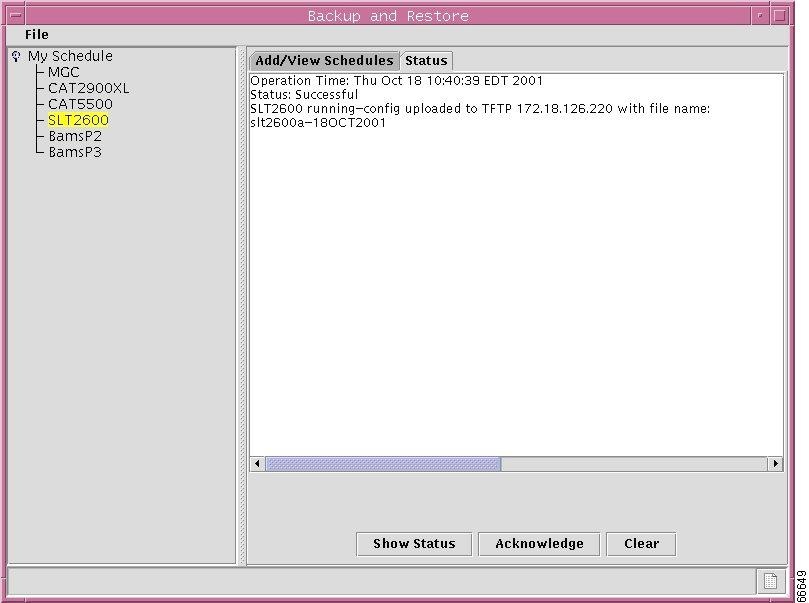
.
Step 2
For more information or to delete the log file, select the appropriate button for the action you want to perform. Choices are:
•
Show status—Displays the log file for the activity
•
Acknowledge—Removes the text from the Status window and deletes the log file from the server
•
Clear—Removes the text from the Status window, but the log file remains on the server
Provisioning the Billing and Measurements Server
The Cisco Billing and Measurements Server (BAMS) provides enhanced billing and measurement functions corresponding to those found in a traditional Class 4 tandem switch. The BAMS server collects, formats, and stores billing and measurement data from the Cisco MGC. The data can then be processed by a billing system and other measurement collection and reporting systems. BAMS runs on a standalone server designed to interface with the Cisco MGC.
.Figure 4-59 provides an overview of the BAMS components.
Figure 4-59 BAMS Overview
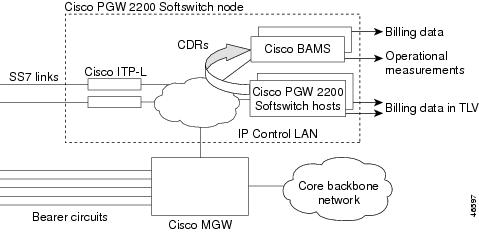
The VSPT helps you create, copy, modify, and deploy a configuration for the BAM server. The BAMS provisioning session can exist as a standalone provisioning application using MML commands.
The VSPT performs the following tasks when you are configuring BAMS:
•
Generates an MML batch file either from scratch or based on a preexisting configuration
•
Imports and exports configuration information from and to a host
•
Deploys the current configuration to a host
•
Supports incremental deployment
•
Displays the current MML batch file
•
Imports the TrunkGroup file from the Cisco MGC host to keep trunk group information synchronized
•
Performs an integrity check to ensure that the current configuration check is valid
The steps necessary to provision a BAMS are:
•
General provisioning
–
Define country codes
–
Define map types
–
Define tollfree prefixes
•
Zone provisioning
–
Create zones in the Zone_Information table for separate rating zones
–
Assign NPA-NXX prefixes to appropriate zones
–
For each from/to zone pair, define the appropriate rating type for that zone pair
–
Define rating exceptions in the rate-exception table
•
Trunk group provisioning
–
Configure trunk groups that map to trunk groups on the MGC. These trunk groups define the default originating and terminating NPAs and the number of circuits in a trunk group.
–
Define a SigPath table for a dial configuration, because dial configurations have no trunk groups, routing files, or dial plans. Map SigpathID/bearer channel numbers to trunk group number/member numbers.
•
Measurements provisioning—Configure threshold alarms by means of the Threshold Crossing Alarms table (TCA-TBL).
Note
VSPT Release 1.6 currently supports BAMS Phase 2 only. See the current VSPT release notes for further information about future support for BAMS Phase 3.
Starting a BAMS Provisioning Session
Use the following procedure to provision a BAMS:
Step 1
Start and log in to the VSPT. The main VSPT window is displayed.
Step 2
Click File > Open on the main VSPT menu bar, to open an existing configuration, and go to Step 5. If you want to start a new configuration, go to the next step.
Step 3
Click Tools > BAMS Config. A screen similar to the one shown in Figure 4-60 appears.
Figure 4-60 BAMS Configuration Screen
Step 4
Click File > New.
Step 5
Enter a name for the provisioning session you are creating. Click OK. A screen similar to the one shown in Figure 4-61 appears.
Figure 4-61 New Configuration Wizard
Step 6
If you want to import an existing configuration from a BAMS, click the Import from BAMS radio button. Enter the host name, login, password, and the configuration you want to import. If you do not know the name of the configuration, click Select, highlight the configuration you want in the list that is displayed, and click OK.
If you want to manually configure the BAMS, select the Perform manual configuration radio button, and click OK. A screen similar to the one shown in Figure 4-62 appears.
Figure 4-62 BAMS Configuration
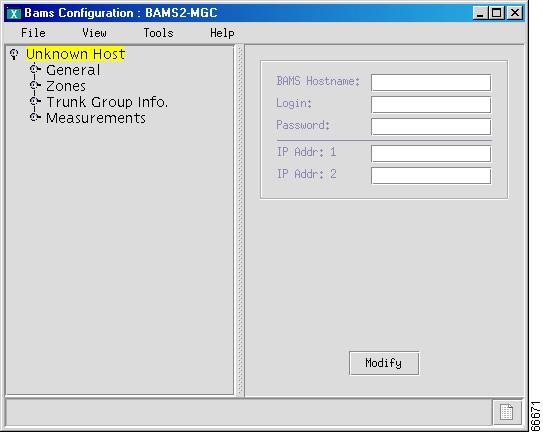
Step 7
Enter the BAMS IP address in the BAMS hostname field.
Step 8
Enter a the BAMS login ID and password.
Step 9
Enter the network addresses (IP Addr 1 and IP Addr 2) in dotted notation; for example, 172.18.145.3.
Step 10
Click Modify, and begin BAMS provisioning.
BAMS Provisioning
This section provides directions for using the VSPT to provision a BAMS server. The VSPT performs the following procedures:
•
Provisioning General Information
•
Provisioning Zones
•
Provisioning Trunk Group Information
•
Provisioning Measurements
Provisioning General Information
Provisioning general BAMS information includes defining country codes, map types, and tollfree prefixes. Use the following procedure to configure general BAMS information:
Step 1
Click the icon next to General in the left pane of the main VSPT screen to expand the hierarchical tree.
Step 2
Highlight Country Codes, and click Add in the right pane of the main VSPT window.
Step 3
Enter the country code and country name, and click OK. A screen similar to the one shown in Figure 4-63 appears.
Figure 4-63 Country Code Added
Step 4
Click Maptypes, in the right pane of the main VSPT window, and click Get Defaults in the left pane. A screen similar to the one shown in Figure 4-64 appears.
Figure 4-64 Maptype Information Added
Step 5
Click Tollfree in the left pane of the main VSPT window, and click Add in the right pane.
Step 6
Enter a tollfree code and click OK. A screen similar to the one shown in Figure 4-65 appears.
Figure 4-65 Tollfree Information Added
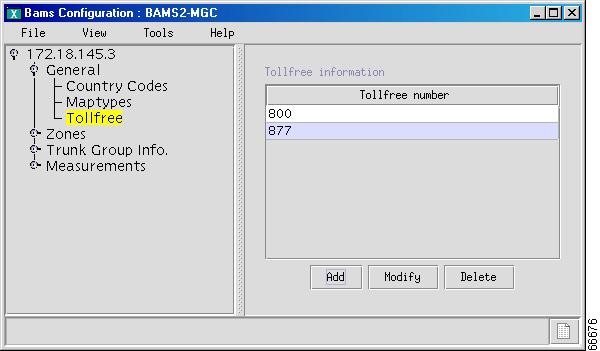
Step 7
If you want to configure more tollfree codes, click Add and repeat Step 6 for each code you want to configure.
Provisioning Zones
Note
If you do not need BAF output, proceed to "Provisioning Measurements" section.
Zoning provides a mechanism for differentiating between rating types. Each supported NPANXX combination must be a member of a zone.
Use the following procedure to provision zones:
Step 1
Click Zones > Identification, in the left pane of the main VSPT window, and click Add in the right pane.
Step 2
Enter the zone number and description, and click OK.
Step 3
Enter the zone number and description and click OK. A screen similar to the one shown in Figure 4-66 appears.
Figure 4-66 Zone Information Added
Step 4
Click Membership in the left pane of the window shown in Figure 4-66, and click Add in the right pane. A screen similar to the one shown in Figure 4-67 appears.
Figure 4-67 Add Npanxx
Step 5
Enter the six-digit NPANXX numbers. You can enter several numbers by separating them with commas, for example, 123456,345678,567890. You can obtain A/Bdig numbers from the MGC by clicking Look up to display the dial plans defined on the MGC appears.
Step 6
Select a dial plan, and click OK. A screen displaying all A/Bdig numbers appears.
Step 7
Select one or more dial plans, and click OK.
Step 8
A screen similar to the one shown in Figure 4-67 reappears. Enter the LATA, and select the zone.
Step 9
Click OK. A screen similar to the one shown in Figure 4-68 appears.
Figure 4-68 Membership Information Added
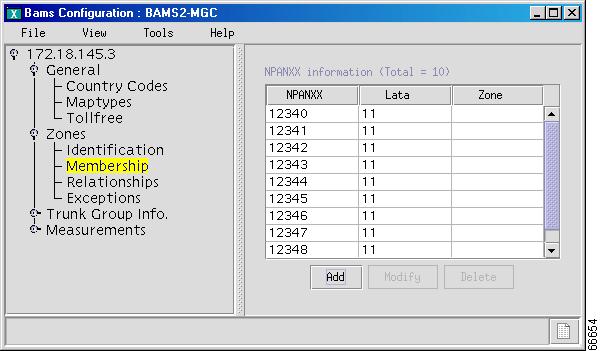
Step 10
Click Relationships in the left pane of the window shown inFigure 4-68, and click Add on the right pane. A screen similar to the one shown in Figure 4-69 appears.
Figure 4-69 Add Rating Type
Step 11
Select the origination zone, termination zone, and rate type. Indicate whether or not the relationship is bidirectional. If you select bidirectional, two entries are added to the table; otherwise, one entry is added.
Step 12
Click OK. A screen similar to the one shown in Figure 4-70 appears.
Figure 4-70 Rating Type Information Added
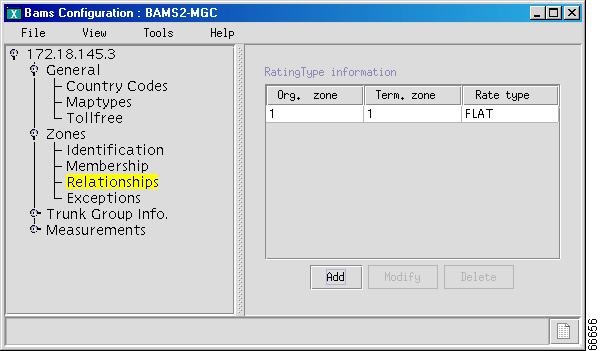
Step 13
Click Exceptions, in the left pane of the window shown in,Figure 4-70, and click Add in the right pane. A screen similar to the one shown in Figure 4-71 appears.
Figure 4-71 Add Rate Exception
Step 14
Select the origination NPANxx, termination NPANxx, and rate type. Indicate whether or not the relationship is bidirectional.
Step 15
Click OK. The exception is added, and a screen similar to the one shown in Figure 4-72 appears.
Figure 4-72 Exception Added
Provisioning Trunk Group Information
Provisioning trunk group information includes:
•
Defining trunk groups that map to trunk groups on the Cisco MGC
•
Specifying default origination and termination NPAs and the number of circuits in the trunk group
•
Defining a SigPath table for dial configurations
Use the following procedure to provision trunk group information:
Step 1
Click the icon next to Trunk Group Info. in the left pane of the window shown in Figure 4-72, to expand the hierarchical tree.
Step 2
Click Trunk Groups. A screen similar to the one shown in Figure 4-73 appears.
Figure 4-73 Configure BAMS Trunk Groups
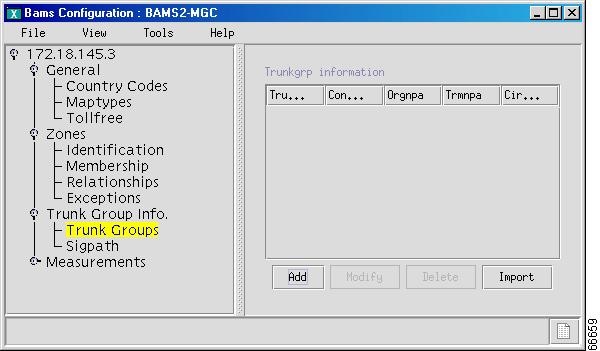
Step 3
To import trunk groups from the MGC, click Import, and click OK at the confirmation prompt.
Step 4
Click OK. All trunk groups on the MGC are displayed in the trunk group screen.
Step 5
To add individual trunk groups, click Add. A screen similar to the one shown in Figure 4-74 appears.
Figure 4-74 Add Trunkgrp
Step 6
Enter the trunk group, select the connection type, and enter the origination NPA, termination NPA, and circuits.
Step 7
Click OK. A screen similar to the one shown in Figure 4-75 appears.
Figure 4-75 Trunk Group Added
Step 8
Click Sigpath. A screen similar to the one shown in Figure 4-76 appears.
Figure 4-76 Configure a BAMS Sigpath
Step 9
You add a Sigpath only if the MGC is nailed up. You can import from the MGC by clicking Import.
Step 10
To add a Sigpath, click Add. A screen similar to the one shown in Figure 4-77 appears.
Figure 4-77 Add Sigpath
Step 11
Enter the Sigpath ID in hexadecimal, enter the number of bearer channels for this sigpath, select the trunk group number, and enter the starting trunk number. Click OK. A screen similar to the one shown in Figure 4-78 appears.
Figure 4-78 Sigpath Added
Provisioning Measurements
BAMS generates and maintains measurements, which are performance indicators that constitute a history of traffic statistics on a network. Each measurement value represents an accumulation of activity that took place during a specific interval.
Use the following procedure to configure measurement types and properties:
Step 1
Click the icon next to Measurements in the left pane of the main VSPT screen to expand the hierarchical tree. Click Thresholds. A screen similar to the one shown in Figure 4-79 appears.
Figure 4-79 Configuring BAMS Thresholds
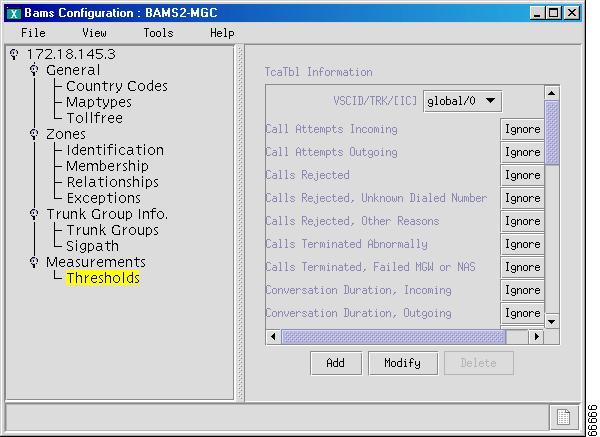
Step 2
You can set thresholds for the item displayed in the drop-down menu next to VSCID/TRK/[IC]. Select a value from the drop-down menu next to the threshold you want to change. When you have finished setting thresholds, click Modify and all threshold configurations are saved.
Step 3
To add an item to the drop-down menu next to VSCID/TRK/[IC], click Add. A screen similar to the one shown in Figure 4-80 appears.
Figure 4-80 Add TcaTbl
Step 4
Enter the VSCID, select the trunk group, and enter the carrier ID.
Step 5
Indicate whether it should inherit from global/0. If you select inherit from global/0, you can then modify individual thresholds to meet your needs.
Step 6
Click OK. The item you added is now accessible in the drop-down menu next to VSCID/TRK/[IC].
After the BAMS server is provisioned, you must deploy the new configuration. Refer to the "Deploying a New Configuration" section for instructions.