Table Of Contents
Accessibility Features for Cisco Unified IP Phone 7900 Series
Overview of Cisco Unified IP Phone Accessibility Features
Hearing Impaired Accessibility Features
Vision Impaired and Blind Accessibility Features
Mobility Accessibility Features
Cisco Unified Communications Manager Accessibility Features
Accessibility Features for Cisco Unified IP Phone 7900 Series
This document contains information about the accessibility features that are typically standard on Cisco Unified IP Phone 7900 Series. Because many of these features are standard, they can be used by users with disabilities without requiring any special configuration.
This document contains the following sections:
•
Overview of Cisco Unified IP Phone Accessibility Features—Provides an overview of the accessibility hardware and software features and benefits that Cisco IP phones provide to hearing, vision, and mobility impaired users.
•
Hearing Impaired Accessibility Features—Provides an overview of hearing impaired accessibility features, a graphic of the IP phone, a table that visually describes the various hearing impaired accessibility features and where they are located on the phone, and a table that describes each feature and its configuration requirements.
•
Vision Impaired and Blind Accessibility Features—Provides an overview of vision impaired accessibility features, a graphic of the IP phone, a table that visually describes the various vision impaired accessibility features and where they are located on the phone, and a table that describes each feature and its configuration requirements.
•
Mobility Accessibility Features—Provides an overview of mobility accessibility features, a graphic of the IP phone, a table that visually describes the various mobility accessibility features and where they are located on the phone, and a table that describes each feature and its configuration requirements.
•
Cisco Unified Communications Manager Accessibility Features—Provides a table that visually describes the various Cisco Unified Communications Manager accessibility features and its configuration requirements.
Cisco is committed to designing and delivering accessible products and technologies to meet the needs of your organization. You can find more information about Cisco and its commitment to accessibility at this URL:
www.cisco.com/go/accessibility
Overview of Cisco Unified IP Phone Accessibility Features
Cisco Unified IP Phones provide many easy-to-use accessibility features such as:
•
Audio and visual alerts of phone states, including dial tone, ringing, mute status, and more.
•
Visual alerts that are displayed on a large liquid crystal display (LCD) screen integrated into the phone.
•
For people with low vision, an optional color LCD screen with high contrast and backlighting.
•
Hearing-aid compatibility
•
Tactile discernible buttons and touch-screen for nonbiometric pointing devices.
•
Cisco Unified IP Phones also support TTY (telephone typewriter), which is a telephone device for the deaf and hearing impaired. The TTY over IP requires quality of service (QoS) for reliable delivery, and enables users:
–
To make or place a TTY call by either acoustically coupling a TTY to the Cisco Unified IP Phone or directly connecting it to the IP telephony network through an analog telephone adapter (ATA).
–
Equal access to the mobility features of Cisco Unified IP Communications, which enables users to make and receive calls from different locations in the organization while retaining the same phone number by bringing only your TTY and an ATA.
Hearing Impaired Accessibility Features
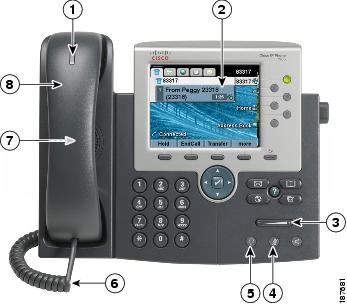
This section describes the Cisco Unified IP Phone accessibility features for the hearing impaired (see Figure 1 and Table 1).
Figure 1 Cisco Unified IP Phone Accessibility Features for the Hearing Impaired
1Visual Message Waiting Indicator (Handset) (see Table 1)
5Inline Amplifier Support (Headset) (see Table 1)
2Third-Party Accessibility Applications (see Table 1)
6Inline Amplifier Support (Handset) (see Table 1)
3Adjustable Ring Tone and Volume (see Table 1)
7Hearing Aid Compatible (HAC) Handset (see Table 1)
4Visual Notification of Phone State (see Table 1)
8Acoustic Coupled TTY Support (Handset) (see Table 1)
Table 1 provides information on the Cisco Unified IP Phone accessibility features for the hearing impaired. See Figure 1 for the locations of these features on the IP phone.
Table 1 Cisco Unified IP Phone Accessibility Features for the Hearing Impaired
Accessibility Feature Description Configuration Requirements For More InformationVisual Message Waiting Indicator (Handset)
Viewable from 360 degrees, this visual indicator also provides an audible message waiting indicator. Users change the voice message light on their handset and the audible voice message indicator on their phone by logging in to their User Options web pages and accessing the message indicator settings. Users change the setting to on or off.
Standard on all Cisco Unified IP Phones. Configuration is required:
•
System administrator
•
Cisco Unified CM User Options
See the user guide applicable to your Cisco Unified IP Phone.
Acoustic Coupled TTY Support (Handset)
Cisco Unified IP Phones support the following TTY and TDD features:
•
Acoustic or direct connect TTYs from industry-leading manufacturers
•
Real-time text transmission over phone lines
•
Hearing and voice carry over phones (HCO/VCO)
•
VoIP network operating at G.711
See Figure 1.
Standard on all Cisco Unified IP Phones; see your administrator for information about using TTY.
See the user guide applicable to your Cisco Unified IP Phone.
See your administrator for information about TTY.
Hearing Aid Compatible (HAC) Handset
Cisco Unified IP Phone handsets support the following accessibility features:
•
hearing-aid compatible
•
supports magnetic coupling of the hearing aid
•
meets Federal Communications Commission (FCC) loudness requirements for the Americans with Disabilities Act (ADA)
•
meets Section 508 loudness requirements, which is achieved by using industry-standard inline handset amplifiers.
Standard on all Cisco Unified IP Phones; no configuration is required.
See the user guide applicable to your Cisco Unified IP Phone.
Inline Amplifier Support (Handset)
Cisco Unified IP Phone handsets support third-party inline amplifiers, which users attach to the handset and cord and sit between the handset and the IP phone. Cisco Unified IP Phones support the following third-party inline amplifiers:
•
Clarity HA-40 Inline Amplifier for Corded Phone
•
Plantronics EHA40 Inline Amplifier
Standard on all Cisco Unified IP Phones; no configuration is required.
Refer to the third-party inline amplifier documentation.
Inline Amplifier Support (Headset)
Cisco Unified IP Phone supports third-party Hearing Aid Compatible (HAC) headsets, which increase the volume range.
Users connect the headset to the phone and then attach the inline amplifier to the headset cord. See Figure 1.
A list of supported headsets and Plantronics' recommended configurations are available at the following URL:
http://www.plantronics.com/media/media_resources/literature/user_guides/cisco_setup.pdf
Standard on all Cisco Unified IP Phones; no configuration is required.
Refer to the third-party inline amplifier documentation.
Visual Notification of Phone State
For visual notification of the phone state, users can:
•
Toggle the Mute and Speaker buttons on and off to indicate the state of the phone.
•
Use the Mute button to toggle the microphone on or off. When the microphone is muted, the button is lit.
•
Use the Speaker button to toggle the speakerphone on or off. When the speakerphone is on, the button is lit.
See Figure 1.
Standard on all Cisco Unified IP Phones; no configuration is required.
See the user guide applicable to your Cisco Unified IP Phone.
Adjustable Ring Tone and Volume
Users can adjust the ring tone, pitch, and volume by:
•
Using the User Preferences menu on their phone.
•
Adjusting the volume level for the phone ringer: while the handset is in the cradle, and the headset and speakerphone buttons are off, press the volume button to increase the volume.
See Figure 1.
Standard on all Cisco Unified IP Phones; users and system administrators can make configuration changes.
See the user guide applicable to your Cisco Unified IP Phone.
Third-Party Accessibility Applications for the Hearing Impaired
Cisco Unified IP Phones provide an interface for third-party accessibility applications from companies such as NexTalk and Berbee that support the following features:
•
paging
•
visual notification
•
ability to provide single number services to support Video Relay, Text Relay, TTY Traffic or even voice services
See your system administrator about which third-party applications you may be using.
Information about NexTalk is available at the following URL:
http://www.nxicom.com/products-biz/index_biz.html
Information about Berbee is available at the following URL:
Vision Impaired and Blind Accessibility Features
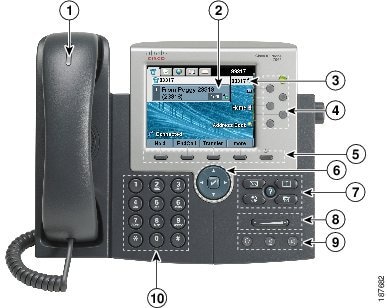
This section describes the Cisco Unified IP Phone accessibility features for vision impaired and blind users (see Figure 2 and Table 2).
Figure 2 Cisco Unified IP Phone Accessibility Features for the Vision Impaired and Blind
1High Contrast Visual and Audible Alert (see Table 2)
6Large Buttons to Access Phone Services, Voice Messages, Directories, and Settings (see Table 2)
2Third-Party Accessibility Applications (see Table 2)
7Audible Notification of Phone State (see Table 2)
3Back-Lit LCD Screen With Large Fonts and Programmable Contrast (see Table 2)
8Tactile Discernible Buttons and Functions (see Table 2)
4Line and Feature Buttons (see Table 2)
9Standard Key Layout (see Table 2)
5Touch Screen Controls (see Table 2)
Table 2 provides information on the Cisco Unified IP Phone accessibility features for the vision impaired and blind. See Figure 2 for the location of these features on the IP phone.
Table 2 Cisco Unified IP Phone Accessibility Features for the Vision Impaired and Blind
Accessibility Feature Description Configuration Requirements For More InformationHigh Contrast Visual and Audible Alert
Cisco Unified IP Phones provide an audible alert, and the handset provides a visual alert when the phone receives an incoming call. The handset light strip flashes during incoming calls and stays lit when a voice-mail message is received. See Figure 2.
Standard on all Cisco Unified IP Phones; configuration is required.
See the user guide applicable to your Cisco Unified IP Phone.
Standard Key Layout
Cisco Unified IP Phone keypads provide standard key layout, which enables users to use existing or familiar key positions. See Figure 2.
Standard on all Cisco Unified IP Phones; no configuration is required.
See the user guide applicable to your Cisco Unified IP Phone.
Tactile Discernible Buttons and Functions
Cisco Unified IP Phone keypads provide the tactile discernible locator, which enables users to use existing or familiar key positions that can be easily located from the "bump" on the 5 key. Users do not have to learn new key positions. See Figure 2.
Standard on all Cisco Unified IP Phones; no configuration is required.
See the user guide applicable to your Cisco Unified IP Phone.
Audible Notification of Phone State
For audible notification of the phone state, users can:
•
Toggle the Mute and Speaker buttons on and off to indicate the state of the phone.
•
Use the Mute button to toggle the microphone on or off. When the microphone is muted, the button is lit.
•
Use the Speaker button to toggle the speakerphone on or off. When the speakerphone is on, the button is lit.
See Figure 2.
Standard on all Cisco Unified IP Phones; no configuration is required.
See the user guide applicable to your Cisco Unified IP Phone.
Large Buttons to Access Phone Services, Voice Messages, Directories, and Settings
Uses can use large buttons on the IP phone to easily access the phone services, voice messages, corporate and personal directories, and phone settings. See Figure 2.
Most features are standard on the Cisco Unified IP Phone; some configuration is required.
See the user guide applicable to your Cisco Unified IP Phone.
Touch Screen Controls
Users can touch the Display button to awaken the touchscreen from sleep mode or disable it for cleaning. See Figure 2.
Standard on all Cisco Unified IP Phones; no configuration is required.
See the user guide applicable to your Cisco Unified IP Phone.
Line and Feature Buttons
Users can use the line and feature buttons (the buttons to the right of the phone screen) to initiate, answer, or switch to a call on a particular line. A limited number of features, such as speed dial, extension mobility, privacy, BLF speed dial, DND, and Service URLs, get assigned to these buttons.
Standard on all Cisco Unified IP Phones; configuration is required. Your system administrator assigns programmable line keys to your Cisco Unified IP Phone.
See the user guide applicable to your Cisco Unified IP Phone.
Back-Lit LCD Screen With Large Fonts and Programmable Contrast
Users with low vision, can use an optional color LCD screen that provides high contrast and backlighting. See Figure 2.
See your system administrator.
See the user guide applicable to your Cisco Unified IP Phone.
Third-Party Accessibility Applications for the Vision Impaired
Cisco Unified IP Phones provide an interface for third-party accessibility applications such as Tenacity accessaphone and the IP blue VTGO 508-Compliant softphone. These third-party applications provide accessibility features such as audible caller ID, call log, access to call functions, text to speech, keyboard navigation, and more.
Information about Tenacity is available at the following URL:
http://www.tenacitycorp.com/products.aspx
Information about IP blue is available at the following URL:
See your system administrator.
Refer to the third-party documentation.
Adjustable Stand
Users can easily manipulate an adjustable stand from flat to 60 degrees to provide optimum phone display viewing and comfortable access to all buttons and keys.
Standard on all Cisco Unified IP Phones; no configuration is required.
See the user guide applicable to your Cisco Unified IP Phone.
Mobility Accessibility Features
Table 3 provides information on the Cisco Unified IP Phone accessibility features for the mobility impaired.
Table 3 Cisco Unified IP Phone Accessibility Features for the Mobility Impaired
Accessibility Feature Description Configuration Requirements For More InformationLarge Screen Displays Phone State and Services
The large screen displays:
•
Phone features such as Conference, Transfer.
•
Current calls per line, including caller ID, call duration, and call state for the highlighted line (standard view).
•
Audio mode icons, status information, and prompts.
Ask the system administrator for more information about the phone screen display.
See the user guide applicable to your Cisco Unified IP Phone.
Tactile Discernible Buttons and Functions
Cisco Unified IP Phone keypads provide the tactile discernible locator, which enables users to use existing or familiar key positions that can be easily located from the "bump" on the 5 key. Users do not have to learn new key positions. See Figure 2.
Standard on all Cisco Unified IP Phones; no configuration is required.
See the user guide applicable to your Cisco Unified IP Phone.
Dedicated Headset Jack that Enables Auto-Answer Function
Users can use a dedicated headset jack that enables auto-answer feature support on either the speakerphone or headset. Incoming calls are then automatically connected after a ring or two. See Figure 2.
Standard on all Cisco Unified IP Phones; configuration is required.
See the user guide applicable to your Cisco Unified IP Phone.
Touch Screen for Nonbiometric Pointing Devices
Users can use their nonbiometric pointing device to access the touch screen features, line buttons, and softkeys. See Figure 2.
Standard on all Cisco Unified IP Phones; no configuration is required.
See the user guide applicable to your Cisco Unified IP Phone.
Well-Spaced, Illuminated Buttons Enable Easy Operation
Depending on configuration, programmable buttons allow users to access:
•
Phone lines and intercom lines (line buttons)
•
Speed-dial numbers (speed-dial buttons, including the BLF speed-dial feature)
•
Web-based services (for example, a Personal Address Book button)
•
Phone features (for example, a Privacy, Hold, or Transfer button)
Buttons illuminate to indicate status:
•
Green, steady—Active call or two-way intercom call
•
Green, flashing—Held call
•
Amber, steady—Privacy in use, one-way intercom call, Do Not Disturb (DND) active, or logged into Hunt Group
•
Amber, flashing—Incoming call or reverting call
•
Red, steady—Remote line in use (shared line or BLF status)
Standard on all Cisco Unified IP Phones; no configuration is required.
See the user guide applicable to your Cisco Unified IP Phone.
Adjustable Stand
Users can easily manipulate an adjustable stand from flat to 60 degrees to provide optimum phone display viewing and comfortable access to all buttons and keys.
Standard on all Cisco Unified IP Phones; no configuration is required.
See the user guide applicable to your Cisco Unified IP Phone.
Large Buttons to Access Phone Services, Voice Messages, Directories, and Settings
Uses can use large buttons on the IP phone to easily access the phone services, voice messages, corporate and personal directories, and phone settings. See Figure 2.
Most features are standard on the Cisco Unified IP Phone; some configuration is required.
See the user guide applicable to your Cisco Unified IP Phone.
Built-In Speakerphone
Users can toggle the Speaker button on and off to indicate the state of the phone. When the speakerphone is on, the button is lit.
Standard on all Cisco Unified IP Phones; no configuration is required.
See the user guide applicable to your Cisco Unified IP Phone.
Cisco Unified Communications Manager Accessibility Features
Table 4 provides information on the Cisco Unified Communications Manager accessibility features.
CCDE, CCENT, Cisco Eos, Cisco Lumin, Cisco Nexus, Cisco StadiumVision, Cisco TelePresence, the Cisco logo, DCE, and Welcome to the Human Network are trademarks; Changing the Way We Work, Live, Play, and Learn and Cisco Store are service marks; and Access Registrar, Aironet, AsyncOS, Bringing the Meeting To You, Catalyst, CCDA, CCDP, CCIE, CCIP, CCNA, CCNP, CCSP, CCVP, Cisco, the Cisco Certified Internetwork Expert logo, Cisco IOS, Cisco Press, Cisco Systems, Cisco Systems Capital, the Cisco Systems logo, Cisco Unity, Collaboration Without Limitation, EtherFast, EtherSwitch, Event Center, Fast Step, Follow Me Browsing, FormShare, GigaDrive, HomeLink, Internet Quotient, IOS, iPhone, iQ Expertise, the iQ logo, iQ Net Readiness Scorecard, iQuick Study, IronPort, the IronPort logo, LightStream, Linksys, MediaTone, MeetingPlace, MeetingPlace Chime Sound, MGX, Networkers, Networking Academy, Network Registrar, PCNow, PIX, PowerPanels, ProConnect, ScriptShare, SenderBase, SMARTnet, Spectrum Expert, StackWise, The Fastest Way to Increase Your Internet Quotient, TransPath, WebEx, and the WebEx logo are registered trademarks of Cisco Systems, Inc. and/or its affiliates in the United States and certain other countries.
All other trademarks mentioned in this document or Website are the property of their respective owners. The use of the word partner does not imply a partnership relationship between Cisco and any other company. (0807R)
Any Internet Protocol (IP) addresses used in this document are not intended to be actual addresses. Any examples, command display output, and figures included in the document are shown for illustrative purposes only. Any use of actual IP addresses in illustrative content is unintentional and coincidental.
© 2008 Cisco Systems, Inc. All rights reserved.