- Information About the Basic Interface Parameters
- Licensing Requirements
- Prerequisites for Configuring the Basic Interface Parameters
- Guidelines and Limitations
- Configuring the Basic Interface Parameters
- Specifying the Interfaces to Configure
- Configuring the Description
- Configuring the Beacon Mode
- Configuring the MDIX Parameter
- Configuring the Debounce Timer
- Configuring the Interface Speed and Duplex Mode
- Configuring the Flow Control
- Configuring the MTU Size
- Configuring the Bandwidth
- Configuring the Throughput Delay
- Shutting Down and Activating the Interface
- Enabling or Disabling CDP
- Configuring the UDLD Mode
- Field Descriptions
Configuring Basic Interface Parameters
This chapter describes how to configure the basic interface parameters. These parameters are shared by multiple interfaces.
This chapter includes the following sections:
• Information About the Basic Interface Parameters
•Prerequisites for Configuring the Basic Interface Parameters
•Configuring the Basic Interface Parameters

Note To configure the parameters that are specifically used for Layer 2 interfaces (access or trunking interfaces), see Chapter 3, "Configuring Layer 2 Interfaces." To configure parameters that are specifically used for Layer 3 interfaces (routed interfaces, subinterfaces, VLAN interfaces, loopback interfaces, and IP tunnels), see Chapter 4, "Configuring Layer 3 Interfaces."
Information About the Basic Interface Parameters
This section includes the following topics:
•MDIX
•Unidirectional Link Detection Parameter
Description
For the Ethernet and management interfaces, you can configure the description parameter to provide a recognizable name for the interface. Using a unique name for each interface allows you to quickly identify the interface when you are looking at a listing of multiple interfaces.
For information on setting the description parameter for port-channel interfaces, see the "Configuring a Port-Channel Description" section on page 5-18. For information on configuring this parameter for other interfaces, see the "Configuring the Description" section.
Beacon
The beacon mode allows you to identify a physical port by flashing its link state LED with a green light. By default, this mode is disabled. To identify the physical port for an interface, you can activate the beacon parameter for the interface.
For information on configuring the beacon parameter, see the "Configuring the Beacon Mode" section.
MDIX
The medium dependent interface crossover (MDIX) parameter enables or disables the detection of a crossover connection between devices. This parameter applies only to copper interfaces. By default, this parameter is enabled.
Debounce Timer
The debounce timer delays notification of a link change, which can decrease traffic loss due to network reconfiguration. You can configure the debounce timer separately for each Ethernet port and specify the delay time in milliseconds. By default, this parameter is set for 100 milliseconds.
 Enabling the debounce timer causes the link-up and link-down detections to be delayed, which results in a loss of traffic during the debounce period. This situation might affect the convergence and reconvergence of some Layer 2 and Layer 3 protocols.
For information on configuring the debounce-timer parameters, see the "Configuring the Debounce Timer" section.
Speed Mode and Duplex Mode
The speed mode and duplex mode are interrelated for each Ethernet and management interface. By default, each of these interfaces autonegotiates its speed and duplex mode with the other interface, but you can change these settings. If you change the settings, be sure to use the same speed and duplex mode setting on both interfaces, or use autonegotiation for at least one of the interfaces. Table 2-1 shows the settings that work for each type of Ethernet and management interface.
|
|
|
|
|
|
|---|---|---|---|---|
32-port 10 GE Ethernet |
Auto1 |
Auto1 |
10,000 |
Full |
48-port 10/100/1000 Ethernet |
Auto1 |
Auto1 |
1000 |
Full |
10 or 100 |
Half |
|||
1000 |
Auto1 or full |
1000 |
Full |
|
100 |
Auto1 or half |
100 |
Half |
|
Full |
100 |
Full |
||
10 |
Auto1 or half |
10 |
Half |
|
Full |
10 |
Full |
||
Management |
Auto1 |
Auto1 |
1000 |
Full |
10 or 100 |
Half |
|||
1000 |
Auto1 or full |
1000 |
Full |
|
100 |
Auto1 or half |
100 |
Half |
|
Full |
100 |
Full |
||
10 |
Auto1 or half |
10 |
Half |
|
Full |
10 |
Full |
1 Default setting |
For information on setting the speed mode and duplex mode for port-channel interfaces, see the "Configuring the Speed and Duplex Settings for a Port-Channel Interface" section on page 5-18. For information on setting the speed and duplex speed for other interfaces, see the "Configuring the Interface Speed and Duplex Mode" section.
Flow Control
When the receive buffer for an Ethernet port that runs 1 Gbps or faster fills, flow control enables that port to send an IEEE 802.3x pause frame to the transmitting port to request it to stop transmitting data for a specified amount of time. Transmitting ports, running at any speed, can receive the pause frames to stop their transmission of data.
To allow flow control to work between two ports, you must set the corresponding receive and send flow control parameters for both ports as enabled or desired. When you set the parameter to enabled, the send or receive flow-control function is activated regardless of the setting of the other port. When you set the parameter to desired, the send or receive flow-control function is activated if you set the corresponding flow-control state of the other port to enabled or desired. If you set one of the flow control states to disabled, flow control is disabled for that transmission direction. To see how the different port flow-control states affect the link flow-control state, see Table 2-2.
For information on setting the flow-control parameters, see the "Configuring the Flow Control" section.
Port MTU Size
The maximum transmission unit (MTU) size specifies the maximum frame size that an Ethernet port can process. For transmissions to occur between two ports, you must configure the same MTU size for both ports. A port drops any frames that exceed its MTU size.
By default, each port has an MTU of 1500 bytes, which is the IEEE 802.3 standard for Ethernet frames. Larger MTU sizes are possible for more efficient processing of data with less overhead. The larger frames, called jumbo frames, can be up to 9216 bytes in size, which is also the default system jumbo MTU size.
On a Layer 3 interface, you can configure an MTU size between 576 and 9216 bytes. You can configure up to 64 MTU settings for each I/O module.
Note The global LAN port MTU size applies to the traffic through a Layer 3 Ethernet LAN port that is configured with a non-default MTU size.
For a Layer 2 port, you can configure an MTU size that is either the system default (1500 bytes) or the system jumbo MTU size (initially 9216 bytes).
Note If you change the system jumbo MTU size, Layer 2 ports automatically use the system default MTU size (1500 bytes) unless you specify the new system jumbo MTU size for some or all of those ports.
For information on setting the MTU size, see the "Configuring the MTU Size" section.
Bandwidth
Ethernet ports have a fixed bandwidth of 1,000,000 Kb at the physical level. Layer 3 protocols use a bandwidth value that you can set for calculating their internal metrics. The value that you set is used for informational purposes only by the Layer 3 protocols—it does not change the fixed bandwidth at the physical level. For example, the Interior Gateway Routing Protocol (IGRP) uses the minimum path bandwidth to determine a routing metric, but the bandwidth at the physical level remains 1,000,000 Kb.
For information on configuring the bandwidth parameter for port-channel interfaces, see the Chapter 5, "Configuring Port Channels.". For information on configuring the bandwidth parameter for other interfaces, see the "Configuring the Bandwidth" section.
Throughput Delay
Specifying a value for the throughput-delay parameter provides a value used by Layer 3 protocols; it does not change the actual throughput delay of an interface. The Layer 3 protocols can use this value to make operating decisions. For example, the IGRP can use the delay setting to differentiate between a satellite link and a land link. The delay value that you set is in the tens of microseconds.
For information on configuring the bandwidth parameter for port-channel interfaces, see the Chapter 5, "Configuring Port Channels.". For information on configuring the throughput-delay parameter, see the "Configuring the Throughput Delay" section.
Administrative Status
The administrative-status parameter determines whether an interface is up or down. When an interface is administratively down, it is disabled and unable to transmit data. When an interface is administratively up, it is enabled and able to transmit data.
For information on configuring the administrative status parameter for port channel interfaces, see the "Shutting Down and Restarting the Port-Channel Interface" section on page 5-17. For information on configuring the administrative-status parameter for other interfaces, see the "Shutting Down and Activating the Interface" section.
Unidirectional Link Detection Parameter
This section includes the following topics:
•UDLD Aggressive and Nonaggressive Modes
UDLD Overview
The Cisco-proprietary Unidirectional Link Detection (UDLD) protocol allows devices that are connected through fiber-optic or copper (for example, Category 5 cabling) Ethernet cables to monitor the physical configuration of the cables and detect when a unidirectional link exists. When a device detects a unidirectional link, UDLD shuts down the affected LAN port and alerts the user. Unidirectional links can cause a variety of problems, including spanning tree topology loops.
UDLD is a Layer 2 protocol that works with the Layer 1 protocols to determine the physical status of a link. At Layer 1, autonegotiation takes care of physical signaling and fault detection. UDLD performs tasks that autonegotiation cannot perform, such as detecting the identities of neighbors and shutting down misconnected LAN ports. When you enable both autonegotiation and UDLD, Layer 1 and Layer 2 detections work together to prevent physical and logical unidirectional connections and the malfunctioning of other protocols.
A unidirectional link occurs whenever traffic transmitted by the local device over a link is received by the neighbor but traffic transmitted from the neighbor is not received by the local device. If one of the fiber strands in a pair is disconnected, as long as autonegotiation is active, the link does not stay up. In this case, the logical link is undetermined, and UDLD does not take any action. If both fibers are working normally at Layer 1, then UDLD at Layer 2 determines whether those fibers are connected correctly and whether traffic is flowing bidirectionally between the correct neighbors. This check cannot be performed by autonegotiation, because autonegotiation operates at Layer 1.
The Nexus 7000 Series device periodically transmits UDLD frames to neighbor devices on LAN ports with UDLD enabled. If the frames are echoed back within a specific time frame and they lack a specific acknowledgment (echo), the link is flagged as unidirectional and the LAN port is shut down. Devices on both ends of the link must support UDLD in order for the protocol to successfully identify and disable unidirectional links.
Note By default, UDLD is locally disabled on copper LAN ports to avoid sending unnecessary control traffic on this type of media.
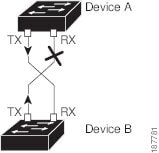
Figure 2-1 shows an example of a unidirectional link condition. Device B successfully receives traffic from device A on the port. However, device A does not receive traffic from device B on the same port. UDLD detects the problem and disables the port.
Figure 2-1 Unidirectional Link
Default UDLD Configuration
Table 2-3 shows the default UDLD configuration.
For information on configuring the UDLD for the device and its port, see the "Configuring the UDLD Mode" section.
UDLD Aggressive and Nonaggressive Modes
UDLD aggressive mode is disabled by default. You can configure UDLD aggressive mode only on point-to-point links between network devices that support UDLD aggressive mode. If UDLD aggressive mode is enabled, when a port on a bidirectional link that has a UDLD neighbor relationship established stops receiving UDLD frame, UDLD tries to reestablish the connection with the neighbor. After eight failed retries, the port is disabled.
To prevent spanning tree loops, nonaggressive UDLD with the default interval of 15 seconds is fast enough to shut down a unidirectional link before a blocking port transitions to the forwarding state (with default spanning tree parameters).
When you enable the UDLD aggressive mode, the following occurs:
•One side of a link has a port stuck (both transmission and receive)
•One side of a link remains up while the other side of the link is down
In these cases, the UDLD aggressive mode disables one of the ports on the link, which prevents traffic from being discarded.
Note In Cisco NX-OS 4.0(3) and later releases, you can configure the carrier delay timer using the command line interface. See the Cisco NX-OS Layer 2 Switching Configuration Guide for information on configuring the carrier delay timer.
Port Channel Parameters
A port channel is an aggregation of physical interfaces that comprise a logical interface. You can bundle up to eight individual interfaces into a port channel to provide increased bandwidth and redundancy. Port channeling also load balances traffic across these physical interfaces. The port channel stays operational if at least one physical interface within the port channel is operational.
You can create a Layer 2 port channel by bundling compatible Layer 2 interfaces, or you can create Layer 3 port channels by bundling compatible Layer 3 interfaces. You cannot combine Layer 2 and Layer 3 interfaces in the same port channel.
Any configuration changes that you apply to the port channel are applied to each interface member of that port channel.
For information on port channels and for information on configuring port channels, see Chapter 5, "Configuring Port Channels."
Licensing Requirements
The interface command and its sub commands do not require licenses.
Prerequisites for Configuring the Basic Interface Parameters
Before you begin configuring the basic interface parameters, make sure that you are in the correct VDC. To change the VDC, choose Virtual Devices from the Feature Selector pane.
Guidelines and Limitations
Follow these guidelines and limitations for configuring the basic interface parameters:
•Fiber-optic Ethernet ports must use Cisco-supported transceivers. To verify that the ports are using Cisco-supported transceivers, use the show interface transceivers command. Interfaces with Cisco-supported transceivers are listed as functional interfaces.
•A port can be either a Layer 2 or a Layer 3 interface; it cannot be both simultaneously.
By default, each port is a Layer 3 interface.
•When configuring flow control for a local port, consider the following:
–To receive pause frames when you do not know how the remote port send parameter is configured, set the local port receive parameter to desired.
–To receive pause frames when you know that the remote port send parameter is enabled or desired, set the local port receive parameter to enabled.
–To ignore received pause frames, set the local port receive parameter to disabled.
–To send pause frames when you do not know how the remote port receive parameter is configured, set the local port send parameter to desired.
–To send pause frames when you know that the remote port receive parameter is enabled or desired, set the local port send parameter to enabled.
–To prevent the sending of pause frames, set the local port send parameter to disabled.
•You usually configure Ethernet port speed and duplex mode parameters to auto to allowDC-OS to negotiate the speed and duplex mode between ports. If you decide to configure the port speed and duplex modes manually for these ports, consider the following:
–Before you configure the speed and duplex mode for an Ethernet or management interface, see Table 2-1 for the combinations of speeds and duplex modes that can be configured at the same time.
–If you set the Ethernet port speed to auto, the device automatically sets the duplex mode to auto.
–If you configure an Ethernet port speed to a value other than auto (for example, 10, 100, or 1000 Mbps), you must configure the connecting port to match. Do not configure the connecting port to negotiate the speed.
Note The device cannot automatically negotiate the Ethernet port speed and duplex mode if the connecting port is configured to a value other than auto.
Changing the Ethernet port speed and duplex mode configuration might shut down and reenable the interface.
Configuring the Basic Interface Parameters
When you configure an interface, you must specify the interface before you can configure its parameters.
The following sections explain how to specify the interface and configure each of its basic parameters:
•Specifying the Interfaces to Configure
•Configuring the MDIX Parameter
•Configuring the Debounce Timer
•Configuring the Interface Speed and Duplex Mode
•Configuring the Throughput Delay
•Shutting Down and Activating the Interface
Specifying the Interfaces to Configure
Before you can configure the parameters for one or more interfaces of the same type, you must specify the type and the identities of the interfaces. Table 2-4 shows the interface types and identities that you should use for specifying the Ethernet and management interfaces.
|
|
|
|---|---|
Ethernet |
I/O module slot numbers and port numbers on the module. |
Management |
0 (for port 0) |
To verify the current configuration of interfaces, you can display their properties.
You can choose an interface and see its parameter values in the Details pane.
DETAILED STEPS
To specify the interfaces to configure, follow these steps:
Step 1 From the Feature Selector pane, specify the type of interfaces that you are configuring by following these steps:
a. Choose Interfaces.
b. Choose Physical or Logical.
–To work with Ethernet interfaces or the management interface, choose Physical.
–To work with port-channel interfaces, loopback interfaces, VLAN network interfaces, or tunnel interfaces, choose Logical.
c. If you are working with physical interfaces, choose one of the following interface types:
–To configure Ethernet interface parameters, choose Ethernet.
–To configure management interface parameters, choose Mgmt Interface.
d. If you are working with logical interfaces, choose one of the following interface types:
–Port Channel (see Chapter 5, "Configuring Port Channels")
–Loopback (see Chapter 4, "Configuring Layer 3 Interfaces"
–VLAN Network Interface (see Chapter 4, "Configuring Layer 3 Interfaces")
–IP tunnels (see Chapter 3, "Configuring Layer 2 Interfaces")
The devices with the interface type that you specified appear in the Summary pane.
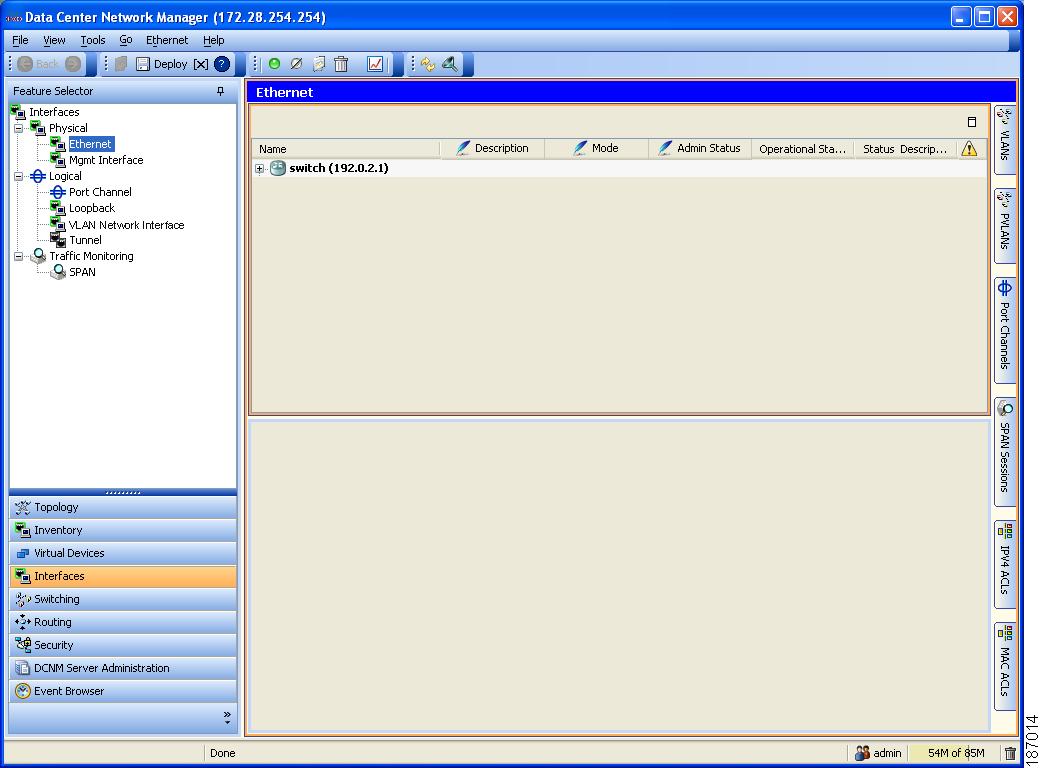
Figure 2-2 shows the three Feature Selector items to choose to specify an interface type.
Figure 2-2 Specifying an Interface Type
Step 2 From the Summary pane, specify the device and (optionally) the port in one of the following ways:
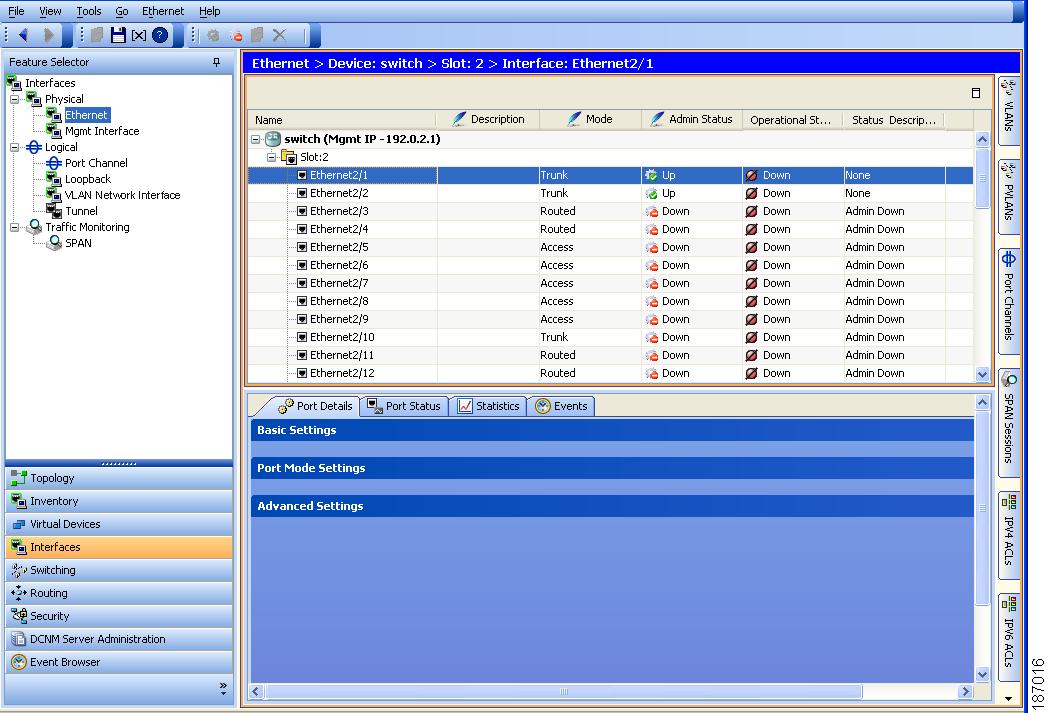
•If you specified the Ethernet interface type, expand the device, expand the slot for the appropriate I/O module, and click the appropriate port as shown in Figure 2-3.
Figure 2-3 Specifying a Port for an Ethernet Interface
•If you specified the management interface type, click the device as shown in Figure 2-4.
Figure 2-4 Specifying a Device for a Management Interface

Tabs and sections for displaying detailed information for the interface that you specified appear in the Details pane.
Configuring the Description
You can provide textual interface descriptions for the Ethernet and management interfaces. Descriptions can be a maximum of 80 case-sensitive alphanumeric characters.
DETAILED STEPS
To provide and interface description for Ethernet and management interfaces, follow these steps:
Step 1 From the Feature Selector pane, choose Interfaces > Physical.
Step 2 Choose Ethernet or Mgmt Interface.
The devices with the interface type that you specified appear in the Summary pane.
Step 3 From the Summary pane, specify the interface by doing one of the following:
•To configure the Ethernet interface, expand the device, expand the slot, and click the port.
Tabs appear for the port information in the Details pane. The Port Details tab is active but its sections are not expanded.
•To configure the management interface, click the device that you are configuring.
Tabs appear for the device information in the Details pane. The Details tab is active but its sections are not expanded.
Step 4 From the Details pane, expand the Basic Settings section.
The Basic Settings shows the basic parameters.
Step 5 In the Description field, enter the appropriate textual description for the interface.
Step 6 From the menu bar, choose File > Deploy to apply your changes to the device.
Configuring the Beacon Mode
You can enable the beacon mode for an Ethernet port to flash its LED to confirm its physical location.
DETAILED STEPS
To enable or disable the beacon mode, follow these steps:
Step 1 From the Feature Selector pane, choose Interfaces > Physical > Ethernet.
The devices with Ethernet interfaces appear in the Summary pane.
Step 2 From the Summary pane, expand the device, expand the slot, and click the port.
Tabs appear for the port information in the Details pane. The Port Details tab is active but its sections are not expanded.
Step 3 From the Details pane, expand the Basic Settings section.
The Basic Settings section shows the basic parameters.
Step 4 From the Beacon drop-down list, choose Enabled or Disabled.
Step 5 From the menu bar, choose File > Deploy to apply your changes to the device.
Configuring the MDIX Parameter
If you need to detect the type of connection (crossover or straight) with another copper Ethernet port, enable the medium dependent independent crossover (MDIX) parameter for the local port. By default, this parameter is enabled.
BEFORE YOU BEGIN
MDIX must be enabled for the remote port.
DETAILED STEPS
To enable or disable an MDIX connection, follow these steps:
Step 1 From the Feature Selector pane, choose Interfaces > Physical > Ethernet.
The devices with Ethernet interfaces appear in the Summary pane.
Step 2 From the Summary pane, expand the device, expand the slot, and click the port.
Tabs appear for the port information in the Details pane. The Port Details tab is active but its sections are not expanded.
Step 3 From the Details pane, expand the Basic Settings section.
The Basic Settings section shows the basic parameters.
Step 4 From the Mdix drop-down list, choose either enabled or disabled.
Step 5 From the menu bar, choose File > Deploy to apply your changes to the device.
Configuring the Debounce Timer
You can enable or disable the debounce timer by using the Link Debounce and Debounce Time fields. In the Link Debounce field, you enable or disable the timer. In the Debounce Time field, you specify the time in milliseconds (ms).
Note If you specify a time of 0 ms, the timer is disabled even if you enable the timer in the Link Debounce field.
DETAILED STEPS
To enable or disable the debounce timer, follow these steps:
Step 1 From the Feature Selector pane, choose Interfaces > Physical > Ethernet.
The devices with Ethernet interfaces appear in the Summary pane.
Step 2 From the Summary pane, expand the device, expand the slot, and click the port.
Tabs appear for the port information in the Details pane. The Port Details tab is active but its sections are not expanded.
Step 3 From the Details pane, expand the Basic Settings section.
The Basic Settings section shows the basic parameters.
Step 4 From the Link Debounce drop-down list, choose Enabled or Disabled.
Step 5 From the Debounce Time field, type the number of milliseconds (0 to 5000) for the debounce time.
A time of 0 milliseconds effectively disables the debounce timer. A time of 1 to 5000 milliseconds is used only if you enabled the timer.
Step 6 From the menu bar, choose File > Deploy to apply your changes to the device.
Configuring the Interface Speed and Duplex Mode
The interface speed and duplex mode are interrelated, so you should configure both of their parameters at the same time.
To see which speeds and duplex modes you can configure together for Ethernet and management interfaces, see Table 2-1.
Note The interface speed that you specify can affect the duplex mode used for an interface, so you should set the speed before setting the duplex mode. If you set the speed for autonegotiation, the duplex mode is automatically set to be autonegotiated. If you specify 10- or 100-Mbps speed, the port is automatically configured to use half-duplex mode, but you can specify full-duplex mode instead. If you specify a speed of 1000 Mbps (1 Gbps) or faster, full duplex is automatically used.
BEFORE YOU BEGIN
Make sure that the remote port has a speed setting that supports your changes for the local port. If you want to set the local port to use a specific speed, you must set the remote port for the same speed or set the local port to autonegotiate the speed.
DETAILED STEPS
To configure the interface speed and duplex mode, follow these steps:
Step 1 From the Feature Selector pane, choose Interfaces > Physical.
Step 2 Choose Ethernet or Mgmt Interface.
The devices with the interface type that you specified appear in the Summary pane.
Step 3 From the Summary pane, specify the interface by doing one of the following:
•To configure the Ethernet interface, expand the device, expand the slot, and click the port.
Tabs appear for the port information in the Details pane. The Port Details tab is active but its sections are not expanded.
•To configure the management interface, click the device that you are configuring.
Tabs appear for the device information in the Details pane. The Details tab is active but its sections are not expanded.
Step 4 From the Details pane, expand the Basic Settings section.
The Basic Settings shows the basic parameters.
Step 5 In the Speed field, choose the appropriate speed for your port.
Step 6 In the Duplex field, choose full, half, or auto.
If one of these options is not available, change the interface speed (see the previous step).
Step 7 From the menu bar, choose File > Deploy to apply your changes to the device.
Configuring the Flow Control
For Ethernet ports that run at 1 Gbps or faster, you can enable or disable the port's ability to send and receive flow-control pause frames. For Ethernet ports that run slower than 1 Gbps, you can enable or disable only the port's ability to receive pause frames.
When enabling flow control for the local port, you either fully enable the local port to send or receive frames regardless of the flow-control setting of the remote port, or you set the local port to use the desired setting used by the remote port. If you enable both the local and remote port for flow control, or set the desired flow control of the other port, or set a combination of those two states, flow control is enabled for those ports.
Note For ports that run at 10 Gbps, you cannot use the desired state for the send or receive parameter.
For information on configuring flow control, refer to Flow Control.
BEFORE YOU BEGIN
Make sure that the remote port has the corresponding setting for the flow control that you need. If you want the local port to send flow-control pause frames, the remote port has a receive parameter set to on or desired. If you want the local port to receive flow-control frames, you must make sure that the remote port has a send parameter set to on or desired. If you do not want to use flow control, you can set the remote port's send and receive parameters to off.
DETAILED STEPS
To configure the interface flow control, follow these steps:
Step 1 From the Feature Selector, choose Interfaces > Physical > Ethernet.
The Summary pane lists the devices with Ethernet interfaces.
Step 2 From the Summary pane, expand the switch, expand the slot, and select the port.
The Details pane shows tabs and an unexpanded Basic Settings area for the port.
Step 3 From the Details pane, click Port Details and Basic Settings.
The Basic Settings area expands to show the basic parameters used for multiple features.
Step 4 From the Flow Control Receive drop-down list, choose how to receive flow control frames as follows:
•To disable the receiving of pause frames, choose off.
•To use the send flow control setting for the receive flow control setting, choose desired.
•To enable the receiving of pause frames regardless of the send setting for the other port, choose on.
Step 5 From the Flow Control Send drop-down list, choose desired, on, or off.
•To disable the sending of pause frames, choose off.
•To use the receive flow control setting for the send flow control setting, choose desired.
•To enable the sending of pause frames regardless of the receive setting for the other port, choose on.
Step 6 From the menu bar, choose File > Deploy to apply your changes to the device.
Configuring the MTU Size
You can configure the maximum transmission unit (MTU) size for Layer 2 and Layer 3 Ethernet interfaces. For Layer 3 interfaces, you can configure the MTU to be between 576 and 9216 bytes (even values are required). For Layer 2 interfaces, you can configure the MTU to be either the system default MTU (1500 bytes) or the system jumbo MTU size (which has the default size of 9216 bytes).
Note You can change the system jumbo MTU size, but if you change that value, you should also update the Layer 2 interfaces that use that value so that they use the new system jumbo MTU value. If you do not update the MTU value for Layer 2 interfaces, those interfaces will use the system default MTU (1500 bytes).
By default, DCNM configures Layer 3 parameters. If you want to configure Layer 2 parameters, you need to switch the port mode to Layer 2.
You change the port mode by clicking Port Details and Port Mode Settings in the Details pane and then choosing a Layer 2 mode (Access, Trunk, PVLAN Host, or PVLAN Promiscuous).
After changing the port mode to Layer 2, you can return to configuring Layer 3 interfaces by changing the port mode again, by clicking Port Details and Port Mode Settings, and then choosing a Layer 3 mode (Routed).
This section includes the following topics:
•Configuring the Interface MTU Size
•Configuring the System Jumbo MTU Size
Configuring the Interface MTU Size
For Layer 3 interfaces, you can configure an MTU size that is between 576 and 9216 bytes.
For Layer 2 interfaces, you can configure all Layer 2 interfaces to use either the default MTU size (1500 bytes) or the system jumbo MTU size (default size of 9216 bytes).
If you need to use a different system jumbo MTU size for Layer 2 interfaces, see the "Configuring the System Jumbo MTU Size" section.
DETAILED STEPS
To change an interface MTU size, follow these steps:
Step 1 From the Feature Selector pane, choose Interfaces > Physical > Ethernet.
The devices with Ethernet interfaces appear in the Summary pane.
Step 2 From the Summary pane, expand the device, expand the slot, and click the port.
Tabs appear for the port information in the Details pane. The Port Details tab is active but its sections are not expanded.
Step 3 If you are configuring Layer 2 interfaces, from the Summary pane, double-click the Mode settings, and then choose Access, Trunk, PVLAN Host, or PVLAN Promiscuous from the Mode drop-down list.
Note If you need to switch back to working with Layer 3 interfaces, choose Routed from the Mode drop-down list.
Step 4 From the Details pane, expand the Basic Settings section.
The Basic Settings shows the basic parameters.
Step 5 In the MTU field, type the preferred MTU size as follows:
•For Layer 2 interfaces, type either the default MTU size (1500) or the system jumbo MTU size (default size of 9216). If you have changed the system jumbo MTU size, you can use the new size for the system jumbo MTU size.
•For Layer 3 interfaces, type an MTU size between 576 and 9216.
Step 6 From the menu bar, choose File > Deploy to apply your changes to the device.
Configuring the System Jumbo MTU Size
You can configure the system jumbo MTU size, which can be used to specify the MTU size for Layer 2 interfaces. You can specify an even number between 1500 and 9216. If you do not configure the system jumbo MTU size, it defaults to 1500 bytes.
DETAILED STEPS
To configure the system jumbo MTU size, follow these steps:
Step 1 From the Feature Selector, choose Interfaces > Physical > Ethernet.
The devices for the type that you specified appear in the Summary pane.
Step 2 From the Summary pane, click on the device.
Tabs appear for the device information in the Details pane. The Details tab is active but its sections are not expanded.
Step 3 From the Details pane, expand the MTU Settings section.
Step 4 The MTU Settings shows the system jumbo MTU information.
Step 5 In the Jumbo MTU field, enter the size as an even integer between 1500 and 9216.
Step 6 From the menu bar, choose File > Deploy to apply your changes to the device.
Configuring the Bandwidth
You can configure the bandwidth for Ethernet interfaces. The physical level uses an unchangeable bandwidth of 1 GB, but you can configure a value of 1 to 10,000,000 Kb for Level 3 protocols.
DETAILED STEPS
To change the interface bandwidth, follow these steps:
Step 1 From the Feature Selector pane, choose Interfaces > Physical > Ethernet.
The devices with Ethernet interfaces appear in the Summary pane.
Step 2 From the Summary pane, expand the device, expand the slot, and click the port.
Tabs appear for the port information in the Details pane. The Port Details tab is active but its sections are not expanded.
Step 3 From the Details pane, expand the Basic Settings section.
The Basic Settings section shows the basic parameters.
Step 4 In the Bandwidth field, type the number of kilobits (between 1 and 10,000,000 [omit the commas]) for the bandwidth.
Step 5 From the menu bar, choose File > Deploy to apply your changes to the device.
Configuring the Throughput Delay
You can configure the interface throughput delay for Ethernet interfaces. The actual delay time does not change, but you can set an informational value between 1 and 16777215, where the value represents the number of tens of microseconds.
For more information on configuring an informational delay value, see the "Throughput Delay" section.
DETAILED STEPS
To change the informational value of the interface throughput delay, follow these steps:
Step 1 From the Feature Selector pane, choose Interfaces > Physical > Ethernet.
The devices with Ethernet interfaces appear in the Summary pane.
Step 2 From the Summary pane, expand the device, expand the slot, and click the port.
Tabs appear for the port information in the Details pane. The Port Details tab is active but its sections are not expanded.
Step 3 From the Details pane, expand the Basic Settings section.
The Basic Settings section shows the basic parameters.
Step 4 In the Delay field, type the number of tens of microseconds to use for the delay time.
For example, for a delay of 10,000 microseconds, type 1000.
Step 5 From the menu bar, choose File > Deploy to apply your changes to the device.
Shutting Down and Activating the Interface
You can shut down and restart Ethernet or management interfaces. When you shut down interfaces, they become disabled and all monitoring displays show them as being down. This information is communicated to other network servers through all dynamic routing protocols. When the interfaces are shut down, the interface is not included in any routing updates. To activate the interface, you must restart the device.
DETAILED STEPS
To change the administrative status for an interface, follow these steps:
Step 1 From the Feature Selector pane, choose Interfaces > Physical.
Step 2 Choose Ethernet or Mgmt Interface.
The devices with the interface type that you specified appear in the Summary pane.
Step 3 From the Summary pane, specify the interface by doing one of the following:
•To configure the Ethernet interface, expand the device, expand the slot, and click the port.
Tabs appear for the port information in the Details pane. The Port Details tab is active but its sections are not expanded.
•To configure the management interface, click the device that you are configuring.
Tabs appear for the device information in the Details pane. The Details tab is active but its sections are not expanded.
Step 4 From the Details pane, expand the Basic Settings section.
The Basic Settings section shows the basic parameters.
Step 5 From the Admin Status drop-down list, choose Down.
Step 6 From the Admin Status drop-down list, choose Up.
Step 7 From the menu bar, choose File > Deploy to apply your changes to the device.
Enabling or Disabling CDP
Note For complete information on configuring the Cisco Discovery Protocol (CDP), see the Cisco NX-OS System Management Configuration Guide.
You can enable or disable CDP for Ethernet and management interfaces. This protocol works only when you have it enabled on both interfaces on the same link.
BEFORE YOU BEGIN
Make sure that the remote port also has this protocol enabled.
DETAILED STEPS
To enable or disable CDP for an interface, follow these steps:
Step 1 Choose Interfaces > Physical.
Step 2 Choose Ethernet or Mgmt Interface.
The devices with the interface type that you specified appear in the Summary pane.
Step 3 From the Summary pane, specify the interface by doing one of the following:
•To configure the Ethernet interface, expand the device, expand the slot, and click the port.
Tabs appear for the port information in the Details pane. The Port Details tab is active but its sections are not expanded.
•To configure the management interface, click the device that you are configuring.
Tabs appear for the device information in the Details pane. The Details tab is active but its sections are not expanded.
Step 4 From the Details pane, expand the Basic Settings section.
The Basic Settings section shows the basic parameters.
Step 5 From the CDP Enabled drop-down list, choose Enabled or Disabled.
Note For CDP to function, you must set both interfaces on the same link to Enabled. CDP cannot function if one or both interfaces have their CDP Enabled parameter set to Disabled.
Step 6 From the menu bar, choose File > Deploy to apply your changes to the device.
Configuring the UDLD Mode
You can configure normal or aggressive unidirectional link detection (UDLD) modes for Ethernet interfaces on devices configured to run UDLD. Before you can enable a UDLD mode for an interface, you must make sure that UDLD is already enabled on the device that includes the interface. UDLD must also be enabled on the other linked interface and its device.
To use the normal UDLD mode, you must configure one of the ports for normal mode and configure the other port for the normal or aggressive mode. To use the aggressive UDLD mode, you must configure both ports for the aggressive mode.
By default, UDLD is disabled for the 48-port, 10/100/1000 Ethernet module ports but the normal UDLD mode is enabled for the 32-port, 10 gigabit Ethernet module ports.
BEFORE YOU BEGIN
UDLD must be enabled for the other linked port and its device.
DETAILED STEPS
To enable or disable the beacon mode, follow these steps:
Step 1 From the Feature Selector pane, choose Interfaces > Physical > Ethernet.
Step 2 The devices with Ethernet interfaces appear in the Summary pane.
Step 3 From the Summary pane, click the device with the interface that will be using UDLD.
Step 4 Choose Ethernet > Enable UDLD.
Step 5 From the Summary pane, expand the switch, expand the slot, and click the port.
Tabs and unexpanded sections for the port appear in the Details pane.
Step 6 From the Details pane, expand the Basic Settings section.
The Basic Settings section shows the basic parameters.
Step 7 From the UDLD Enabled drop-down list, choose Enabled, Disabled, Aggressive, or Global.
Step 8 From the menu bar, choose File > Deploy to apply your changes to the device.
Field Descriptions
This section describes the fields shown on the Ethernet pane and includes the following:
•Device: Device Details: MTU Settings Section
•Port: Port Details: Basic Settings Section
•Port: Port Details: Port Mode Settings Section
•Port: Port Details: Advanced Settings Section
Device: Device Details: MTU Settings Section
|
|
|
|---|---|
Jumbo MTU |
System jumbo maximum transmission unit (MTU) size in bytes. The range is 1500 to 9216. The default is 1500. |
Device: Device Status Tab
Port: Port Details: Basic Settings Section
Port: Port Details: Port Mode Settings Section
Port: Port Details: Advanced Settings Section
Port: Port Status Tab
 Feedback