- Preface
- New and Changed Information
- Overview
- Configuring Ethernet Interfaces
- Configuring VLANs
- Configuring Private VLANs
- Configuring Access and Trunk Interfaces
- Configuring Port Channels
- Configuring Virtual Port Channels
- Configuring Enhanced Virtual Port Channels
- Configuring Rapid PVST+
- Configuring Multiple Spanning Tree
- Configuring STP Extensions
- Configuring Flex Links
- Configuring LLDP
- Configuring MAC Address Tables
- Configuring IGMP Snooping
- Configuring MVR
- Configuring Traffic Storm Control
- Configuring the Fabric Extender
- Index
Cisco Nexus 5000 Series NX-OS Layer 2 Switching Configuration Guide, Release 5.1(3)N2(1)
Bias-Free Language
The documentation set for this product strives to use bias-free language. For the purposes of this documentation set, bias-free is defined as language that does not imply discrimination based on age, disability, gender, racial identity, ethnic identity, sexual orientation, socioeconomic status, and intersectionality. Exceptions may be present in the documentation due to language that is hardcoded in the user interfaces of the product software, language used based on RFP documentation, or language that is used by a referenced third-party product. Learn more about how Cisco is using Inclusive Language.
- Updated:
- May 10, 2012
Chapter: Configuring Ethernet Interfaces
- Information About Ethernet Interfaces
- Configuring Ethernet Interfaces
- Configuring a Layer 3 Interface on a Cisco Nexus Device
- Configuring Unified Ports
- Configuring the UDLD Mode
- Configuring Interface Speed
- Disabling Link Negotiation
- Configuring the CDP Characteristics
- Enabling or Disabling CDP
- Enabling the Error-Disabled Detection
- Enabling the Error-Disabled Recovery
- Configuring the Error-Disabled Recovery Interval
- Port Profiles
- Configuring the Debounce Timer
- Configuring the Description Parameter
- Disabling and Restarting Ethernet Interfaces
- Displaying Interface Information
- Default Physical Ethernet Settings
Configuring Ethernet Interfaces
This chapter contains the following sections:
- Information About Ethernet Interfaces
- Configuring Ethernet Interfaces
- Displaying Interface Information
- Default Physical Ethernet Settings
Information About Ethernet Interfaces
The Ethernet ports can operate as standard Ethernet interfaces connected to servers or to a LAN.
The Ethernet interfaces also support Fibre Channel over Ethernet (FCoE). FCoE allows the physical Ethernet link to carry both Ethernet and Fibre Channel traffic.
The Ethernet interfaces are enabled by default.
- Interface Command
- Information About Unified Ports
- Unidirectional Link Detection Parameter
- Interface Speed
- Cisco Discovery Protocol
- Error-Disabled State
- About Port Profiles
- Debounce Timer Parameters
- MTU Configuration
Interface Command
You can enable the various capabilities of the Ethernet interfaces on a per-interface basis using the interface command. When you enter the interface command, you specify the following information:
-
Interface type—All physical Ethernet interfaces use the ethernet keyword.
-
Slot number:
-
Port number— Port number within the group.
The interface numbering convention is extended to support use with a Cisco Nexus Fabric Extender as follows:
switch(config)# interface ethernet [chassis/]slot/port
-
The chassis ID is an optional entry that you can use to address the ports of a connected Fabric Extender. The chassis ID is configured on a physical Ethernet or EtherChannel interface on the switch to identify the Fabric Extender discovered through the interface. The chassis ID ranges from 100 to 199.
Information About Unified Ports
Cisco Nexus unified ports allow you to configure a physical port on a Cisco Nexus device switch as a 1/10-Gigabit Ethernet, Fibre Channel over Ethernet (FCoE), or 2-, 4-, 8-Gigabit native Fibre Channel port.
Currently, most networks have two types of switches for different types of networks. For example, LAN switches carry Ethernet traffic up to Catalyst or Nexus switches carry FC traffic from servers to MDS switches. With unified port technology, you can deploy a unified platform, unified device, and unified wire approach. Unified ports allow you to move from an existing segregated platform approach where you choose LAN and SAN port options to transition to a single, unified fabric that is transparent and consistent with existing practices and management software. A unified fabric includes the following:
-
Unified platform—Uses the same hardware platform and the same software code level and certifies it once for your LAN and SAN environments.
-
Unified device—Runs LAN and SAN services on the same platform switch. The unified device allows you to connect your Ethernet and Fibre Channel cables to the same device.
-
Unified wire—Converges LAN and SAN networks on a single converged network adapter (CNA) and connects them to your server.
A unified fabric allows you to manage Ethernet and FCoE features independently with existing Cisco tools.
Guidelines and Limitations for Unified Ports
Unidirectional Link Detection Parameter
The Cisco-proprietary Unidirectional Link Detection (UDLD) protocol allows ports that are connected through fiber optics or copper (for example, Category 5 cabling) Ethernet cables to monitor the physical configuration of the cables and detect when a unidirectional link exists. When the switch detects a unidirectional link, UDLD shuts down the affected LAN port and alerts the user. Unidirectional links can cause a variety of problems, including spanning tree topology loops.
UDLD is a Layer 2 protocol that works with the Layer 1 protocols to determine the physical status of a link. At Layer 1, autonegotiation takes care of physical signaling and fault detection. UDLD performs tasks that autonegotiation cannot perform, such as detecting the identities of neighbors and shutting down misconnected LAN ports. When you enable both autonegotiation and UDLD, Layer 1 and Layer 2 detections work together to prevent physical and logical unidirectional connections and the malfunctioning of other protocols.
A unidirectional link occurs whenever traffic transmitted by the local device over a link is received by the neighbor but traffic transmitted from the neighbor is not received by the local device. If one of the fiber strands in a pair is disconnected, and if autonegotiation is active, the link does not stay up. In this case, the logical link is undetermined, and UDLD does not take any action. If both fibers are working normally at Layer 1, then UDLD at Layer 2 determines whether those fibers are connected correctly and whether traffic is flowing bidirectionally between the correct neighbors. This check cannot be performed by autonegotiation, because autonegotiation operates at Layer 1.
A Cisco Nexus device periodically transmits UDLD frames to neighbor devices on LAN ports with UDLD enabled. If the frames are echoed back within a specific time frame and they lack a specific acknowledgment (echo), the link is flagged as unidirectional and the LAN port is shut down. Devices on both ends of the link must support UDLD in order for the protocol to successfully identify and disable unidirectional links.
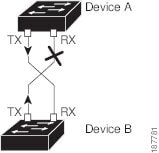
The following figure shows an example of a unidirectional link condition. Device B successfully receives traffic from Device A on the port. However, Device A does not receive traffic from Device B on the same port. UDLD detects the problem and disables the port.
Default UDLD Configuration
The following table shows the default UDLD configuration.
|
Feature |
Default Value |
|---|---|
|
UDLD global enable state |
Globally disabled |
|
UDLD aggressive mode |
Disabled |
|
UDLD per-port enable state for fiber-optic media |
Enabled on all Ethernet fiber-optic LAN ports |
|
UDLD per-port enable state for twisted-pair (copper) media |
Enabled |
UDLD Aggressive and Nonaggressive Modes
UDLD aggressive mode is disabled by default. You can configure UDLD aggressive mode only on point-to-point links between network devices that support UDLD aggressive mode. If UDLD aggressive mode is enabled, when a port on a bidirectional link that has a UDLD neighbor relationship established stops receiving UDLD frames, UDLD tries to reestablish the connection with the neighbor. After eight failed retries, the port is disabled.
To prevent spanning tree loops, nonaggressive UDLD with the default interval of 15 seconds is fast enough to shut down a unidirectional link before a blocking port transitions to the forwarding state (with default spanning tree parameters).
When you enable the UDLD aggressive mode, the following occurs:
-
One side of a link has a port stuck (both transmission and receive)
-
One side of a link remains up while the other side of the link is down
In these cases, the UDLD aggressive mode disables one of the ports on the link, which prevents traffic from being discarded.
Interface Speed
Cisco Discovery Protocol
The Cisco Discovery Protocol (CDP) is a device discovery protocol that runs over Layer 2 (the data link layer) on all Cisco-manufactured devices (routers, bridges, access servers, and switches) and allows network management applications to discover Cisco devices that are neighbors of already known devices. With CDP, network management applications can learn the device type and the Simple Network Management Protocol (SNMP) agent address of neighboring devices that are running lower-layer, transparent protocols. This feature enables applications to send SNMP queries to neighboring devices.
CDP runs on all media that support Subnetwork Access Protocol (SNAP). Because CDP runs over the data-link layer only, two systems that support different network-layer protocols can learn about each other.
Each CDP-configured device sends periodic messages to a multicast address, advertising at least one address at which it can receive SNMP messages. The advertisements also contain time-to-live, or holdtime information, which is the length of time a receiving device holds CDP information before discarding it. Each device also listens to the messages sent by other devices to learn about neighboring devices.
The switch supports both CDP Version 1 and Version 2.
Default CDP Configuration
The following table shows the default CDP configuration.
|
Feature |
Default Setting |
|---|---|
|
CDP interface state |
Enabled |
|
CDP timer (packet update frequency) |
60 seconds |
|
CDP holdtime (before discarding) |
180 seconds |
|
CDP Version-2 advertisements |
Enabled |
Error-Disabled State
An interface is in the error-disabled (err-disabled) state when the inteface is enabled administratively (using the no shutdown command) but disabled at runtime by any process. For example, if UDLD detects a unidirectional link, the interface is shut down at runtime. However, because the interface is administratively enabled, the interface status displays as err-disabled. Once an interface goes into the err-disabled state, you must manually reenable it or you can configure an automatic timeout recovery value. The err-disabled detection is enabled by default for all causes. The automatic recovery is not configured by default.
When an interface is in the err-disabled state, use the errdisable detect cause command to find information about the error.
You can configure the automatic err-disabled recovery timeout for a particular err-disabled cause by changing the time variable.
The errdisable recovery cause command provides automatic recovery after 300 seconds. To change the recovery period, use the errdisable recovery interval command to specify the timeout period. You can specify 30 to 65535 seconds.
If you do not enable the err-disabled recovery for the cause, the interface stays in the err-disabled state until you enter the shutdown and no shutdown commands. If the recovery is enabled for a cause, the interface is brought out of the err-disabled state and allowed to retry operation once all the causes have timed out. Use the show interface status err-disabled command to display the reason behind the error.
About Port Profiles
You can create a port profile that contains many interface commands and apply that port profile to a range of interfaces on the Cisco Nexus device. Port profiles can be applied to the following interface types:
A command that is included in a port profile can be configured outside of the port profile. If the new configuration in the port profile conflicts with the configurations that exist outside the port profile, the commands configured for an interface in configuration terminal mode have higher priority than the commands in the port profile. If changes are made to the interface configuration after a port profile is attached to it, and the configuration conflicts with that in the port profile, the configurations in the interface will be given priority.
You inherit the port profile when you attach the port profile to an interface or range of interfaces, When you attach, or inherit, a port profile to an interface or range of interfaces, the switch applies all the commands in that port profile to the interfaces.
You can have one port profile inherit the settings from another port profile. Inheriting another port profile allows the initial port profile to assume all of the commands of the second, inherited, port profile that do not conflict with the initial port profile. Four levels of inheritance are supported. The same port profile can be inherited by any number of port profiles.
To apply the port profile configurations to the interfaces, you must enable the specific port profile. You can configure and inherit a port profile onto a range of interfaces prior to enabling the port profile; you then enable that port profile for the configurations to take effect on the specified interfaces.
When you remove a port profile from a range of interfaces, the switch undoes the configuration from the interfaces first and then removes the port profile link itself. When you remove a port profile, the switch checks the interface configuration and either skips the port profile commands that have been overridden by directly entered interface commands or returns the command to the default value.
If you want to delete a port profile that has been inherited by other port profiles, you must remove the inheritance before you can delete the port profile.
You can choose a subset of interfaces from which to remove a port profile from among that group of interfaces that you originally applied the profile. For example, if you configured a port profile and configured ten interfaces to inherit that port profile, you can remove the port profile from just some of the specified ten interfaces. The port profile continues to operate on the remaining interfaces to which it is applied.
If you delete a specific configuration for a specified range of interfaces using the interface configuration mode, that configuration is also deleted from the port profile for that range of interfaces only. For example, if you have a channel group inside a port profile and you are in the interface configuration mode and you delete that port channel, the specified port channel is also deleted from the port profile as well.
After you inherit a port profile on an interface or range of interfaces and you delete a specific configuration value, that port profile configuration will not operate on the specified interfaces.
If you attempt to apply a port profile to the wrong type of interface, the switch returns an error.
When you attempt to enable, inherit, or modify a port profile, the switch creates a checkpoint. If the port profile configuration fails, the switch rolls back to the prior configuration and returns an error. A port profile is never only partially applied.
Guidelines and Limitations for Port Profiles
Port profiles have the following configuration guidelines and limitations:
Each port profile must have a unique name across interface types and the network.
Commands that you enter under the interface mode take precedence over the port profile’s commands if there is a conflict. However, the port profile retains that command in the port profile.
The port profile’s commands take precedence over the default commands on the interface, unless the default command explicitly overrides the port profile command.
After you inherit a port profile onto an interface or range of interfaces, you can override individual configuration values by entering the new value at the interface configuration level. If you remove the individual configuration values at the interface configuration level, the interface uses the values in the port profile again.
There are no default configurations associated with a port profile.
A subset of commands are available under the port profile configuration mode, depending on which interface type that you specify.
You cannot use port profiles with Session Manager.
Debounce Timer Parameters
The port debounce time is the amount of time that an interface waits to notify the supervisor of a link going down. During this time, the interface waits to see if the link comes back up. The wait period is a time when traffic is stopped.
You can enable the debounce timer for each interface and specify the delay time in milliseconds.
 Caution | When you enable the port debounce timer the link up and link down detections are delayed, resulting in a loss of traffic during the debounce period. This situation might affect the convergence and reconvergence of some protocols. |
MTU Configuration
The Cisco Nexus device switch does not fragment frames. As a result, the switch cannot have two ports in the same Layer 2 domain with different maximum transmission units (MTUs). A per-physical Ethernet interface MTU is not supported. Instead, the MTU is set according to the QoS classes. You modify the MTU by setting class and policy maps.
 Note | When you show the interface settings, a default MTU of 1500 is displayed for physical Ethernet interfaces and a receive data field size of 2112 is displayed for Fibre Channel interfaces. |
Configuring Ethernet Interfaces
The section includes the following topics:
- Configuring a Layer 3 Interface on a Cisco Nexus Device
- Configuring Unified Ports
- Configuring the UDLD Mode
- Configuring Interface Speed
- Disabling Link Negotiation
- Configuring the CDP Characteristics
- Enabling or Disabling CDP
- Enabling the Error-Disabled Detection
- Enabling the Error-Disabled Recovery
- Configuring the Error-Disabled Recovery Interval
- Port Profiles
- Configuring the Debounce Timer
- Configuring the Description Parameter
- Disabling and Restarting Ethernet Interfaces
Configuring a Layer 3 Interface on a Cisco Nexus Device
On Cisco Nexus devices, you can configure a Layer 3 interface.
You can change a Layer 3 interface into a Layer 2 interface by using the switchport command. You can change a Layer 2 interface into a Layer 3 interface by using the no switchport command.
This example shows how to configure a Layer 3 interface:
switch# configure terminal
switch(config)# interface ethernet 1/2
switch(config-if)# no switchport
switch(config-if)# no shutdown
Configuring Unified Ports
Confirm that you have a supported Cisco Nexus switch. Unified Ports are available on the following Cisco Nexus switches:
If you're configuring a unified port as Fibre Channel or FCoE, confirm that you have enabled the feature fcoe command.
| Command or Action | Purpose | |||
|---|---|---|---|---|
| Step 1 | switch# configure terminal |
Enters global configuration mode. | ||
| Step 2 |
switch(config) #
slot
slot
number
|
Identifies the slot on the switch. | ||
| Step 3 |
switch(config-slot) #
port
port
number
type
{ethernet |
fc}
|
| ||
| Step 4 |
switch(config-slot) #
copy
running-config startup-config
|
Copies the running configuration to the startup configuration. | ||
| Step 5 |
switch(config-slot) #
reload
|
Reboots the switch. | ||
| Step 6 | switch(config) #
slot
slot
number
|
Identifies the slot on the switch. | ||
| Step 7 |
switch(config-slot) #
no
port
port
number
type
fc
|
Removes the unified port. |
This example shows how to configure 20 ports as Ethernet ports and 12 as FC ports:
switch# configure terminal
switch(config)# slot 1
switch(config-slot)# port 21-32 type fc
switch(config-slot)# copy running-config startup-config
switch(config-slot)# reload
Configuring the UDLD Mode
You can configure normal or aggressive unidirectional link detection (UDLD) modes for Ethernet interfaces on devices configured to run UDLD. Before you can enable a UDLD mode for an interface, you must make sure that UDLD is already enabled on the device that includes the interface. UDLD must also be enabled on the other linked interface and its device.
To use the normal UDLD mode, you must configure one of the ports for normal mode and configure the other port for the normal or aggressive mode. To use the aggressive UDLD mode, you must configure both ports for the aggressive mode.
Note | Before you begin, UDLD must be enabled for the other linked port and its device. |
| Command or Action | Purpose | |
|---|---|---|
| Step 1 |
switch#
configure terminal
|
Enters global configuration mode. |
| Step 2 |
switch(config)#
feature udld
|
Enables UDLD for the device. |
| Step 3 |
switch(config)#
no feature udld
|
Disables UDLD for the device. |
| Step 4 |
switch(config)#
show udld global
|
Displays the UDLD status for the device. |
| Step 5 |
switch(config)#
interface
type
slot/port
|
Specifies an interface to configure, and enters interface configuration mode. |
| Step 6 |
switch(config-if)#
udld {enable |
disable |
aggressive}
|
Enables the normal UDLD mode, disables UDLD, or enables the aggressive UDLD mode. |
| Step 7 |
switch(config-if)#
show udld
interface
|
Displays the UDLD status for the interface. |
This example shows how to enable UDLD for the switch:
switch# configure terminal
switch(config)# feature udld
This example shows how to enable the normal UDLD mode for an Ethernet port:
switch# configure terminal
switch(config)# interface ethernet 1/4
switch(config-if)# udld enable
This example shows how to enable the aggressive UDLD mode for an Ethernet port:
switch# configure terminal
switch(config)# interface ethernet 1/4
switch(config-if)# udld aggressive
This example shows how to disable UDLD for an Ethernet port:
switch# configure terminal
switch(config)# interface ethernet 1/4
switch(config-if)# udld disable
This example shows how to disable UDLD for the switch:
switch# configure terminal
switch(config)# no feature udld
Configuring Interface Speed
Note | If the interface and transceiver speed is mismatched, the SFP validation failed message is displayed when you enter the show interface ethernet slot/port command. For example, if you insert a 1-Gigabit SFP transceiver into a port without configuring the speed 1000 command, you will get this error. By default, all ports are 10 Gigabits. |
| Command or Action | Purpose | |
|---|---|---|
| Step 1 | switch# configure terminal |
Enters global configuration mode. |
| Step 2 |
switch(config)#
interface
type
slot/port
|
Enters interface configuration mode for the specified interface. This interface must have a 1-Gigabit Ethernet SFP transceiver inserted into it. |
| Step 3 |
switch(config-if)#
speed
speed
|
Sets the speed for a physical Ethernet interface. |
The following example shows how to set the speed for a 1-Gigabit Ethernet port:
switch# configure terminal
switch(config)# interface ethernet 1/4
switch(config-if)# speed 1000
Disabling Link Negotiation
You can disable link negotiation using the no negotiate auto command. By default, auto-negotiation is enabled on 1-Gigabit ports and disabled on 10-Gigabit ports.
This command is equivalent to the Cisco IOS speed non-negotiate command.
Note | ERROR: Ethernet1/40: Configuration does not match the port capability |
| Command or Action | Purpose | |||
|---|---|---|---|---|
| Step 1 | switch# configure terminal |
Enters global configuration mode. | ||
| Step 2 | switch(config)# interface ethernet slot/port |
Selects the interface and enters interface mode. | ||
| Step 3 | switch(config-if)# no negotiate auto |
Disables link negotiation on the selected Ethernet interface (1-Gigabit port). | ||
| Step 4 | switch(config-if)# negotiate auto | (Optional)
Enables link negotiation on the selected Ethernet interface. The default for 1-Gigabit Ethernet ports is enabled.
|
This example shows how to disable auto-negotiation on a specified Ethernet interface (1-Gigabit port):
switch# configure terminal
switch(config)# interface ethernet 1/1
switch(config-if)# no negotiate auto
switch(config-if)#
This example shows how to enable auto-negotiation on a specified Ethernet interface (1-Gigabit port):
switch# configure terminal
switch(config)# interface ethernet 1/5
switch(config-if)# negotiate auto
switch(config-if)#
Configuring the CDP Characteristics
You can configure the frequency of Cisco Discovery Protocol (CDP) updates, the amount of time to hold the information before discarding it, and whether or not to send Version-2 advertisements.
| Command or Action | Purpose | |
|---|---|---|
| Step 1 | switch# configure terminal |
Enters global configuration mode. |
| Step 2 |
switch(config)# [no]
cdp advertise {v1 |
v2 }
| (Optional)
Configures the version to use to send CDP advertisements. Version-2 is the default state. Use the no form of the command to return to its default setting. |
| Step 3 |
switch(config)# [no]
cdp format device-id {mac-address |
serial-number |
system-name}
| (Optional)
Configures the format of the CDP device ID. The default is the system name, which can be expressed as a fully qualified domain name. Use the no form of the command to return to its default setting. |
| Step 4 |
switch(config)# [no]
cdp holdtime
seconds
| (Optional)
Specifies the amount of time a receiving device should hold the information sent by your device before discarding it. The range is 10 to 255 seconds; the default is 180 seconds. Use the no form of the command to return to its default setting. |
| Step 5 |
switch(config)# [no]
cdp timer
seconds
| (Optional)
Sets the transmission frequency of CDP updates in seconds. The range is 5 to 254; the default is 60 seconds. Use the no form of the command to return to its default setting. |
This example shows how to configure CDP characteristics:
switch# configure terminal
switch(config)# cdp timer 50
switch(config)# cdp holdtime 120
switch(config)# cdp advertise v2
Enabling or Disabling CDP
You can enable or disable CDP for Ethernet interfaces. This protocol works only when you have it enabled on both interfaces on the same link.
| Command or Action | Purpose | |
|---|---|---|
| Step 1 | switch# configure terminal |
Enters global configuration mode. |
| Step 2 |
switch(config)#
interface
type
slot/port
|
Enters interface configuration mode for the specified interface. |
| Step 3 |
switch(config-if)#
cdp enable
|
Enables CDP for the interface. To work correctly, this parameter must be enabled for both interfaces on the same link. |
| Step 4 |
switch(config-if)#
no cdp enable
|
Disables CDP for the interface. |
This example shows how to enable CDP for an Ethernet port:
switch# configure terminal
switch(config)# interface ethernet 1/4
switch(config-if)# cdp enable
This command can only be applied to a physical Ethernet interface.
Enabling the Error-Disabled Detection
You can enable error-disable (err-disabled) detection in an application. As a result, when a cause is detected on an interface, the interface is placed in an err-disabled state, which is an operational state that is similar to the link-down state.
Note | Base ports in Cisco Nexus 5500 never get error disabled due to pause rate-limit like in the Cisco Nexus 5020 or 5010 switch. |
| Command or Action | Purpose | |
|---|---|---|
| Step 1 | switch# configure terminal |
Enters global configuration mode. |
| Step 2 | switch(config)# errdisable detect cause {all | link-flap | loopback} |
Specifies a condition under which to place the interface in an err-disabled state. The default is enabled. |
| Step 3 | switch(config)# shutdown |
Brings the interface down administratively. To manually recover the interface from the err-disabled state, enter this command first. |
| Step 4 | switch(config)# no shutdown |
Brings the interface up administratively and enables the interface to recover manually from the err-disabled state. |
| Step 5 | switch(config)# show interface status err-disabled |
Displays information about err-disabled interfaces. |
| Step 6 | switch(config)# copy running-config startup-config | (Optional)
Saves the change persistently through reboots and restarts by copying the running configuration to the startup configuration. |
This example shows how to enable the err-disabled detection in all cases:
switch# configure terminal
switch(config)# errdisable detect cause all
switch(config)# shutdown
switch(config)# no shutdown
switch(config)# show interface status err-disabled
switch(config)# copy running-config startup-config
Enabling the Error-Disabled Recovery
You can specify the application to bring the interface out of the error-disabled (err-disabled) state and retry coming up. It retries after 300 seconds, unless you configure the recovery timer (see the errdisable recovery interval command).
| Command or Action | Purpose | |
|---|---|---|
| Step 1 | switch# configure terminal |
Enters global configuration mode. |
| Step 2 | switch(config)# errdisable recovery cause {all | udld | bpduguard | link-flap | failed-port-state | pause-rate-limit} |
Specifies a condition under which the interface automatically recovers from the err-disabled state, and the device retries bringing the interface up. The device waits 300 seconds to retry. The default is disabled. |
| Step 3 | switch(config)# show interface status err-disabled |
Displays information about err-disabled interfaces. |
| Step 4 | switch(config)# copy running-config startup-config | (Optional)
Saves the change persistently through reboots and restarts by copying the running configuration to the startup configuration. |
This example shows how to enable err-disabled recovery under all conditions:
switch# configure terminal
switch(config)# errdisable recovery cause all
switch(config)# show interface status err-disabled
switch(config)# copy running-config startup-config
Configuring the Error-Disabled Recovery Interval
You can use this procedure to configure the err-disabled recovery timer value. The range is from 30 to 65535 seconds. The default is 300 seconds.
| Command or Action | Purpose | |
|---|---|---|
| Step 1 | switch# configure terminal |
Enters global configuration mode. |
| Step 2 | switch(config)# errdisable recovery interval interval |
Specifies the interval for the interface to recover from the err-disabled state. The range is from 30 to 65535 seconds. The default is 300 seconds. |
| Step 3 | switch(config)# show interface status err-disabled |
Displays information about err-disabled interfaces. |
| Step 4 | switch(config)# copy running-config startup-config | (Optional)
Saves the change persistently through reboots and restarts by copying the running configuration to the startup configuration. |
This example shows how to enable err-disabled recovery under all conditions:
switch# configure terminal
switch(config)# errdisable recovery interval 32
switch(config)# show interface status err-disabled
switch(config)# copy running-config startup-config
Port Profiles
Creating a Port Profile
You can create a port profile on the switch. Each port profile must have a unique name across interface types and the network.
| Command or Action | Purpose | |
|---|---|---|
| Step 1 |
configure terminal Example: switch# configure terminal switch(config)# |
Enters configuration mode. |
| Step 2 |
port-profile [type {ethernet | interface-vlan | port channel}] name Example: switch(config)# port-profile type ethernet test switch(config-port-prof)# |
Creates and names a port profile for the specified type of interface and enters the port profile configuration mode. |
| Step 3 |
exit Example: switch(config-port-prof)# exit switch(config)# |
Exits port profile configuration mode. |
| Step 4 |
show port-profile Example: switch(config)# show port-profile name | (Optional)
Displays the port profile configuration. |
| Step 5 |
copy running-config startup-config Example: switch(config)# copy running-config startup-config | (Optional)
Copies the running configuration to the startup configuration. |
This example shows how to create a port profile named test for Ethernet interfaces:
switch# configure terminal switch(config)# port-profile type ethernet test switch(config-port-prof)#
This example shows how to add the interface commands to a port profile named ppEth configured for Ethernet interfaces:
switch# configure terminal switch(config)# port-profile ppEth switch(config-port-prof)# switchport mode trunk switch(config-port-prof)# switchport trunk allowed vlan 300-400 switch(config-port-prof)# flowcontrol receive on switch(config-port-prof)# speed 10000 switch(config-port-prof)#
Modifying a Port Profile
You can modify a port profile in port-profile configuration mode.
You can remove commands from a port profile using the no form of the command. When you remove a command from the port profile, the corresponding command is removed from the interface that is attached to the port profile.
| Command or Action | Purpose | |
|---|---|---|
| Step 1 |
configure terminal Example: switch# configure terminal switch(config)# |
Enters configuration mode. |
| Step 2 |
port-profile [type {ethernet | interface-vlan | port channel}] name Example: switch(config)# port-profile type ethernet test switch(config-port-prof)# |
Enters the port profile configuration mode for the specified port profile and allows you to add or remove configurations to the profile. |
| Step 3 |
exit Example: switch(config-port-prof)# exit switch(config)# |
Exits the port profile configuration mode. |
| Step 4 |
show port-profile Example: switch(config)# show port-profile name | (Optional)
Displays the port profile configuration. |
| Step 5 |
copy running-config startup-config Example: switch(config)# copy running-config startup-config | (Optional)
Copies the running configuration to the startup configuration. |
This example shows how to remove commands from the port profile named ppEth configured for an Ethernet interface:
switch# configure terminal switch(config)# port-profile ppEth switch(config-port-prof)# switchport mode trunk switch(config-port-prof)# switchport trunk allowed vlan 300-400 switch(config-port-prof)# flowcontrol receive on switch(config-port-prof)# no speed 10000 switch(config-port-prof)#
Enabling a Specific Port Profile
| Command or Action | Purpose | |
|---|---|---|
| Step 1 |
configure terminal Example: switch# configure terminal switch(config)# |
Enters configuration mode. |
| Step 2 |
port-profile [type {ethernet | interface-vlan | port channel}] name Example: switch(config)# port-profile type ethernet test switch(config-port-prof)# no shutdown switch(config-port-prof)# |
Enters the port profile configuration mode for the specified port profile. |
| Step 3 |
state enabled name Example: switch(config-port-prof)# state enabled switch(config-port-prof)# |
Enables the port profile. |
| Step 4 |
exit Example: switch(config-port-prof)# exit switch(config)# |
Exits the port profile configuration mode. |
| Step 5 |
show port-profile Example: switch(config)# show port-profile name | (Optional)
Displays the port profile configuration. |
| Step 6 |
copy running-config startup-config Example: switch(config)# copy running-config startup-config | (Optional)
Copies the running configuration to the startup configuration. |
This example shows how to enter port profile configuration mode and enable the port profile:
switch# configure terminal switch(config)# port-profile type ethernet test switch(config-port-prof)# state enabled switch(config-port-prof)#
Inheriting a Port Profile
You can inherit a port profile onto an existing port profile. The switch supports four levels of inheritance.
| Command or Action | Purpose | |
|---|---|---|
| Step 1 |
configure terminal Example: switch# configure terminal switch(config)# |
Enters configuration mode. |
| Step 2 |
port-profile name Example: switch(config)# port-profile test switch(config-port-prof)# |
Enters port profile configuration mode for the specified port profile. |
| Step 3 |
inherit port-profile name Example: switch(config-port-prof)# inherit port-profile adam switch(config-port-prof)# |
Inherits another port profile onto the existing one. The original port profile assumes all the configurations of the inherited port profile. |
| Step 4 |
exit Example: switch(config-port-prof)# exit switch(config)# |
Exits the port profile configuration mode. |
| Step 5 |
show port-profile Example: switch(config)# show port-profile name | (Optional)
Displays the port profile configuration. |
| Step 6 |
copy running-config startup-config Example: switch(config)# copy running-config startup-config | (Optional)
Copies the running configuration to the startup configuration. |
This example shows how to inherit the port profile named adam onto the port profile named test:
switch# configure terminal switch(config)# port-profile test switch(config-ppm)# inherit port-profile adam switch(config-ppm)#
This example shows how to add the interface commands to a port profile named ppEth configured for Ethernet interfaces:
switch# configure terminal
switch(config)# port-profile ppEth
switch(config-port-prof)# switchport mode trunk
switch(config-port-prof)# switchport trunk allowed vlan 300-400
switch(config-port-prof)# flowcontrol receive on
switch(config-port-prof)# speed 10000
switch(config-port-prof)#
This example shows how to inherit a port profile named ppEth configured for Ethernet interfaces into an existing port profile named test:
switch# configure terminal switch(config)# port-profile test switch(config-port-prof)# inherit port-profile ppEth switch(config-port-prof)#
This example shows how to assign a port profile named ppEth configured for Ethernet interfaces to a range of Ethernet interfaces:
switch# configure terminal switch(config)# interface ethernet 1/2-5 switch(config-if)# inherit port-profile ppEth switch(config-if)#
This example shows how to remove an inherited port profile named ppEth from an existing port profile named test:
switch# configure terminal switch(config)# port-profile test switch(config-port-prof)# no inherit port-profile ppEth switch(config-port-prof)#
Removing an Inherited Port Profile
You can remove an inherited port profile.
| Command or Action | Purpose | |
|---|---|---|
| Step 1 |
configure terminal Example: switch# configure terminal switch(config)# |
Enters configuration mode. |
| Step 2 |
port-profile name Example: switch(config)# port-profile test switch(config-port-prof)# |
Enters port profile configuration mode for the specified port profile. |
| Step 3 |
no inherit port-profile name Example: switch(config-port-prof)# no inherit port-profile adam switch(config-port-prof)# |
Removes an inherited port profile from this port profile. |
| Step 4 |
exit Example: switch(config-port-prof)# exit switch(config)# |
Exits the port profile configuration mode. |
| Step 5 |
show port-profile Example: switch(config)# show port-profile name | (Optional)
Displays the port profile configuration. |
| Step 6 |
copy running-config startup-config Example: switch(config)# copy running-config startup-config | (Optional)
Copies the running configuration to the startup configuration. |
This example shows how to remove the inherited port profile named adam from the port profile named test:
switch# configure terminal switch(config)# port-profile test switch(config-ppm)# no inherit port-profile adam switch(config-ppm)#
Assigning a Port Profile to a Range of Interfaces
You can assign a port profile to an interface or to a range of interfaces. All of the interfaces must be the same type.
| Command or Action | Purpose | |
|---|---|---|
| Step 1 | switch# configure terminal |
Enters global configuration mode. |
| Step 2 | interface [ethernet slot/port | interface-vlan vlan-id | port-channel number]
|
Selects the range of interfaces. |
| Step 3 |
inherit port-profile name |
Assigns the specified port profile to the selected interfaces. |
| Step 4 |
exit |
Exits port profile configuration mode. |
| Step 5 |
show port-profile name | (Optional)
Displays the port profile configuration. |
| Step 6 | switch(config)# copy running-config startup-config | (Optional)
Saves the change persistently through reboots and restarts by copying the running configuration to the startup configuration. |
This example shows how to assign the port profile named adam to Ethernet interfaces 2/3 to 2/5, 3/2, and 1/20 to 1/25:
switch# configure terminal
switch(config)# interface ethernet 2/3 to 2/5, 3/2, and 1/20 to 1/25
switch(config-if)# inherit port-profile adam
switch(config-if)# exit
switch(config)# show port-profile adam
switch(config)# copy running-config startup-config
Removing a Port Profile from a Range of Interfaces
You can remove a port profile from some or all of the interfaces to which you have applied the profile.
| Command or Action | Purpose | |
|---|---|---|
| Step 1 | switch# configure terminal |
Enters global configuration mode. |
| Step 2 | interface [ethernet slot/port | interface-vlan vlan-id | port-channel number]
|
Selects the range of interfaces. |
| Step 3 |
no inherit port-profile name |
Removes the specified port profile from the selected interfaces. |
| Step 4 |
exit |
Exits port profile configuration mode. |
| Step 5 |
show port-profile | (Optional)
Displays the port profile configuration. |
| Step 6 | switch(config)# copy running-config startup-config | (Optional)
Saves the change persistently through reboots and restarts by copying the running configuration to the startup configuration. |
This example shows how tos remove the port profile named adam from Ethernet interfaces 1/3-5:
switch# configure terminal
switch(config)# interface ethernet 1/3-5
switch(config-if)# no inherit port-profile adam
switch(config-if)# exit
switch(config)# show port-profile
switch(config)# copy running-config startup-config
Configuration Examples for Port Profiles
The following example shows how to configure a port profile, inherit the port profile on an Ethernet interface, and enabling the port profile.
switch(config)#
switch(config)# show running-config interface Ethernet1/14

!Command: show running-config interface Ethernet1/14
!Time: Thu Aug 26 07:01:32 2010

version 5.0(2)N1(1)

interface Ethernet1/14

switch(config)# port-profile type ethernet alpha
switch(config-port-prof)# switchport mode trunk
switch(config-port-prof)# switchport trunk allowed vlan 10-15
switch(config-port-prof)#
switch(config-port-prof)# show running-config port-profile alpha

!Command: show running-config port-profile alpha
!Time: Thu Aug 26 07:02:29 2010

version 5.0(2)N1(1)
port-profile type ethernet alpha
  switchport mode trunk
  switchport trunk allowed vlan 10-15


switch(config-port-prof)# int eth 1/14
switch(config-if)# inherit port-profile alpha
switch(config-if)#
switch(config-if)# port-profile type ethernet alpha
switch(config-port-prof)# state enabled
switch(config-port-prof)#
switch(config-port-prof)# sh running-config interface ethernet 1/14

!Command: show running-config interface Ethernet1/14
!Time: Thu Aug 26 07:03:17 2010

version 5.0(2)N1(1)

interface Ethernet1/14
  inherit port-profile alpha

switch(config-port-prof)# sh running-config interface ethernet 1/14 expand-port-profile

!Command: show running-config interface Ethernet1/14 expand-port-profile
!Time: Thu Aug 26 07:03:21 2010

version 5.0(2)N1(1)

interface Ethernet1/14
  switchport mode trunk
  switchport trunk allowed vlan 10-15

switch(config-port-prof)#
Configuring the Debounce Timer
You can enable the debounce timer for Ethernet ports by specifying a debounce time (in milliseconds) or disable the timer by specifying a debounce time of 0.
You can show the debounce times for all of the Ethernet ports by using the show interface debounce command.
To enable or disable the debounce timer, perform this task:
| Command or Action | Purpose | |
|---|---|---|
| Step 1 | switch# configure terminal |
Enters global configuration mode. |
| Step 2 |
switch(config)#
interface
type
slot/port
|
Enters interface configuration mode for the specified interface. |
| Step 3 |
switch(config-if)#
link debounce time
milliseconds
|
Enables the debounce timer for the amount of time (1 to 5000 milliseconds) specified. Disables the debounce timer if you specify 0 milliseconds. |
This example shows how to enable the debounce timer and set the debounce time to 1000 milliseconds for an Ethernet interface:
switch# configure terminal
switch(config)# interface ethernet 1/4
switch(config-if)# link debounce time 1000
This example shows how to disable the debounce timer for an Ethernet interface:
switch# configure terminal
switch(config)# interface ethernet 1/4
switch(config-if)# link debounce time 0
Configuring the Description Parameter
You can provide textual interface descriptions for the Ethernet ports.
| Command or Action | Purpose |
|---|
This example shows how to set the interface description to Server 3 interface:
switch# configure terminal
switch(config)# interface ethernet 1/3
switch(config-if)# description Server 3 Interface
Disabling and Restarting Ethernet Interfaces
You can shut down and restart an Ethernet interface. This action disables all of the interface functions and marks the interface as being down on all monitoring displays. This information is communicated to other network servers through all dynamic routing protocols. When shut down, the interface is not included in any routing updates.
| Command or Action | Purpose | |
|---|---|---|
| Step 1 | switch# configure terminal |
Enters global configuration mode. |
| Step 2 |
switch(config)#
interface
type
slot/port
|
Enters interface configuration mode for the specified interface. |
| Step 3 |
switch(config-if)#
shutdown
|
Disables the interface. |
| Step 4 |
switch(config-if)#
no
shutdown
|
Restarts the interface. |
This example shows how to disable an Ethernet port:
switch# configure terminal
switch(config)# interface ethernet 1/4
switch(config-if)# shutdown
This example shows how to restart an Ethernet interface:
switch# configure terminal
switch(config)# interface ethernet 1/4
switch(config-if)# no shutdown
Displaying Interface Information
To view configuration information about the defined interfaces, perform one of these tasks:
|
Command |
Purpose |
|---|---|
| switch# show interface type slot/port |
Displays the detailed configuration of the specified interface. |
| switch# show interface type slot/port capabilities |
Displays detailed information about the capabilities of the specified interface. This option is available only for physical interfaces. |
| switch# show interface type slot/port transceiver |
Displays detailed information about the transceiver connected to the specified interface. This option is available only for physical interfaces. |
| switch# show interface brief |
Displays the status of all interfaces. |
| switch# show interface flowcontrol |
Displays the detailed listing of the flow control settings on all interfaces. |
| switch# show interface debounce |
Displays the debounce status of all interfaces. |
| show port--profile |
Displays information about the port profiles. |
The show interface command is invoked from EXEC mode and displays the interface configurations. Without any arguments, this command displays the information for all the configured interfaces in the switch.
This example shows how to display the physical Ethernet interface:
switch# show interface ethernet 1/1
  Ethernet1/1 is up
  Hardware is 1000/10000 Ethernet, address is 000d.eca3.5f08 (bia 000d.eca3.5f08)
  MTU 1500 bytes, BW 10000000 Kbit, DLY 10 usec,
     reliability 255/255, txload 190/255, rxload 192/255
  Encapsulation ARPA
  Port mode is trunk
  full-duplex, 10 Gb/s, media type is 1/10g
  Input flow-control is off, output flow-control is off
  Auto-mdix is turned on
  Rate mode is dedicated
  Switchport monitor is off
  Last clearing of "show interface" counters never
  5 minute input rate 942201806 bytes/sec, 14721892 packets/sec
  5 minute output rate 935840313 bytes/sec, 14622492 packets/sec
  Rx
    129141483840 input packets 0 unicast packets 129141483847 multicast packets
    0 broadcast packets 0 jumbo packets 0 storm suppression packets
    8265054965824 bytes
    0 No buffer 0 runt 0 Overrun
    0 crc 0 Ignored 0 Bad etype drop
    0 Bad proto drop
  Tx
    119038487241 output packets 119038487245 multicast packets
   0 broadcast packets 0 jumbo packets
    7618463256471 bytes
    0 output CRC 0 ecc
    0 underrun 0 if down drop     0 output error 0 collision 0 deferred
    0 late collision 0 lost carrier 0 no carrier
    0 babble
    0 Rx pause 8031547972 Tx pause 0 reset
This example shows how to display the physical Ethernet capabilities:
switch# show interface ethernet 1/1 capabilities
Ethernet1/1
  Model:                 734510033
  Type:                  10Gbase-(unknown)
  Speed:                 1000,10000
  Duplex:                full
  Trunk encap. type:     802.1Q
  Channel:               yes
  Broadcast suppression: percentage(0-100)
  Flowcontrol:											rx-(off/on),tx-(off/on)
  Rate mode:             none
  QOS scheduling:        rx-(6q1t),tx-(1p6q0t)
  CoS rewrite:           no
  ToS rewrite:           no
  SPAN:                  yes
  UDLD:                  yes
  Link Debounce:         yes
  Link Debounce Time:    yes
  MDIX:                  no
  FEX Fabric:            yes
This example shows how to display the physical Ethernet transceiver:
switch# show interface ethernet 1/1 transceiver
Ethernet1/1
    sfp is present
    name is CISCO-EXCELIGHT
    part number is SPP5101SR-C1
    revision is A
    serial number is ECL120901AV
    nominal bitrate is 10300 MBits/sec
    Link length supported for 50/125mm fiber is 82 m(s)
    Link length supported for 62.5/125mm fiber is 26 m(s)
    cisco id is --
    cisco extended id number is 4
This example shows how to display a brief interface status (some of the output has been removed for brevity):
switch# show interface brief

--------------------------------------------------------------------------------
Ethernet      VLAN   Type Mode   Status  Reason                   Speed     Port
Interface                                                                   Ch #
--------------------------------------------------------------------------------
Eth1/1        200    eth  trunk  up      none                        10G(D) --
Eth1/2        1      eth  trunk  up      none                        10G(D) --
Eth1/3        300    eth  access down    SFP not inserted            10G(D) --
Eth1/4        300    eth  access down    SFP not inserted            10G(D) --
Eth1/5        300    eth  access down    Link not connected         1000(D) --
Eth1/6        20     eth  access down    Link not connected          10G(D) --
Eth1/7        300    eth  access down    SFP not inserted            10G(D) --
...
This example shows how to display the link debounce status (some of the output has been removed for brevity):
switch# show interface debounce

--------------------------------------------------------------------------------
Port          Debounce time   Value(ms)
--------------------------------------------------------------------------------
...
Eth1/1        enable               100
Eth1/2        enable               100
Eth1/3        enable               100
...
This example shows how to display the CDP neighbors:
Note | The default device ID field for CDP advertisement is the hostname and serial number, as in the example above. |
switch# show cdp neighbors
Capability Codes: R - Router, T - Trans-Bridge, B - Source-Route-Bridge
                  S - Switch, H - Host, I - IGMP, r - Repeater,
                  V - VoIP-Phone, D - Remotely-Managed-Device,
                  s - Supports-STP-Dispute
Device ID              Local Intrfce   Hldtme  Capability  Platform      Port ID
d13-dist-1               mgmt0           148     S I      WS-C2960-24TC  Fas0/9
n5k(FLC12080012)         Eth1/5          8       S I s    N5K-C5020P-BA  Eth1/5
Default Physical Ethernet Settings
The following table lists the default settings for all physical Ethernet interfaces:
|
Parameter |
Default Setting |
|---|---|
|
Debounce |
Enable, 100 milliseconds |
|
Duplex |
Auto (full-duplex) |
|
Encapsulation |
ARPA |
|
MTU1 |
1500 bytes |
|
Port Mode |
Access |
|
Speed |
Auto (10000) |
 Feedback