Cisco Nexus 1000V License Configuration Guide, Release 4.0(4)SV1(1)
Bias-Free Language
The documentation set for this product strives to use bias-free language. For the purposes of this documentation set, bias-free is defined as language that does not imply discrimination based on age, disability, gender, racial identity, ethnic identity, sexual orientation, socioeconomic status, and intersectionality. Exceptions may be present in the documentation due to language that is hardcoded in the user interfaces of the product software, language used based on RFP documentation, or language that is used by a referenced third-party product. Learn more about how Cisco is using Inclusive Language.
- Updated:
- May 20, 2009
Chapter: Installing and Configuring Licenses
Installing and Configuring Licenses
This chapter provides procedures for installing and configuring licenses and includes the following topics:
• Obtaining and Installing a License
•Configuring Volatile Licenses
•"Verifying the License Configuration" procedure
•Changing the Serial Number in a License
Information About Licenses
A Cisco Nexus 1000V license is required for each server CPU in your system. You purchase these licenses in a package and then install the package on your VSM. For more information, see Chapter 1, "Overview."
Obtaining and Installing a License
This section describes how to obtain the license file that is required for each VSM and then install it.
This section includes the following topics:
•Flow Chart: Obtaining and Installing a License
•Installing the License File on the VSM
•Verifying the License Configuration
BEFORE YOU BEGIN
Before beginning the procedures in this section, you must know or do the following:
•A license file is tied to each VSM by the host ID, or the serial number associated with the VSM device.
•A license file contains the number of licenses ordered for your VSM. One license is required for each CPU on each VEM.
•A VSM can have more than one license file depending on the number of installed VEM CPUs.
Flow Chart: Obtaining and Installing a License
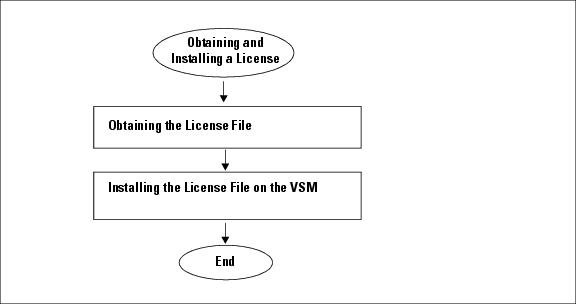
The following flow chart guides you through the process of installing a license on a VSM. After completing a procedure, return to the flow chart to make sure you complete all procedures in the correct sequence.
Figure 1 Flow Chart: Obtaining and Installing a License
Obtaining the License File
Use this procedure to obtain a license file for a VSM.
BEFORE YOU BEGIN
Before beginning this procedure, you must know or do the following:
•A license file is tied to each VSM by the host ID, or the serial number associated with the VSM device.
•Make sure that you have your product authorization key (PAK), found in your software license claim certificate.
If you cannot locate your software license claim certificate, contact Cisco Technical Support.
•You are logged in to the CLI in EXEC mode.
•This procedure requires you to copy a license file. Your username must have the network-admin role which allows you to copy files. For information about user accounts and roles, see the Cisco Nexus 1000V Security Configuration Guide, Release 4.0(4)SV1(1).
DETAILED STEPS
Step 1 Using the following command, obtain the serial number, also called the host ID, for your VSM:
show license host-id
Example:
n1000v# show license host-id
License hostid: VDH=1280389551234985805

Note The host ID encompasses everything that appears after the equal sign (=). In this example, the host ID is 1280389551234985805. You will need the host ID in Step 5.
Step 2 From your software license claim certificate, locate the product authorization key (PAK).
You will need the PAK in Step 5.
Step 3 Go to the Software Download web site.
Step 4 From the Software Download web site, go to the Product License Registration web site.
Step 5 From the Product License Registration web site follow the instructions for registering your VSM license.
The license key file is sent to you in e-mail. The license key authorizes use on only the host ID device. You must obtain separate license key file(s) for each of your VSMs.

Caution
The license key file is invalidated if you modify it.
Step 6 Copy your license key file to bootflash on the VSM.
copy [source url] filename [destination filesystem:] filename
Example:
n1000v# copy scp://user@linux-box.cisco.com/home/user/n1kv_license.lic bootflash:
n1kv_license.lic
Enter vrf (If no input, current vrf 'default' is considered):
user@linux-box.cisco.com's password:
n1kv_license.lic 100% 252 0.3KB/s 00:00
n1000v#
Installing the License File on the VSM
Use this procedure to install the license file(s) on a VSM. Installing multiple licenses is called stacking.
BEFORE YOU BEGIN
Before beginning this procedure, you must know or do the following:
•This procedure installs the license file using the name, license_file.lic. You can specify a different name.
•If you are installing multiple licenses for the same VSM, also called license stacking, make sure that each license key file name is unique.
•Repeat this procedure for each additional license file you are installing, or stacking, on the VSM.
•You must first uninstall an evaluation license if one is present on your VSM. See the "Uninstalling a License" procedure.
•Make sure you are logged in to the active VSM console port.
•This procedure requires that your username is assigned the network-admin role. This role is required to install license files. For information about user accounts and roles, see the Cisco Nexus 1000V Security Configuration Guide, Release 4.0(4)SV1(1).
SUMMARY STEPS
1 install license bootflash: file_name
2 show license file file_name
3 show license usage
4 copy running-config startup-config
DETAILED STEPS
Transferring Licenses
This chapter provides information about transferring licenses between VEMs and uninstalling a license. This chapter includes the following sections:
•Transferring Licenses Between VEMs
•Transferring Licenses to the License Pool
Transferring Licenses Between VEMs
Use this procedure to transfer licenses from one VEM to another, after moving a VM from one host to another.
BEFORE YOU BEGIN
Before beginning this procedure, you must know or do the following:
•You have at least one active VEM in the VSM.
•You are logged in to the CLI in EXEC mode.
•You know the VEM you want to transfer licenses from and the number of licenses it has.
•You know the VEM you are transferring licenses to and the number of licenses required.
•You know the number of CPUs installed on the destination VEM.
•Licenses cannot be transferred to a VEM unless there are sufficient licenses in the pool for all CPUs on that VEM.
•When licenses are successfully transferred from one VEM to another, then the virtual Ethernet interfaces on the source VEM are removed from service, and the virtual Ethernet interfaces on the destination VEM are brought into service.
•For detailed information about the fields in the output of these commands, see the Cisco Nexus 1000V Command Reference, Release 4.0(4)SV1(1).
SUMMARY STEPS
1 svs license transfer src-vem <vem no> dst-vem <vem no>
2 show license usage package_name
DETAILED STEPS
Transferring Licenses to the License Pool
Use this procedure to transfer licenses from a VEM to the VSM license pool.
BEFORE YOU BEGIN
Before beginning this procedure, you must know or do the following:
•You have at least one active VEM in the VSM.
•You are logged in to the CLI in EXEC mode.
•This procedure transfers licenses from a VEM to the VSM license pool.
•All of the virtual Ethernet interfaces on the VEM are removed from service when its licenses are transferred to the license pool.
•For detailed information about the fields in the output of these commands, see the Cisco Nexus 1000V Command Reference, Release 4.0(4)SV1(1).
SUMMARY STEPS
1 svs license transfer src-vem <vem no> license_pool
2 show license usage package_name
DETAILED STEPS
Uninstalling a License
Use this procedure to uninstall a license that is not in use or to uninstall an evaluation license before adding a permanent license.
BEFORE YOU BEGIN
Before beginning this procedure, you must know or do the following:
Service DisruptionWhen you uninstall a license file from a VSM, the vEthernet interfaces on the VEMs are removed from service and the traffic flowing to them from virtual machines is dropped. This traffic flow is not resumed until you add a new license file with licenses for the VEMs. We recommend notifying the server administrator that you are uninstalling a license and this will cause the vEthernet interfaces to shut down.
•You have at least one active VEM in the VSM.
•You are logged in to the CLI in EXEC mode.
•If a license is in use, you cannot delete it. This procedure includes instructions for transferring all licenses from the VEMs to the VSM license pool before uninstalling the license file.
•This procedure requires that your username have the network-admin role. The network-admin role is required to uninstall licenses. For information on user accounts and roles, see the Cisco Nexus 1000V Security Configuration Guide, Release 4.0(4)SV1(1).
•For detailed information about the fields in the output of these commands, see the Cisco Nexus 1000V Command Reference, Release 4.0(4)SV1(1).
SUMMARY STEPS
1 copy running-config tftp://server/path/filename
2 show license brief
3 show license usage license_name
4 svs license transfer src-vem <vem no> license_pool
5 Repeat 4 for each VEM.
6 clear license license_name
7 Yes
8 copy running-config startup-config
DETAILED STEPS
|
|
|
|
|---|---|---|
Step 1 |
copy running-config tftp://server/path/filename Example: n1000v# copy running-config tftp: n1000v(config)# |
Copies the VSM running configuration to a remote server. |
Step 2 |
show license brief Example: n1000v# show license brief Enterprise.lic n1000v# |
Identifies the name of the license file to uninstall. In this example, the file to uninstall is the Enterprise.lic file. |
Step 3 |
show license usage package_name Example: n1000v# show license usage NEXUS1000V_LAN_SERVICES_PKG Application ----------- VEM 3 - Socket 1 VEM 3 - Socket 2 VEM 4 - Socket 1 VEM 4 - Socket 2 ----------- n1000v# |
Displays the licenses in use on each VEM so that you can transfer them back to the VSM license pool before uninstalling the license file. |
Step 4 |
svs license transfer src-vem <vem no> license_pool Example: n1000v# svs license transfer src-vem 3 license_pool |
Transfers the licenses from the VEM back to the VSM license pool. As the licenses are transferred from a VEM, its vEthernet interfaces are shut down and the following syslog is generated: PLATFORM-2-PFM_VEM_UNLICENSED |
Step 5 |
Repeat Step 4 for each VEM until all licenses in use have been transferred back to the VSM license pool. |
|
Step 6 |
clear license license_name Example: n1000v# clear license Enterprise.lic Clearing license Enterprise.lic: SERVER this_host ANY VENDOR cisco Do you want to continue? (y/n) y Clearing license ..done |
Begins the uninstall of the named license file. In this example, the Enterprise.lic file is uninstalled. |
Step 7 |
Yes Example: Do you want to continue? (y/n) y Clearing license ..done |
Continues and completes the uninstall of the named license file. The license file is uninstalled from the VSM. |
Step 8 |
copy running-config startup-config Example: n1000v(config)# copy running-config startup-config |
(Optional) Saves the running configuration persistently through reboots and restarts by copying it to the startup configuration. |
Configuring Volatile Licenses
This chapter provides information about enabling and disabling the volatile license feature. This chapter includes the following sections:
•Information about Volatile Licenses
Information about Volatile Licenses
The volatile license feature automatically captures unused licenses when a VEM is taken out of service and adds them to the VSM license pool so that they can be reused by another VEM. When you enable this feature, then any time a VEM is taken out of service, either automatically or manually, its licenses are returned to the VSM license pool.
In contrast, if its licenses are non-volatile, then the VEM does not release them during a loss in network connectivity with the VSM. When connectivity is returned, the VEM can resume normal activity without further interruption.
The Volatile Licenses feature is disabled by default. That is, the licenses in VEMs are non-volatile and are not released when a VEM is removed from service.
Service DisruptionVolatile licenses are removed from a VEM during a loss in connectivity and are not returned to the VEM when connectivity resumes. Cisco recommends the volatile licenses remain disabled (the default). Cisco recommends that you, instead, transfer unused licenses using the "Transferring Licenses to the License Pool" procedure.
Enabling Volatile Licenses
Use this procedure to enable volatile licenses so that, whenever a VEM is taken out of service, its licenses are returned to the VSM pool of available licenses.
Service DisruptionVolatile licenses are removed from a VEM during a loss in connectivity and are not returned to the VEM when connectivity resumes. Cisco recommends the volatile licenses remain disabled and that you, instead, transfer unused licenses using the "Transferring Licenses to the License Pool" procedure.
BEFORE YOU BEGIN
Before beginning this procedure, you must know or do the following:
•You have at least one active VEM in the VSM.
•You are logged in to the CLI in EXEC mode.
•Volatile license is disabled by default. That is, by default, licenses are not returned to the VSM pool when a VEM is removed from service.
SUMMARY STEPS
1 config t
2 svs license volatile
3 show
4 copy running-config startup-config
DETAILED STEPS
Disabling Volatile Licenses
Use this procedure to disable volatile licenses so that, when a VEM is taken out of service, its licenses are not returned to the VSM pool of available licenses.
BEFORE YOU BEGIN
Before beginning this procedure, you must know or do the following:
•You have at least one active VEM in the VSM.
•You are logged in to the CLI in EXEC mode.
•Volatile license is disabled by default. That is, by default, licenses are not returned to the VSM pool when a VEM is removed from service.
•For detailed information about the fields in the output of these commands, see the Cisco Nexus 1000V Command Reference, Release 4.0(4)SV1(1).
SUMMARY STEPS
1 config t
2 no svs license volatile
3 show
4 copy running-config startup-config
DETAILED STEPS
Verifying the License Configuration
Use the commands in Table 2-1 to verify licenses configured in your system:
|
|
|
|---|---|
show license |
Displays the license configured for the VSM. See Example 2-1. |
show license brief |
Displays the license installed on the VSM. See Example 2-2. |
show license file filename |
Displays the license configured for the VSM. See Example 2-3. |
show license usage |
Displays the total CPU licenses in use on your VEMs. See Example 2-4. |
show license usage filename |
Displays the CPU licenses in use on each VEM. See Example 2-5. |
Example 2-1 Show License
n1000v# show license
Enterprise.lic:
SERVER this_host ANY
VENDOR cisco
INCREMENT LAN_ENTERPRISE_SERVICES_PKG cisco 1.0 permanent uncounted \
VENDOR_STRING=<LIC_SOURCE>MDS_SWIFT</LIC_SOURCE><SKU>N7K-LAN1K9=</SKU> \
HOSTID=VDH=TBC10412106 \
NOTICE="<LicFileID>20071025133322456</LicFileID><LicLineID>1</LicLineID>
\
<PAK>PAK12345678</PAK>" SIGN=0CC6E2245FBE
Example 2-2 Show License Brief
n1000v# show license brief
Enterprise.lic
Example 2-3 Show License File
n1000v# show license file n1kv_license.lic
Enterprise.lic:
SERVER this_host ANY
VENDOR cisco
INCREMENT LAN_ENTERPRISE_SERVICES_PKG cisco 1.0 permanent uncounted \
VENDOR_STRING=<LIC_SOURCE>MDS_SWIFT</LIC_SOURCE><SKU>N7K-LAN1K9=</SKU> \
HOSTID=VDH=TBC10412106 \
NOTICE="<LicFileID>20071025133322456</LicFileID><LicLineID>1</LicLineID>
\
<PAK>PAK12345678</PAK>" SIGN=0CC6E2245FBE
Example 2-4 Show License Usage
n1000v# show license usage
Feature Ins Lic Status Expiry Date Comments
Count
--------------------------------------------------------------------------------
NEXUS1000V_LAN_SERVICES_PKG Yes 100 In use Never -
--------------------------------------------------------------------------------
n1000v#
Example 2-5 Show License Usage filename
n1000v# show license usage
NEXUS1000V_LAN_SERVICES_PKG
Application
-----------
VEM 3 - Socket 1
VEM 3 - Socket 2
VEM 4 - Socket 1
VEM 4 - Socket 2
-----------
n1000v#
Changing the Serial Number in a License
Use this procedure to change the serial number, or host ID, associated with a license. This process is also called rehosting and is required if you replace a VSM in your network with a new VSM.
This section includes the following topics:
•Flow Chart: Changing the Serial Number in a License
•Installing the License File on the VSM
•Verifying the License Configuration
BEFORE YOU BEGIN
Before beginning the procedures in this section, you must know or do the following:
Service DisruptionWhen you remove a VSM from your network, the vEthernet interfaces on the VEMs are removed from service and the traffic flowing to them from virtual machines is dropped. This traffic flow is not resumed until you add a new VSM and new license file with the new host ID.
•You have a copy of your existing license file(s) with the host ID of the existing VSM.
•A license file is tied to each VSM by the host ID, or the serial number, associated with the VSM device.
•A license file contains the number of licenses ordered for your VSM. One license is required for each CPU on each VEM.
•A VSM can have more than one license file depending on the number of installed VEM CPUs.
•If you have multiple license files stacked on your VSM, repeat this process for each license file.
Flow Chart: Changing the Serial Number in a License
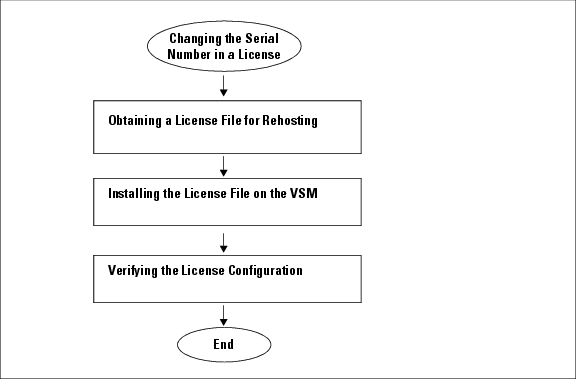
The following flow chart guides you through the process required to change the serial number, or host ID, in an existing license. After completing a procedure, return to the flow chart to make sure you complete all procedures in the correct sequence.
Figure 2 Flow Chart: Changing the Serial Number in a License
Obtaining a License File for Rehosting
Use this procedure to obtain a new license file when you are changing the VSM host, also called rehosting.
BEFORE YOU BEGIN
Before beginning this procedure, you must know or do the following:
•A license file is tied to each VSM by the host ID, or the VSM serial number.
•You are logged in to the CLI in EXEC mode.
•This procedure requires you to copy a license file. Your username must have the network-admin role which allows you to copy files. For information about user accounts and roles, see the Cisco Nexus 1000V Security Configuration Guide, Release 4.0(4)SV1(1).
DETAILED STEPS
Step 1 Using the following command, obtain the serial number, also called the host ID, for your new VSM:
show license host-id
Example:
n1000v# show license host-id
License hostid: VDH=1280389551234985805
Note The host ID encompasses everything that appears after the equal sign (=). In this example, the host ID is 1280389551234985805. You will need the host ID in Step 5.
Step 2 E-mail the following information to licensing@cisco.com, requesting the license file be rehosted to the new host ID:
–the new host ID
–a copy of the existing license file from the old VSM
A new license key file, with the host ID of the new VSM, is sent to you in E-mail within 48 hours.
Caution
The license key file is invalidated if you modify it.
Step 3 Save your license to a TFTP server.
Step 4 Copy your license to bootflash on the VSM.
Example:
n1000v@ copy scp://user@linux-box.cisco.com/home/user/n1kv_license.lic bootflash:
Enter vrf (If no input, current vrf 'default' is considered):
user@linux-box.cisco.com's password:
n1kv_license.lic 100% 252 0.3KB/s 00:00
n1000v@
Feature History for Licenses
This section provides the license release history.
|
|
|
|
|---|---|---|
Licenses |
4.0 |
This feature was introduced. |
 Feedback