Cisco IOS Broadband Access Aggregation and DSL Configuration Guide, Release 12.4
PPP over Ethernet Client

Table Of Contents

PPP over Ethernet Client

Finding Feature Information

Contents

Prerequisites for PPPoE Client

Restrictions for PPPoE Client

Information About PPPoE Client

PPPoE Client Network Topology

PPPoE Client Support on ATM PVCs and Ethernet Interfaces

PPPoE Client Session Initiation

Benefits of the PPPoE Client Feature

How to Configure a PPPoE Client

Configuring a PPPoE Client in Releases Prior to Cisco IOS Release 12.2(13)T

Enabling PPPoE in a VPDN Group

Restrictions

Configuring a PPPoE Client on an ATM PVC

Configuring a PPPoE Client on an Ethernet Interface

Configuring the Dialer Interface

Clearing PPPoE Client Sessions

Restrictions

Verifying the PPPoE Client

Prerequisites

Troubleshooting PPPoE Client Sessions

Restrictions

Configuring a PPPoE Client in Cisco IOS Release 12.2(13)T, 12.4T, and Later Releases

Configuring a PPPoE Client on an ATM PVC

Configuring a PPPoE Client on an Ethernet Interface

Configuring a PPPoE Client on an Ethernet Subinterface

Configuring the Dialer Interface

Clearing PPPoE Client Sessions

Restrictions

Verifying the PPPoE Client

Prerequisites

Restrictions

Troubleshooting PPPoE Client Sessions

Restrictions

Configuration Examples for PPPoE Client

PPPoE Client in Releases Prior to Cisco IOS Release 12.2(13)T: Examples

PPPoE Client in Cisco IOS Release 12.2(13)T and Later Releases: Examples

Additional References

Related Documents

Standards

MIBs

RFCs

Technical Assistance

Feature Information for PPP over Ethernet Client


PPP over Ethernet Client


First Published: May 25, 2001

Last Updated: October 02, 2009

The Point-to-Point Protocol (PPP) over Ethernet Client feature provides PPP over Ethernet (PPPoE) client support on routers on customer premises.

Finding Feature Information

Your software release may not support all the features documented in this module. For the latest feature information and caveats, see the release notes for your platform and software release. To find information about the features documented in this module, and to see a list of the releases in which each feature is supported, see the "Feature Information for PPP over Ethernet Client" section.

Use Cisco Feature Navigator to find information about platform support and Cisco IOS and Catalyst OS software image support. To access Cisco Feature Navigator, go to http://tools.cisco.com/ITDIT/CFN/jsp/index.jsp. An account on Cisco.com is not required.

Contents

Prerequisites for PPPoE Client

Restrictions for PPPoE Client

Information About PPPoE Client

How to Configure a PPPoE Client

Configuration Examples for PPPoE Client

Additional References

Feature Information for PPP over Ethernet Client

Prerequisites for PPPoE Client

PPP connections are established between two end points over a serial link or over an ATM virtual circuit.

Restrictions for PPPoE Client

For PPPoE over ATM, one PVC will support multiple PPPoE clients, allowing multiple PPPoE sessions to run concurrently on the same PVC. An ATM PVC is allowed to be a member of several dialer pools as long as the dialer pool number is unique.

For PPPoE over Ethernet, each PPPoE client must use a separate dialer interface and a separate dialer pool.

Information About PPPoE Client

Before you configure a PPPoE client, you should understand the following concepts:

PPPoE Client Network Topology

PPPoE Client Support on ATM PVCs and Ethernet Interfaces

PPPoE Client Session Initiation

Benefits of the PPPoE Client Feature

PPPoE Client Network Topology

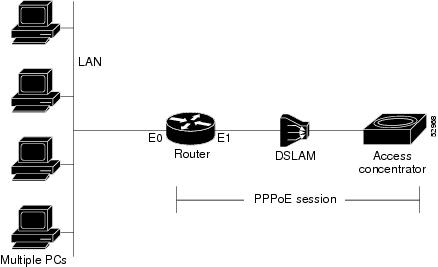
The PPP over Ethernet Client feature provides PPPoE client support on routers on customer premises. Before the introduction of this feature, Cisco IOS software supported PPPoE on the access server side only. Figure 9 shows the typical network topology for configuring a PPPoE client on an Ethernet Interface (E1 interface).

For configuring a PPPoE Client on an ATM PVC, Figure 9 would show an ATM interface instead of an E1 interface.

Figure 9 Typical Network Topology for PPPoE Deployment

PPPoE Client Support on ATM PVCs and Ethernet Interfaces

The PPPoE Client feature provides PPPoE client support on ATM permanent virtual circuits (PVCs) and Ethernet interfaces. A dialer interface must be used for cloning virtual access.

Prior to Cisco IOS Release 12.4(15)T, one ATM PVC supported one PPPoE client. With the introduction of the Multiple PPPoE Client feature in Cisco IOS Release 12.4(15)T, one ATM PVC supports multiple PPPoE clients, allowing second line connection and redundancy. Multiple PPPoE clients can run concurrently on different PVCs, but each PPPoE client must use a separate dialer interface and a separate dialer pool.

Multiple PPPoE client sessions can be configured on an Ethernet interface, but each session must use a separate dialer interface and a separate dialer pool.

PPPoE Client Session Initiation

A PPPoE session is initiated by the PPPoE client. If the session has a timeout or is disconnected, the PPPoE client will immediately attempt to reestablish the session.

The following four steps describe the exchange of packets that occurs when a PPPoE client initiates a PPPoE session:

1. The client broadcasts a PPPoE Active Discovery Initiation (PADI) packet.

2. When the access concentrator receives a PADI that it can serve, it replies by sending a PPPoE Active Discovery Offer (PADO) packet to the client.

3. Because the PADI was broadcast, the host may receive more than one PADO packet. The host looks through the PADO packets it receives and chooses one. The choice can be based on the access concentrator name or on the services offered. The host then sends a single PPPoE Active Discovery Request (PADR) packet to the access concentrator that it has chosen.

4. The access concentrator responds to the PADR by sending a PPPoE Active Discovery Session-confirmation (PADS) packet. At this point a virtual access interface is created that will then negotiate PPP, and the PPPoE session will run on this virtual access.

If a client does not receive a PADO for a preceding PADI, the client sends out a PADI at predetermined intervals. That interval length is doubled for every successive PADI that does not evoke a response, until the interval reaches a configured maximum.

If PPP negotiation fails or the PPP line protocol is brought down for any reason, the PPPoE session and the virtual access will be brought down. When the PPPoE session is brought down, the client waits for a predetermined number of seconds before trying again to establish a PPPoE.

Benefits of the PPPoE Client Feature

PPPoE is a commonly used application in the deployment of digital subscriber lines (DSL). The PPP over Ethernet Client feature expands PPPoE functionality by providing support for PPPoE on the client as well as on the server.

How to Configure a PPPoE Client

This section contains the following procedures:

Configuring a PPPoE Client in Releases Prior to Cisco IOS Release 12.2(13)T

Configuring a PPPoE Client in Cisco IOS Release 12.2(13)T, 12.4T, and Later Releases

Configuring a PPPoE Client in Releases Prior to Cisco IOS Release 12.2(13)T

Perform the following tasks to configure a PPPoE client in releases prior to Cisco IOS release 12.2(13)T:

Enabling PPPoE in a VPDN Group (Required)

Configuring a PPPoE Client on an ATM PVC (Required)

Configuring a PPPoE Client on an Ethernet Interface (Required)

Configuring the Dialer Interface (Required)

Clearing PPPoE Client Sessions (Optional)

Verifying the PPPoE Client (Optional)

Troubleshooting PPPoE Client Sessions (Optional)

Enabling PPPoE in a VPDN Group

Perform this task to enable PPPoE in a virtual private dial-up network (VPDN) group.

Restrictions

This task applies only to releases prior to Cisco IOS Release 12.2(13)T.

SUMMARY STEPS

1. enable

2. configure terminal

3. vpdn enable

4. vpdn-group name

5. request-dialin

6. protocol pppoe

DETAILED STEPS

 
Command or Action
Purpose

Step 1 

enable

Example:

Router> enable

Enables privileged EXEC mode.

Enter your password if prompted.

Step 2 

configure terminal

Example:

Router# configure terminal

Enters global configuration mode.

Step 3 

vpdn enable

Example:

Router(config)# vpdn enable

Enables virtual private dialup networking.

Step 4 

vpdn-group name

Example:

Router(config)# vpdn-group group1

Associates a VPDN group with a customer or VPDN profile.

Step 5 

request-dialin

Example:

Router(config-vpdn)# request-dialin

Creates a request-dialin VPDN subgroup.

Step 6 

protocol pppoe

Example:

Router(config-vpdn-req-in)# protocol pppoe

Enables the VPDN subgroup to establish PPPoE sessions.

Configuring a PPPoE Client on an ATM PVC

Perform this task to configure a PPPoE client on an ATM PVC.

SUMMARY STEPS

1. enable

2. configure terminal

3. interface atm number

4. pvc [name] vpi/vci

5. pppoe-client dial-pool-number number

DETAILED STEPS

 
Command or Action
Purpose

Step 1 

enable

Example:

Router> enable

Enables privileged EXEC mode.

Enter your password if prompted.

Step 2 

configure terminal

Example:

Router# configure terminal

Enters global configuration mode.

Step 3 

interface atm number

Example:

Router(config)# interface atm 0

Configures an ATM interface.

Step 4 

pvc [name] vpi/vci

Example:

Router(config-if)# pvc 1/100

Creates an ATM PVC.

Step 5 

pppoe-client dial-pool-number number

Example:

Router(config-if-atm-vc)# pppoe-client dial-pool-number 1

Configures the PPPoE client and specifies the dialer interface to use for cloning on the PVC.


Note If commands are added to the PVC configuration after the PPPoE client session is established, the session is automatically terminated and reestablished.


Configuring a PPPoE Client on an Ethernet Interface

Perform this task to configure a PPPoE client on an Ethernet interface.

SUMMARY STEPS

1. enable

2. configure terminal

3. interface ethernet number

4. pppoe-client dial-pool-number number

DETAILED STEPS

 
Command or Action
Purpose

Step 1 

enable

Example:

Router> enable

Enables privileged EXEC mode.

Enter your password if prompted.

Step 2 

configure terminal

Example:

Router# configure terminal

Enters global configuration mode.

Step 3 

interface ethernet number

Example:

Router(config)# interface ethernet 0

Configures an Ethernet interface.

Step 4 

pppoe-client dial-pool-number number

Example:

Router(config-if)# pppoe-client dial-pool-number 1

Configures the PPPoE client and specifies the dialer interface to use for cloning.

Configuring the Dialer Interface

Perform this task to configure the dialer interface to be used for cloning on the PVC.

SUMMARY STEPS

1. enable

2. configure terminal

3. interface dialer number

4. mtu bytes

5. ip address negotiated

6. dialer pool number

7. dialer-group group-number

DETAILED STEPS

 
Command or Action
Purpose

Step 1 

enable

Example:

Router> enable

Enables privileged EXEC mode.

Enter your password if prompted.

Step 2 

configure terminal

Example:

Router# configure terminal

Enters global configuration mode.

Step 3 

interface dialer number

Example:

Router(config)# interface dialer 1

Configures a dialer interface.

Step 4 

mtu bytes

Example:

Router(config-if) mtu 1492

Adjusts the maximum packet size or maximum transmission unit (MTU) size.

Note It is recommended that you set the MTU to 1492 bytes. This value accommodates a PPPoE header encapsulation of 8 bytes in the Ethernet frame payload

Step 5 

ip address negotiated

Example:

Router(config-if)# ip address negotiated

Specifies that the IP address for the interface be obtained via PPP/IP Control Protocol (PPP/IPCP) address negotiation.

Step 6 

dialer pool number

Example:

Router(config-if)# dialer pool 1

Specifies the dialing pool to use to connect to a specific destination subnetwork.

Step 7 

dialer-group group-number

Example:

Router(config-if)# dialer-group 1

Configures an interface to belong to a specific dialing group.

Clearing PPPoE Client Sessions

Perform this task to clear PPPoE client sessions.

Restrictions

This task applies only to releases prior to Cisco IOS Release 12.2(13)T.

SUMMARY STEPS

1. enable

2. clear vpdn tunnel pppoe

DETAILED STEPS

 
Command or Action
Purpose

Step 1 

enable

Example:

Router> enable

Enables privileged EXEC mode.

Enter your password if prompted.

Step 2 

clear vpdn tunnel pppoe

Example:

Router# clear vpdn tunnel pppoe

Terminates the PPPoE client session and causes the PPPoE client to try immediately to reestablish the session.


Note To permanently terminate a PPPoE client session, use the no pppoe-client dial-pool-number command in interface configuration mode or interface-atm-vc configuration mode.


Verifying the PPPoE Client

Perform this task to verify PPPoE client configuration.

Prerequisites

This task assumes that the PPPoE client has been configured.

SUMMARY STEPS

1. enable

2. show vpdn

3. show vpdn session packet

4. show vpdn session all

5. show vpdn tunnel

DETAILED STEPS

 
Command or Action
Purpose

Step 1 

enable

Example:

Router> enable

Enables privileged EXEC mode.

Enter your password if prompted.

Step 2 

show vpdn

Example:

Router# show vpdn

Displays information about active Layer 2 Forwarding (L2F) protocol tunnel and L2F message identifiers in a VPDN.

Step 3 

show vpdn session packet

Example:

Router# show vpdn session packet

Displays PPPoE session statistics.

Step 4 

show vpdn session all

Example:

Router# show vpdn session all

Displays PPPoE session information for each session ID.

Step 5 

show vpdn tunnel

Example:

Router# show vpdn tunnel

Displays PPPoE session count for the tunnel.

Troubleshooting PPPoE Client Sessions

Perform this task to troubleshoot the PPPoE client.

Restrictions

This task applies only to releases prior to Cisco IOS Release 12.2(13)T.

SUMMARY STEPS

1. enable

2. debug vpdn pppoe-data

3. debug vpdn pppoe-errors

4. debug vpdn pppoe-events

5. debug vpdn pppoe-packets

DETAILED STEPS

 
Command or Action
Purpose

Step 1 

enable

Example:

Router> enable

Enables privileged EXEC mode.

Enter your password if prompted.

Step 2 

debug vpdn pppoe-data

Example:

Router# debug vpdn pppoe-data

Displays PPPoE session data packets.

Step 3 

debug vpdn pppoe-errors

Example:

Router# debug vpdn pppoe-errors

Displays PPPoE protocol errors that prevent a session from being established or errors that cause an established session to be terminated.

Step 4 

debug vpdn pppoe-events

Example:

Router# debug vpdn pppoe-events

Displays PPPoE protocol messages about events that are part of normal session establishment or shutdown.

Step 5 

Router# debug vpdn pppoe-packets

Example:

Router# debug vpdn pppoe-packets

Displays each PPPoE protocol packet exchanged.

Configuring a PPPoE Client in Cisco IOS Release 12.2(13)T, 12.4T, and Later Releases

Perform the following tasks to configure a PPPoE client in Cisco IOS Release 12.2(13)T or later releases:

Configuring a PPPoE Client on an ATM PVC (Required)

Configuring a PPPoE Client on an Ethernet Interface (Required)

Configuring a PPPoE Client on an Ethernet Subinterface (Required)

Configuring the Dialer Interface (Required)

Clearing PPPoE Client Sessions (Optional)

Verifying the PPPoE Client (Optional)

Troubleshooting PPPoE Client Sessions (Optional)

Configuring a PPPoE Client on an ATM PVC

Perform this task to configure a PPPoE client on an ATM PVC.

SUMMARY STEPS

1. enable

2. configure terminal

3. interface atm number

4. pvc [name] vpi/vci

5. pppoe-client dial-pool-number number

DETAILED STEPS

 
Command or Action
Purpose

Step 1 

enable

Example:

Router> enable

Enables privileged EXEC mode.

Enter your password if prompted.

Step 2 

configure terminal

Example:

Router# configure terminal

Enters global configuration mode.

Step 3 

interface atm number

Example:

Router(config)# interface atm 0

Configures an ATM interface.

Step 4 

pvc [name] vpi/vci

Example:

Router(config-if)# pvc 1/100

Creates an ATM PVC.

Step 5 

pppoe-client dial-pool-number number

Example:

Router(config-if-atm-vc)# pppoe-client dial-pool-number 1

Configures the PPPoE client and specifies the dialer interface to use for cloning on the PVC.


Note If Cisco IOS Release 12.4(15)T or a later release is running, you can configure multiple PPPoE clients on the same PVC. For earlier releases, one PVC supports only one PPPoE client.


Note If commands are added to the PVC configuration after the PPPoE client session is established, the session is automatically terminated and reestablished.


Configuring a PPPoE Client on an Ethernet Interface

Perform this task to configure a PPPoE client on an Ethernet interface.

SUMMARY STEPS

1. enable

2. configure terminal

3. interface ethernet number

4. pppoe-client dial-pool-number number

DETAILED STEPS

 
Command or Action
Purpose

Step 1 

enable

Example:

Router> enable

Enables privileged EXEC mode.

Enter your password if prompted.

Step 2 

configure terminal

Example:

Router# configure terminal

Enters global configuration mode.

Step 3 

interface ethernet number

Example:

Router(config)# interface ethernet 0

Configures an Ethernet interface.

Step 4 

pppoe-client dial-pool-number number

Example:

Router(config-if)# pppoe-client dial-pool-number 1

Configures the PPPoE client and specifies the dialer interface to use for cloning. You can configure multiple PPPoE clients on the same PVC.

Configuring a PPPoE Client on an Ethernet Subinterface

Perform this task to configure a PPPoE client on an Ethernet subinterface.

SUMMARY STEPS

1. enable

2. configure terminal

3. interface ethernet number

4. encap dot1Q vlan-id [native]

5. pppoe-client dial-pool-number number

DETAILED STEPS

 
Command or Action
Purpose

Step 1 

enable

Example:

Router> enable

Enables privileged EXEC mode.

Enter your password if prompted.

Step 2 

configure terminal

Example:

Router# configure terminal

Enters global configuration mode.

Step 3 

interface ethernet number

Example:

Router(config)# interface ethernet 0/0.10

Configures an Ethernet subinterface, and enters Ethernet subinterface mode.

Step 4 

encap dot1Q vlan-id [native]

Example:

Router(config-subif)# encap dot1Q 10

Enables IEEE 802.1Q encapsulation of traffic on a specified subinterface.

Step 5 

pppoe-client dial-pool-number number

Example:

Router(config-subif)# pppoe-client dial-pool-number 1

Configures the PPPoE client and specifies the dialer interface to use for cloning.

Configuring the Dialer Interface

Perform this task to configure the dialer interface to be used for cloning on the PVC.

SUMMARY STEPS

1. enable

2. configure terminal

3. interface dialer number

4. mtu bytes

5. ip address negotiated

6. dialer pool number

7. dialer-group group-number

DETAILED STEPS

 
Command or Action
Purpose

Step 1 

enable

Example:

Router> enable

Enables privileged EXEC mode.

Enter your password if prompted.

Step 2 

configure terminal

Example:

Router# configure terminal

Enters global configuration mode.

Step 3 

interface dialer number

Example:

Router(config)# interface dialer 1

Configures a dialer interface.

Step 4 

mtu bytes

Example:

Router(config-if) mtu 1492

Adjusts the maximum packet size or maximum transmission unit (MTU) size.

Note It is recommended that you set the MTU to 1492 bytes. This value accommodates a PPPoE header encapsulation of 8 bytes in the Ethernet frame payload

Step 5 

ip address negotiated

Example:

Router(config-if)# ip address negotiated

Specifies that the IP address for the interface is obtained via PPP/IPCP address negotiation.

Step 6 

dialer pool number

Example:

Router(config-if)# dialer pool 1

Specifies the dialing pool to use to connect to a specific destination subnetwork.

Step 7 

dialer-group group-number

Example:

Router(config-if)# dialer-group 1

Configures an interface to belong to a specific dialing group.

Clearing PPPoE Client Sessions

Perform this task to clear PPPoE client sessions.

Restrictions

This task applies only to Cisco IOS release 12.2(13)T and later releases.

SUMMARY STEPS

1. enable

2. clear pppoe {interface type number [vc {[vpi/]vci | vc-name}] | rmac mac-address | all}

DETAILED STEPS

 
Command or Action
Purpose

Step 1 

enable

Example:

Router> enable

Enables privileged EXEC mode.

Enter your password if prompted.

Step 2 

clear pppoe {interface type number [vc {[vpi/]vci | vc-name}] | rmac mac-address | all}

Example:

Router# clear pppoe all

Clears the PPPoE client session and causes the PPPoE client to try immediately to reestablish the session.


Note To permanently terminate a PPPoE client session, use the no pppoe-client dial-pool-number command in interface configuration mode or interface-atm-vc configuration mode.


Verifying the PPPoE Client

Perform this task to verify PPPoE client configuration.

Prerequisites

This task assumes that the PPPoE client has been configured.

Restrictions

This task applies only to Cisco IOS release 12.2(13)T and later releases.

SUMMARY STEPS

1. enable

2. show pppoe session [all | packets]

DETAILED STEPS

 
Command or Action
Purpose

Step 1 

enable

Example:

Router> enable

Enables privileged EXEC mode.

Enter your password if prompted.

Step 2 

show pppoe session [all | packets]

Example:

Router# show pppoe session

Displays information about currently active PPPoE sessions.

Troubleshooting PPPoE Client Sessions

Perform this task to troubleshoot the PPPoE client.

Restrictions

This task applies only to Cisco IOS Release 12.2(13)T and later releases.

SUMMARY STEPS

1. enable

2. debug pppoe {data | errors | events | packets}

DETAILED STEPS

 
Command or Action
Purpose

Step 1 

enable

Example:

Router> enable

Enables privileged EXEC mode.

Enter your password if prompted.

Step 2 

debug pppoe {data | errors | events | packets}

Example:

Router# debug pppoe errors

Displays debugging information for PPPoE sessions.

Configuration Examples for PPPoE Client

This section contains the following examples:

PPPoE Client in Releases Prior to Cisco IOS Release 12.2(13)T: Examples

PPPoE Client in Cisco IOS Release 12.2(13)T and Later Releases: Examples

PPPoE Client in Releases Prior to Cisco IOS Release 12.2(13)T: Examples

In the following example, a PPPoE client is configured on a PVC on ATM interface 0. The PPPoE client will use dialer interface 1 as its virtual access interface.

vpdn enable
vpdn-group 1
 request-dialin
  protocol pppoe
! 
interface atm0
 pvc 1/100
  pppoe-client dial-pool-number 1
!
interface dialer 1
 ip address negotiated
 dialer pool 1
 dialer-group 1
!

In the following example, two PPPoE client sessions are configured on an Ethernet interface. Each PPPoE client will use a separate dialer interface and a separate dialer pool.

vpdn enable
vpdn-group 1
 request-dialin
  protocol pppoe
! 
interface ethernet1/1
 pppoe-client dial-pool-number 1
 pppoe-client dial-pool-number 2
!
interface dialer 1
 ip address negotiated
 dialer pool 1
 dialer-group 1
!
interface dialer 2
 ip address negotiated
 dialer pool 2
 dialer-group 2

PPPoE Client in Cisco IOS Release 12.2(13)T and Later Releases: Examples

The following example shows how to configure a PPPoE client on an Ethernet interface. Note that in Releases 12.2(13)T and later it is not necessary to configure a global VPDN group before configuring the PPPoE client.

interface Ethernet 0
 pppoe-client dial-pool-number 1

interface Dialer 1
 ip address negotiated
 dialer pool 1
 mtu 1492

The following example shows how to configure multiple PPPoE clients on an ATM VC. Note that in Releases 12.4(15)T or a later release, more than one PPPoE session is supported on a single PVC.


interface ATM0
 no ip address
 no ip mroute-cache
 no atm ilmi-keepalive
 pvc 4/20
  pppoe-client dial-pool-number 1
  pppoe-client dial-pool-number 2
 !
end

Additional References

The following sections provide references related to PPPoE client configuration.

Related Documents


Standards

Standard
Title

No new or modified standards are supported by this feature.


MIBs

MIB
MIBs Link

No new or modified MIBs are supported by this feature.

To locate and download MIBs for selected platforms, Cisco IOS releases, and feature sets, use Cisco MIB Locator found at the following URL:

http://www.cisco.com/go/mibs


RFCs

RFC
Title

RFC 2516

A Method for Transmitting PPP over Ethernet (PPPoE)


Technical Assistance

Description
Link

The Cisco Support website provides extensive online resources, including documentation and tools for troubleshooting and resolving technical issues with Cisco products and technologies.

To receive security and technical information about your products, you can subscribe to various services, such as the Product Alert Tool (accessed from Field Notices), the Cisco Technical Services Newsletter, and Really Simple Syndication (RSS) Feeds.

Access to most tools on the Cisco Support website requires a Cisco.com user ID and password.

http://www.cisco.com/techsupport


Feature Information for PPP over Ethernet Client

Table 7 lists the features in this module and provides links to specific configuration information. Only features that were introduced or modified in Cisco IOS Release 12.2(1) or a later release appear in the table.

For information on a feature in this technology that is not documented here, see the "Providing Protocol Support for Broadband Access Aggregation of PPP over ATM Sessions".

Not all commands may be available in your Cisco IOS software release. For release information about a specific command, see the command reference documentation.

Use Cisco Feature Navigator to find information about platform support and software image support. Cisco Feature Navigator enables you to determine which Cisco IOS and Catalyst OS software images support a specific software release, feature set, or platform. To access Cisco Feature Navigator, go to http://tools.cisco.com/ITDIT/CFN/jsp/index.jsp. An account on Cisco.com is not required.


Note Table 7 lists only the Cisco IOS software release that introduced support for a given feature in a given Cisco IOS software release train. Unless noted otherwise, subsequent releases of that Cisco IOS software release train also support that feature.


Table 7 Feature Information for PPP over Ethernet Client

Feature Name
Releases
Feature Information

PPP Over Ethernet Client

12.2(2)T

12.2(13)T

12.4(15)T

15.0(1)M

This feature was introduced.

In Cisco IOS Release 12.2(13)T, PPPoE client functionality was separated from VPDN functionality, resulting in changes to PPPoE client configuration.

In the Cisco IOS Release 12.4(15)T, support was added for multiple PPPoE sessions per VC.

No new commands were introduced or modified.

PPP Over Ethernet Subinterface

12.4(20)T

Support was added for PPPoE clients on Ethernet subinterfaces.