Cisco Service Control Product Upgrade Guide, Release 3.7.x
Available Languages
Table Of Contents
Cisco Service Control Guide to Upgrading to Cisco SCA BB 3.7.x
Upgrading from Version 3.5.x, or 3.6.x to Version 3.7.x
Supported Working Configurations
How to Upgrade the Cisco SCA BB Service Configuration Utility
Upgrading the Subscriber Manager
Contents of the Distribution Files
Upgrading the Subscriber Manager
Automatic Upgrade of Subscribers with VLAN Mappings
Automatic Upgrade of RADIUS Listener
Configuring the Required Memory Settings
How to Upgrade a Standalone Setup
How to Upgrade from a Standalone Setup to a Cluster Setup
How to Upgrade a Cluster Setup
How to Downgrade the Subscriber Manager
Upgrading the Collection Manager
How to Upgrade the Collection Manager to Version 3.7.x
Verifying that the Server Is Operational
Upgrading the SCE Platform Software
How to Upgrade the Cisco SCE Platform Software
Upgrading Cascaded SCE Platforms
SCA BB Clients and Service Configuration
Obtaining Documentation and Submitting a Service Request
Cisco Service Control Solution Guide
Cisco Service Control Guide to Upgrading to Cisco SCA BB 3.7.x
Revised: August 22, 2012, OL-24176-03
Note
This document supports all 3.7.x releases.
1 Overview
Upgrading from Version 3.5.x, or 3.6.x to Version 3.7.x
This guide describes the process of upgrading the Cisco Service Control solution from Version 3.5.x, or 3.6.x to Version 3.7.x. It describes the upgrade process for each of the four components:
•
•
•
•
The procedure describes a scenario where the Service Control deployment is required to continue functioning throughout the upgrade procedure, with SCE platforms running SCA BB 3.5.x or SCA BB 3.6.x operating concurrently (using the same Collection Manager and Subscriber Manager servers).
This procedure aims to minimize service downtime (for however long the upgrade process takes), bound to several limitations, as described in the preceding sections.
Note
Step 1
a.
b.
Step 2
a.
The Subscriber Manager does not update an SCE that is identified as standby, even if it is configured as standalone in the Subscriber Manager.
Note
Step 3
•
•
Step 4
•
At this stage, the entire solution is upgraded and fully operational.
Step 5
Supported Working Configurations
The Cisco SCA BB release 3.7.x supports a combination of component versions:
•
•
•
•
Note
Rollback Procedure
A software rollback might be required in cases where the upgrade process has failed, or has impaired the service. It requires a downgrade to the previous release to mitigate the damage to the network.
Generally, no automatic downgrade scripts are available for the solution components. To enable downgrade, the older configuration should be backed up before upgrading. To downgrade, a clean installation of the older release is required for each component.
Note
2 Upgrading the Cisco SCA BB
This chapter details the procedure for upgrading from a functional Cisco SCA BB 3.5.x, or Cisco SCA BB 3.6.x deployment to Cisco SCA BB 3.7.x.
Upgrading Cisco SCA BB
Upgrading Cisco SCA BB consists of two steps:
1.
2.
How to Install the Console
Navigate to the console installation file, sca-bb-console-3.7.x.exe, and double-click it.
A standard installation wizard opens. Follow the standard procedure to install the console.
How to Upgrade the Cisco SCA BB Service Configuration Utility
To upgrade the Cisco SCA BB service configuration utility, complete these steps:
Step 1
Step 2
The following files are under the bin folder:
–
–
–
3 Upgrading the Subscriber Manager
This chapter describes how to upgrade the Cisco Service Control Management Suite Subscriber Manager.
Contents of the Distribution Files
The SCMS Subscriber Manager components are supplied in three distribution files:
•
•
•
•
Each distribution file is supplied as a tar file, which is compressed by gzip and has an extension of .tar.gz. For details, see the Cisco Service Control Management Suite Subscriber Manager User Guide.
Upgrading the Subscriber Manager
The Subscriber Manager supports several types of upgrade procedures, according to the Subscriber Manager version that was previously installed and the requirement (or lack of requirement) for fail-over in the new installation.
The following sections provide details on three types of upgrade procedures:
•
•
•
Data Duplication Procedure
The data duplication procedure enables you to duplicate or copy the entire database from one machine to the other, and then keep the databases synchronized by running the replication agent at the end. Some of the upgrade procedures use this procedure.
For details of the procedure, see the Database Duplication Recovery section of Cisco Service Control Management Suite Subscriber Manager User Guide.
Automatic Upgrade of Subscribers with VLAN Mappings
VLAN mappings are related to VPN rather than to a subscriber. During the upgrade procedure, the SM automatically creates a VPN with the VLAN-ID of the subscriber and associates a subscriber with the full range IP mapping to the new VPN.
For example, subscriber sub1 with VLAN-ID=15 results in the creation of VPN 15 with VLAN-ID=15 and subscriber sub1 with the mapping, 0.0.0.0/0@VLAN-ID.
Automatic Upgrade of RADIUS Listener
During the upgrade procedure, the SM modifies the RADIUS sections in the configuration file according to the following rules:
•
•
•
•
•
•
Configuring the Required Memory Settings
To prepare the Subscriber Manager for the upgrade, configure the system kernel configuration file on the Subscriber Manager.
Subscriber Manager database requires that certain changes be made in the operating system kernel configuration file:
•
•
These changes increase the shared memory and semaphore resources on Solaris machines from their defaults.
Note
You can make the required changes automatically or manually.
•
The root user must invoke this script file, without arguments, as follows:
# tt-sysconf.sh•
Note
–
*---- Begin settings for SMdatabase
set semsys:seminfo_semmni = 20
set semsys:seminfo_semmsl = 100
set semsys:seminfo_semmns = 2000
set semsys:seminfo_semmnu = 2000
set shmsys:shminfo_shmmax = 0x20000000
*---- End of settings for SMdatabase
Note
–
*---- Begin settings for SMdatabase
kernel.shmmax = 536870912
kernel.sem = 250 32000 100 100
*---- End of settings for SMdatabase
How to Upgrade a Standalone Setup
Note
The following upgrade procedure is supported only by Release 3.x software versions. To upgrade the Subscriber Manager from a Release 2.x software version, you must first upgrade the Subscriber Manager environment to a Release 3.1.x software version and then perform an additional upgrade to Release 3.6.0.
For more information about how to upgrade from a Release 2.x software version to a Release 3.1.x software version, refer to the Release 3.1.x manuals.
This procedure applies to the Subscriber Manager 3.0.x and later.
This upgrade procedure requires service down-time.
Note
Step 1
Before you upgrade the Subscriber Manager, you must first load and extract the distribution files on the installed machine or in a directory that is mounted to the installed machine.
a.
b.
c.
gunzip SM_dist_<version>_B<build number>.tar.gzd.
tar -xvf SM_dist_<version>_B<build number>.tarStep 2
Edit the install-def-cfg configuration file and set the PermSize and TempSize parameters according to the recommendations described in "Configuring the Required Memory Settings" section. For further information, see the Cisco Service Control Product Installation Guide.
Step 3
To upgrade from noncluster setups, the Subscriber Manager distribution provides an upgrade script that implements an upgrade from previous versions. The upgrade procedure script preserves the subscriber database and the entire Subscriber Manager configuration, including network elements, domains, and application-specific components.
Note
Note
Note
From your workstation shell prompt, run the upgrade-sm.sh script:
# upgrade-sm.shStep 4
To add a user for PRPC authentication, use the p3rpc CLU. For example:
>p3rpc --set-user --username=username --password=passwordStep 5
If using a cascade SCE setup, configure the cascade SCE pair in the p3sm.cfg file as described in the SCE.XXX section in the Configuration File Options appendix of Cisco Service Control Management Suite Subscriber Manager User Guide.
How to Upgrade from a Standalone Setup to a Cluster Setup
Note
The following upgrade procedure is supported only from Release 3.x software versions. To upgrade Subscriber Manager from a Release 2.x software version, you must first upgrade the Subscriber Manager environment to a Release 3.1.x software version and then perform an additional upgrade to Release 3.6.0. From Version 3.6.0, you can upgrade to Version 3.7.x.
For more information about how to upgrade from Release 2.x software to Release 3.1.x software, the Release 3.1.x manuals. For details on how to upgrade to Version 3.6.0, see the Subscriber Manager 3.6.x manuals.
This section describes the procedure for upgrading from a standalone setup to a cluster setup. This procedure applies to the Subscriber Manager from version 3.0.x and later.
This section describes the basic procedure for upgrading from a standalone setup to a cluster setup. This upgrade procedure requires service down-time.
Note
In the following procedure, SM-A is the original Subscriber Manager machine and SM-B is the new Subscriber Manager machine being added for redundancy.
Step 1
Step 2
To install SM-B, follow the procedure described in the Installing the Subscriber Manager section of Cisco Service Control Product Installation Guide.
Step 3
To upgrade SM-A, follow the procedure described in the "How to Upgrade a Standalone Setup" section.
Note
Step 4
Copy the p3sm.cfg configuration file manually from SM-A to SM-B and load the configuration file by using the following CLU command:
p3sm --load-configStep 5
See the "Data Duplication Procedure" section for the data duplication procedure.
Configure the replication scheme for the data store replication to the redundant machine.
>p3db --set-rep-scheme
Note
Step 6
a.
On each machine, open the p3sm.cfg configuration file in any standard text editor and in the [SM High Availability Setup] section, set topology=cluster.
Load the updated configuration file by using the following CLU command:
p3sm --load-config
b.
Use the p3cluster --standby CLU command.
c.
Use the p3cluster --active CLU command.
d.
e.
Step 7
How to Upgrade a Cluster Setup
This section describes the procedure for upgrading from a cluster setup to a cluster setup without a service downtime. This section contains the following subsections:
Before You Start
•
•
•
–
–
•
•
Downloading and Extracting the Distribution Files
Before you upgrade the Subscriber Manager, you must download and extract the distribution files on the installed machine or in a directory that is mounted to the installed machine.
Step 1
Step 2
Step 3
gunzip SM_dist_<version>_B<build number>.tar.gzStep 4
tar -xvf SM_dist_<version>_B<build number>.tar
Understanding the Scripts Used During Upgrade
During the process of upgrading a cluster, you might use the following scripts:
•
•
Understanding the cluster-upgrade.sh script
Use this script, which is provided with the Subscriber Manager, to upgrade a cluster setup with earlier versions of Cisco SCMS Subscriber Manager to a cluster setup with the latest version of the Cisco SCMS Subscriber Manager.
The cluster-upgrade.sh script preserves the subscriber database and the entire Subscriber Manager configuration, including network elements, domains, and application-specific components.
The script performs the following actions:
•
•
•
•
•
•
•
•
•
•
•
•
•
•
You do not have to start the Subscriber Manager after running the script.
Table 1 lists the command options for the cluster-upgrade.sh script.
Understanding the install-vcs-agents.sh script
For details about the install-vcs-agents.sh script, see the Cisco Service Control Management Suite Subscriber Manager User Guide.
Upgrading a Cluster Setup
To upgrade a cluster setup, complete the following steps:
Step 1
Configure the system kernel configuration file on both the machines:
a.
b.
c.
d.
#hagrp -switch service group name to Systeme.
Before starting the upgrade procedure, configure the system kernel configuration file on both the machines.
For details about the system kernel configuration procedure, see the "Configuring the Required Memory Settings" section.
Step 2
Extract the distribution files on both the machines.
For details about downloading and extracting the distribution files, see the "Downloading and Extracting the Distribution Files" section.
Step 3
Stop VCS monitoring on the standby machine:
a.
b.
#./hastop -local—
Step 4
Edit the install-def.cfg file on both the machines and set the PermSize and TempSize parameters according to the recommendations described in "Configuring the Required Memory Settings" section.
For details about the required memory settings, see the Cisco Service Control Product Installation Guide.
Step 5
Pause database replication on the active machine:
a.
b.
c.
d.
This step is applicable only when upgrading the first Subscriber Manager machine.
Step 6
Run the cluster-upgrade.sh script on the standby machine:
# cluster-upgrade.sh [command-options]Do not start the SM after running cluster-upgrade.sh.
For details about the cluster-upgrade.sh script, see the "Understanding the Scripts Used During Upgrade" section
Step 7
Wait until the cluster-upgrade.sh script finishes all tasks.
—
Step 8
Stop the replication and start the SM on the standby machine.
The following steps should be performed only when performing upgrade on the first machine.
a.
# ./p3db --rep-stopb.
# ./p3sm --start --waitc.
-bash-3.1$ p3sm --sm-statusBecause the database schema was changed, there is a need to load the SM for the first time without replicating the changes to the standby machine.
The SM boot time after the upgrade will be longer than usual due to the extra time taken to initialize the database indexes.
If the SMS-STATUS indicates a failure, stop the upgrade. For details on troubleshooting the SM in failure mode, see the Cisco Service Control Management Suite Subscriber Manager User Guide.
Step 9
Run the install-vcs-agents.sh script on the standby machine:
# install-vcs-agents.sh [command-options]—
Step 10
Restart Veritas Cluster Server (VCS) monitoring on the standby machine:
a.
#./hastartVCS monitoring starts the SM process automatically in the initialization state.
b.
-bash-3.1$ p3sm --sm-statusc.
-bash-3.1$ p3cluster --standbyThe ./hastart command starts the replication agent that updates the database schema on the active machine.
After this operation is performed, you cannot downgrade to an earlier version.
Step 11
Continue database replication on the active machine:
a.
b.
c.
d.
This step is applicable only when upgrading the first machine and only if Step 5 was performed.
Step 12
Verify that the changed data has been replicated.
Wait until the replication of all the data that was changed while the upgrade script was running.
•
-bash-3.1$ p3subs --add -s dummySub•
#./verify-subscriber.sh dummySubWhen upgrading the second Subscriber Manager, add a subscriber with a name other than dummySub because you have already added a subscriber with this name while upgrading the first Subscriber Manager.
Step 13
(Optional) Install the MPLS/VPN BGP LEG.
For more information, see the Cisco SCMS SM LEGs User Guide.
Step 14
Manually trigger a failover using the Veritas Cluster Manager and wait until the standby SM becomes active and the active SM becomes the standby:
Run the following VCS CLU command from /opt/VRTSvcs/bin:
# hagrp -switch service group name -to SystemFor more information about the hagrp CLU command, refer to your Veritas Cluster Server documentation.
After performing the manual failover, the standby SM on which you perform the upgrade procedure becomes the active SM. The previously active SM becomes the new standby SM.
Step 15
Repeat the upgrade procedure on the standby SM.
To upgrade the second SM, repeat the procedure from Step 2 . But, do not perform Step 5, Step 8, and Step 11.
—
Step 16
Upgrade the database replication protocol version:
a.
Use the following VCS CLU command from /opt/VRTSvcs/bin:
#./hastop -localb.
On the standby SM, run the following CLU command:
# p3db --upgrade-rep-protocolc.
From the /opt/VRTSvcs/bin folder, run the following VCS CLU command:
#./hastartVCS monitoring starts the SM process automatically in the initialization state.
d.
-bash-3.1$ p3cluster --standbye.
f.
# hagrp -switch service group name -to SystemPerform this operation after both the SMs are upgraded.
Run the commands described in this step as the admin user on both the machines to upgrade the database replication protocol version.
The p3db --upgrade-rep-protocol CLU command performs the following actions:
•
•
•
•
•
For more information about the hagrp command, refer to your Veritas Cluster Server documentation.
Step 17
Add a user for PRPC authentication using the p3rpc CLU, for example:
-bash-3.1$ p3rpc --set-user --username=username
--password=password --remote=OTHER_SM_IP[:port]
If you are upgrading from a version of the SM prior to Version 3.0.5, it is necessary to add a user for PRPC authentication because Cisco SCA BB requires a username and password to connect to the SM.
Step 18
Configure the Cisco SCE platforms.
If you have a cascade SCE setup, configure the cascade SCE pair in the p3sm.cfg file. For details, see the Cisco Service Control Management Suite Subscriber Manager User Guide.
Step 19
Remove the dummy subscribers.
On the new active SM, run the following CLU:
-bash-3.1$ p3subs --remove -subscriber=first dummy subscriber
name
-bash-3.1$ p3subs --remove -subscriber=second dummy subscriber nameAfter successfully upgrading both the SMs we recommend that you remove the dummy subscribers that were added in order to verify replication during the upgrade.
How to Downgrade the Subscriber Manager
This section describes the procedure to downgrade the Subscriber Manager to an earlier version.
Step 1
Step 2
Note
4 Upgrading the Collection Manager
This chapter describes the procedures for upgrading the Collection Manager.
When upgrading a complete system, it is recommended that you install a second Collection Manager running the new version and then uninstall the Collection Manager running the earlier version. This procedure provides a seamless transition to the new version. In this case, no upgrade procedure is run on the Collection Manager.
Note
To install the Collection Manager, see the Installing the Collection Manager section of Cisco Service Control Product Installation Guide.
How to Upgrade the Collection Manager to Version 3.7.x
Step 1
Step 2
Step 3
$ ~scmscm/cm/bin/cm stopStep 4
# ./install-cm.sh -oStep 5
$ ~scmscm/cm/bin/cm start
Note
Verifying that the Server Is Operational
To verify that the server is functioning correctly, use the alive.sh script:
~scmscm/setup/alive.shThe script verifies that the following components are operational:
•
•
•
If any component is down, the script issues an error message.
As the scmscm user, run the alive.sh script.
Note
5 Upgrading the SCE Platform Software
This chapter describes the wizard that upgrades the SCE platform software.
Note
The console SCE Software Upgrade Wizard performs a software upgrade on one or more SCE platforms. The wizard allows you to select the following:
•
•
•
•
•
Before You Start
Before you begin the SCE platform upgrade, make sure that you do the following:
•
•
•
–
–
–
How to Upgrade the Cisco SCE Platform Software
Step 1
If the Cisco SCE platforms are not yet defined in the Network Navigator, you can select the site node.
Figure 1 Network Navigator
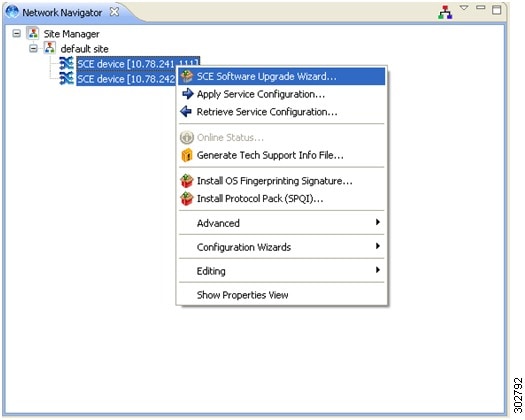
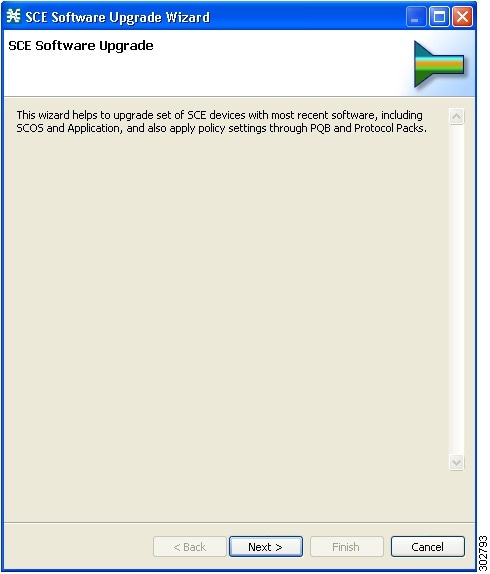
The SCE Software Upgrade Wizard opens. Click Next(see Figure 2).
Figure 2 SCE Software Upgrade Wizard
Step 2
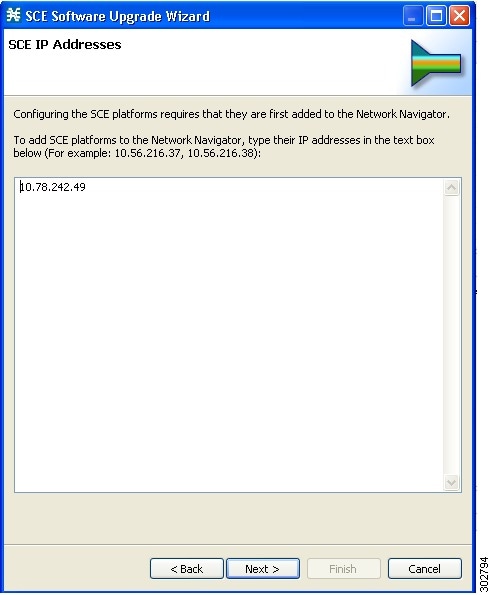
Figure 3 SCE Software Upgrade Wizard—SCE IP Addresses
Step 3
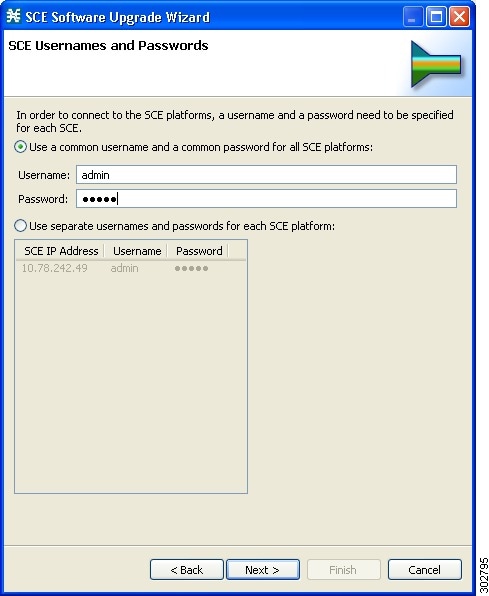
Figure 4 SCE Software Upgrade Wizard—SCE Usernames and Passwords Window
Step 4
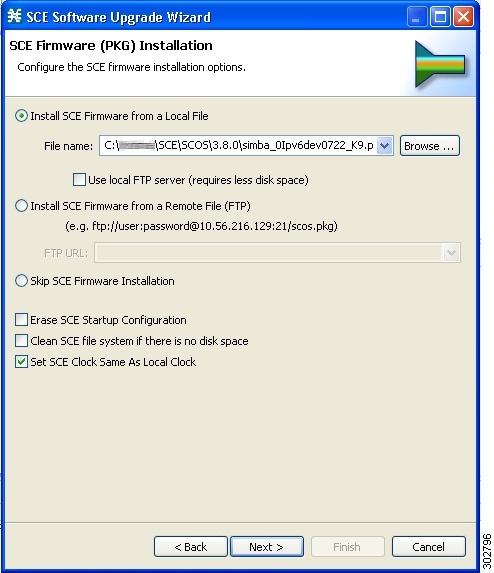
Figure 5 SCE Software Upgrade Wizard—SCE Firmware (PKG) Installation
Step 5
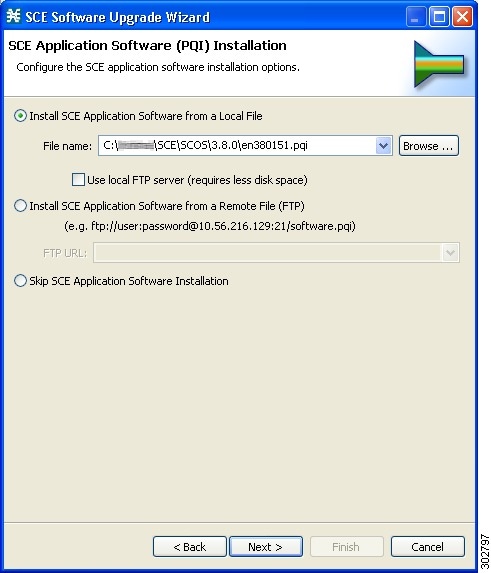
Figure 6 SCE Software Upgrade Wizard—SCE Application Software (PQI) Installation
Step 6
Note
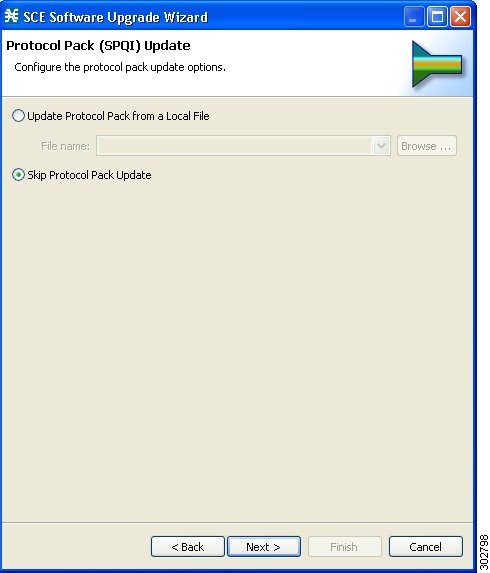
Figure 7 SCE Software Upgrade Wizard—Protocol Pack (SPQI) Update
Step 7
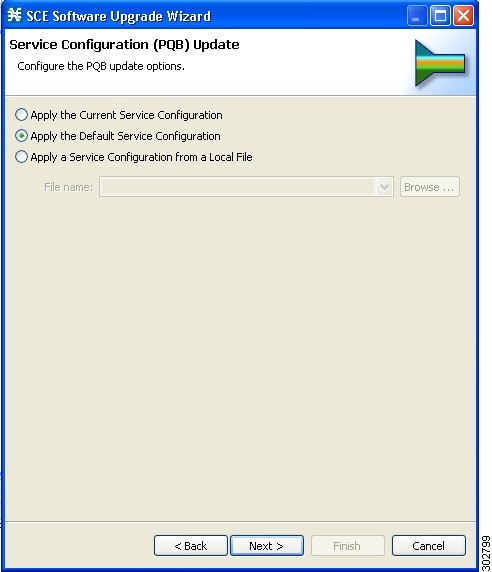
Figure 8 SCE Software Upgrade Wizard—Service Configuration (PQB) Update
Step 8
Note
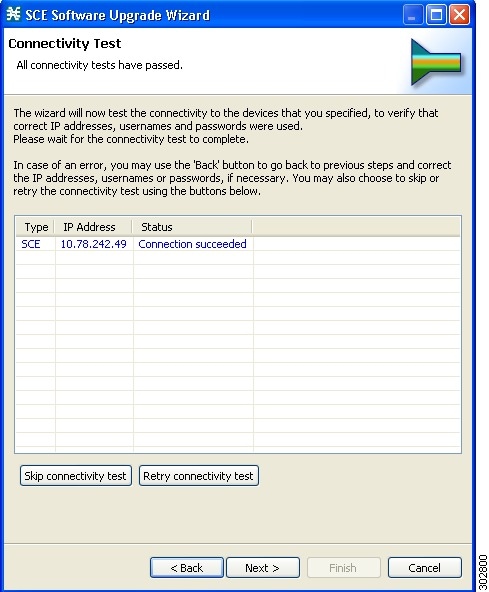
Figure 9 Connectivity Test
Step 9
•
•
Figure 10 SCE Software Upgrade Wizard—Summary
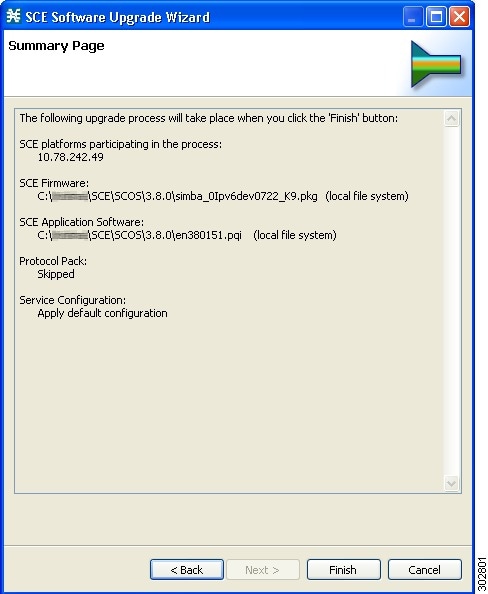
This system checks the following:
•
•
•
•
If the user requested that any of these components not be upgraded (selected Skip for any file), the version of those files is retrieved from SCE platform for this verification. For instance, if the user requested to skip PKG installation and install PQI Version 3.6.0, version information about the installed PKG file is retrieved.
A list of all problems and errors is displayed when the verification process is complete.
The basic steps being performed during the upgrade are as follows (assuming all components are upgraded):
•
•
•
•
•
•
The specified SCE platforms are upgraded simultaneously, with the upgrade process for each SCE platform running in separate thread.
Step 10
Click Run in Background to run the upgrade in the background.
Figure 11 Main SCE Software Upgrade Task
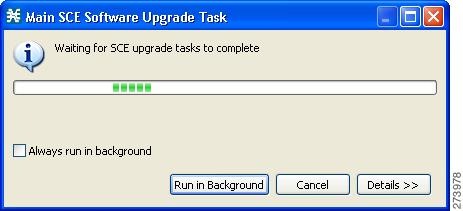
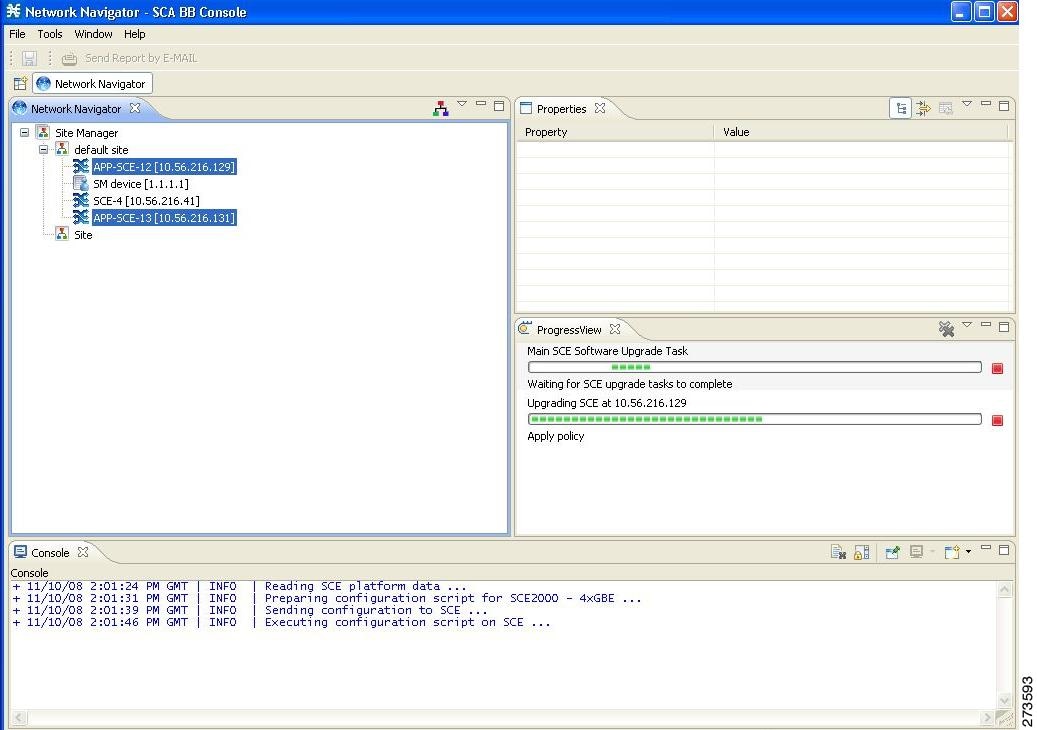
The upgrade runs in the background (see Figure 12).
Figure 12 Network Navigator
Upgrading Cascaded SCE Platforms
In a high-availability deployment, a pair (or pairs) of SCE platforms are cabled in a cascaded setup, providing SCE platform redundancy. This type of deployment requires the following steps when upgrading:
Step 1
Step 2
SCE> enable 10<password>SCE# configSCE(config)#interface linecard 0SCE(config if)# force failure-conditionThis step makes the upgraded SCE platforms the active ones, and they begin to give the new service.
Step 3
Make sure to specify the same upgrade files that you used in Step 1.
Because this step includes a reboot, it is not necessary to undo the force failure command.
6 Upgrade Procedure Limitations
This chapter provides details of limitations to the Cisco Service Control solution upgrade procedure.
SCE Platform
Link Downtime Because of LIC Re-Burning
Link downtime is expected during SCE platform upgrade (the LIC chip firmware is reburned). The expected downtime depends on the auto-negotiation configuration of the system, and can be up to one minute.
Misclassification of Flows Initiated Before Upgrade Completion
Flows that were initiated before upgrade completion can be misclassified. Gradual classification restoration is expected when SCE software upgrade is completed, or when a standby SCE becomes active. This reclassification is needed because the previous classification decision of the flow is lost. This reclassification would usually be inaccurate because an accurate classification depends on analyzing the beginning of the flow. Therefore, the flow would usually be reclassified according to the corresponding Generic or Behavioral signature. This downtime ends when all these reclassified flows are closed.
Service Downtime
Service downtime is expected during SCE platform upgrade on non-high-availability setups and on high-availability setups.
•
•
Loss of Aggregated Unreported Data
During SCE platform upgrade, subscriber quota and usage information maintained in the SCE platform that was not reported to a collection system is lost. Depending on the system data export frequency (configurable through periods between RDRs of all sorts), the amount of such information can be kept to a minimum.
This is true also for high-availability configurations.
Loss of Configuration
Any non-default assignments of RDR tags to categories are lost when upgrading; the default mapping is restored after the upgrade. If any non-default assignments were made, you should reconfigure them manually after the upgrade.
SCA BB Clients and Service Configuration
SCA BB Console, which incorporates the service configuration editor, Subscriber Manager GUI, and Reporter, is not backward compatible and can work only with the 3.7.x system components (SCE platform, Collection Manager, and Subscriber Manager).
Cisco SCA BB Console Interoperability
Version 3.7.x of the Network Navigator cannot apply service configurations to earlier versions of the SCE platforms. Nevertheless, the Network Navigator 3.7.x can upgrade the SCE platform to 3.7.x, and then service configurations can be applied.
Reporter and Database Interoperability
The Reporter and Reporter Templates of 3.7.x can be used to create reports from an earlier-version database, only if the same reports existed in the earlier version. However, reports that are new in 3.7.x cannot be created when connecting to an earlier-version database.
Running Two Cisco SCA BB Consoles or SCA Reporters
Running two SCA BB Consoles or SCA Reporters of different versions on the same machine is not supported and should be avoided.
Subscriber Manager
In non-High Availability Subscriber Manager setups, the SM upgrade procedure causes downtime for subscriber provisioning and subscriber status awareness (LEG communication).
Quota Manager
If the Quota Manager is not deployed as a cluster, service downtime is expected. This downtime is the same service downtime that is expected during a Subscriber Manager upgrade.
Collection Manager
Upgrading the Collection Manager imposes downtime for the upgraded machine during the entire process. To avoid data collection downtime, an alternate Collection Manager can be used (for either bundled or unbundled configurations).
The SCE platform supports sending RDRs to an alternate Collection Manager.
Configuration
When upgrading the Collection Manager to Version 3.7.x, the user configuration on the Collection Manager server (the PRPC users file, prpc.usr) is deleted. It is necessary to redefine the users after the upgrade is completed.
7 Obtaining Documentation and Submitting a Service Request
For information on obtaining documentation, submitting a service request, and gathering additional information, see the monthly What's New in Cisco Product Documentation, which also lists all new and revised Cisco technical documentation, at:
http://www.cisco.com/en/US/docs/general/whatsnew/whatsnew.html
Subscribe to the What's New in Cisco Product Documentation as a Really Simple Syndication (RSS) feed and set content to be delivered directly to your desktop using a reader application. The RSS feeds are a free service and Cisco currently supports RSS Version 2.0.
Cisco and the Cisco logo are trademarks or registered trademarks of Cisco and/or its affiliates in the U.S. and other countries. To view a list of Cisco trademarks, go to this URL: www.cisco.com/go/trademarks. Third-party trademarks mentioned are the property of their respective owners. The use of the word partner does not imply a partnership relationship between Cisco and any other company. (1110R)
Any Internet Protocol (IP) addresses used in this document are not intended to be actual addresses. Any examples, command display output, and figures included in the document are shown for illustrative purposes only. Any use of actual IP addresses in illustrative content is unintentional and coincidental.
© 2011-2012 Cisco Systems, Inc. All rights reserved
 Feedback