Software License Activation for Cisco RF Gateway 10 Line Cards
Available Languages
Table of Contents
Software License Activation for Cisco RF Gateway 10 Line Cards
Understanding Cisco RFGW-10 Licensing
License Types for Cisco RFGW-10
Licenses on the Cisco RFGW-10 DS-384 Line Card
License Components on the Line Card
Downstream QAM License Enforcement
RF Spanning License Enforcement
Encryption License Enforcement
Licensing with SSO and Line Card Redundancy Configurations
Activating the Evaluation License
License Transfer Between Two Working Devices
How to Install Licenses on the Cisco RFGW-10DS-384 Line Card
Installing Licenses Using the Cisco License Manager
Registering Licenses Using the Product License Registration Portal and CLI
Reloading the Cisco RFGW-10 DS-384 Line Card
Upgrading the Line Card Software License
Installing and Upgrading Licenses using Software Activation Commands
Upgrading the License When Line Card is in Redundancy Mode
Verifying Activation of Licenses
Feature Information for Licensing for Cisco RFGW-10
Software License Activation for Cisco RF Gateway 10 Line Cards
First Published: October 2012
Last Updated: March 2015
Software licensing allows a product to ship with a base set of functionality enabled, while containing advanced functionality that can be offered without a change in the underlying hardware. Using executable licenses helps in preventing the illegal use of the advanced functions.
The Cisco Software License Activation feature contains a set of processes and license keys, and Cisco IOS commands used to activate Cisco IOS software feature sets by obtaining and validating fee-based Cisco software licenses. The Cisco RF Gateway 10 (RFGW-10) licenses are used to control access to the RF channels.
The Cisco RFGW-10 DS-384 line card supports QAM-capacity licensing where a partial QAM-capacity can be invested on the line card. There are two types of QAM-capacity licenses, downstream license for standard QAM channels (pilot QAM channels) and downstream span license (RF spanning license) for replicate QAM channels. The licensing feature on the Cisco RFGW-10 DS-384 line card also supports dual encryption features such as PowerKEY and Digital Video Broadcasting (DVB) scrambling that enable the customer to defer investing in QAM encryption until the entire network is ready for deployment.

Note
Effective with Cisco IOS-XE Release 3.3.0SQ, PowerKEY license is supported on the Cisco RFGW-10 DS-384 line card. Effective with Cisco IOS-XE Release 3.4.0SQ, DVB license is supported on the Cisco RFGW-10 DS-384 line card. PowerKEY and DVB licenses cannot be used simultaneously on a Cisco RFGW-10 DS-384 line card.
For detailed information on software activation, see Cisco IOS Software Activation.
The following sections describe the procedures to install, upgrade, and maintain licenses on the Cisco RFGW-10 DS-384 line card. This document also discusses platform-specific features such as Online insertion and Removal (OIR), license Return Merchandise Authorization (RMA), high-availability, and the implication of licensing on them.
Audience
This guide is intended for system and network administrators who configure and maintain the Cisco RFGW-10 platform.
This guide can be useful for application developers who are developing management applications for the Cisco RFGW-10.
Finding Feature Information
Your software release may not support all the features documented in this module. For the latest feature information and caveats, see the release notes for your platform and software release. To find information about the features documented in this module, and to see a list of the releases in which each feature is supported, see the “Understanding Cisco RFGW-10 Licensing” section.
Use Cisco Feature Navigator to find information about platform support and Cisco software image support. To access Cisco Feature Navigator, go to http://www.cisco.com/go/cfn. An account on Cisco.com is not required.
Licensing Workflow
Review the prerequisites and restrictions before installing the licenses on the Cisco RFGW-10 DS-384 line card.
Learn about the different licenses on the Cisco RFGW-10 DS-384 line card and their operations.
(Optional) Upgrade licenses on the Cisco RFGW-10 DS-384 line card.
(Optional) Remove permanent license entries in license files.
(Optional) Review the troubleshooting section for assistance.
Review the additional reference section for information about related documents, standards, MIBs, and technical assistance.
(Optional) Review the feature information history table for updates to this feature.
“Feature Information for Licensing for Cisco RFGW-10” section
Prerequisites
Note
To enable all software features, all new or upgraded Cisco devices that require software activation must be registered with Cisco. The registration process requires a Product Authorization Key (PAK), which is an 11-character alphanumeric key printed on the purchase order document shipped with your device hardware. The registration process converts the PAK to an electronic license file containing a unique key for your device hardware. The license file must then be installed on your device to unlock the product and its features.
The following prerequisites apply if you are upgrading or installing a new Cisco IOS-XE software license on the Cisco RFGW-10:
- Purchase the software package or feature you want to install. You will receive a product activation key (PAK) with your purchase.
- Register at Cisco.com if you do not have a cisco.com username and password.
- Understand the Cisco software licensing concepts detailed in the Cisco Software Activation Conceptual Overview chapter in Software Activation Configuration Guide, Cisco IOS XE Release 3S.
Understanding Cisco RFGW-10 Licensing
License Types for Cisco RFGW-10
For information on these licenses types, see the Cisco Software Activation Conceptual Overview chapter in the Software Activation Configuration Guide, Cisco IOS XE Release 3S.
Licenses of the following features can be activated separately:
- Standard QAM downstream channel capacity
- Replicate QAM downstream channel capacity
- PowerKEY encryption license capability
- DVB scrambling license capability
Embedded evaluation license is shipped with the line card for some features. The evaluation license is valid for 60 days.
Note
Licenses on the Cisco RFGW-10 DS-384 Line Card
The Cisco RFGW-10 DS-384 line card is a high-density line card that is installed in the Cisco RFGW-10 UEQAM. This card supports 1, 2, 4, 8, 12, and up to 128 QAM channels per port, and up to 384 downstream channels. The Cisco RFGW-10 DS-384 line card requires software licensing to enable appropriate number of QAM channels per card. It supports a maximum of 384 downstream channels through flexible QAM-capacity licensing.
Table 2 lists the different licenses available for the Cisco RFGW-10 DS-384 line card.
The hardware components introduced in a given Cisco IOS-XE Release will be supported in all subsequent releases unless otherwise specified.
Quack
Quack is a tamper-proof chip that stores the serial number and product ID combined to form the universal device identifier (UDI). The UDI has two main components: the product ID (PID) and the serial number (SN). The UDI is printed on a label located on the back of most Cisco hardware devices. The show license udi command displays the UDIs for the line card.
Note
Note
License Storage
The license storage for the Cisco RFGW-10 DS-384 line card is within the bootflash of the line card, which has two 1 MB partitions.It is accessible via the line card console for debugging.
License Infrastructure on the Line Card
The core license infrastructure is Portable Operating System Interface (POSIX) compliant. The software interacts with the:
License Operations
All license operations on the Cisco RFGW-10 DS-384 line card such as installing, rehosting, upgrading, and downgrading licenses are performed using the Cisco License Manager (CLM) or by using the Cisco IOS commands.
Note
The license commands available on the Cisco RFGW-10 DS-384 line card are:
- license install —Installs the license on the line card.
- license clear —Invalidates the installed license on the line card.
- license comment—Adds or removes a comment about a feature license.
- license revoke —Revokes a software license from one device and transfers it to another.
- license save —Saves a copy of the permanent license to a specified license file.
- license save credentials —Saves the identity information associated with a device to a specified URL.
- license modify priority —Modifies a priority of a license.
- show license detail —Displays detailed information about the license.
- show license all —Displays information about all licenses available on the line card.
- show license feature —Displays a list of licensed features available in an image.
- show license statistics —Displays license statistics information.
- show license status —Displays the status of the license.
- show license udi —Displays all the UDI values that can be licensed in a system.
Note
The license operations available on the Cisco RFGW-10 DS-384 line card are:
- rehost license —Revokes the license from the line card and issues a new node-locked license for another line card.
- upgrade license —Upgrades the licenses on the line card. New QAM licenses are enforced immediately.
- downgrade license —Downgrades the license on the line card.
The license operations available on the Supervisor engine are:
- show cable licenses all | slot-id —Displays all the licenses configured on the Supervisor card.
- debug cable csl —Enables license related debug information.
For information on managing licenses using the software activation commands, see the Configuring the Cisco IOS Software Activation Feature chapter in the Software Activation Configuration Guide, Cisco IOS XE Release 3S, and see the Configuring the Cisco IOS Software Activation Feature.
Enforcement Policy
The Cisco RFGW-10 DS-384 line card licensing feature provides flexible QAM capacity licensing. The number of downstream channels that can be licensed range from 0 to 384 QAM channels. When a Cisco RFGW-10 DS-384 line card is initially purchased, the card must be configured with a minimum of 64 QAM licenses. The RFGW-DS384-SP= which is used for sparing, is shipped with no licenses.
The licensing policy is enforced when a QAM channel is unshut ( rf-unshut operation). For replicate QAM channels, the license policy is enforced when the corresponding pilot QAM channel is unshut. The Supervisor card enforces the license only after validating that the number of unshut QAM channels in the running configuration with the license. Based on the license, the first n channels are unshut, and the rest are shutdown.
The key characteristics of the license enforcement policy are:
- The policy is applicable to QAM channels that are marked as administration no shut.
- A line card reload is not required for new QAM license upgrade to take effect.
- The show cable license command displays the forced shut channels. If the line card has feature licenses, such as PowerKEY or DVB, then appropriate encryptions can be enabled or disabled. Though the encryption can be enabled per channel, the license enforcement is per line card.
Downstream QAM License Enforcement
The QAM module generates the configurations based on the downstream ports defined by the maximum port density. When the system boots up for the first time, the maximum port density may be zero and the line cards may boot up with the licenses. The QAM configurations can be set using the cable downstream max-carriers command.
If the max-carriers are set to 48 channels per port on a line card, then first 48 channels are configured.
Note
The rf-shutdown command changes the QAM channel state to RF-SHUT state. If a license is available, the no rf-shutdown command changes the QAM channel state to the NOT-SHUT state. If the license is unavailable, the no rf-shutdown command cannot be used. Licenses are not consumed if the QAM channel is in RF-SHUT or LIC-SHUT state. The RF-SHUT state represents a QAM channel that is manually shut using the rf-shutdown command. The LIC-SHUT state represents a QAM channel that is forced shut due to insufficient QAM license capacity.
The default channel state for each QAM channel is RF-SHUT. The channels with license configurations can be in NOT-SHUT state, and the remaining channels are in either the manual RF-SHUT state or forced LIC-SHUT state. Therefore, if 192 licenses exist on a line card with a maximum port density of 384 QAM channels, 192 channels are marked are in NOT-SHUT state, and the remaining192 channels are in the RF-SHUT state.
If a line card boots up with too few licenses available to support the QAM channels configured with the no rf-shutdown command, only the licensed channels remain in NOT-SHUT state. The state of non-licensed channels changes to LIC-SHUT state.
When there is a maximum port density change, the enforcement policy ensures that the new downstream configuration reflects the current port density, and the license state is synchronized with the new configuration.
Note
Increasing the maximum port density on the line card creates new QAM channels with the default RF-SHUT state.
Table 3 shows an example where the maximum port density configuration for a QAM license count of 192 licenses is set to a maximum port density for 48 channels per port on a line card.
If all 128 channels are configured on the second, third and fourth port on the line card, the maximum port density should be set accordingly (see Table 4).
The rf-shutdown command can be used to shut down the desired licensed channels on the line card. Whenever a channel is manually shut, the channel state changes to RF-SHUT and the available license count increments. The no rf-shutdown command can be used if the available license count is greater than zero.
The no rf-shutdown command can be used to unshut a channel that is shut either by LIC-SHUT or RF-SHUT. The channel state then changes to NOT-SHUT.
License Upgrade
Upgrade licenses increase the QAM channel availability on the line card. For example, consider Table 4 where you have the 192 QAM license are installed and the licenses are configured on second, third, and fourth QAM ports.
Now assume you have purchased an additional 32 QAM upgrade license, thus your total license count is 192+32= 224 licenses. The additional licenses are added to the QAM channel in NOT-SHUT state.
Table 5 lists the maximum port density of 128 channels with a 32 upgrade QAM license.
License Downgrade
An OIR or RMA of a line card may result in a license downgrade. Consider an example, where OIR is performed on the (192+32 licenses) line card and the replacement line card has only a 96 QAM upgrade license. When the line card boots, the maximum port density and the status of the line card is checked. The channels that are marked NOT-SHUT are checked and 96 licenses are used on these channels.The other NOT-SHUT channels are marked LIC-SHUT. The channels marked LIC-SHUT require to be shut down due to lack of licenses.
Table 6 lists the above scenario of a license downgrade.
Perform the following steps to install a permanent license for the Cisco RFGW-10 DS-384 line card with a downstream count lower than the existing active permanent license:
Step 1
Step 2
Step 3
Step 4
Step 5
RMA of the Line Card
During a line card RMA, the faulty line card is replaced with another line card. The new line card boots up with zero downstream license count, which may not be the original license count on the line card. The original license count and configuration is restored after the line card is returned from repair.
RF Spanning License Enforcement
RF spanning license is used for the replicate QAM channels. Pilot QAM channels use the downstream QAM license. For replicate QAM channels, the license policy is enforced when the corresponding pilot QAM channel is unshut.
An RF spanning license is consumed when a replicate QAM is configured in a QAM Replication Group (QRG). When the replicate QAM is removed, the license becomes available.
During downgrade of the RF spanning license, replicate QAM channels without a license are changed to forced-shut state.
During upgrade of the RF spanning license, if licenses are available, the replicate QAM channels in forced-shut state are activated and the license is consumed.
Encryption License Enforcement
In the Cisco RFGW-10, encryption is applied on a line card, and the communication that occurs between the remote server and the Supervisor recognizes the messages on the line card. So, every time a line card boots up or whenever there is an encryption license change event, a discovery message is sent to the server from the Supervisor.
Effective with Cisco IOS-XE Release 3.3.0SQ, PowerKEY license is supported on the Cisco RFGW-10 DS-384 line card. Effective with Cisco IOS-XE Release 3.4.0SQ, DVB license is supported on the Cisco RFGW-10 DS-384 line card.
Note
Minimum Mode Operation
The Minimum mode or M mode refers to the state where no valid licenses are available. The Cisco RFGW-10 DS-384 line card is always shipped with preinstalled licenses purchased with the order. The Minimum mode (besides the normal mode) is used to install a license for a new line card and perform any license operations when an error occurs due to non-availability of licenses.
The Cisco RFGW-10 DS-384 line card operates with the following minimum mode characteristics:
Licensing with SSO and Line Card Redundancy Configurations
Because Stateful Switchover (SSO) is supported on the Cisco RFGW-10, the state information is check-pointed across the secondary Supervisor.
When line card redundancy is configured on the Cisco RFGW-10 DS-384 line cards, the secondary line card has a superset of the licenses of the primary line card. The line cards (primary or secondary), are added to the redundancy configuration group if they obey the licensing count policy.
A secondary line card is not allowed to join the group if the (superset) policy is violated. A primary line card with a higher count than the secondary line card is allowed to join the group only with a count equal to the secondary line card. When the secondary is upgraded with a count equal to or greater than the primary line card, the primary line card is automatically allowed to use all the available licenses.
After a switchover, the active secondary card may have a higher license entitlement than the primary line card, and the QAM channels that are in LIC-SHUT state become active.
Note
Note
Activating the Evaluation License
Perform the following steps to activate an embedded evaluation license for the features on the Cisco RFGW-10 DS-384 line card:
Step 1
Step 2
Step 3
License Transfer
The Cisco RFGW-10 support two scenarios to transfer licenses between devices:
- The first scenario has both the source and destination devices active and functional. In this scenario, the license is revoked on the source device and a new permanent license is issued for the destination device.
- The second is a failure scenario where one of the devices is unavailable. In this scenario, the license from the failed device is transferred to the RMA or to the replaced device by using the RMA License Transfer process on the Cisco Product License Registration portal.
Note
License Transfer Between Two Working Devices
The Cisco RFGW-10 support fully automated, customer-initiated, transfer of licenses. Licenses can be transferred using a process known as rehosting. The rehosting process transfers a license from one UDI to another by revoking the license from the source device and installing it on a new device.
A license transfer (rehosting) can be performed by using one of these methods:
Figure 1 shows the processes involved for rehosting (transferring) a license.
Figure 1 License Transfer Work Flow
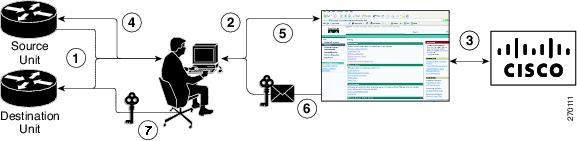
This is a summary of a license transfer process:
1.
2.
The portal displays licenses that can be transferred from the source device.
3.
4.
5.
6.
7.
By using Cisco License Manager, you can select the source and destination devices from a GUI wizard for automated processing.
RMA License Transfer
When a line card fails, a replacement card is required with equivalent licenses for restoring the services completely. If the failed line card has the same license as the shipping order, the RMA replacement and spares will also have the same license as the failed line card.
Note
To transfer a software license from a failed device to a new device, the devices must interact with the Cisco Product License Registration portal to initiate an RMA replacement license ( http://www.cisco.com/go/license).
If you need assistance to obtain a license, contact Cisco technical support at: http://www.cisco.com/cisco/web/support/index.html
Figure 2 shows the RMA replacement license process.
Figure 2 RMA Replacement License Work Flow
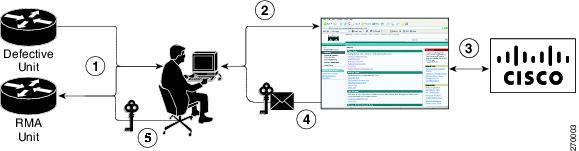
To initiate the RMA replacement license process:
Step 1
Step 2
The license portal determines licenses associated with defective device. The license portal issues replacement licenses.
Step 3
Note
Restrictions for RMA
- If the line card is not part of the line card high availability (LCHA), follow the steps in Upgrading the License.
- If the line card is part of the LCHA and the RMA is for the secondary line card, follow the steps listed in the Troubleshooting Licensing.
- If the RMA is for the primary line card, the service automatically switches over to the secondary line card. To verify this:
–
–
–
–
–
–
–
How to Install Licenses on the Cisco RFGW-10 DS-384 Line Card
The following sections describe how to activate the licensed features and register licenses on the Cisco RFGW-10 DS-384 line card:
- Installing Licenses Using the Cisco License Manager
- Registering Licenses Using the Product License Registration Portal and CLI
Note
Installing Licenses Using the Cisco License Manager
The Cisco License Manager (CLM) is a software application that assists you in obtaining licenses from Cisco, deploying the licenses on to the Cisco devices in your network, discovering the devices, and managing and viewing your inventory of licenses and devices. CLM is used with Cisco devices that require Cisco licensing.
Note
For more information, see the User Guide for Cisco License Manager.
Note
To use CLM to automate all license-related workflows:
Step 1
Step 2
Step 3
Step 4
Step 5
Step 6
Registering Licenses Using the Product License Registration Portal and CLI
The Cisco Software License Activation feature includes Cisco IOS-XE EXEC commands that allow basic licensing tasks from the CLI.
To install a license using Cisco IOS-XE commands:
Step 1
Step 2
Step 3
http://www.cisco.com/go/license.
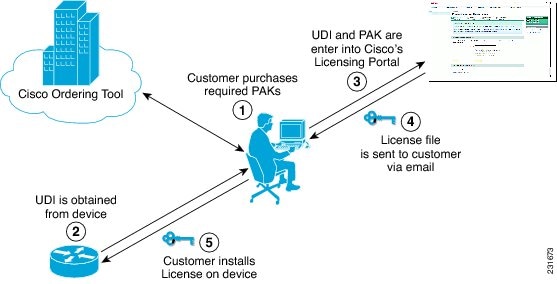
Enter the PAK to retrieve the Stock Keeping Units (SKU) and enter the UDI of the device where the license should be installed. A Download License option appears on the screen. Select this option to download the license or use the license details provided in the e-mail sent to the customer.Step 4
Figure 3 shows the process for registering a license using the Product License Registration Portal.
Figure 3 Product License Registration Work Flow
Note
For more information about configuring licenses using Software Activation License, see Configuring the Cisco IOS Software Activation Feature .
For more information about using commands for Cisco software activation, see the Cisco Software Activation Tasks and Commands document.
Reloading the Cisco RFGW-10 DS-384 Line Card
The Cisco RFGW-10 DS-384 line card does not require a reload for a new license upgrade or downgrade. However, if there are no licenses on the Cisco RFGW-10 DS-384 line card except the image in-built evaluation license, then to make that evaluation license effective, you must reload the line card.
Note
Restrictions
- Upgrade the secondary line card’s license before upgrading the primary line card’s license during the line card high availability issue.
- If the N+1 line card redundancy is configured, a secondary line card is not allowed to join the group if the (superset) policy is violated. A primary line card with a higher count than the secondary line card is allowed to join the group, only with a count equal to the secondary line card. When the secondary line card is upgraded with a count equal to or greater than the primary line card, the primary line card is automatically allowed to use all the available licenses. To view the restricted effect of the license, use the show cable license command.
- When the license is restricted, reload the primary line card for a complete license upgrade.
- If the N+1 line card redundancy is configured, and licenses on the line card are made effective such that the secondary line card no longer has the superset of the licenses, the line card that boots up with the violating license effective, is marked non-functional. In this case, the line card redundancy is lost and further line card switchovers are blocked.
Evaluation licenses can be made effective when:
- There are no effective licenses available. This requires a reload.
- The available licenses are of a lower value. This does not require a reload.
Following is a sample output when there are no effective licenses on the line card in Cisco IOS-XE Release 3.4.0SQ:
Upgrading the License
Perform the following to upgrade the licenses on the Cisco RFGW-10. Table 2 lists the licenses available for upgrade.
Upgrading the Line Card Software License
To upgrade and install a license:
Step 1
Step 2
Step 3
Step 4
Note
You can manually upgrade a license by using the install license command. However, before you upgrade the license you must have already received the license file from Cisco Product License Registration at http://www.cisco.com/go/license.
Prerequisites
- Understand the licensing concepts in the “Licensing on Cisco RFGW-10” section.
- To install or upgrade a license using the license install command, you must have already received the license file from the Cisco Product License Registration portal at http://www.cisco.com/go/license (or you have a back up of the license using the license save command).
SUMMARY STEPS
2.
4.
5.
DETAILED STEPS
The PAK is provided to you when you order or purchase the right to use a feature set for a particular platform.
The PAK serves as a receipt and is used as part of the process to obtain a license.
Exits the Supervisor console and logs in to the line card console with login as the root.
(Executes on line card console)
Displays all the UDI values that can be licensed in a system.
Note This command is executed only from the line card console.
Convert the PAK to a license by entering the PAK and the UDI into the Cisco Product License Registration portal: http://www.cisco.com/go/license.
After entering the appropriate information, you will receive an e-mail containing the license information that you can use to install the license.
copy tftp:// ip-address /license-file linecard - slot-id - flash:
(Executes on Supervisor console)
Copies the license file received from the Cisco Product License Registration portal to the line card boot flash.
Exits the Supervisor console and logs in to the line card console with login as the root.
(Executes on line card console)
Installs the license from the boot flash.
Note This command is executed only from the line card console.
Reboot the line card to enable the PowerKEY license. Exit line card console.
Upgrading the License When Line Card is in Redundancy Mode
Note
If the Cisco RFGW-10 DS-384 line card is in the LCHA mode, complete the following steps while upgrading:
Step 1
Step 2
Step 3
Step 4
Step 5
Removing Licenses Using CLI
The license clear command clears all licenses, but some licenses such as built-in licenses cannot be cleared. Only licenses that have been added by using the license install command are removed. Evaluation licenses are not removed.
If a license is not in use, the license clear command displays all the licenses related to this feature and prompts you to make a selection. Different prompts are displayed, depending upon whether single or multiple licenses are available on the device. The selected licenses are removed from the router or switch. If a license is in use, the license clear command might fail. However, depending on the application policy using the license, some licenses might be cleared.
For information on removing licenses from permanent license files, see the Removing Licenses by Using Software Activation Commands in the Software Activation Configuration Guide, Cisco IOS XE Release 3S, and also see Configuring the Cisco IOS Software Activation Feature.
Use the license revoke command to revoke or transfer licenses between two devices. For information on revoking or transferring licenses, see the Removing Licenses by Using Software Activation Commands in Software Activation Configuration Guide, Cisco IOS XE Release 3S, and also see Configuring the Cisco IOS Software Activation Feature.
Verifying Activation of Licenses
You can verify the license activation or license upgrade by using the following commands:
This command displays details of all licenses in the chassis. This is the sample output from this command:
Following is a sample output of the show cable license all command in Cisco IOS-XE Release 3.4.0SQ:
Troubleshooting Licensing
This section provides troubleshooting tips and procedures that you can use while activating the licenses on the different line cards.
Reinstall the license file from Cisco.com or the SWIFT server.
Ensure that the cable line card is in the minimum mode of operation.
Reload the line card and reinstall the license file from Cisco.com.
Ensure that the cable line card is in the normal mode of operation.
If quack authentication error shutdowns the line card, RMA the line card.
Check the output of the show cable license all and show license detail commands and ensure that the required licenses are available.
License file has expired and results in the downgrade of the line card.
Install the permanent license as soon as warning messages are seen.
Additional References
These topics provide references related to the Software License Activation feature and the CMTS routers.
Related Documents
Standards
MIBs
Technical Assistance
Feature Information for Licensing for Cisco RFGW-10
Use Cisco Feature Navigator to find information about platform support and software image support. Cisco Feature Navigator enables you to determine which software images support a specific software release, feature set, or platform. To access Cisco Feature Navigator, go to http://www.cisco.com/go/cfn. An account on Cisco.com is not required.
Note
Cisco and the Cisco logo are trademarks or registered trademarks of Cisco and/or its affiliates in the U.S. and other countries. To view a list of Cisco trademarks, go to this URL: www.cisco.com/go/trademarks. Third-party trademarks mentioned are the property of their respective owners. The use of the word partner does not imply a partnership relationship between Cisco and any other company. (1110R)
Any Internet Protocol (IP) addresses used in this document are not intended to be actual addresses. Any examples, command display output, and figures included in the document are shown for illustrative purposes only. Any use of actual IP addresses in illustrative content is unintentional and coincidental.
 Feedback